Enhanced Redwood Experience for Collective Agreements Page
The Redwood Collective Agreement page now supports direct access from Functional Setup Manager (FSM) along with new usability and data management enhancements.
You can now access the Redwood Collective Agreement page from:
- Setup and Maintenance
- Implementation Project for Scope
The following capabilities have been added:
- Saved Searches — Save and reuse frequently used search criteria.
- Export to Excel — Download searched data directly to a spreadsheet on selecting the export button.
- Column Selection — Customize the page view by choosing which columns to display.
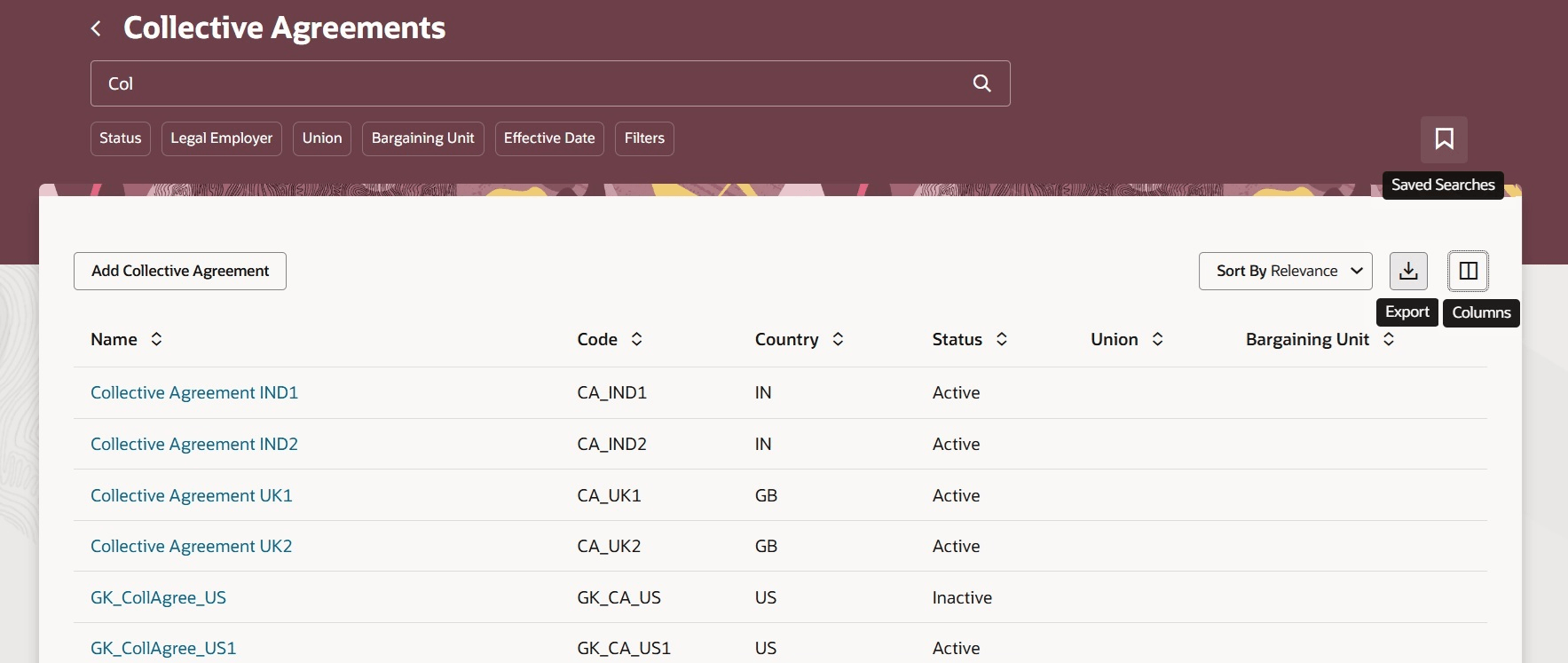
New options on the Collective Agreements page
These enhancements simplify access, improve data consumption, and support easier analysis and maintenance of collective agreements.
Steps to enable and configure
You need to enable these profiles in the Setup and Maintenance are for the Redwood page to launch
| Profile Option | Profile Value to be Selected at the Site Level |
|---|---|
ORA_HCM_VBCS_PWA_ENABLED |
Y |
| ORA_PER_COLLECTIVE_AGREEMENTS_REDWOOD_ENABLED | Yes |
- Search for and click the Manage Administrator Profile Values task.
- Search for the above profile options code and select the profile option in the search results.
- Enter the appropriate value in the Profile Value field.
- Click Save and Close.in the
- Click Done.
Key resources
For more information, refer to these resources on the Oracle Help Center:
- Worker Union Management in the Using Global Human Resources guide
For more information, refer to this What's New announcement in release 23B
Access requirements
The following table describes the privilege and the roles that inherit it.
| Privilege | Job Role |
|---|---|
| HRC_MANAGE_SYSTEM_SEARCHES_PRIV |
|
Set the search as being a system search so that it’s shared with all users. You can also mark it as the system default for all users when they use search.