Redwood Experience: Search for Candidates Using Generative AI
Take advantage of generative AI capabilities to assist you in searching for candidates in Redwood Experience to find candidates quickly and easily. Using generative AI, a natural language query gets converted into filters and values.
The AI reads the text that you enter in the Describe the candidates you’re looking for field and compares it against the filters. The AI determines the filters and populates them with both keywords from the text you entered and related synonyms.
The Resumes filter allows you to determine whether the values in the filters are queried against only the structured data on the candidate files or also the contents of resumes. If you deselect the Resumes filter the search only pulls results from structured data.
The aggregation counts in your search results indicate how many candidates match a particular filter within structured data. Values on a filter without an aggregation count are synonym suggestion, which may appear in resume content.
Filters remain available for you to use. For example, after running a natural language search you can then select more filters or deselect filters to further refine your results.
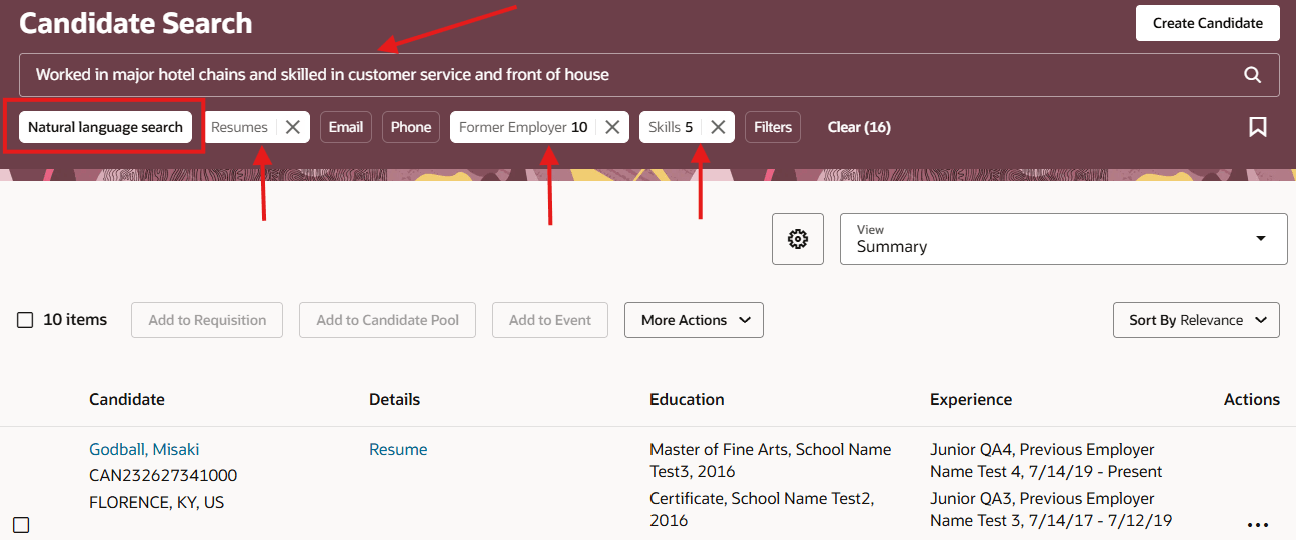
Candidate Search with Natural Language Search
Business benefit: A faster and more thorough search results in a more refined candidate list. Recruiters can assemble search queries more quickly by not having to manually select multiple filters. Multiple synonyms are suggested that may not be in the recruiter’s own selection of the filters.
Steps to enable and configure
To use Redwood experience, you need to enable these profile options:
- ORA_IRC_RECRUITING_REDWOOD_ENABLED
- ORA_IRC_CANDIDATE_REDWOOD_ENABLED
- ORA_IRC_CAND_ORACLE_SEARCH_ENABLED
- ORA_FND_SEARCH_EXT_ENABLED
- ORA_IRC_GENAI_IRC_CANDIDATE_SEARCH_UI_ENABLED
- ORA_IRC_GENAI_IRC_CANDIDATE_SEARCH_API_ENABLED
- ORA_FND_SEARCH_ATTACH_ENABLED
For details, see How do I enable a profile option?
The allowAISearch page property in Visual Builder Studio controls the display of the generative AI search. It’s set to true by default. This page property is located under Recruiting > Candidate Sourcing > Search Candidate.
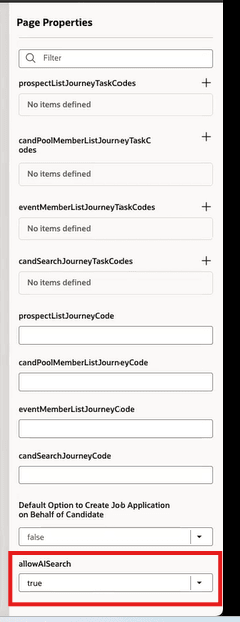
allowAISearch Page Property in Visual Builder Studio
You can use the allowAISearch page property to make the generative AI search available to only a subset of your users by adding a Boolean expression. You can use your existing user roles or create new custom roles.
Here’s an example:
[[ $application.user.roles.includes(‘ORA_IRC_RECRUITER_JOB’ ) ? false : true ]]
For details, see How do I control the display of a UI element in Visual Builder Studio?
For details on enabling and customizing Redwood for HCM, see How do I adopt Redwood for HCM? and Extending Redwood Applications for HCM and SCM Using Visual Builder Studio
Tips and considerations
-
Keyword search is still available. You can toggle between it and the natural language search.
-
For the best experience, you should avoid using special characters in your search.