Smart Search for Jobs
You can now enable smart search for jobs which offers a simplified job search experience, including user interface, user experience, and search logic enhancements.
Note: For now, classic search remains enabled by default. In 27B, classic search will be decommissioned and Smart Search will be enabled by default for all customers.
When you enable smart search, the classic search bar combining keyword and location is replaced by a single search bar, which candidates can use to search for keywords and upload a resume. Smart search integrates job suggestions based on resume into the search experience. The Upload Resume icon is in the smart search bar by default. It's not dependent on the resume parsing capabilities.
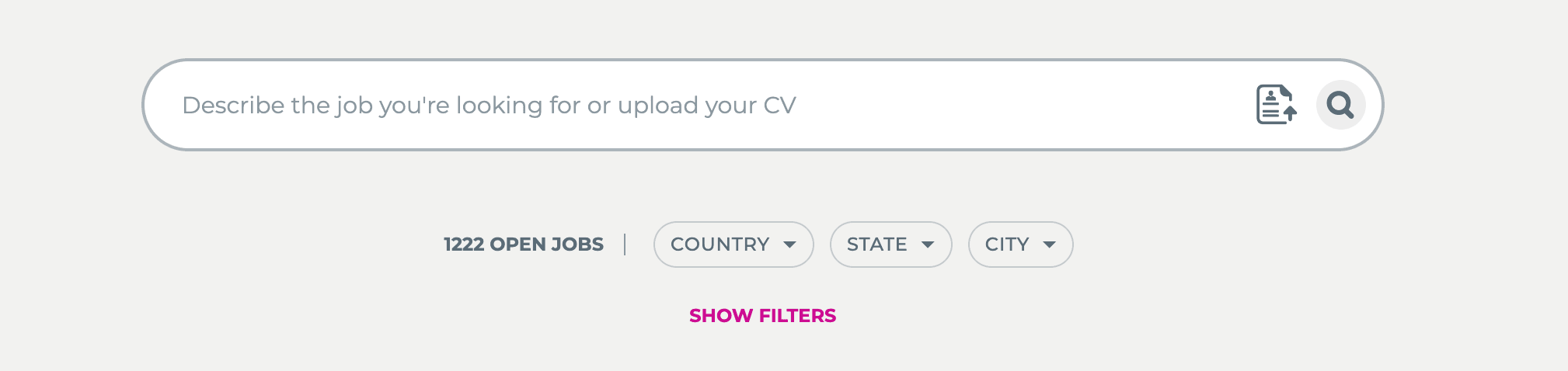
Smart Search Bar
Note: When Smart Search is enabled, the existing “recommended jobs” widget gets disabled on the site.
When candidates begin typing, a suggestion panel opens. The more information they provide, the more appropriate results they'll get. It also provides search guidelines.
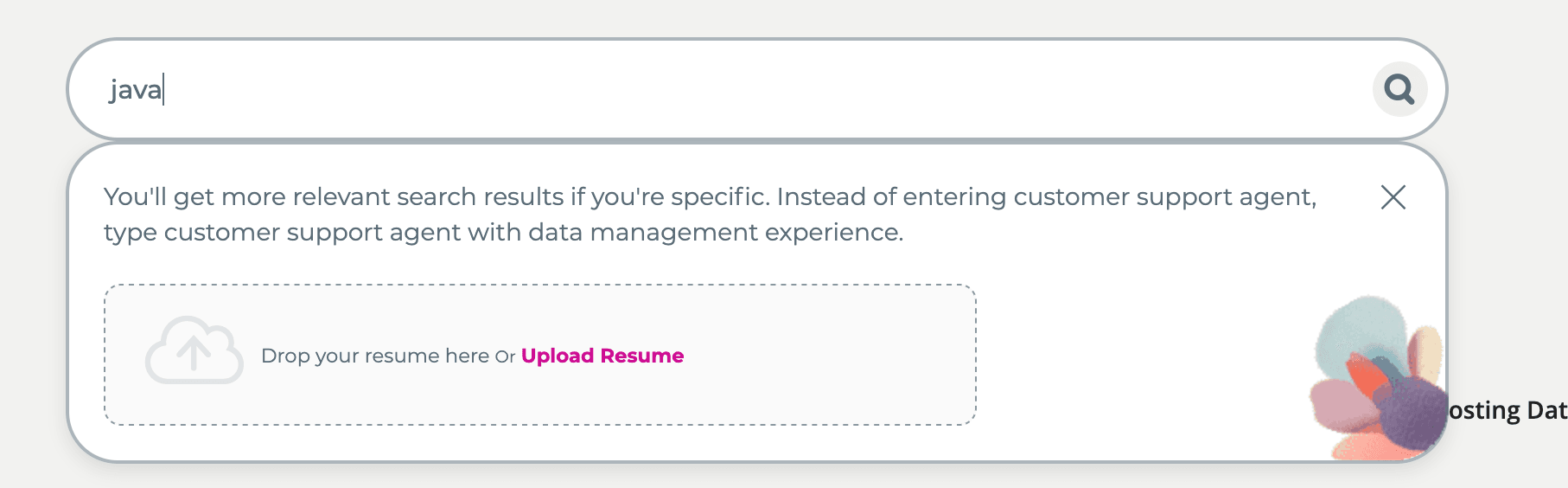
Suggestion Panel
Notice that candidates have another opportunity to upload a resume in the suggestion panel. The flower design on the suggestion panel is animated. You can keep the default animation or add one of your own.
Smart search utilizes vector search. When a candidate’s keyword is longer than 10 words, or a resume file is uploaded, the vector search is performed for more relevant results. For keywords shorter than 10 words, the search query logic doesn't change compared to classic search: synonyms continue to be applied and autocorrect is performed, even though the autocorrect user interface component visible in classic search isn't present in the smart search user interface.
Smart search provides a simplified location search experience. Because the location search bar isn't available, jobs can be searched by location using a set of new, hierarchical, location filters: City, State, and Country.
The new filters list all locations where jobs are currently posted and are enabled by default for the new search experience. It provides a simplified filtering panel. Location-related filters are visible upfront, and the other search filters are collapsed. Once the filters section is expanded using the Show Filters button, candidates aren't able to collapse them. Other location related filters like Work Locations and Workplace can be added in the site editor. The old Locations filter, combining all location levels, is available too and they're labelled as Combined Recruiting Locations in Search Settings configuration.
In addition, all search-related configuration fields in the site editor were consolidated under a new section on the General tab called Search Settings. Admins can use this section to switch between classic and smart search and configure their settings.
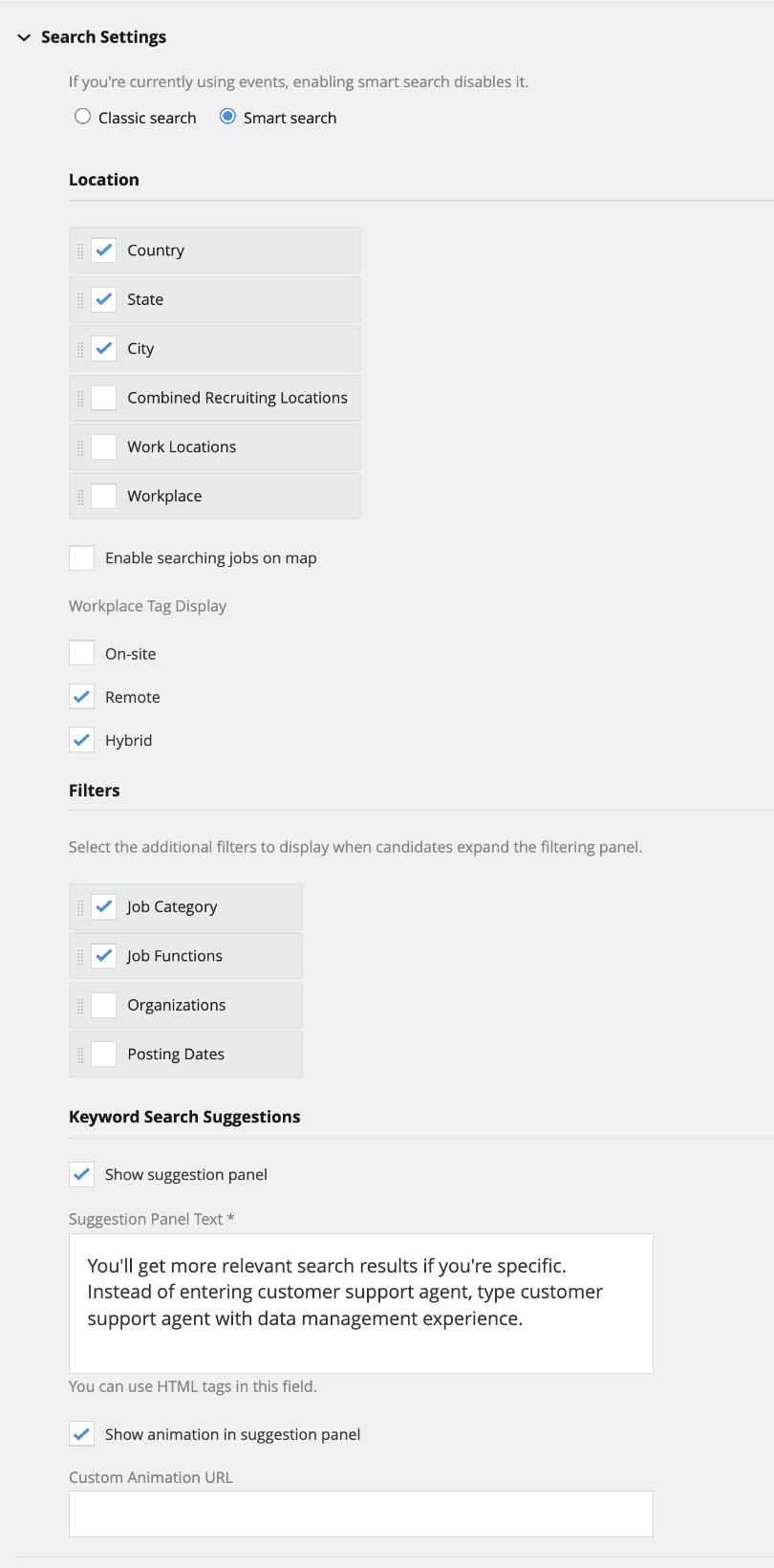
Consolidated Search Settings
Business benefit: Smart search delivers a streamlined and intuitive job search experience, making it easier for candidates to quickly find relevant roles through a single, enhanced search bar, configurable search guidance, and job suggestions based on resume uploads. Flexible filtering and simplified site configuration empowers organizations to tailor the job search process, supporting easier site management.
Steps to enable and configure
For details see How do I enable smart search for candidate experience?
Note: If you're using custom pages, and you switch to smart search in the site editor's General tab, you'll need to complete a few steps. First you need to publish your site with the new search setting. This creates new draft versions of your custom pages, but it doesn't publish them. Your site will continue to use classic search until you publish the new drafts. Go to Pages tab to review your pages with the new search widget, adjust if needed, and republish them. Instructional messages will display throughout the process to let you now what needs to be done.
Tips and considerations
- If you had candidate experience sites before moving to release 26B, classic search is enabled by default. If you create new sites, they'll use classic search unless you specifically indicate you want to use smart search.
- If you enable smart search, the legacy job recommendations widget is automatically disabled.
- Enabling smart search disables events on career site, which means candidates won't be able to search for events or see the posted events list on the site. Support for events is expected in a future release.
- If you’re not using custom pages, enabling smart search automatically replaces the existing search widget on the splash and search results pages.
Note: If you have multiple custom pages (search and splash) Oracle recommends that you update and publish them around the same time so that there's no interruption in the experience for candidates.
- With this release, you can now remove the search bar from a custom splash page, regardless of whether you’re using Classic or Smart Search.