Redwood Experience: Coordinate Interviews
Take advantage of the Coordinate Interviews area that has been recreated in the Redwood toolset called Visual Builder Studio.
If your organization has opted in to Recruiting Booster and Redwood profile options are enabled, you can access the Redwood Coordinate Interviews area from the My Client Groups main page (My Client Groups > Coordinate Interviews). Upon clicking Coordinate Interviews, the Interview Activity Center is displayed and information is organized into 3 tabs:
- Activity Center
- Interviews
- My Availability
Activity Center Tab
The Activity Center tab displays interview and feedback activities you’re involved in or are assigned to you. These activities have been introduced in both Interview Activity Center and Recruiting Activity Center. Before, all activities related to interviews and feedback were part of the Candidates activity type; they have now been move to the new activity types.
Note that requests for interview to be scheduled are now displayed as activities rather than in a specific list (as in responsive UI). There’s no specific area to see the requests, they’re all available as activities.
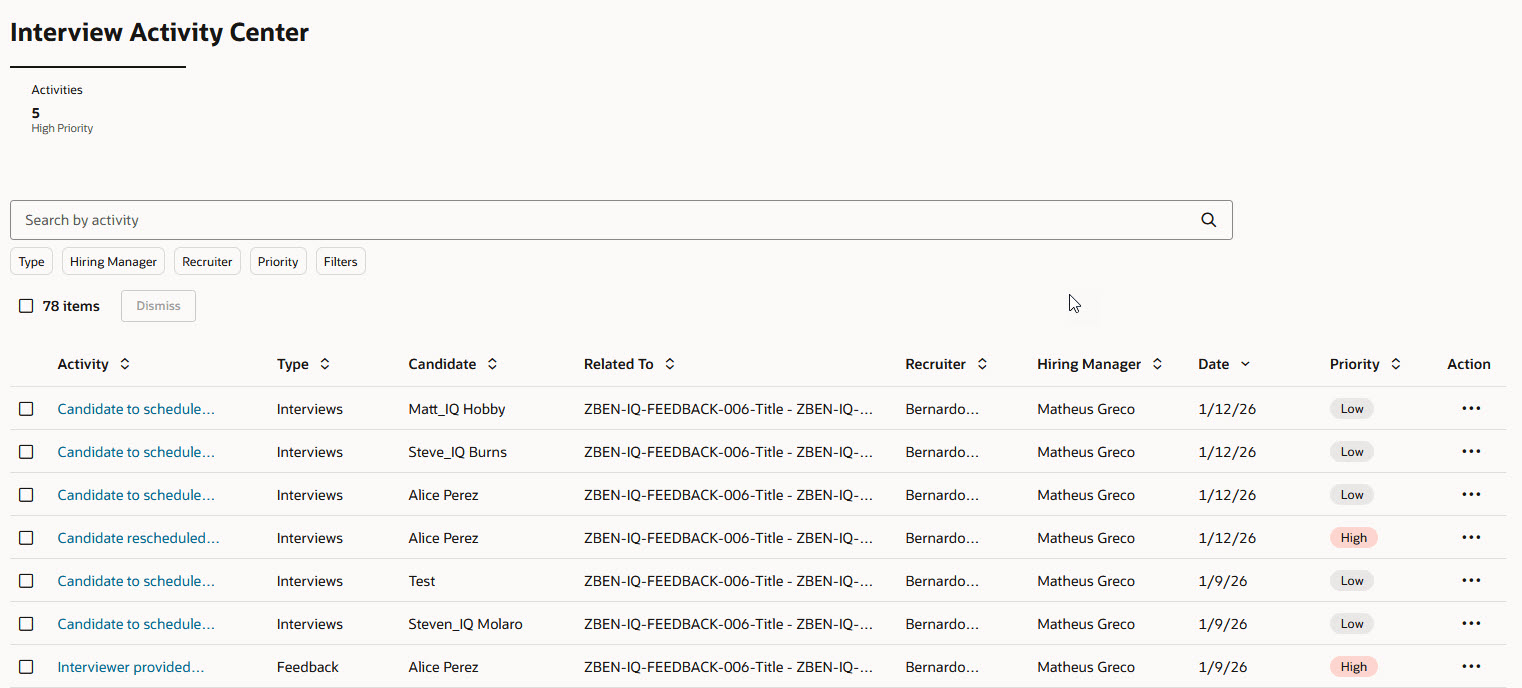
Activity Center Tab
List of activities in the Interview Activity Center
Note: For the Interviewer declined, Interviewer responded tentative, Interviewer proposed new time activities, these activities aren't created when a calendar integration (Microsoft 365 or Google Workspace) is used. Such activities are only available when no calendar integration is enabled.
| Activity | Description | Existing or New Activity | Actions |
|---|---|---|---|
|
Interviewer proposed new time |
Let the user know that the interviewer proposed a new time for the interview. | Existing activity |
View Interview Dismiss |
|
Interviewer provided feedback |
Let the user know that all requested feedback was received for a job application. | Existing activity |
Review Feedback Move Application Message Team Dismiss |
| Candidate to schedule interview | Let the user know that an interview invite was sent to the them but no interview is scheduled yet. | Existing activity |
Schedule Interview Message Candidate Dismiss |
| Expired interview feedback requests | Let the user know that the interview feedback requests have expired. | Existing activity |
Resend Request Review Feedback Move Application Dismiss |
| Interview to be scheduled | Someone requested an interview to be scheduled for a job application, using the “Request interview to be scheduled” action | New activity |
Schedule Interview Message Team Dismiss |
| Interviewer declined | Let the user know that one of the interviewers has declined the meeting invite for an interview. | New activity |
View Interview Dismiss |
| Interviewer responded tentative | Let the user know that one of the interviewers has responded “Tentative” on the meeting invite for an interview. | New activity |
View Interview Dismiss |
| Waiting for feedback | Let the user know that a respondent hasn’t yet responded to requested feedback. | New activity |
Renew Request Message Team Move Review Feedback Dismiss |
| Candidate rescheduled interview | Let the user know that a candidate rescheduled a scheduled interview. | New activity |
View Application Dismiss |
Interviews Tab
The Interviews tab shows interviews you’re involved in. The Participation and Status filter chips are displayed by default on the page. You can use more filters to filter the list of interviews. You can also view interviews using the Month, Week, Day, or List view.
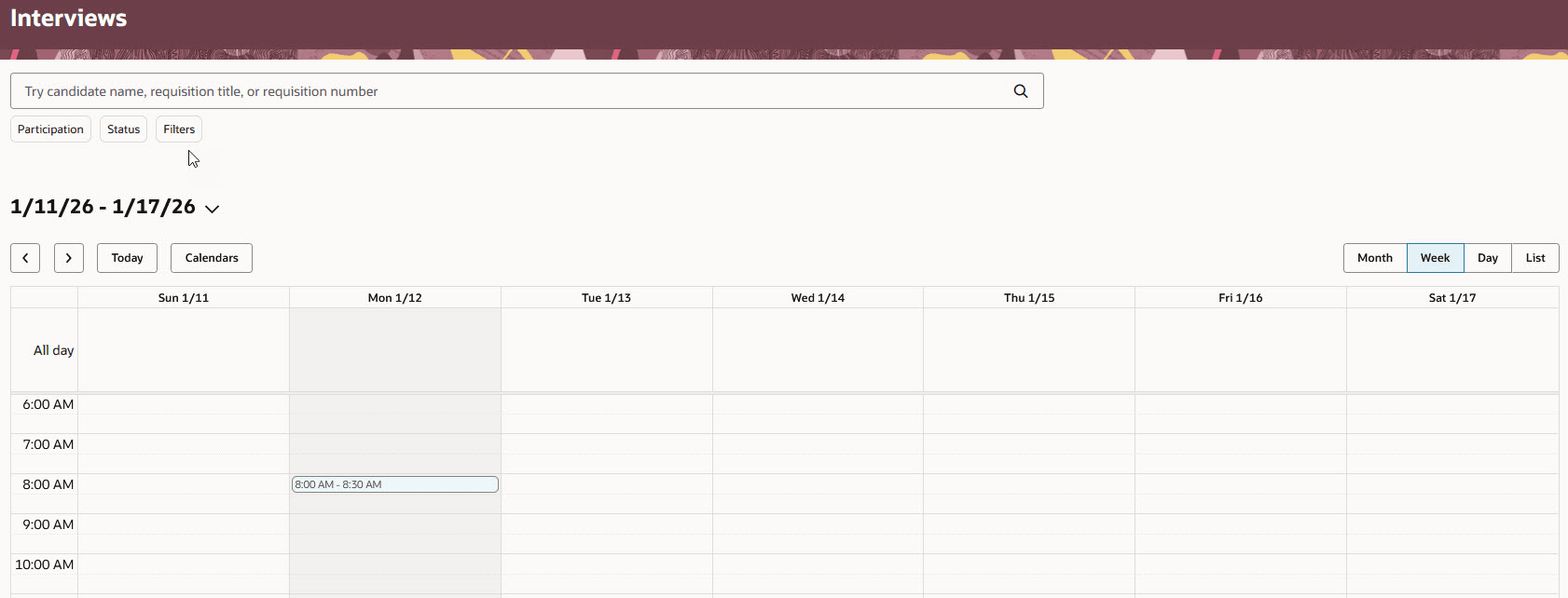
Interviews Tab
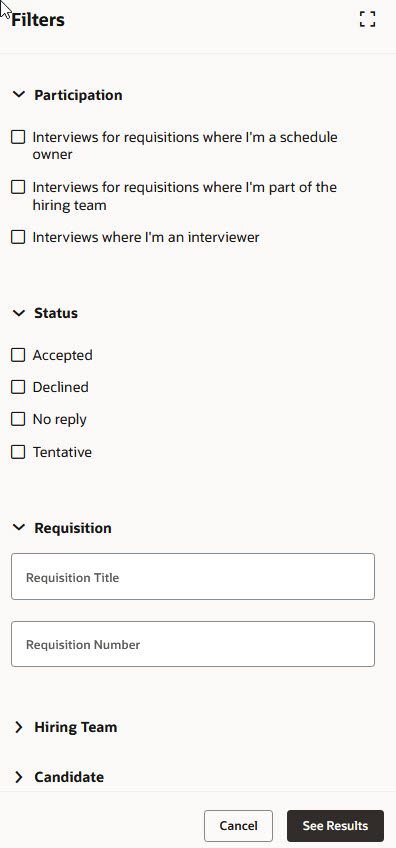
Filters on the Interviews Tab
My Availability Tab
You use the My Availability tab to define when you're available for candidate interviews. The availability information is used when determining time slots automatically for candidate managed interviews.
This is available for Recruiting Booster with Microsoft 365 or Google Workspace integration enabled.
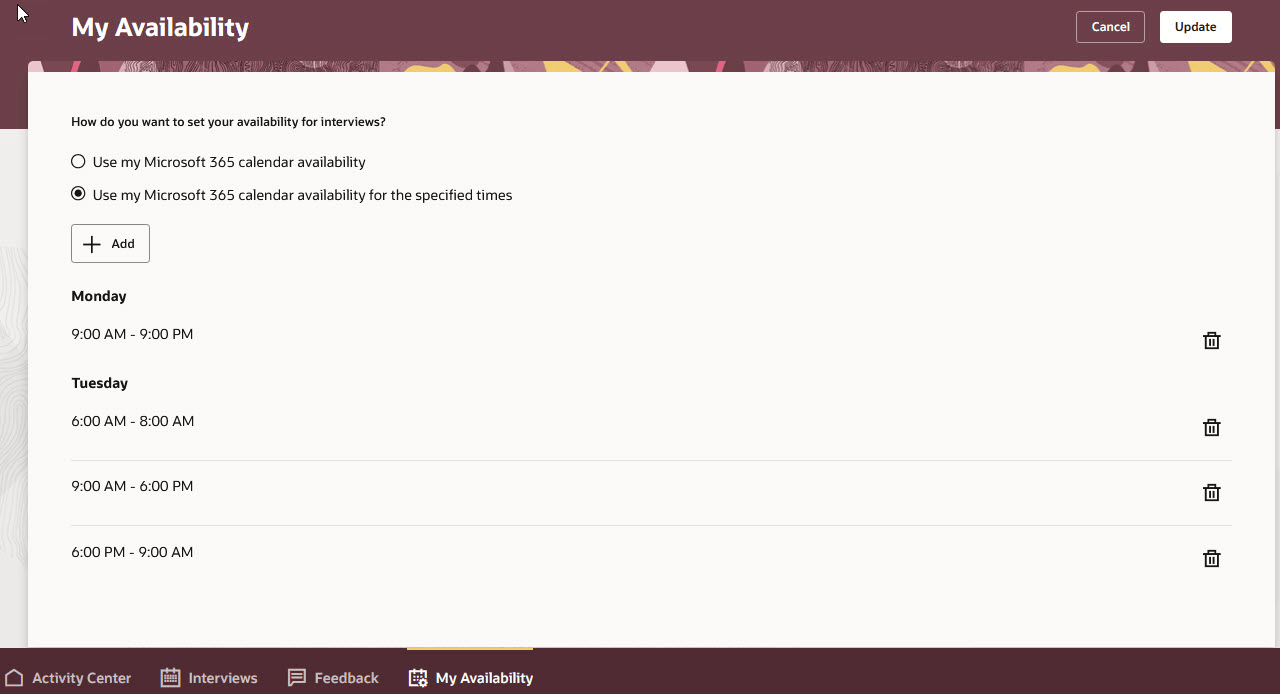
My Availability Tab
Business benefit: The Coordinate Interviews area provides a consistent Redwood look and feel experience for users.
Steps to enable and configure
Here are the steps to enable and configure this feature:
- Opt in to Recruiting Booster.
- Enable and configure activities for the Interview Activity Center.
- Enable the activity centers profile option.
- Control the display of UI elements in Visual Builder Studio.
- Enable Redwood for interviews.
Step 1: Opt in to Recruiting Booster
To enable the Coordinate Interviews area, you need to opt in to Recruiting Booster. For details, see Opt in to Recruiting Booster.
Step 2: Enable and configure activities for the Interview Activity Center
For details, see How do I configure activity items in the Interview Activity Center?
You need to run the scheduled process Synchronize Recruiting Activity Center Action Items to generate and update the action items in the Interview Activity Center. Recommended frequency is daily. With the introduction of the Interviews and Feedback activity types, new values are available for the Subscriber Type Code to Process parameter of the scheduled process. This parameter allows processing only activities of a specific type. These values are ORA_INTERVIEW and ORA_FEEDBACK.
Step 3: Enable the activity centers profile option
You need to enable the ORA_IRC_ENABLE_RAC profile option. This profile option is used for all activity centers and must be enabled if you want to use any activity center.
- When you set the profile option to Y, it allows new activity items to be generated by the Synchronize Recruiting Activity Center Action Items scheduled process and displayed to users.
- When you set the profile option to N, it stops new activity items from being generated by the scheduled process. Note that it doesn't revoke access to the activity center pages and activity items already generated.
For details, see How do I enable a profile option?
Step 4: Control the display of UI elements in Visual Builder Studio
To display or hide tabs on the Interview Activity Center navigation bar and set the order of the tabs, use the Control Display and Order of Navigation Tabs page property which is located on the Hiring > Coordinator Work Area > Landing page.
For details, see How do I control the display of a UI element in Visual Builder Studio?
Step 5: Enable Redwood for interviews
To use the Redwood experience for interviews, you need to enable these profile options:
- ORA_IRC_RECRUITING_REDWOOD_ENABLED
- ORA_IRC_JOB_APPLICATION_REDWOOD_ENABLED
- ORA_IRC_CANDIDATE_REDWOOD_ENABLED
For details, see How do I enable a profile option?
For details on enabling and customizing Redwood for HCM, see How do I adopt Redwood for HCM? and Extending Redwood Applications for HCM and SCM Using Visual Builder Studio
Tips and considerations
When you upgrade to a release where Interview Activity Center is available, existing interview requests created using the Request Interview to be Scheduled action will be displayed as activity items in both the Interview Activity Center and Recruiting Activity Center.
For interview requests in the Requested status, a new activity item of type Interview to be scheduled will be created and the date of the activity will be the date when the request was created.
For interview requests in the Invite Sent status, if the job application associated to the request has an interview invite for which no interview was scheduled:
- If the date when the interview invite was sent is further away in the past than the number of days configured as the frequency for the Candidate to schedule interview activity (this includes if the frequency is set to "Instantly"), a new activity of type Candidate to schedule interview will be created for each interview invite matching this condition and the date of the activity will be the date when the activity item was created.
- If the date when the interview invite was sent is not further away in the past than the number of days configured as the frequency for the "Candidate to schedule interview" activity type, no activity item will be created. An activity will be created at a later point when the frequency threshold is met.
For interview requests in the Interview Scheduled status, no activity item will be created.
Access requirements
To coordinate interviews, users need the following privileges:
- Coordinate Candidate Interviews and Feedback (IRC_COORDINATE_CANDIDATE_INTERVIEWS_AND_FEEDBACK_PRIV): Privilege required to access the Interview Coordinator area.
- Access Interview Activity Center (IRC_ACCESS_INTERVIEW_ACTIVITY_CENTER_PRIV): Privilege required to see the Interview Activity Center tab available in the Interview Coordinator area.
- Edit Interview Activity Center Layout (IRC_EDIT_INTERVIEW_ACTIVITY_CENTER_LAYOUT_PRIV): Privilege required to edit the dashboard page layout.