Redwood Experience: Interviews Area
Take advantage of the Interviews area that has been recreated in the Redwood toolset called Visual Builder Studio.
If your organization has opted in to Recruiting Booster and Redwood profile options are enabled, you can access the Interviews area on the Me main page (Me > Interviews). Upon selecting Interviews, the Interviews page is displayed and information is organized into 2 tabs:
- Interviews
- My Availability
Interviews Tab
The Interviews tab shows interviews for which you’re an interviewer. The Status filter chip is displayed by default on the page. You can use more filters to filter the list of interviews. You can view interviews using the Month, Week, Day, or List view.
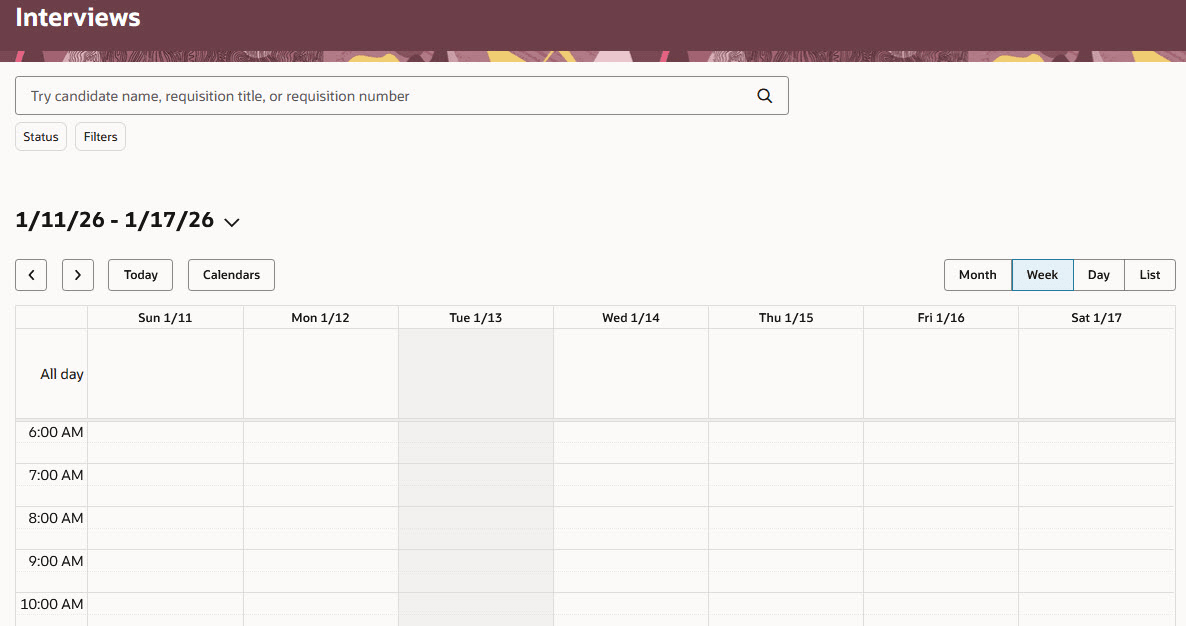
Interviews Tab
My Availability Tab
You use the My Availability tab to define when you're available for candidate interviews. The availability information is used when determining time slots automatically for candidate managed interviews.
This is available for Recruiting Booster with Microsoft 365 or Google Workspace integration enabled.
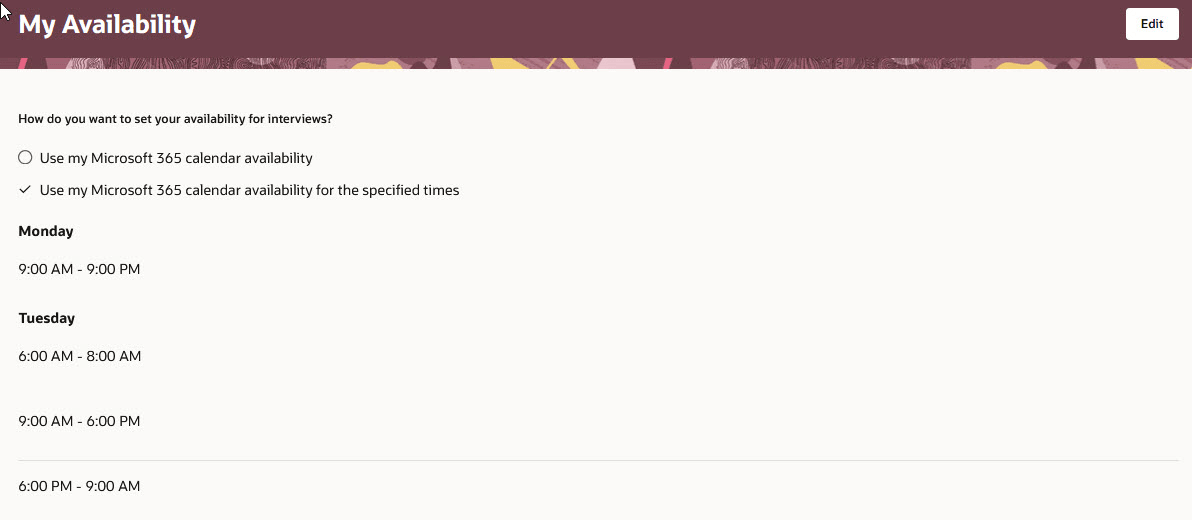
My Availability Tab
Business benefit: The Redwood Interviews area provides a consistent Redwood look and feel experience for users.
Steps to enable and configure
To enable the Interviews area, you need to opt in to Recruiting Booster. For details, see Opt in to Recruiting Booster
To use the Redwood experience for interviews, you need to enable these profile options:
- ORA_IRC_RECRUITING_REDWOOD_ENABLED
- ORA_IRC_JOB_APPLICATION_REDWOOD_ENABLED
- ORA_IRC_CANDIDATE_REDWOOD_ENABLED
For details, see How do I enable a profile option?
For details on enabling and customizing Redwood for HCM, see How do I adopt Redwood for HCM? and Extending Redwood Applications for HCM and SCM Using Visual Builder Studio
For privileges, see the Access Requirements section.
Access requirements
To access the Interviews area, this privilege is required:
- Access My Candidate Interviews and Feedback (IRC_ACCESS_MY_CANDIDATE_INTERVIEWS_AND_FEEDBACK_PRIV)