Inbox Response Agent to Answer Candidate Emails
The Recruiting Inbox Response Agent is an AI-powered email assistant that responds to candidate questions by leveraging your organization’s policy and process documents. This email assistant agent is built using Oracle AI Agent Studio. Using this framework, you can upload relevant documents that contain possible answers for candidate questions. The agent then uses these documents to reply to candidates.
The agent responds to an email if the following conditions are met:
- If it’s the first email or response from a candidate, the agent responds. Subsequent emails are sent to the recruiter for their response.
- The email must contain five questions or less.
- If the agent can’t find answers to all the questions based on the uploaded documents, the email is sent to the recruiter.
- If the agent is unable to respond due to unavailability or network errors, the email is sent to the recruiter.
- If questions belong to the following excluded topic categories, the agent doesn’t respond, and the email is sent to the recruiter:
- Salary comparisons, such as “What’s the salary for a designer role in your company?”
- Company information on gender ratio, ethnicity, and so on, such as “Do you prefer a male employee for this role?”
- Discrimination on the basis of gender, race and other factors.
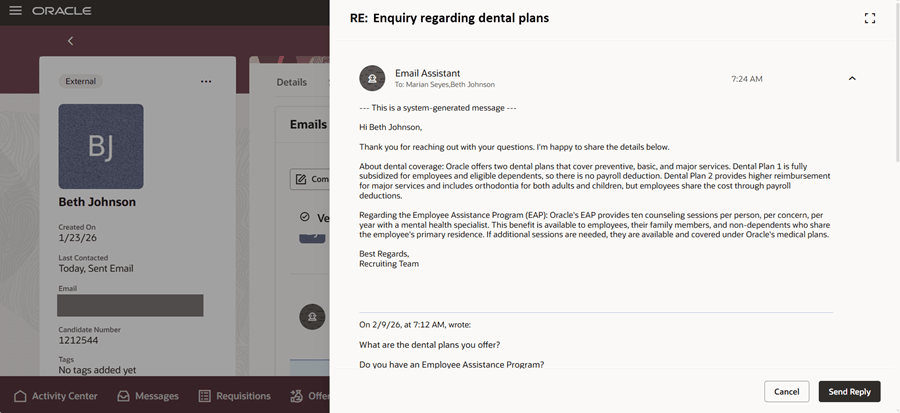
Sample Response Sent by the Email Assistant
When a candidate’s email is received, it’s displayed in the vanity mailbox. It won’t be relayed to the recruiter’s mailbox when the email is queued to the agent or while the agent is processing it.
The email is also displayed in the Hiring application, but the recruiter won’t be able to reply to it while the agent is processing it. The Send Reply button will be disabled and a message is displayed accordingly. Once it completes processing, this button is enabled.
Agent replies are displayed in these areas in Hiring:
- Messages tab on the candidate’s profile page
- Messages tab on a candidate page in the context of job requisitions, job applications, offers, candidate pools, events, or prospects
- Message Center
Note: The agent reply will also be delivered to the recruiter’s mailbox from the vanity mailbox.
Messages Tab Enhancements
The Emails section has been enhanced with a new subtab, Automated and Email Assistant. This filter displays:
- Email responses by the agent.
- Auto-generated emails sent from Hiring through the vanity email or no-reply email in the context of requisitions, prospects, pools, or events.
- Replies from the candidate or the hiring team to agent responses or auto-generated emails.
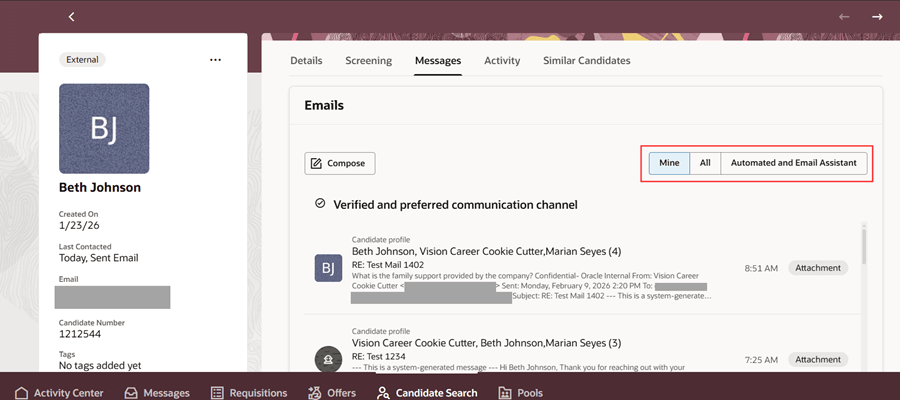
Messages Tab on Candidate Profile
The Mine subtab displays all the email conversations where you’re a participant. The All subtab displays all the email conversations where you or other hiring team members are participants, as well as all agent emails and automated emails.
Message Center Enhancements
The Inbox and Sent filters in Message Center have been updated to include agent messages.
Inbox Filters
My messages has been renamed to My conversations. This filter displays the following types of messages:
- Replies received from candidates for the emails that you sent to them.
- If you reply to a candidate’s incoming email, it’ll be displayed here and in the Sent filter.
- If you’re a participant in any other email thread involving agent replies, automated emails, or other hiring team members, those emails will also be displayed here.
A few points to note:
- The first incoming email from a candidate won’t appear in this filter. It’ll appear in the Hiring team conversations filter.
- If you’ve sent an email, but haven’t received a reply from the candidate, that message won’t appear in this filter. It’ll appear in the Sent By Me filter.
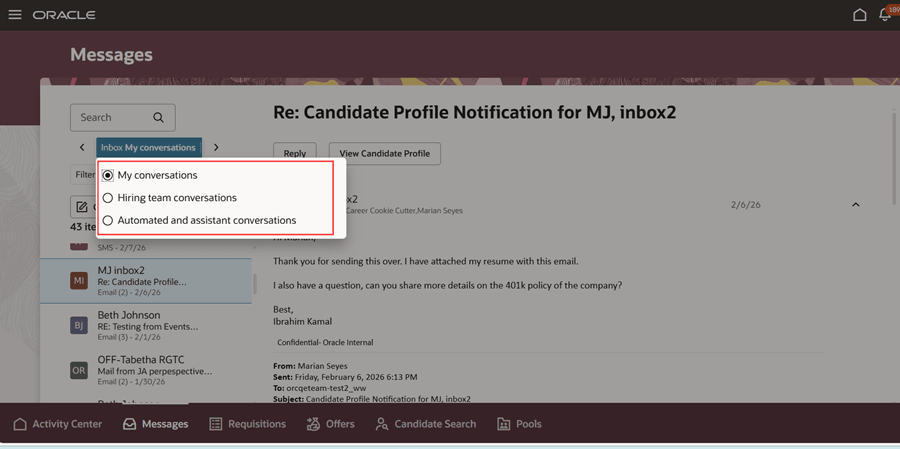
Inbox Filters
All conversations: The All messages filter has been renamed to All conversations, with the same functionality. This filter appears only when both the email and text assistant aren’t enabled. For details about the text assistant, see the 26B What’s New feature, Career Coach Enhancements: Text Assistant Support.
When either the email assistant or text assistant are enabled, you'll see the following two filters instead of All conversations.
Hiring team conversations: This displays the following categories of messages:
- The first incoming email from a candidate will appear here, even before you, other hiring team members, or the agent can reply to it.
- An email sent by another hiring team member, for which the candidate replied, will also appear here. You can see the email if you have access to the requisition, prospect, pool, or event context related to the email.
- If other hiring team members participate in any other email thread involving agent replies, automated emails, or your emails, those emails will also appear here.
Automated and assistant conversations: This filter appears when the email assistant is enabled. It includes the following categories of messages:
- Auto-generated emails that were sent to the candidate based on a recruiter action in the context of requisitions, prospects, pools, or events will appear here, after the candidate has replied to them. Note that you must have access to these contexts to be able to see these emails.
- Emails that were sent to the candidate by the agent will appear here and in the Sent filter. When a candidate replies to the agent’s email, that email will also appear here.
- If you or other hiring team members participated in an email thread involving an agent’s reply, that email will also appear here. It’ll also appear under Inbox > My conversations or Inbox > Hiring team conversations, depending on who participated in the conversation.
A few points to note:
- The first incoming email from a candidate won’t appear in this filter.
- An automated email will appear in this filter only if the candidate sends at least one reply to it. If there’s no reply, the email will appear in the relevant Sent By filter.
Sent Filters
Two new filters have been introduced and a few existing filters have been renamed, as follows:
- Sent By > Me: The functionality remains the same. In addition, any reply that you sent to candidates on pre-existing conversations involving automated messages or email assistant messages will also appear here.
- Sent By > Others: The functionality remains the same. In addition, any reply that other hiring team members sent to candidates on pre-existing conversations involving automated messages or email assistant messages will also appear here.
- Sent By > Vanity email automatically: The functionality remains the same, but the filter name is modified for better clarity.
- Sent By > No-reply email automatically: The functionality remains the same, but the filter name is modified for better clarity.
- Sent By > Email assistant: Email replies that were sent by the email assistant appear here.
- Sent By > Text assistant: Text messages sent by the text assistant to candidates appear here.
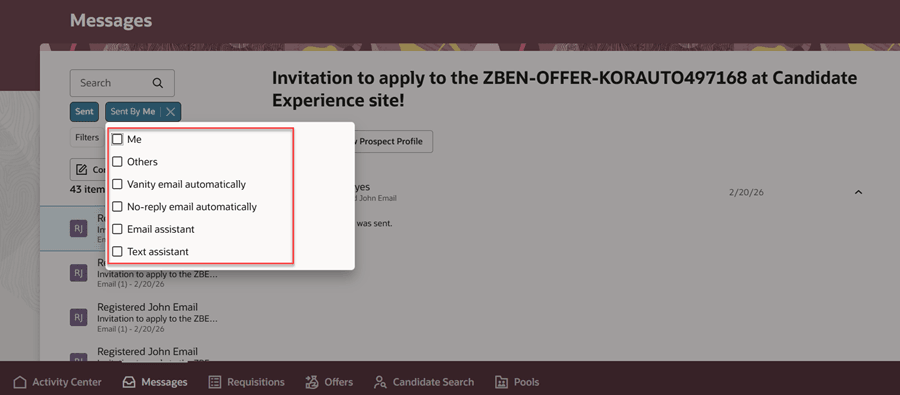
Sent By Filters
Business Benefit: This feature increases the hiring team’s efficiency and reduces the response time taken to answer candidate questions. It enables recruiters to make efficient use of their time to concentrate on critical questions that can’t be answered by the email assistant.
Steps to enable and configure
To configure and enable this feature, complete these steps.
Step 1: Configure the Email Assistant in AI Agent Studio
The first step is to configure the agent template, Recruiting Email Assistant Template, in AI Agent Studio.
The prerequisites for using AI Agent Studio are:
- Your environment must have the appropriate services for Oracle Applications Platform deployed. For more information, see FAQ2521 on My Oracle Cloud Support.
- Set the Enable Security Console External Application Integration (ORA_ASE_SAS_INTEGRATION_ENABLED) profile option to Yes and enable permission groups for the appropriate roles. See Access Requirements for AI Agent Studio.
- For privileges, see the Access Requirements section.
You'll find this template on the AI Agent Studio tab.
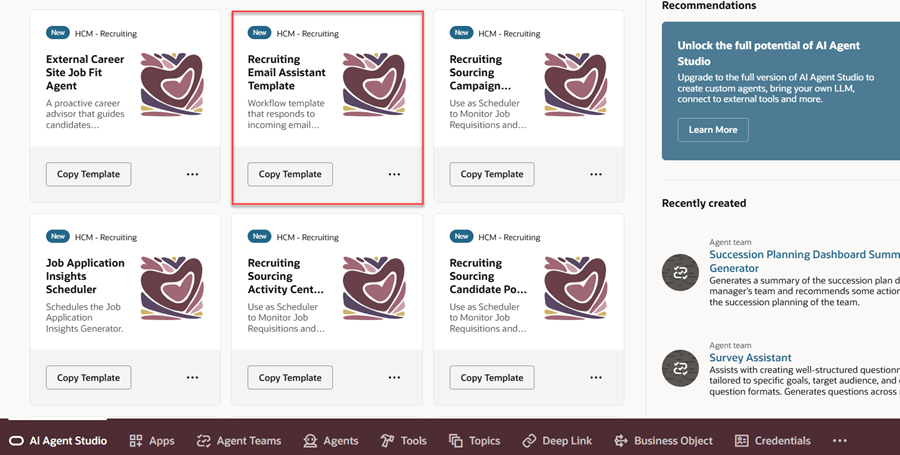
Recruiting Email Assistant Template on the AI Agent Studio Tab
This template consists of a child workflow called Recruiting Inbox Response Agent. To view this, search for it on the Agent Teams tab.
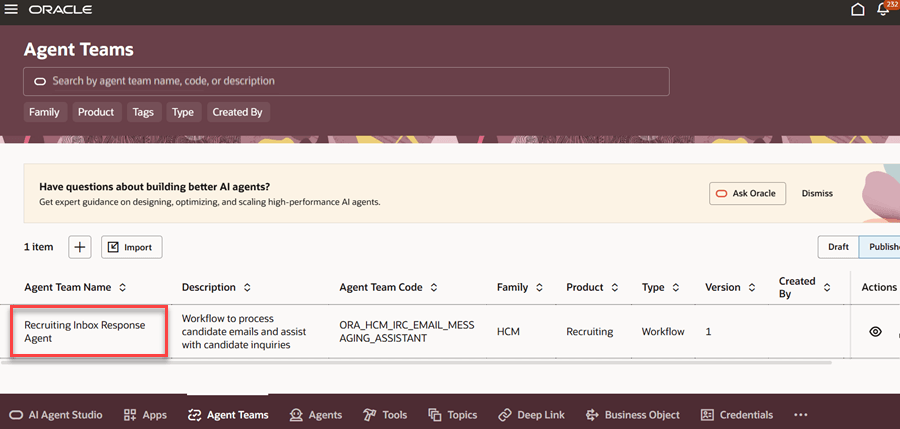
Recruiting Inbox Response Agent on the Agent Teams Tab
When you view this workflow, you’ll see its nodes in the Agent Designer on the right pane. These nodes contain the logic for processing the incoming emails. One of the nodes, RetrieveAnswer, contains the logic for the RAG tool, Recruiting Knowledge Factory. You need to upload your organization’s policy and process documents in this tool. The agent workflow refers to these documents for answering candidate emails.
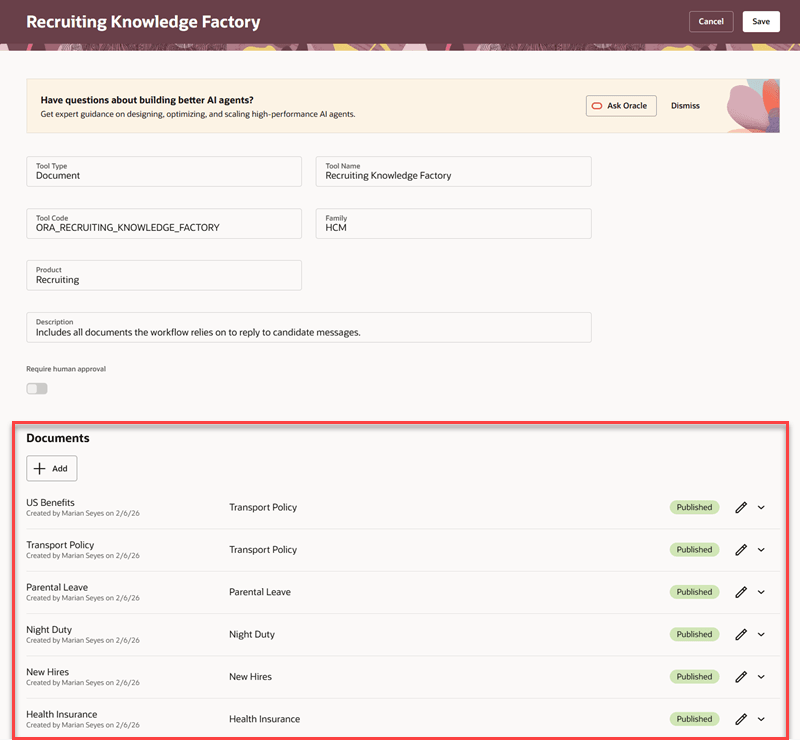
Recruiting Knowledge Factory
For details on configuring this agent, see Configure the Email Assistant.
Step 2: Enable the Recruiting Inbox Response Agent
Enable the Recruiting Inbox Response Agent using the Recruiting Messaging Configuration task. For details, see Enable the Recruiting Inbox Response Agent.
Step 3: Configure Profile Options
You can configure the time limit for agent responses, number of agent responses per candidate and more settings using profile options. For details, see Configure Profile Options for the Email Assistant.
Step 4: Run the Scheduled Process
Ensure that the Process Recruiting Inbound Messages scheduled process is running periodically to process incoming messages. For details, see Run the Scheduled Process for Inbound Messages.
Tips and considerations
- Visitor emails aren’t considered for the email assistant’s response.
- If the candidate’s email contains any PII information such as phone numbers, SSNs, passport numbers, and so on, the email isn’t considered for the email assistant’s response and is forwarded to the recruiter for a manual response.
- The email assistant’s response is in the same language as that of the incoming email.
Key resources
- Explore AI Agents for Oracle Fusion Cloud Applications
- How do I use AI Agent Studio?
- Create AI Agents Using Preconfigured Agent Team Templates
For information on the text assistant feature, refer to the 26B What's New feature, Career Coach Enhancements: Text Assistant Support.
Access requirements
The agents you can view depend on the roles and privileges assigned to you. To access the Recruiting Email Assistant Template and its associated workflows, your role must be explicitly granted access to it by an AI Studio Administrator. See How can I give users access to AI agents and Access Requirements for AI Agent Studio.
The Recruiting Inbox Response Agent is secured by the following Spectra Authorization Service (SAS) role:
- ORA_HCM_IRC_RECRUITING_SCHEDULED_WF_AGENT_ACCESS.