Career Coach Enhancements: Text Assistant Support
The Career Coach agent has now been enhanced with an SMS channel, which enables candidates to interact with the agent using SMS and have a similar experience as that of the career site. The SMS capability in the Career Coach agent is referred to as Text Assistant.
Using this capability, candidates can:
- Get job recommendations based on their profile
- View job fitment for a role of their choice
- Get answers to company-related questions
- Get answers to job-specific questions based on the job description
- Schedule, cancel, or reschedule interviews
- Prepare for interviews and get guidance from the career coach
The text assistant has a conversation with candidates, which provides relevant suggestions or answers based on candidate questions or responses. Note that candidates have to initiate the conversations related to the above topics. Candidates can also reply to automated SMS messages with questions, in order for the text assistant to respond.
To support this capability, a second channel has been introduced for SMS communications in Recruiting. This channel is used for text assistant communications and existing automated communications. The first channel that was available prior to this release will be used for person-to-person communication. This channel is typically monitored by recruiters or other hiring team members.
Note: The text assistant has to be enabled from Setup and Maintenance. If it isn’t enabled, all SMS communications, including automated messages, will continue through a single channel.
In addition to candidates, visitors can also interact with the text assistant using SMS, provided your administrator enables it through Setup and Maintenance. A user is considered a visitor if their phone number isn’t present in the Recruiting database. Phone numbers that aren't verified are also considered as part of visitor phone numbers, even if they're associated with a candidate.
To ensure system stability and prevent the risk of misuse, these threshold limits are in place for text assistant messages:
- Maximum number of text assistant messages that can be sent to a candidate/visitor per day.
- Maximum number of text assistant messages that can be sent to all users (candidates and visitors) per day.
These limits must be set from Setup and Maintenance. For details, see the Steps to Enable section.
SMS conversations between the text assistant and the candidate are displayed in these areas in Recruiting:
- Messages tab on the candidate’s profile page
- Messages tab on a candidate page in the context of job requisitions, job applications, offers, candidate pools, events, or prospects
- Message Center
Messages Tab
The Messages tab now has two subtabs for each of these SMS channels:
- Hiring Team Messages: Displays one-to-one conversations with hiring team members.
- Automated and Text Assistant Messages: Displays all automated messages sent by Recruiting as well as text assistant messages exchanged with the candidate. This includes automated template messages, candidate-initiated messages sent to the second channel, agent replies, and notifications sent to the candidate (due to agent unavailability or network errors).
Note: If the text assistant isn’t enabled, you’ll see the All Messages subtab instead of Automated and Text Assistant Messages.
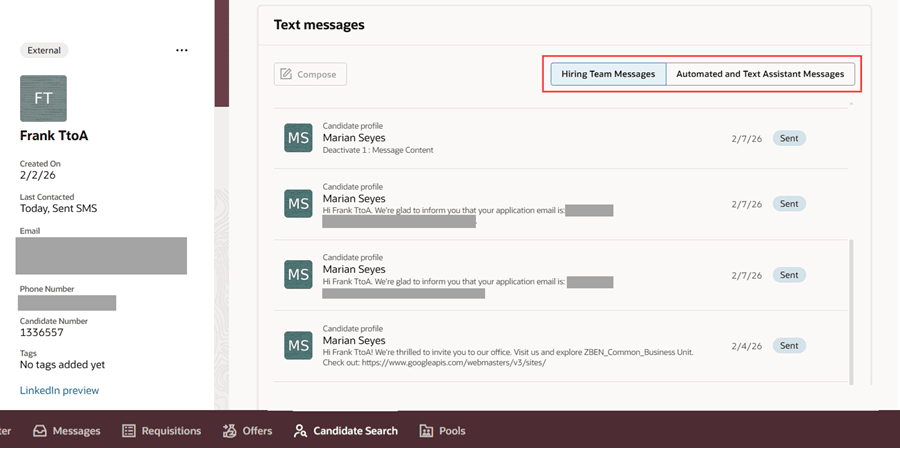
Messages Tab on Candidate Profile Page
Message Center
Conversations with the text assistant are now available in these filters:
- Inbox > Automated and assistant conversations – Displays all automated and text assistant messages to which the candidate has replied. If there are incoming SMS messages from candidates or visitors through the second channel, they can be seen here. Incoming SMS messages sent through the first channel will be seen in the Inbox > Hiring team conversations filter.
- Sent By > Text assistant – Replies sent by the text assistant to candidate messages can be seen in this filter.
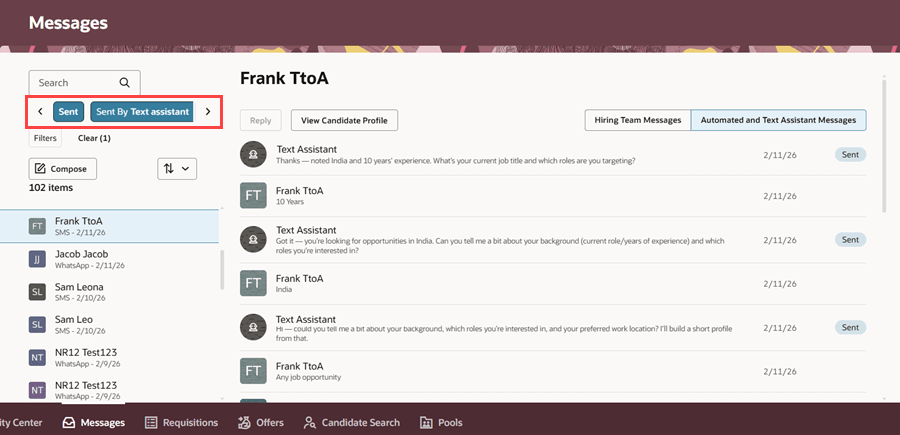
Text Assistant Filter in Message Center
You’ll also see two tabs, Hiring Team Messages and Automated and Text Assistant Messages, on a conversation page. The tab that’s highlighted corresponds to the selected filter. The functionality of these tabs is similar to the subtabs on a candidate profile page.
When the text assistant and email assistant aren’t enabled, the Inbox filter will show the filters, My conversations and All conversations, with the existing functionality. The Sent By filter won’t show these corresponding filters.
For details on the email assistant, see the 26B What’s New feature, Inbox Response Agent to Answer Candidate Emails.
Business Benefit: This feature provides an enhanced user experience for candidates, while reducing the workload for the hiring team and increasing response times for commonly asked questions.
Steps to enable and configure
To enable the text assistant, complete these steps.
Step 1: Enable the Career Coach agent for career sites
You must enable the Career Coach agent for a career site, if you haven’t already done so.
This agent is available as both a seeded agent and a template. By default, the seeded agent ORA_CAREER_COACH will be used when you enable this agent for an SMS provider. If you want to customize the agent, you need to create a copy of the template.
For more details on enabling or customizing the agent, refer to the document, Enable AI Agent for Career Sites (MOS KB873870).
Step 2: Configure the text assistant
Using the Recruiting Messaging Configuration task, complete these steps:
- Set the daily threshold limits for the maximum number of text assistant messages that can be sent to a single candidate and to all candidates in a day.
- The agent team code is set to the seeded agent, ORA_CAREER_COACH. Ensure that this code is present. If you have a custom agent, ensure that you map the correct agent team code.
- Enable visitors to interact with the text assistant.
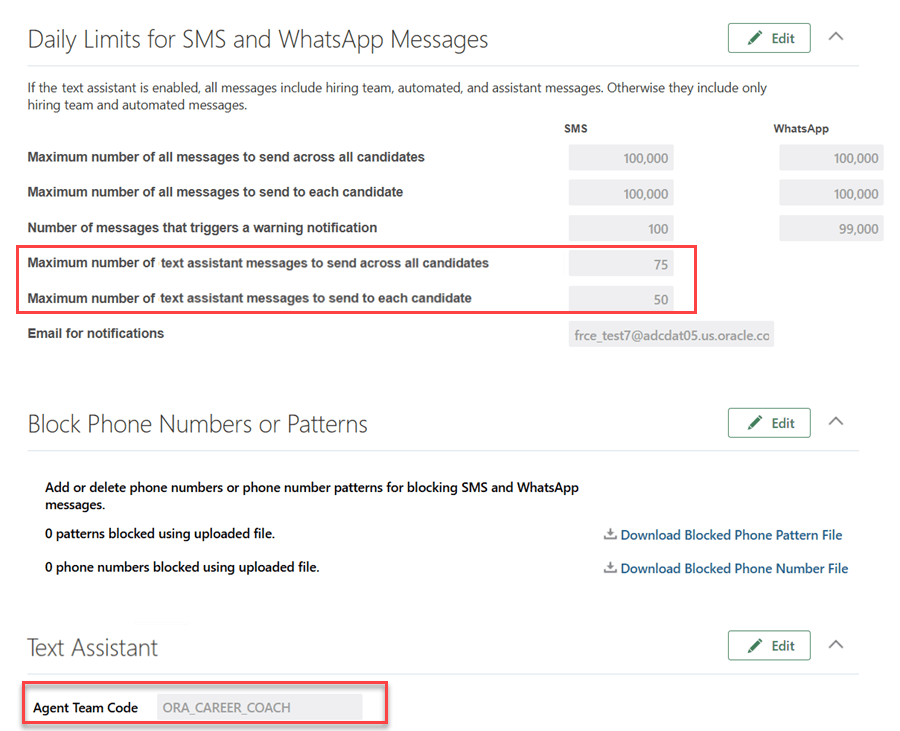
Configure the Text Assistant
For details, see Configure the Text Assistant.
Step 3: Configure the SMS provider for the text assistant
You need to configure the SMS provider to enable text assistant messages. For details, see Add an SMS Messaging Provider for the Text Assistant.
After you configure the agent, you can see a new label under the SMS Messaging Providers section which indicates that the text assistant is enabled.
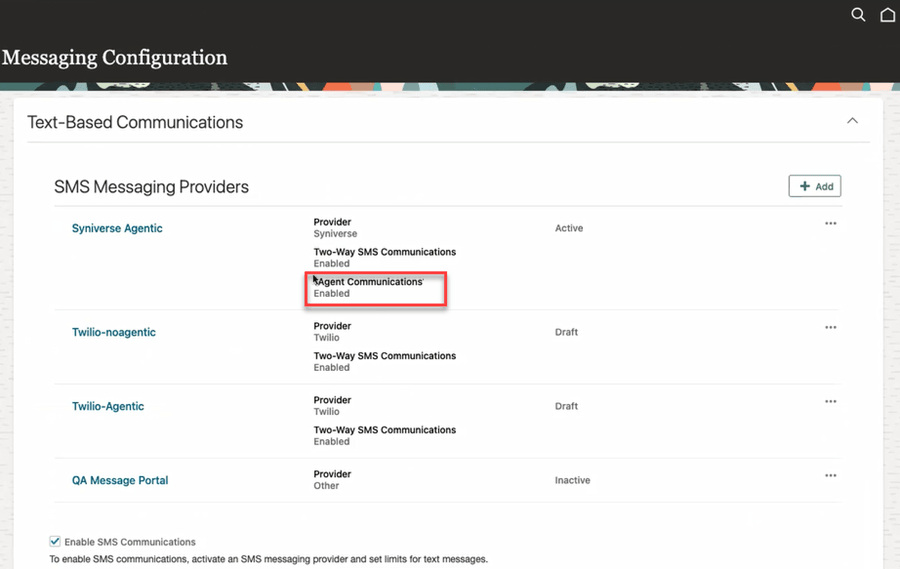
Text Assistant Enabled
Optional steps:
- Show or hide visitor messages
You can display or hide visitor messages in Message Center using the Visual Studio page property, showVisitorMessagesOnMessageCenter. Set it to True to show the messages. For details on using page properties, see How do I control the display of a UI element in Visual Builder Studio?
- Configure profile options
A few profile options can be configured for the text assistant. For details, see Configure Profile Options for the Text Assistant.
For privileges, see the Access Requirements section.
Tips and considerations
Note that the text assistant responds to incoming messages that are processed by Webhook only. It doesn't respond to incoming messages processed by the Process Recruiting Inbound Message scheduled process.
Key resources
Refer to the 26B What's New feature, Career Coach Enhancements - Framework Update.
Access requirements
To use the Career Coach agent, the following privilege and duty Spectra Authorization Service (SAS) role should be added to the Webhook user role:
- Privilege: IRC_REST_SERVICE_ACCESS_INBOUND_SMS_WEBHOOK_PRIV
- Duty SAS role: ORA_DR_HCM_IRC_CE_AGENT_ACCESS_DUTY
For details, see Webhook Setup for Two-Way SMS Communications.