Redwood: Configure Ratings as Read-Only and Required in Talent Review
If your administrator has done the required configurations, some talent ratings will appear as read-only or required on these Talent Review pages:
- Prepare Review Content
- Table view of the Talent Review dashboard
- Graph view of the Talent Review dashboard
Your administrator can also disable the submission of the read-only ratings to Talent Profiles.
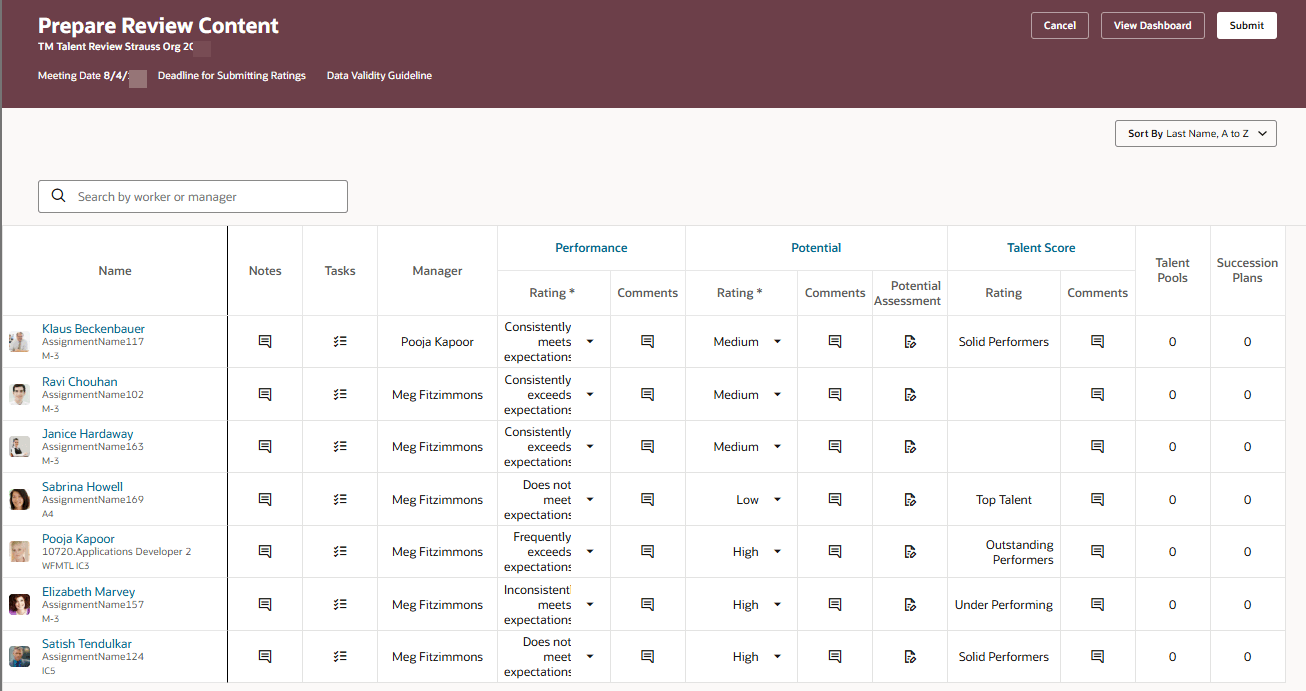
Prepare Review Content Page with Required and Read-Only Ratings
Note that you can’t add comments for the read-only ratings.
These are the key benefits that you can gain by leveraging this feature:
- Prevent managers and facilitators from overwriting some ratings already provided to the members of the review population and saved in their talent profiles. For example, your organization might not want the existing performance ratings in the employee’s talent profiles to be changed.
- Ensure that participants and facilitators provide key ratings for the members of the review population. For example, your organization might want facilitators and participants to assess the impact of loss of members of the review population.
Steps to enable and configure
To view the Redwood redesigned Talent Review meeting pages, you need to enable the profile options indicated in the table.
|
Profile Option Code |
Profile Option Display Name |
Value |
|---|---|---|
|
ORA_HCM_VBCS_PWA_ENABLED |
Enable VBCS Progressive Web Application User Interface |
Y |
| ORA_HRR_TALENT_REVIEW_REDWOOD_ENABLED | Redwood Talent Review Enabled | Yes |
| ORA_HRR_REDWOOD_DASHBOARD_ENABLED | Redwood Talent Review Meeting Dashboard Enabled | Y |
For more information, see How do I enable a profile option?.
To configure ratings provided by meeting participants, edit the Prepare Review Content page in Visual Builder Studio and select the ratings in these page properties:
- Set Read Only Ratings: Add and select ratings that shouldn’t be edited by the meeting participants.
- Set Required Ratings: Add and select ratings that meeting participants must provide.
To configure ratings provided by meeting participants and facilitators on the dashboard page, edit the page in Visual Builder Studio and select the ratings in these page properties:
- Set Read Only Ratings for Participants: Add and select ratings that shouldn’t be edited by the meeting participants.
- Set Required Ratings for Participants: Add and select ratings that meeting participants must provide.
- Set Read Only Ratings for Facilitators: Add and select ratings that shouldn’t be edited by the meeting facilitators.
- Set Required Ratings for Facilitators: Add and select ratings that meeting facilitators must provide.
The ratings that are configured in the Talent Review meeting templates are listed as a list of values.
Also, set the Control Profile Updating of Submitted Read-Only Ratings page property to false if you want to disable the submission of read-only ratings to Talent Profiles.
For more information on how to do this, see How do I control the display of a UI element in Visual Builder Studio?.
Key resources
For more information on extending Redwood pages in HCM, refer to this guide on the Oracle Help Center: