Check-Ins Conversation Summary
Performance and Touchpoints check-ins now provide a way for a manager and an employee to manually upload a transcript document and convert that into conversation summary to revisit later for follow-up. This helps managers and employees to focus on meaningful conversations instead of taking manual notes, thereby improving accuracy of the content.
Note: The transcript document is not saved in the system, but the conversation summary generated by the agent is saved in the system.
Upload Meeting Transcript Option
Select the Upload meeting transcript option in the Transcript section when creating or updating the check-in template.
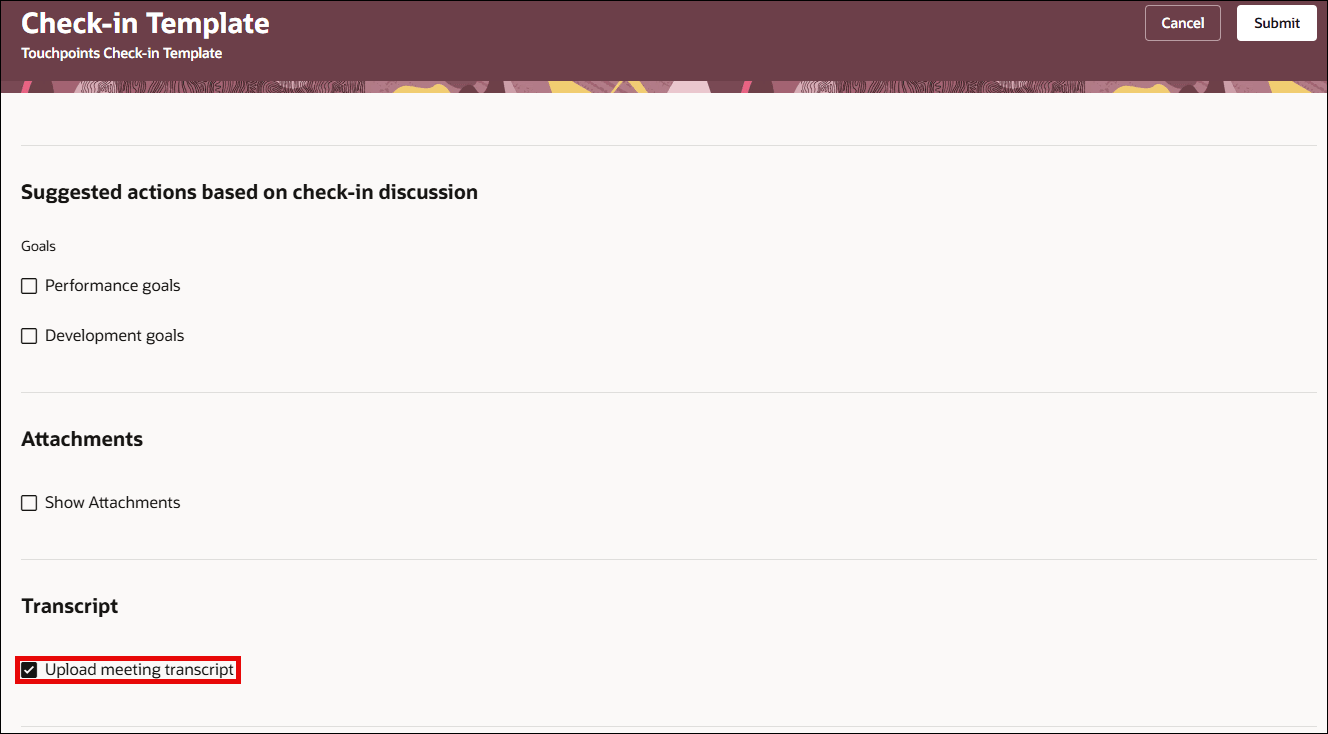
Enable upload meeting transcript
Conversation Summary Tab
Choosing the Upload meeting transcript option displays the Conversation Summary tab where you can upload the transcript to a check-in document.
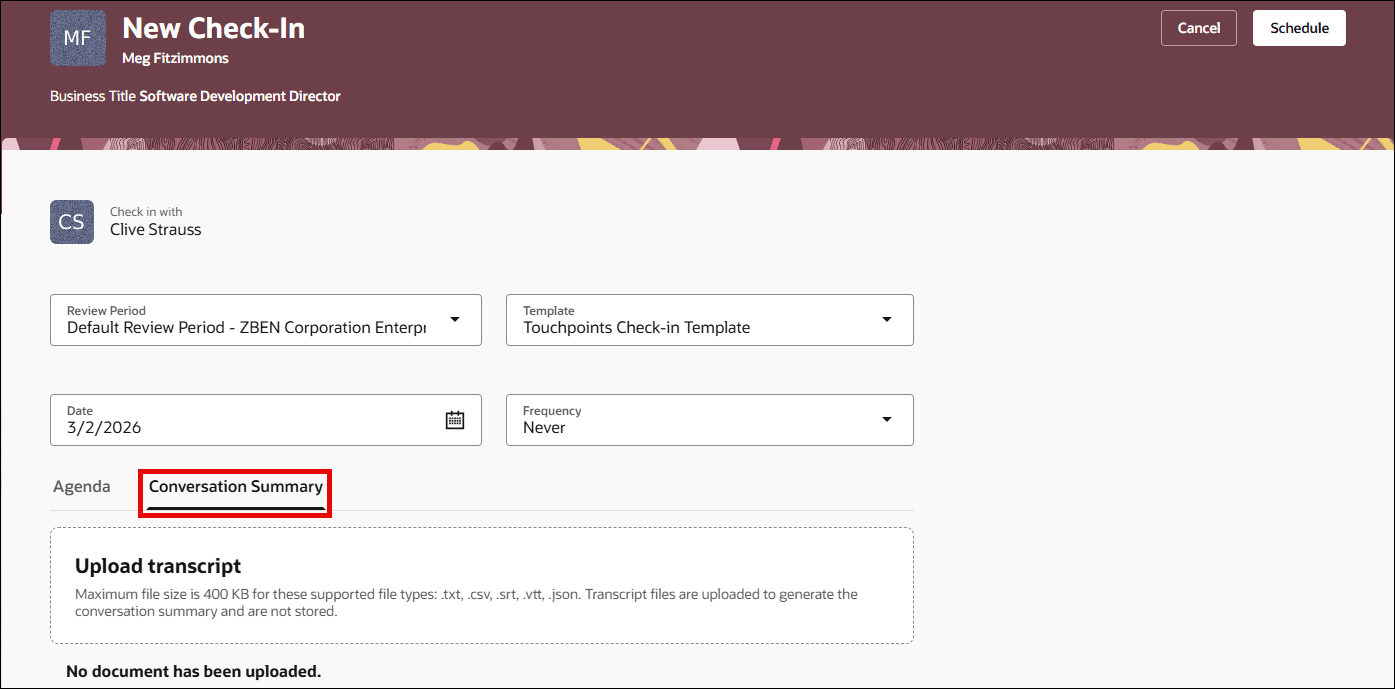
Conversation Summary tab
Extensibility
To generate the summary from the transcript document, you must configure the following page property with the check-in transcript agent code.
| Property | Description |
|---|---|
| Check-In Transcript Assistant | The Agent code for the Check-In Transcript Assistant in Oracle AI Studio. This is required to invoke the AI agent and to generate check-in transcript summaries. |
Business Benefit
- Eliminates the need to take manual notes, thereby allowing participants to focus on dialogue.
- Ensures accurate documentation of key discussion points and action items.
- Provides a consistent, structured summary and action items.
- Strengthens transparency and accountability between manager and employee conversations.
Steps to enable and configure
Upload Meeting Transcript
For details, see: How does an HR Specialist enable uploading meeting transcripts?
Configuring the Agent
- Your environment must have certain necessary configurations. Ask your help desk to contact Oracle Support, who can verify what your environment has and address these gaps. For more information, see FAQ2521 on My Oracle Cloud Support.
- Set the Enable Security Console External Application Integration (ORA_ASE_SAS_INTEGRATION_ENABLED) profile option to Yes and enable permission groups for the appropriate roles. See Access Requirements for AI Agent Studio.
To learn how to set up AI agents, see Create AI Agents Using Preconfigured Agent Team Templates.
Key resources
- Explore AI Agents for Oracle Fusion Cloud Applications
- How do I use AI Agent Studio?
- Configure Notifications Using Alerts Composer
Access requirements
The agents you can view depend on the roles and privileges assigned to you. To access this agent, your role must be explicitly granted access to it by an AI Studio Administrator. See How can I give users access to AI agents and Access Requirements for AI Agent Studio.