Enhancements to Redwood Check-Ins
Enhanced check-in experience by:
- Enabling participants to add attachments to their check-ins.
- Providing a Team Check-Ins page for managers to access all reports and take actions on it like delete, re-open, close features.
Additionally, the user experience has been improvised for editing goals added as a discussion topic.
Check-In Attachments
As a manager or employee, you can now add attachments to check-in documents. This allows you to share relevant context, evidence to support the check-in discussion. For example, an email of appreciation from a client can be uploaded as a screenshot, motivating employees to perform better.
To add attachments to check-in documents, you must enable the Show Attachments option when creating or updating the check-in template. See Steps to Enable and Configure section.
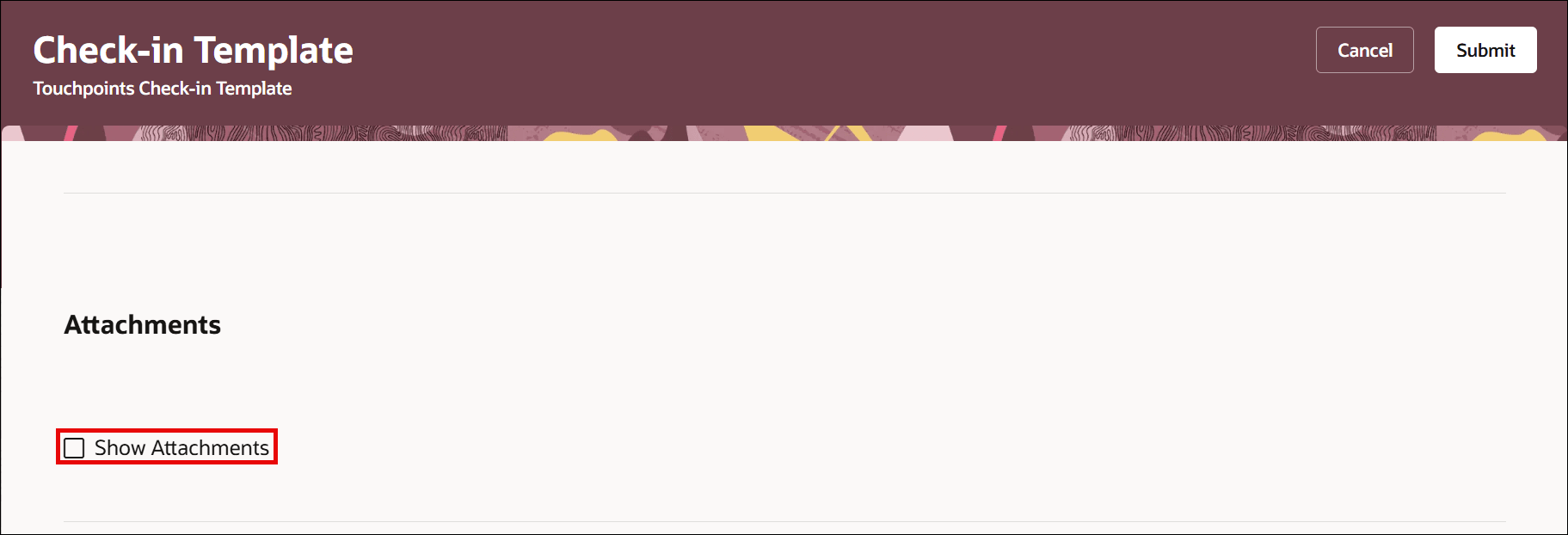
Enable check-in attachment
You can:
- Add and remove attachments when creating, scheduling, or editing a check-in.
- View and download attachments which were added by you or others to your check-in document.
Team Check-Ins Page
As a manager, you can now view check-ins for all your reports—both direct and all reports—on the Team Check-Ins page. This streamlines your workflow by letting you review, edit, and take actions (delete, reopen, or close) on individual check-ins in a single page.
You navigate to the Team Check-Ins page as follows: My Team > Performance. Click the Team Check-Ins tab.
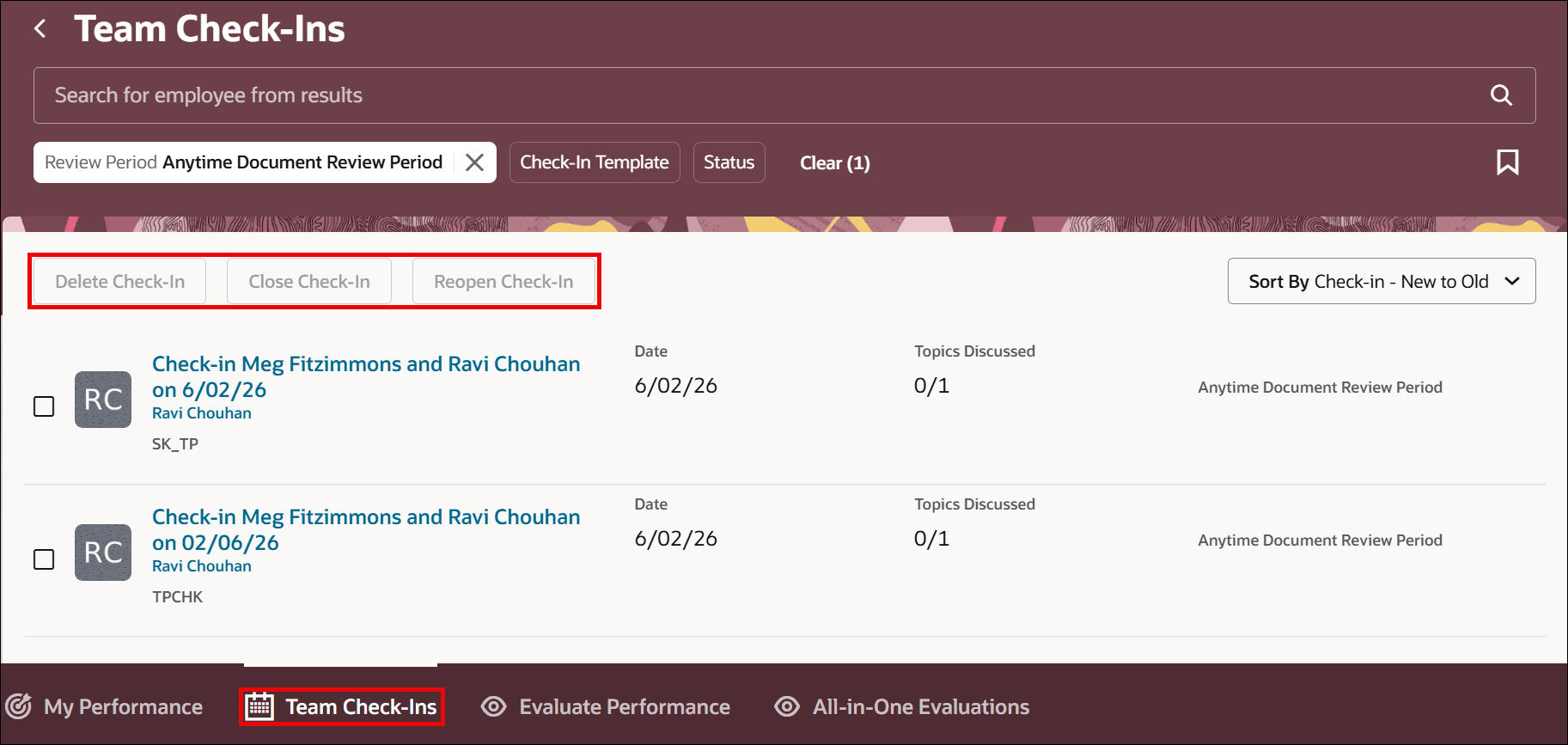
Team check-in page
Page Extensibility on Team Check-Ins Page
As an admin, you can configure these page properties on the Team Check-Ins page:
| Property | Description |
|---|---|
| Hide Team Check-Ins tab | This property controls the display of the Team Check-Ins tab on the Evaluate Performance page. Set the value to true to display the button, else to false to hide it. |
| Hide Close button | This property controls the display of the Close Check-In button on the Team-Check-Ins tab. Set the value to true to display the button, else to false to hide it. |
| Hide Re-open button | This property controls the display of the Reopen Check-In button on the Team-Check-Ins tab. Set the value to true to display the button, else to false to hide it. |
| Hide Delete button | This property controls the display of the Delete Check-In button on the Team-Check-Ins tab. Set the value to true to display the button, else to false to hide it. |
Hide Team Check-Ins Tab
To hide the Team Check-Ins tab:
- Select Navigator > Configuration > Sandboxes.
- Select Create Sandbox.
- Specify a name and description for your sandbox.
- Select Structure in the All Tools section.
- Go to Configuration > Structure.
- Navigate to My Team > Career and Performance > Tabs.
- Set the Visible option to No for Team Check-Ins.
- Select Save and Close.
- Test the sandbox by logging in with manager user role.
- Publish the sandbox.
Editing Goals as Discussion Topics
As an employee and manager, you can only edit goal details for a goal added as discussion topic to the check-in document. Once goal detail is edited, you must navigate to Goals Center to submit the goals for approval. As a manager, you approve the goals in Goals Center only.
Use the Hide Goals button page property to display or hide the edit button in Goals drawer in the check-in document.
Last Check-In from Team Activity Center
Managers can now navigate to a check-in document from Talent tab in Team Activity Center page. Select the date under the Last Check-in column to open the respective check-in document.
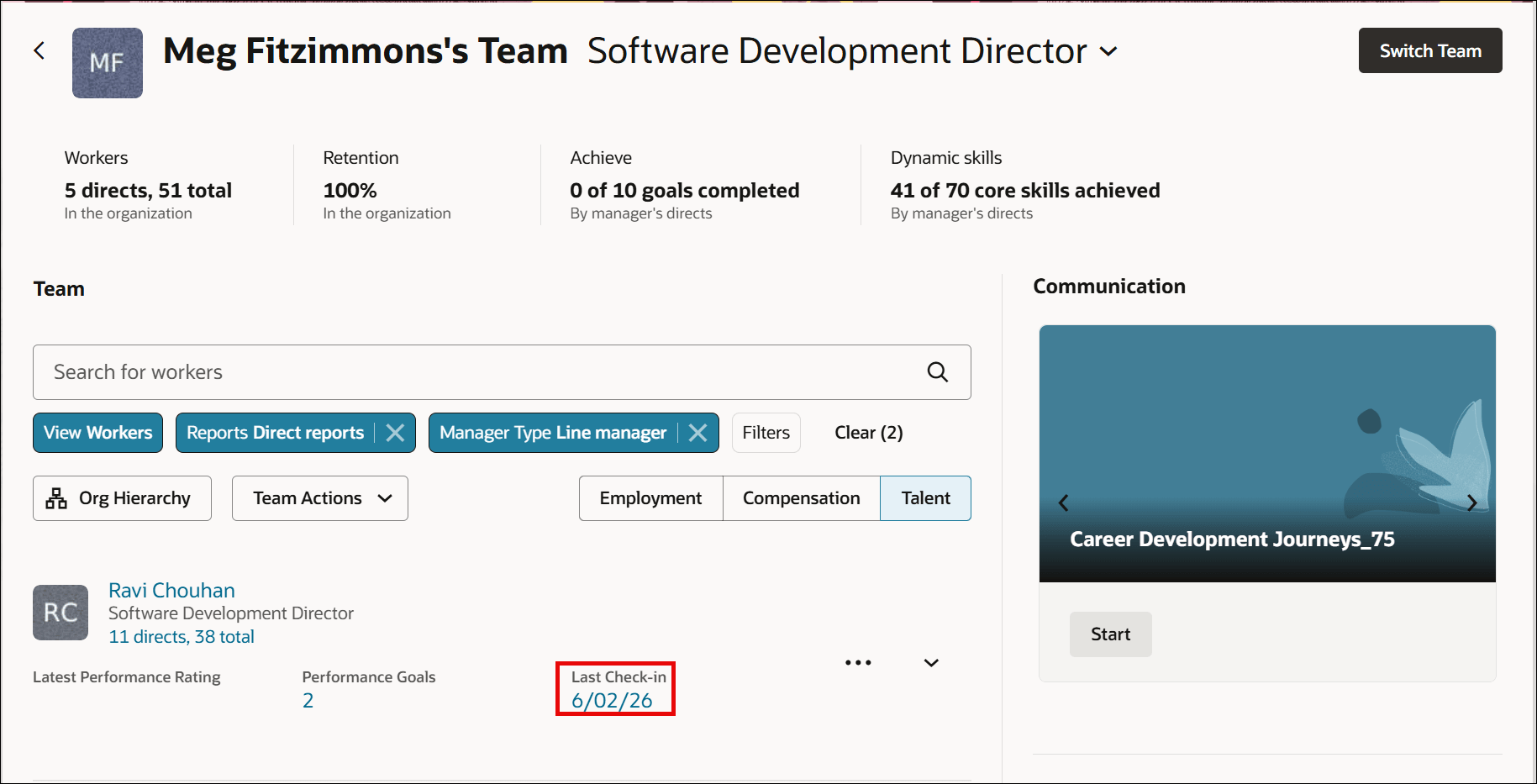
Team activity center
AI Assist Button
The AI Assist button, introduced in 26A, helped in providing meaningful suggestions for writing check-in notes. The display of this button is controlled the Check-Ins AI Assist for Manager and Check-Ins AI Assist for Employee page properties. In 26A, this button was set to true by default. Effective this release, the default is set to false.
Business Benefit
Managers and employees can now use the enhanced check-ins experience by:
- Enabling file attachments in check-in documents.
- Providing a Team Check-ins page for managers to review and take actions.
- Improved editing goals via check-in documents.
Steps to enable and configure
To enable and configure adding check-in attachments, see: How does an HR Specialist enable adding attachments?