Web Clock enhancements for Out and In events
Workers often switch between projects or locations during a shift. When they use Out and In events in Web Clock, they can enter additional details such as project, location, or task.
You can now define how these field values are applied to time entries by selecting a Field Event Association option in Time Layout Sets.
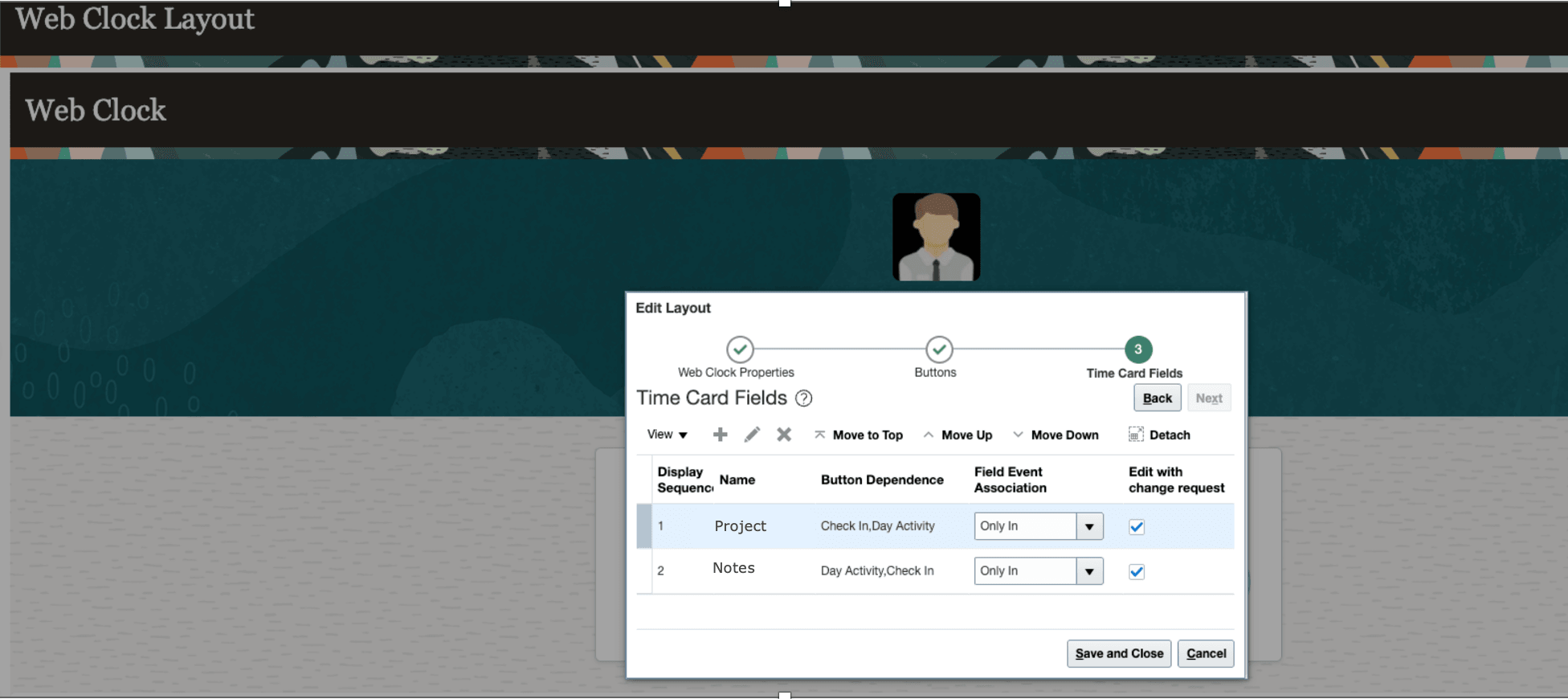
Time Card Layout Configuration for Web Clock
When a worker uses an Out and In event, the system creates two time entries:
- An Out entry (ending the current activity)
- An In entry (starting the new activity)
You can choose one of the following options to control how field values are associated.
| Field Event Association | Behavior |
Example Scenario: Susan clocks in at 9:00 am and selects project A as the field attribute. Susan clicks Day Activity (Out and In) and selects Project B as the field attribute at 11:00 am Susan clocks out at 5pm. Resulting time entries for the different configuration options are shown below. |
|---|---|---|
| Only In |
Applies the field values only to the In entry (second entry). |
9:00 AM - 11:00 AM - Project A 11:00 AM - 5:00 PM - Project B. |
| Only Out |
Applies the field values only to the Out entry (first entry). |
9:00 AM - 11:00 AM - Project B 11:00 AM - 5:00 PM - No Value. |
| Both |
Applies the field values to both entries(current behavior). |
9:00 AM - 11:00 AM - Project B 11:00 AM - 5:00 PM - Project B. |
This feature helps ensure accurate time reporting by automatically applying field values to the correct time entries when workers switch activities.
Steps to enable and configure
Cohort A/SOAK customers can receive this feature via CWB 20260424. Others will receive this as part of their regular 26B upgrade.
Tips and considerations
- Field Event Association applies only to Out and In events, not to individual In or Out buttons within a group.
- If no option is selected, Both is used by default for existing configurations.