Redwood Experience for Remove Person Information
Enrich the user experience with the new Remove Person Information and Configure Remove Person Information Policies pages, developed using the Redwood design system and built from the ground up in Visual Builder Studio (VBS) to deliver a modern, intuitive Oracle application experience.
REMOVE PERSON INFORMATION Interface:
The redesigned Remove Person Information experience enables HR specialists to more efficiently manage data privacy and regulatory compliance requirements by reviewing, monitoring, and submitting processes to remove or anonymize person-related data for terminated workers and candidates.
Accessed from the My Client Groups > Data Exchange work area, the page displays policy submissions along with key details such as the Process Submission Name, Policy Name, Policy Code, Category, Process Mode, Status, Submitted By, and Start Time.
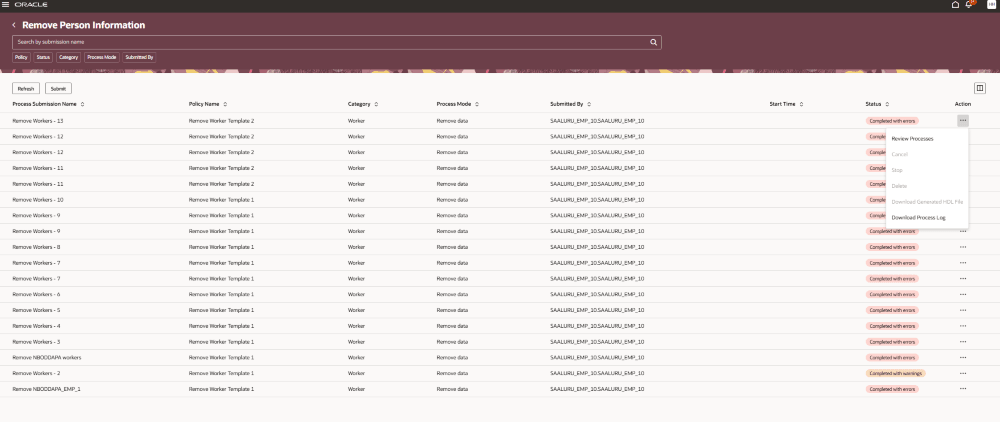
Page contains the following components:
Search: Use the search bar enter a process submission name to quickly locate previously submitted processes without scrolling through the entire list.
Filter: Use the filter chips, such as Policy, Status, Category, Process Mode, and Submitted By, to narrow the displayed process results to focus on relevant submissions and monitor process activity more effectively.
Record Actions: Use these options available in the Actions column to manage individual submissions.
-
Action Description Review Processes Opens the Submitted Processes page to view the processes submitted for the selected policy. Cancel Cancels processes that have been scheduled for a later date and time but have not yet started. Stop Stops processes that are currently in progress. Delete Deletes completed processes regardless of completion status.
Download Generated HDL File Downloads the data file generated by Report mode processes. Download Process Log Downloads the log file for the process submission.
Table Level Actions:
-
Action Description Refresh Reloads the page and display the latest status and details for submitted Remove Person Information processes. Submit Opens the Remove Person Information Parameters drawer to capture the details required to submit a Remove Person Information process, including the submission name, the policy to apply, and the population for which the policy should be executed. Manage Columns Displays the Manage Columns panel to change the order and visibility of table columns.
Sort Standard column sorting is available for all columns except the Status and Actions columns. By default, submissions are sorted by the latest submission date first.
Submitting a Remove Person Information process:
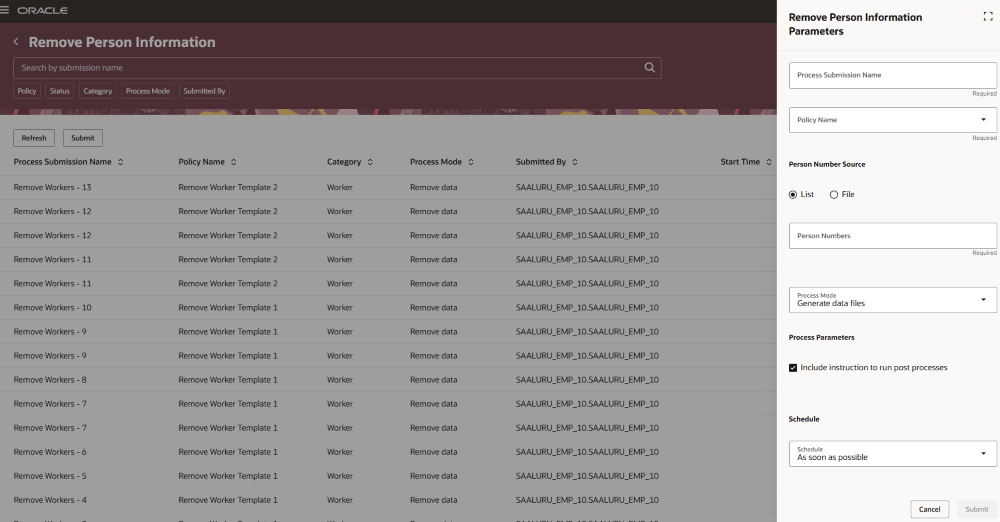
The Remove Person Information parameters drawer opens when you click the Submit button on the RPI page, allowing you to configure and submit a new data removal process.
- Begin by entering a Process Submission Name to identify the specific process run and selecting the appropriate Policy that defines the data removal rules to apply.
- The Person Number Source option determines whether the target population is provided as a comma-delimited list or through an uploaded CSV file. Based on the selected source, you can either enter Person Numbers directly or upload a file containing the required records.
- The Process Mode controls whether the system only generates the data files required for removal or performs the actual data removal operation. You can also choose when the process should run by configuring the Schedule option to execute immediately or at a specified future date and time.
- When the process is configured for data removal, you can choose to Delete Generated Source File after processing, specify whether to Run Post Process activities, and define the Maximum Concurrent Threads for Import and Maximum Concurrent Threads for Load to optimize processing performance. These parameters offer flexibility in managing processing efficiency, cleanup behavior, and post-processing execution for large-scale person information removal operations.
Reviewing a submitted Remove Person Information process:
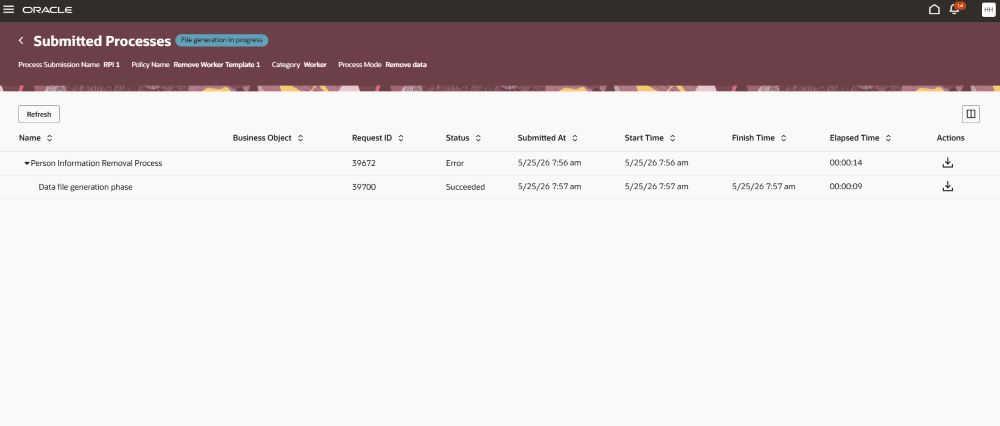
The Submitted Processes page opens when you select Review Processes from the actions menu for a submitted policy on the RPI page. This page provides a view of the hierarchy of processes executed to generate the HDL file for person information updates and, when applicable, submit the generated file for processing.
- Each row in the table represents a process in the execution hierarchy and displays key details including the Name of the submitted process, the associated Business Object, the unique Request ID generated during submission, and the current Status of the process such as Succeeded or Error.
- Additional information includes the Submitted At timestamp, Start Time, Finish Time, and the overall Elapsed Time for execution.
- You can refresh the displayed process information at any time using the Refresh table action. When available, row-level actions allow you to Download Log File for individual processes to troubleshoot and review execution details. This page helps in monitoring processing progress, verify successful completion, and investigate failures or errors related to submitted person information removal requests.
CONFIGURE REMOVE PERSON INFORMATION POLICIES Interface:
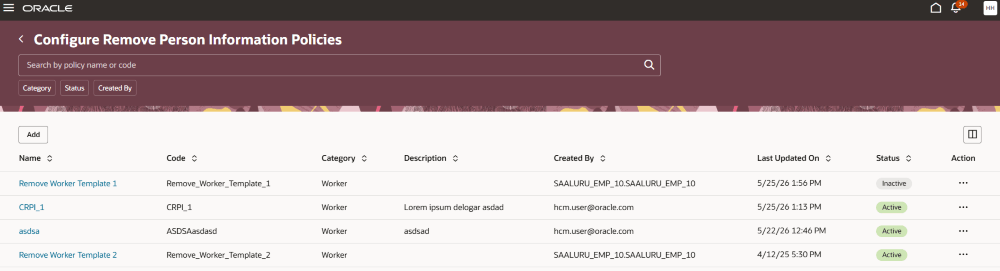
The redesigned Configure Remove Person Information Policies experience enables Human Resource specialists and administrators to define, manage, and maintain policies that remove or mask person-related information for terminated employees, cancelled work relationships, and unsuccessful candidates
Accessed from the My Client Groups > Data Exchange work area, this page displays of all configured policies with key policy related details such as Name, Code, Category, Description, Created by, Last Updated On, and Status.
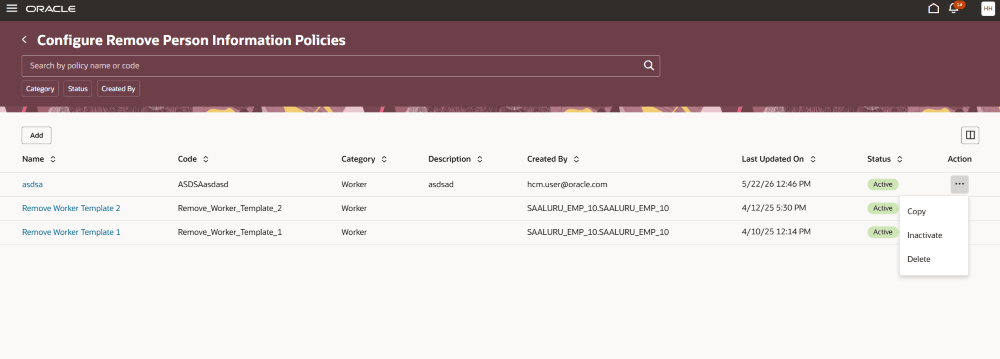
Page contains the following components:
Search: Use the search bar to enter a policy name or code and quickly locate a policy without scrolling through the entire list.
Filter: Use the filter chips, such as Category, Status and Created By, to narrow the displayed process results to focus on relevant policies.
Add a New RPI Policy:
The Add action allows you to create a new Remove Person Information policy using a guided multi-step Redwood flow. The flow helps you define policy information, select business objects, review dependencies, and activate the policy. This guided process simplifies complex policy configuration and ensures data dependencies are validated before activation.
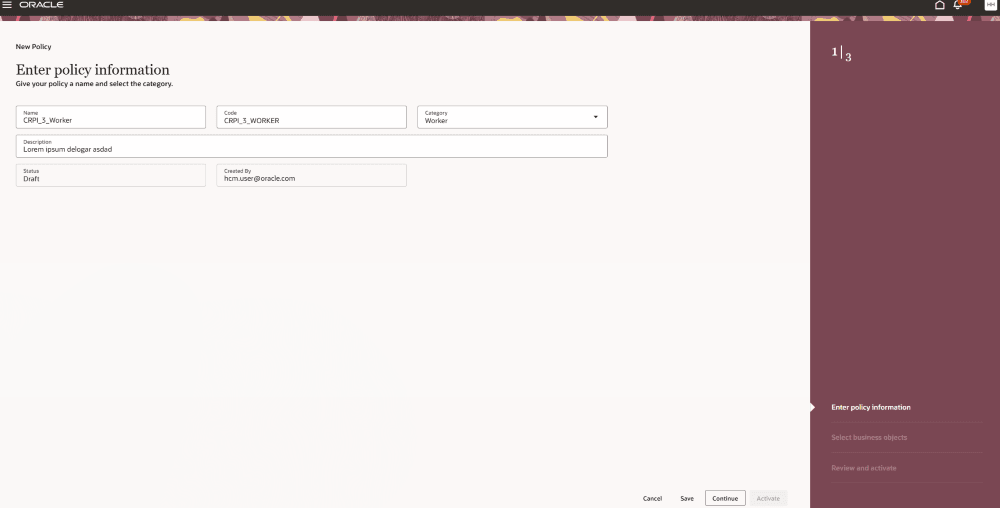
Step 1: Enter policy information
This page captures policy details like: Name, Code, Category in Worker and Candidate, Description, Status - defaulted to Draft for new policies, and Created By. Select Continue to proceed to the Select business objects step.
Actions available throughout this guided process -
-
Action Description Cancel Discards any unsaved changes and returns to the Configure Remove Person Information page. Save Validates and saves the changes made on the current step. Continue Validates and saves changes, then moves to the next step in the guided process. Activate Validates the policy and, if no errors are found, activates it.
Step 2: Select business objects
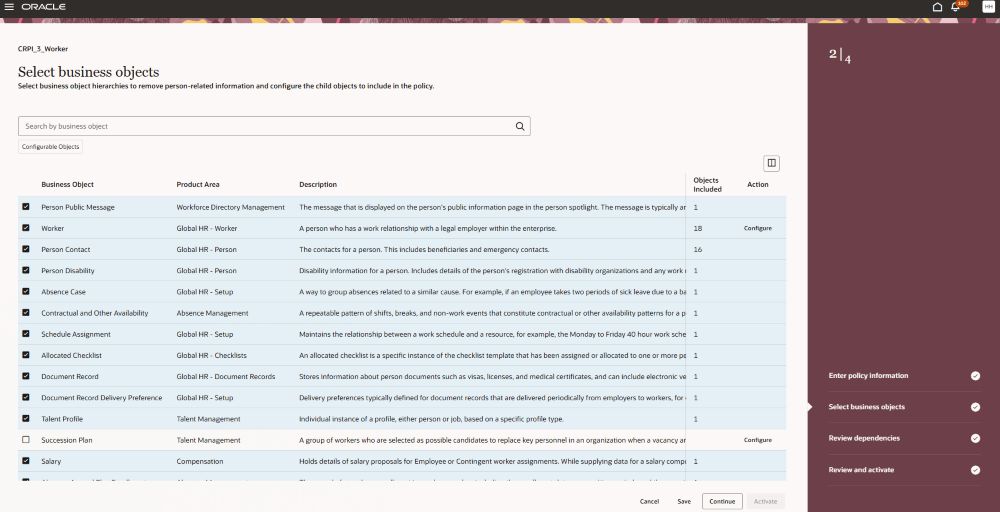
The Select Business Objects page lets you choose the business object hierarchies that should be included in the Remove Person Information (RPI) policy. The page provides a searchable and easy-to-navigate list of available business objects to quickly define the scope of data removal or masking.
- Search for and select the business object hierarchy to include in the policy.
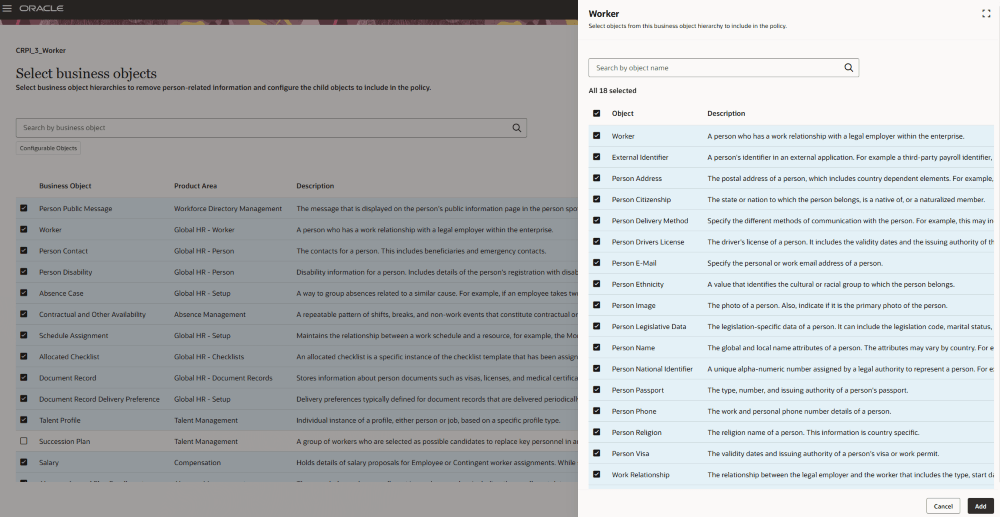
- Use the Configure action for configurable hierarchies to select specific objects within the hierarchy and click Add.
- View the Objects Selected count to quickly understand how many objects are included.
- Use filters such as Configurable Objects to simplify navigation and focus on relevant business objects.
- Select Continue to proceed to the Review dependencies page.
Step 3: Review dependencies
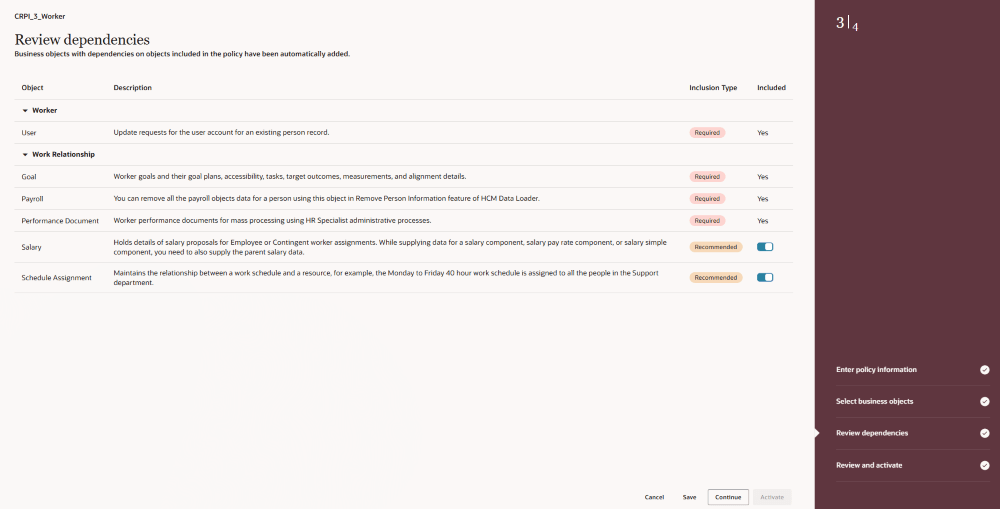
The Review Dependencies page displays the business objects based on previous selections and automatically includes Required dependent objects in the policy. It allows you to optionally remove Recommended dependent objects.
Select Continue to proceed to the Review and activate page.
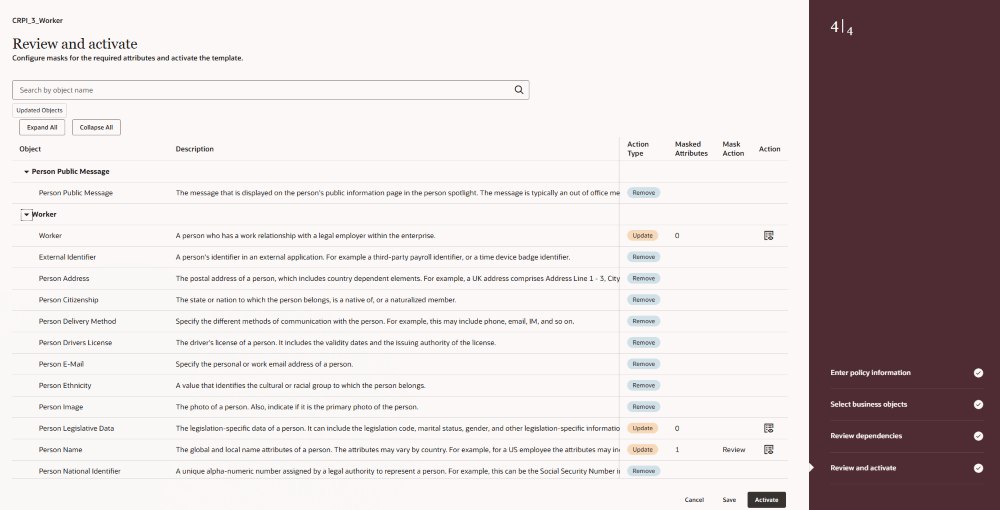
Step 4: Review and activate
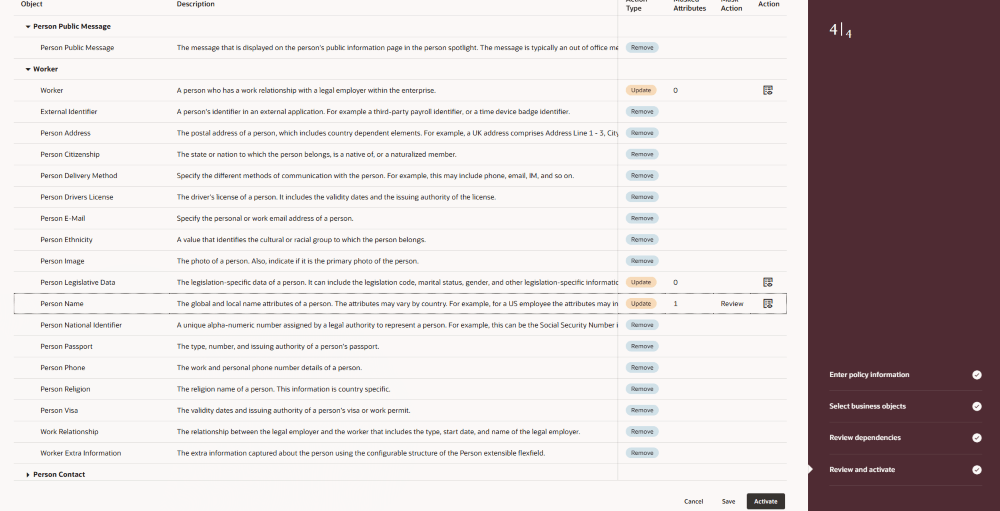
The Review and Activate page displays a final summary of the Remove Person Information (RPI) policy before activation.
- Review all the business objects included in the policy, grouped by hierarchy.
- Verify if the object data will be Removed or Updated.
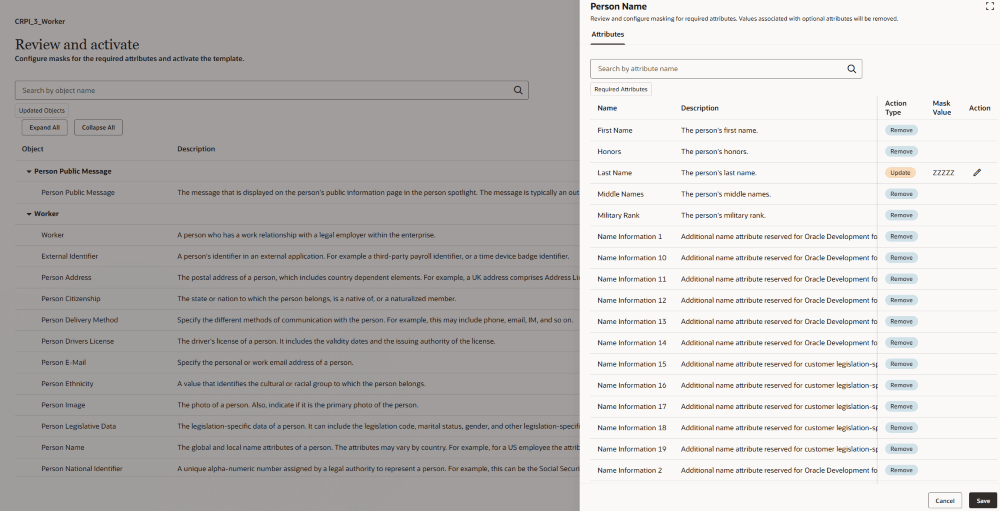
- Review the masking data for attributes that support masking instead of deletion and edit if needed.
- Select Activate to make the policy available for use on the Configure Remove Person Information page.

Record Actions: Use these options available in the Actions column to manage individual policies:
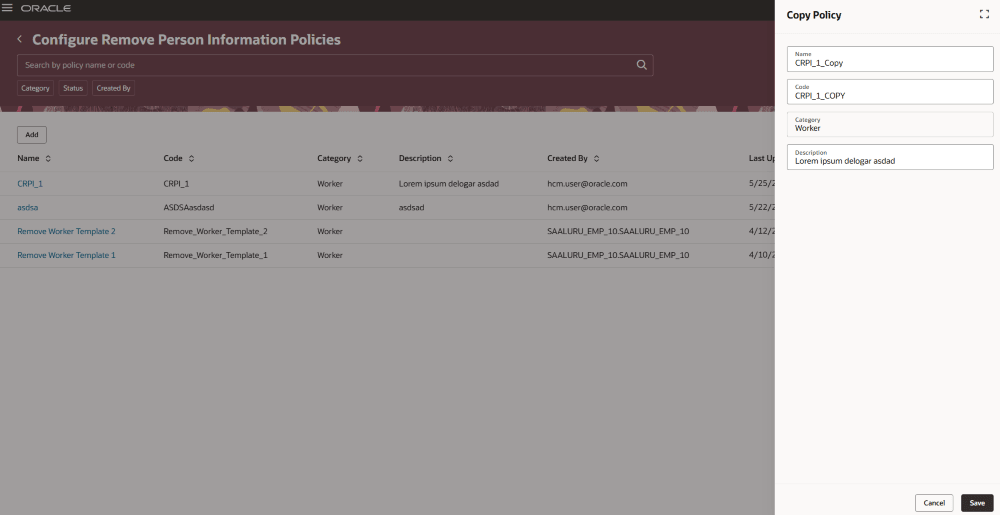
- Copy: Enables you to duplicate an existing policy configuration to reduce manual effort when creating similar policies. The Copy Policy drawer opens with key details such as the category and description are automatically carried over, while the policy name and code are prefilled with unique “_Copy” values for easy identification.
-
Inactivate: Allows you to disable policies when it is no longer required for active use, while still preserving the policy configuration for audit, historical, or future reference purposes. This action is available for policies that are currently in Draft or Active status. Once inactivated, the policy is no longer available for selection during Remove Person Information submissions,
Inactivation does not delete the policy or its configuration details to keep policy history and review configuration details.
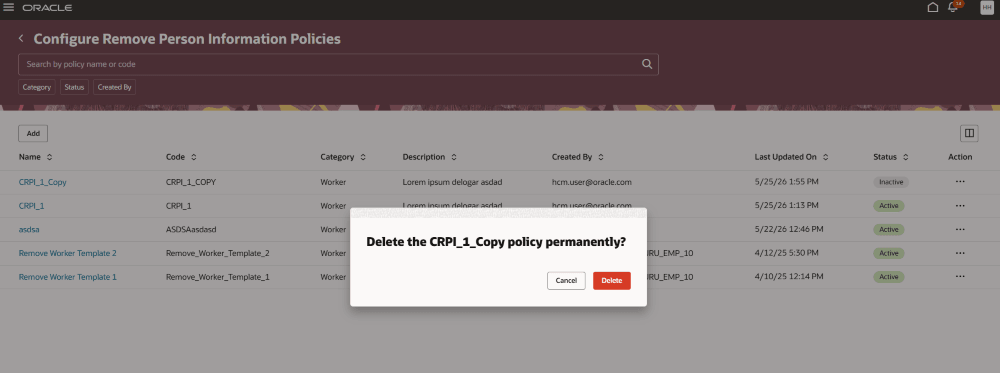
- Delete: Permanently removes a policy from the system. Displays a confirmation dialog before deletion.
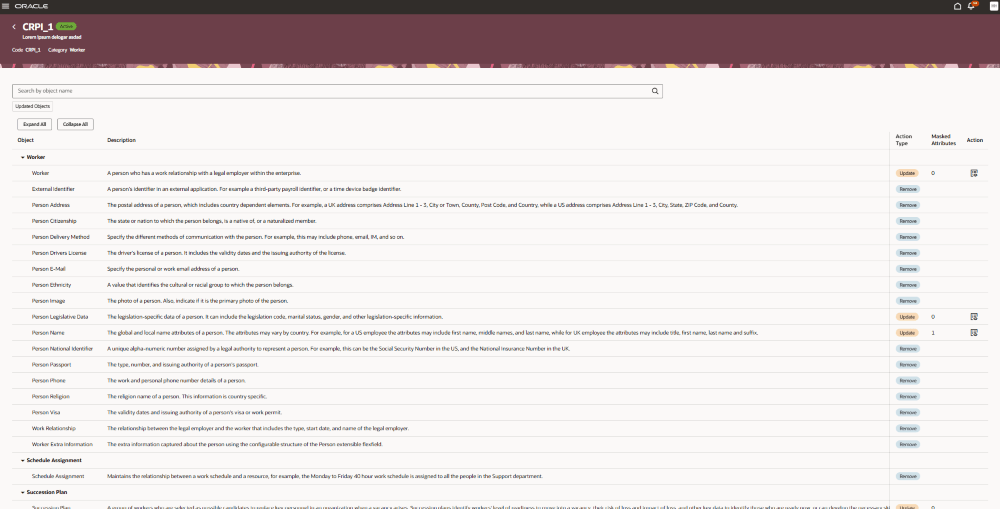
- Viewing Policy Details: You can view policy details for Active and Inactive policies in read-only format on the Policy Details page. Policies in draft status are laid out in the guided process format for editing and subsequent activation.
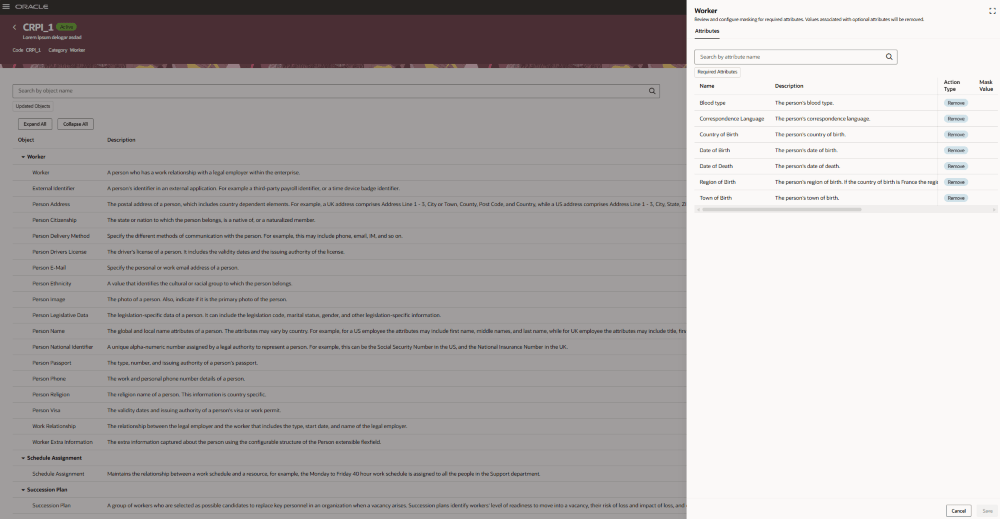
- Policy Details page for Active or Inactive Policies: Displays a table with included business objects grouped by hierarchy and related information such as object name, description, action type - Remove or Update. You can search using the object name and filter using Updated Objects to display the objects that are updated. Click the Action icon to open the Review Attributes panel to view the attributes for objects with update action type.
Review Attributes for Business Object: Displays the attributes that will have their values removed or masked for an object that doesn't support being deleted.
-
Guided Process Steps for Draft Policies: Displays all the policy details in a three-step guided process journey.
Here you can:
-
Edit the name and description in the first step
-
Review and change business object selections in the second step
-
Review the dependencies for displayed business objects in the third step
-
Review and edit the masks configured for required attributes and activate the policy
Business Benefit:
Remove Person Information (RPI) and the Configure Remove Person Information Policies page together provide a streamlined and modern Redwood experience for managing person data disposal across HCM. The enhanced UI simplifies the end-to-end configuration process through guided policy creation flows, centralized policy management, intuitive search and filtering, and contextual row-level actions such as Copy, Inactivate, and Delete. This helps administrators efficiently configure and manage data removal policies with better visibility into policy details, dependencies, and masking behavior, reducing complexity and improving overall usability.
Steps to enable and configure
In order to work with the new Remove Person Information pages, you must first enable the profile option. By default, the profile option is delivered as disabled. If you want to use the new remove person information pages, you need to set the profile option to Yes.
| Profile Option Code | Profile Option Display Name | Value |
|---|---|---|
| ORA_HRC_REMOVE_PERSON_INFO_REDWOOD_ENABLED | Enable Remove Person Information Redwood Pages | Yes |
Key resources
For more details read: Remove Person Information.
Access requirements
The Remove Person Information pages needs to be secured by the following privilege:
| Role Name | Role Code |
|---|---|
| Configure Person Information Removal Policies | HRC_CONFIGURE_PERSON_INFO_REMOVAL_POLICIES_PRIV |
The Remove Person Information Parameters panel needs to be secured by the following role hierarchies:
| Role Name | Role Code |
|---|---|
| Remove Person Information | ORA_HRC_REMOVE_PERSON_INFORMATION |
| Generate Remove Person Information | ORA_HRC_GENERATE_REMOVE_PERSON_INFORMATION_FILE |