Additional Filter of Valid Grades on Redwood Jobs Search Page
We have added these new filters on the Redwood Jobs search page.
• Has Valid Grade
• Grade Name
• Grade Code
These filters help you to additionally refine the search results for a job based on the selected filter.
Navigation path: My Client Groups > Show More > Workforce Structures > Jobs. On the Jobs Redwood search page, click the Filters filter chip to see the advanced filters.
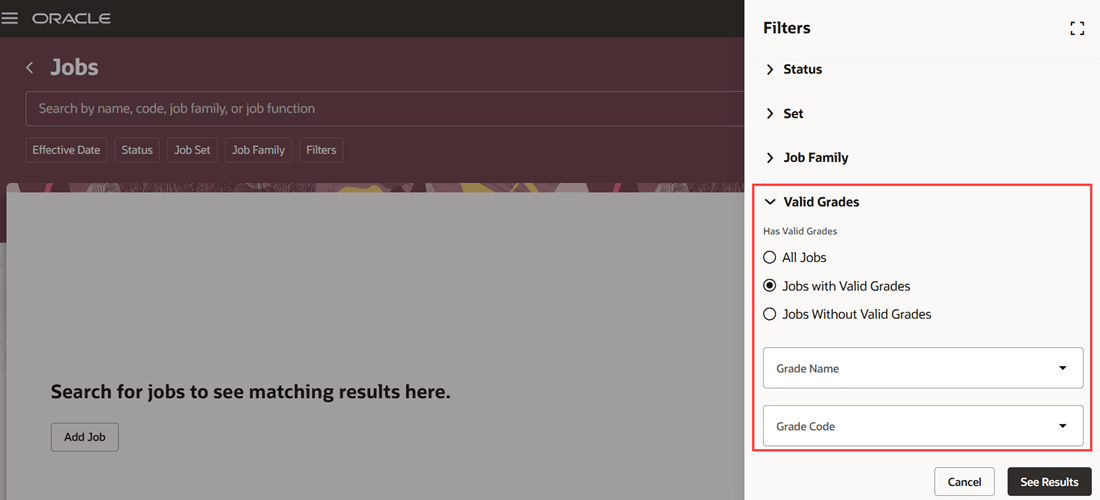
Filter Jobs by the Has Valid Grades, Grade Name, or Grade Code filters
Expand Valid Grades, and then do one of the following:
- Select one of these options under Has Valid Grades:
- All Jobs
- Jobs with Valid Grades
- Jobs Without Valid Grades
- Select the drop-down arrow in the Grade Name LOV. A list of values is displayed. These are the various grade names associated with the job. You can also see the aggregate counts in brackets next to each grade name, denoting the number of records.
- Select the drop-down arrow in the Grade Code LOV. A list of values is displayed. These are the various grade codes associated with the job. You can also see the aggregate counts in brackets next to each grade code, denoting the number of records.
After you select the option by which you want to filter the search results, select See Results.
Let's suppose you select the Jobs with Valid Grades option. Then the search results will show you only the jobs with valid grades on the Jobs search page.
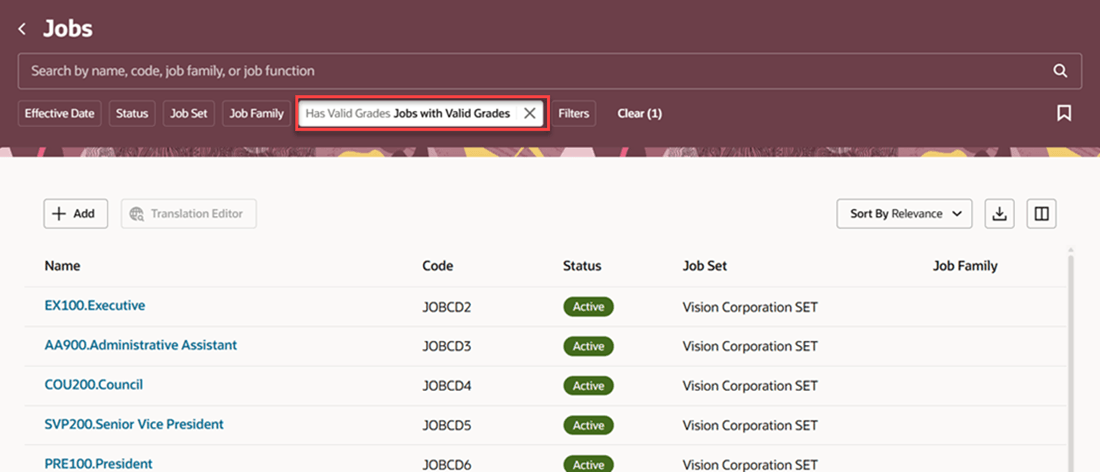
Search results displayed after applying Jobs with Valid Grades option in the Has Valid Grade filter
Similarly, if you select another filter, the selected filter is applied to the search results, and you can see only those specific jobs.
This feature is useful when you want to refine your search results and view only some specific jobs after applying one of these selected filters: Has Valid Grade, Grade Name, or Grade Code.
Steps to enable and configure
You don't need to do anything to enable this feature.