Column Selection Stays Persistent on Redwood Journey Setup Pages
We’ve enhanced the usability of the Redwood Journey setup pages by introducing persistence for user preferences. Now, any personalization's that you make by customizing columns to show, hide, or reorder in the pages will be retained.
You no longer need to reapply your column customizations each time you revisit the page. This is because the displayed or hidden columns remain intact, thereby streamlining navigation and improving efficiency.
Here are a few benefits of this enhancement:
-
Productivity improves as users can immediately focus on the information they care about without repetitive setup.
-
Consistency is maintained across sessions, which is especially beneficial for power users who regularly work with journey template configurations.
-
Reduced frustration from repetitive UI adjustments leads to a smoother and more intuitive experience, aligning with modern usability standards.
Consider an example where the Last Updated and Last Updated By columns are selected to be shown on the Redwood Journey Templates page.
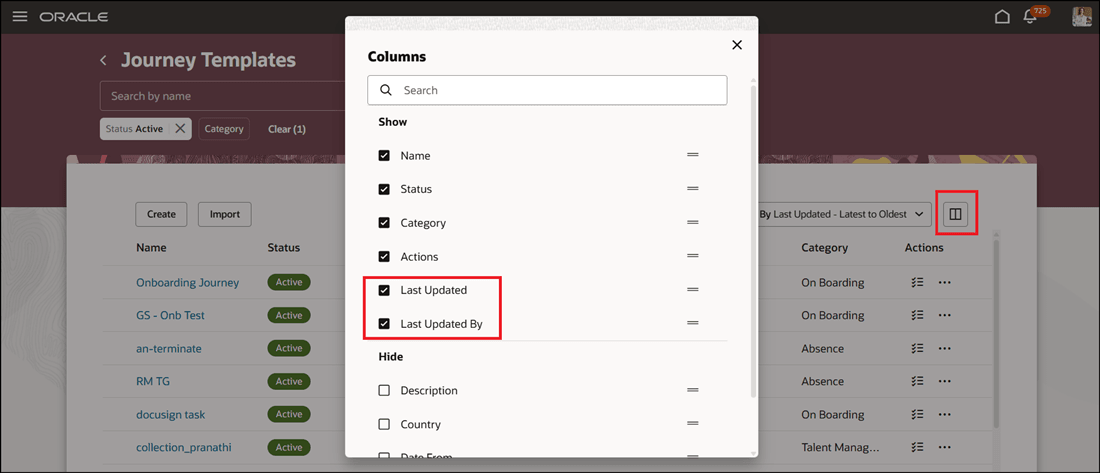
Customize Columns Selector on Journey Templates Page
The user navigates away from the Journey Templates page to another page, for example to the Journeys Setup page or the home page. When they return back to the Journey Templates page, the 2 columns that were selected to be shown are retained.
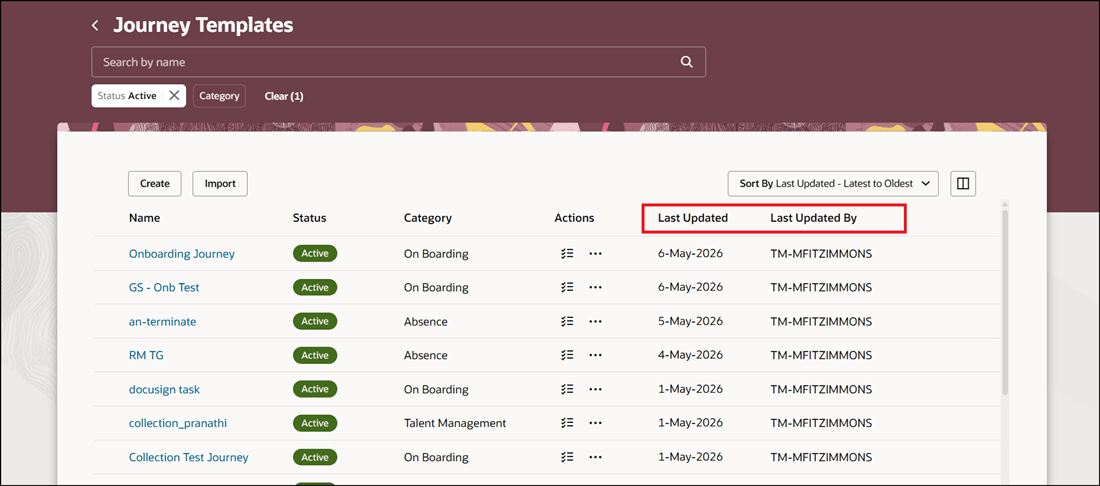
Preferences Retained Upon Returning to the Journey Templates Page
The preferences are retained only for the setup page that you customize and are not applied across all setup pages. For example, the column customizations that you make in the Journey Templates page won’t carry over to the Task Library page.
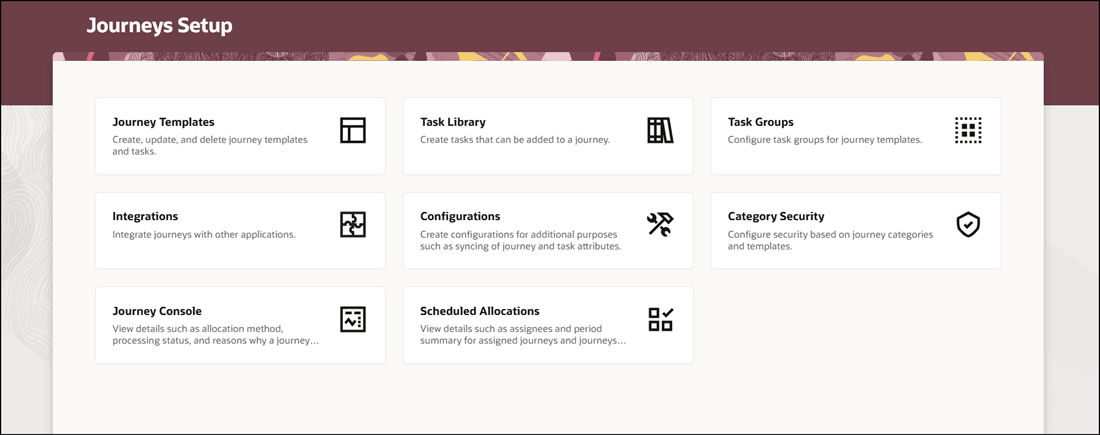
Preferences Retained Only for Journeys Setup Page Where Customization is Done
Saves time and increases productivity by preserving users’ preferred column views across sessions.
Steps to enable and configure
You don't need to do anything to enable this feature.
Key resources
For more information, refer to the Implementing and Using Journeys guide.