Translation Editor on Redwood Document Types Page with Generative AI
Generative AI in the translation editor enhances the translation experience in the Redwood Document Types page by leveraging artificial intelligence to help users generate and refine localized content directly within the editor.
With this feature, administrators and content authors can quickly produce accurate translations for document type attributes across multiple languages, reducing the need for manual translation efforts. This helps improve consistency, speed, and quality of localized content while allowing users to review and edit translations before publishing.
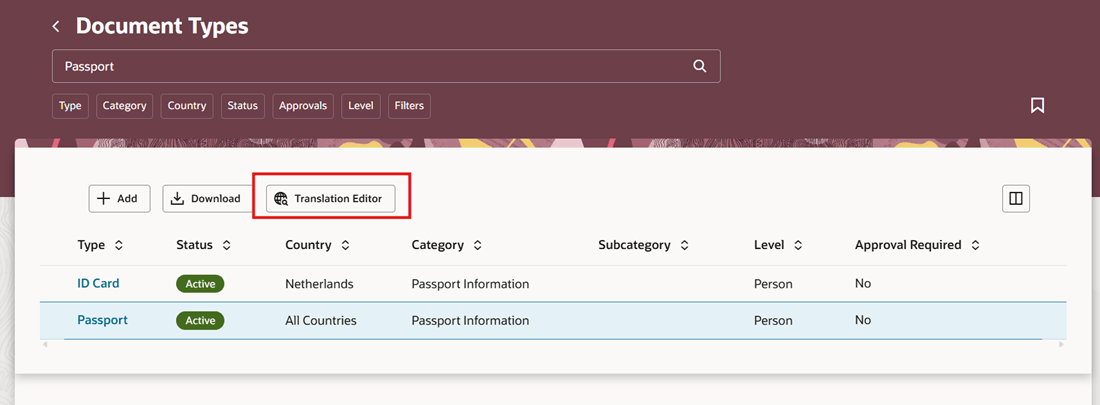
Translation Editor on Document Types Page
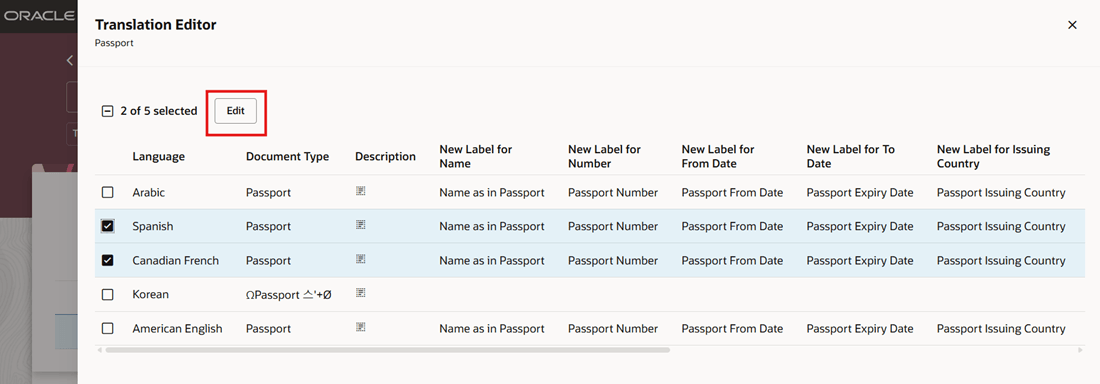
Initiate Translation in Multiple Languages
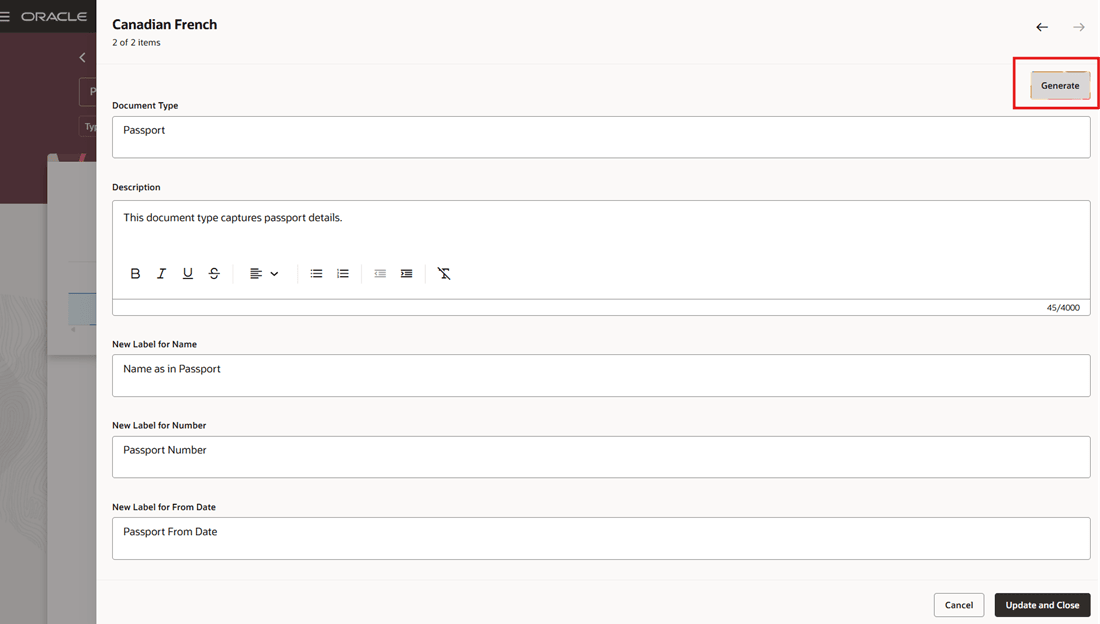
Generate Translations Using Gen AI
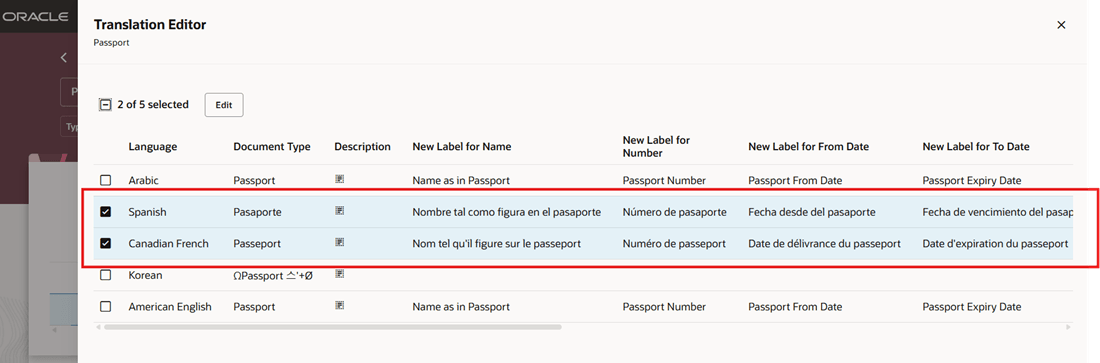
Translations Generated by AI for Document Type Attributes
By default, the Translation Editor button is displayed.
Configure the Show Translation Editor Button page property to No to hide the Translate action on the Redwood Document Types page.
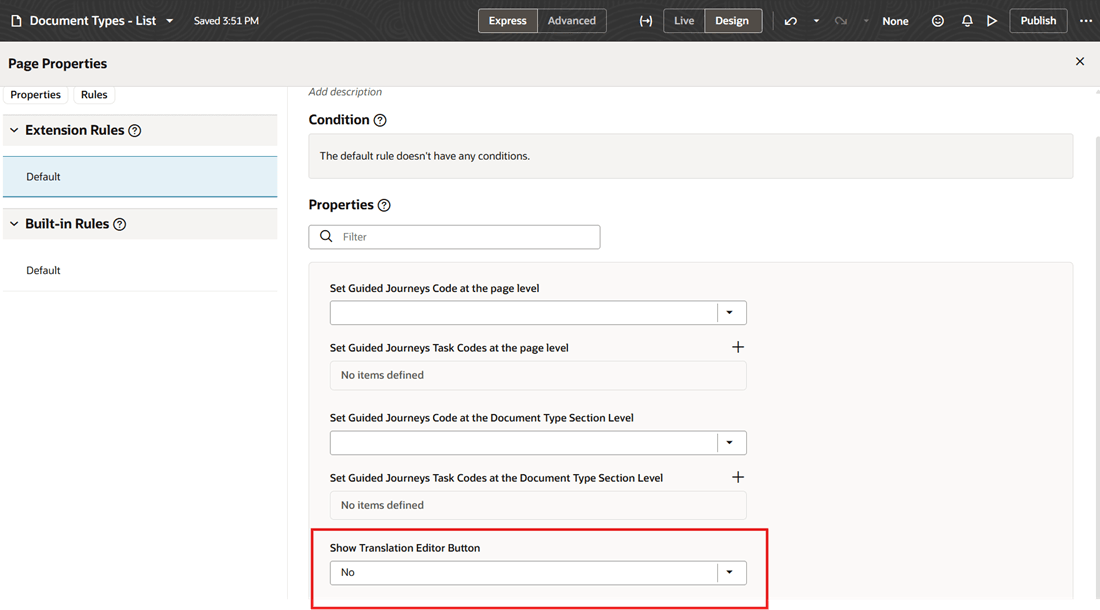
Page Property to Hide Translation Editor Button
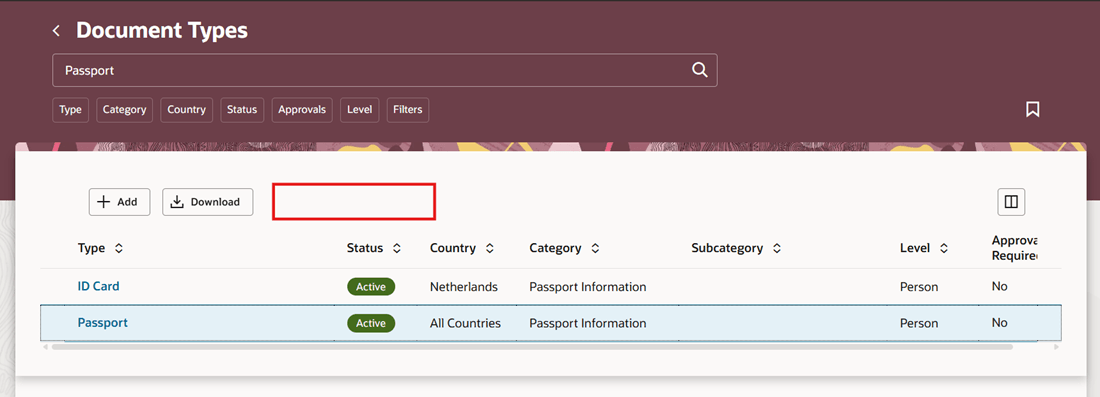
Translation Editor Button Hidden
Reduces the time and effort required to translate document type content into multiple languages while improving translation consistency.
Steps to enable and configure
-
Ensure that you have access to Visual Builder Studio (VB Studio). Instances and workspaces should have been correctly set as well.
-
The Generate button isn't displayed by default. To display the button, you need to enable the Show AI Assist VB constant in the Document Types page. The VB constant is enabled when you set its value to true by using VB Studio. For more information, see this topic: How do I control the display of a UI element in Visual Builder Studio?
-
You need to configure security to use this feature. See the Access Requirements section.
Tips and considerations
-
This capability is available only in the Redwood experience.
-
Only those text attributes that have a value will appear in the translation panel drawer.
-
If you no longer require the translated values, you can update the translated text with the base language text.
-
The translations that you generate using Gen AI may contain inaccuracies. You need to review them before you update them.
Key resources
For more information, refer to the Implementing Global Human Resources guide.
Check these resources to understand the prerequisites and steps to create instances and workspaces.
-
Set Up Oracle Visual Builder Studio: Learn how to create a VB Studio instance.
-
Get Started with Oracle Visual Builder Studio: Learn how to create a workspace in VB Studio.
Access requirements
You must be granted the Application Administrator role to access VB Studio.