Enhanced Context Display for Redwood Additional Person Info
The Redwood Additional Person Info component now supports the option to display only one context at a time for Info Groups with multiple contexts. Previously, all contexts in an Info Group were shown sequentially. With this enhancement, when enabled, a new Additional Info Context list of values (LOV) appears. You can select the specific context to display individually.
The new profile option ORA_PER_ENABLE_PERSON_EFF_INFO_GROUP_CONTEXT_LOV controls the display of the contexts for an Info Group. By default, the profile option is disabled.
Example:
Let's say you have an Info Group called Travel Preferences with contexts for Car Preferences, Air Travel Preferences, and Hotel Preferences. With the Additional Info Context LOV enabled, the page displays as shown in the following image. The page loads only the first context, in this case Car Preferences. You can use the LOV to switch the display to one of the other contexts.
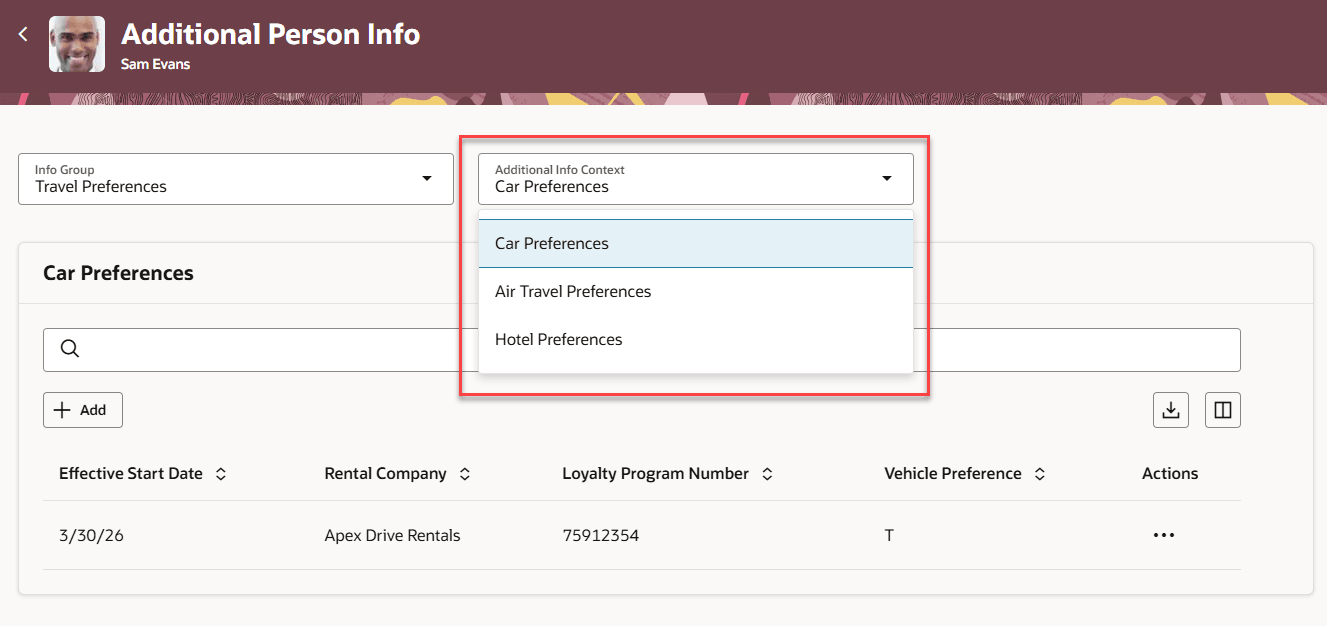
Additional Person Info with Context LOV enabled
If the profile option is disabled, all contexts appear sequentially on the Additional Person Info page, as shown in the following image.
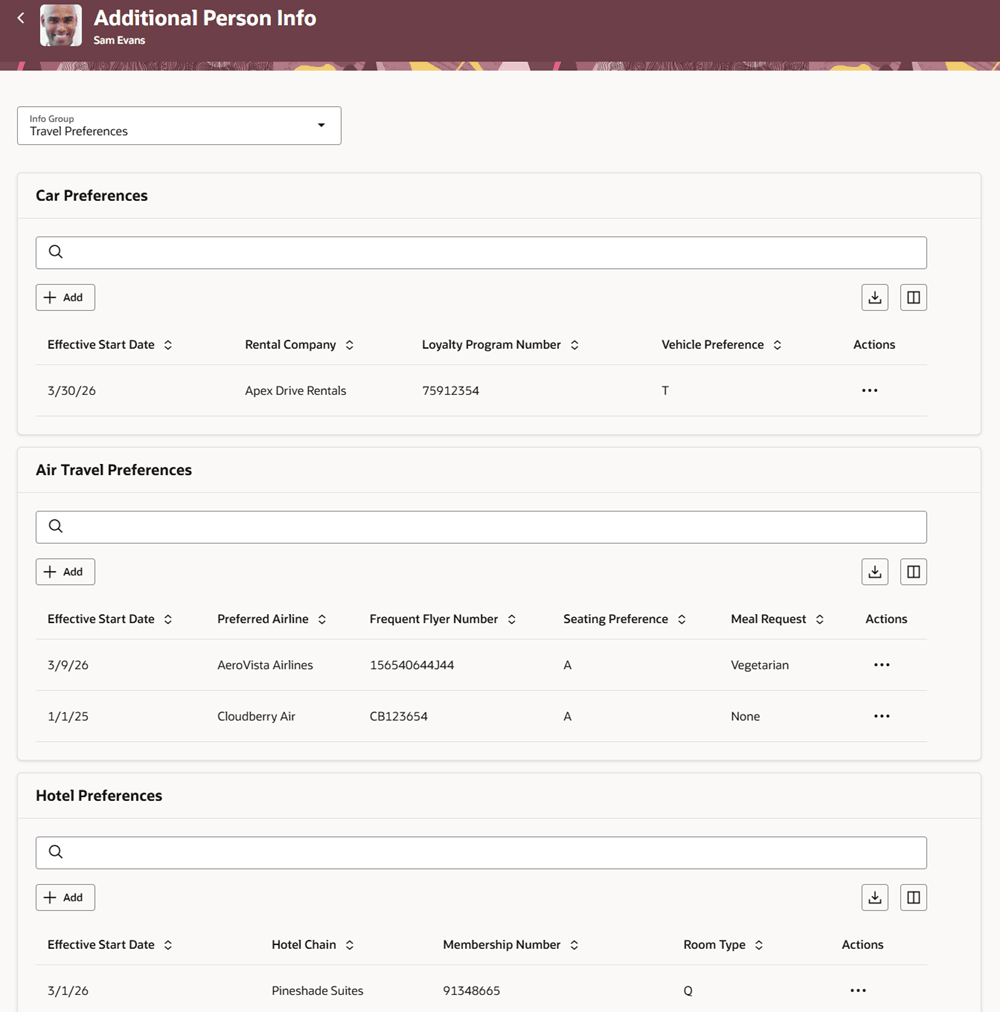
Additional Person Info with Context LOV Disabled
Another change updates the Effective Start Date label for consistency. Previously, the table displayed the label as Start Date, while the edit panel drawer used Effective Start Date. Now, both the table and the panel drawer display Effective Start Date, reducing confusion when multiple date attributes are present. In the following image, the table shows Effective Start Date, and the panel drawer displays the same label when editing a row.
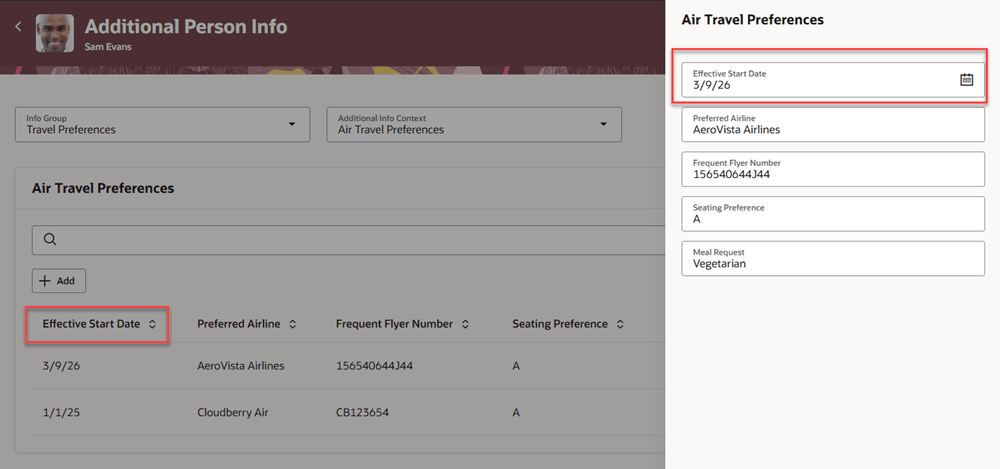
Effective Start Date label in the table and edit views
Displaying contexts separately improves readability and performance for info groups with multiple contexts.
Steps to enable and configure
The new profile option ORA_PER_ENABLE_PERSON_EFF_INFO_GROUP_CONTEXT_LOV controls the display of the contexts for an Info Group. For more information about the steps, see How do I enable a profile option?
Tips and considerations
This configuration applies to:
-
The standalone Additional Person Info page
-
The Additional Person Info region in compacted guided processes such as Hire an Employee
Key resources
For information about the display of multi-row records, see Additional Person Info Multi-Row Records Displayed in Table Format, in 26A.