Control Visibility of Favorite Career Roles
You can now mark your favorite career roles as private or public. Your managers and HR can access public career roles but not private roles. You can access all your favorite roles regardless of privacy.
When you add a career to your favorites, it’s public by default. When you view the career details page, you can access a Make it private option on the More Actions menu.
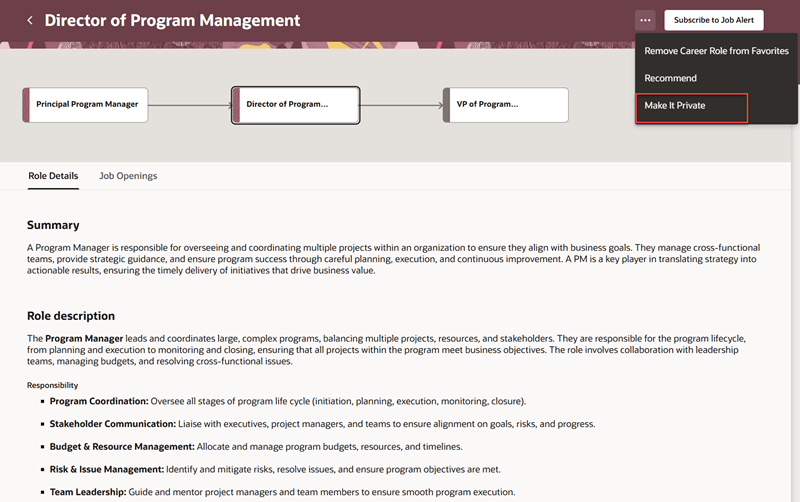
Make a Career Role Private
When you make a career role private, the option changes to Make Public, allowing you to toggle between the privacy settings.
Business Benefit: This feature improves user privacy by enabling favorite career roles to be inaccessible to managers and HR.
Steps to enable and configure
This feature is enabled by default. The buttons can be shown or hidden using the Visual Studio page property, Show Make Public Make It Private Buttons. For details on using page properties, see How do I control the display of a UI element in Visual Builder Studio?
Tips and considerations
Managers and HR can view public career roles when they visit the employee’s career pages through My Team > Recommend Career Roles, select the employee name, and apply the Favorites filter.
Key resources
Access requirements
The Manager role must have security privileges to view workers in their hierarchy. The HR admin role must have security privileges to view all workers.