Redwood Experience: Feedback Tab in Coordinate Interviews Area
Use the new Feedback tab in the Coordinate Interviews area to review interview feedback requests in one place and take quick follow-up actions to keep the hiring process moving.
Go to My Client Groups > Coordinate Interviews > Feedback tab
The Feedback tab lists feedback requests you’re involved in. Each job application or candidate interview with a feedback request appears as a separate item. Only requests from the past three months are shown, and only for active job requisitions and active job applications.
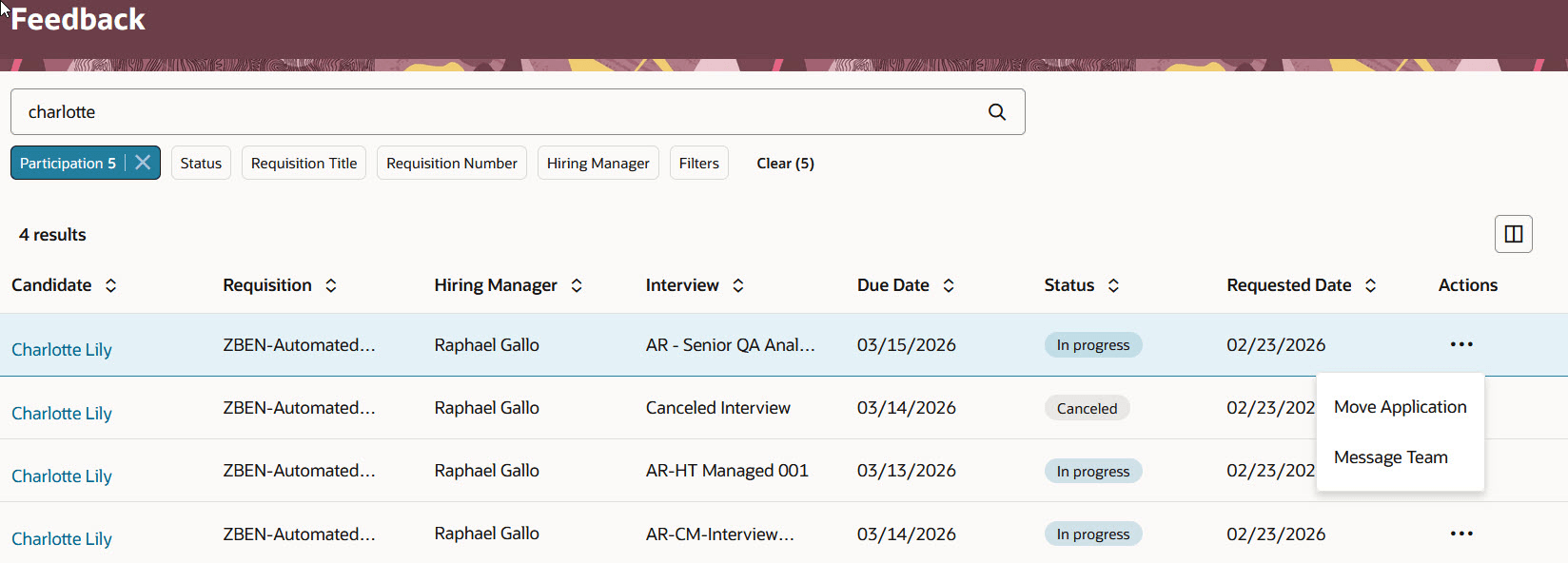
Feedback Page in the Coordinate Interviews Area
You can take quick follow-up actions on feedback items. The following actions are available:
- Move Application
- Message Team
- Cancel All Requests
Clicking on a feedback item in the list opens the Feedback overview panel where you can see the name of the candidate, the requisition title and number, the interview name and date, the list of feedback requests for the feedback item, the questionnaires used for the feedback.
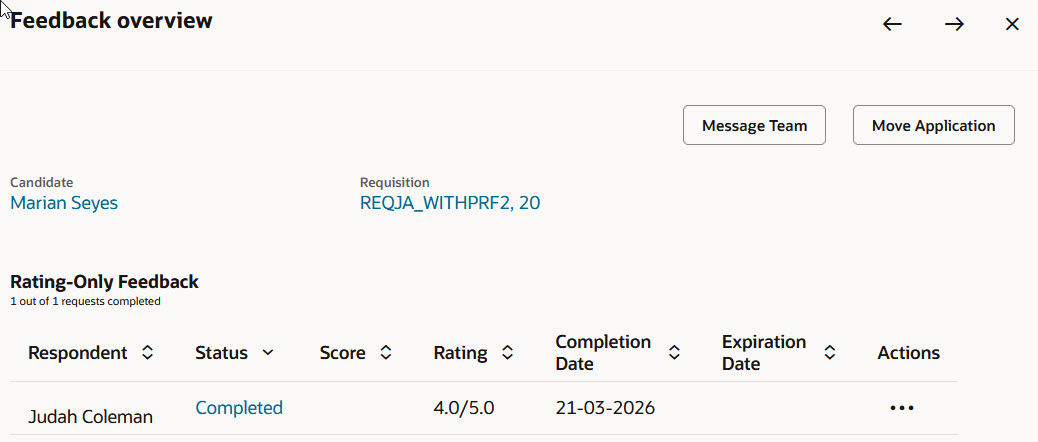
Feedback Overview Panel
Business benefit: This feature gives interview coordinators a centralized view of feedback requests, helping them to monitor completion and take follow-up actions more efficiently. It also streamlines coordination by reducing the need to navigate across multiple pages to manage interview feedback.
Steps to enable and configure
To use the Coordinate Interviews feature, you need to opt in to Recruiting Booster. For details, see Opt in to Recruiting Booster.
To use Redwood experience, you need to enable the Recruiting Redwood pages profile options. For details, see Set profile options for Redwood pages.
To define which columns are visible or hidden in the Feedback tab, in Visual Builder Studio go to Hiring > Feedback List and create business rules. For details, see How do I hide or show a field in Visual Builder Studio?
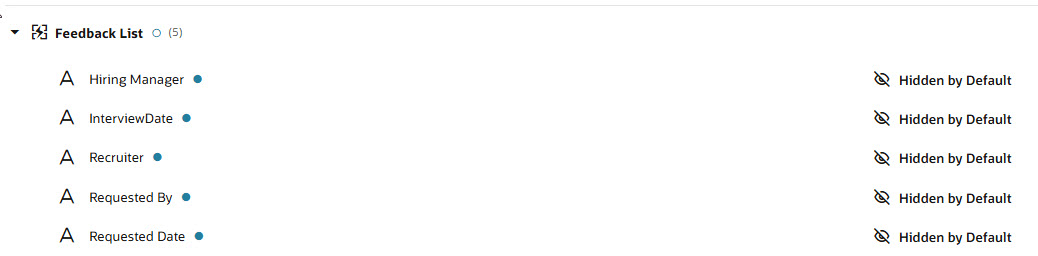
Feedback List Configuration in Visual Builder Studio
Use Collection rules for the Feedback tab list column configuration, and use Form rules for the feedback details shown when opening a feedback item, such as the Feedback overview panel and its content. Although the current business rules interface may display some options in both places, Oracle recommends using the appropriate rule type so your configuration stays aligned with the intended setup model and remains better supported as Visual Builder Studio evolves.
For details on enabling and customizing Redwood for HCM, see How do I adopt Redwood for HCM? and Extending Redwood Applications for HCM and SCM Using Visual Builder Studio