Redwood Experience: Interview Companion
Interview Companion provides interviewers with a single page to access interview guidelines, review candidate details, and record notes during the interview. For interviews conducted using Zoom or Microsoft Teams, interviewers can also access the meeting transcript after the interview.
Here’s how it works.
When an interview is scheduled, interviewers receive a notification which contains a link to the Interview Companion page. Interviewers can also access Interview Companion using the Open Interview Companion action available from the Interview Details page and the job application Interviews tab. The Interview Companion page provides:
- Details about the interview: interview title, interview date and time.
- Link to the requisition.
- Info about the candidate: candidate name, AI-generated candidate summary, candidate resume, LinkedIn preview. The candidate summary and resume are pulled from the job application.
- Interview guidelines: Pulled from the resources provided while creating the interview.
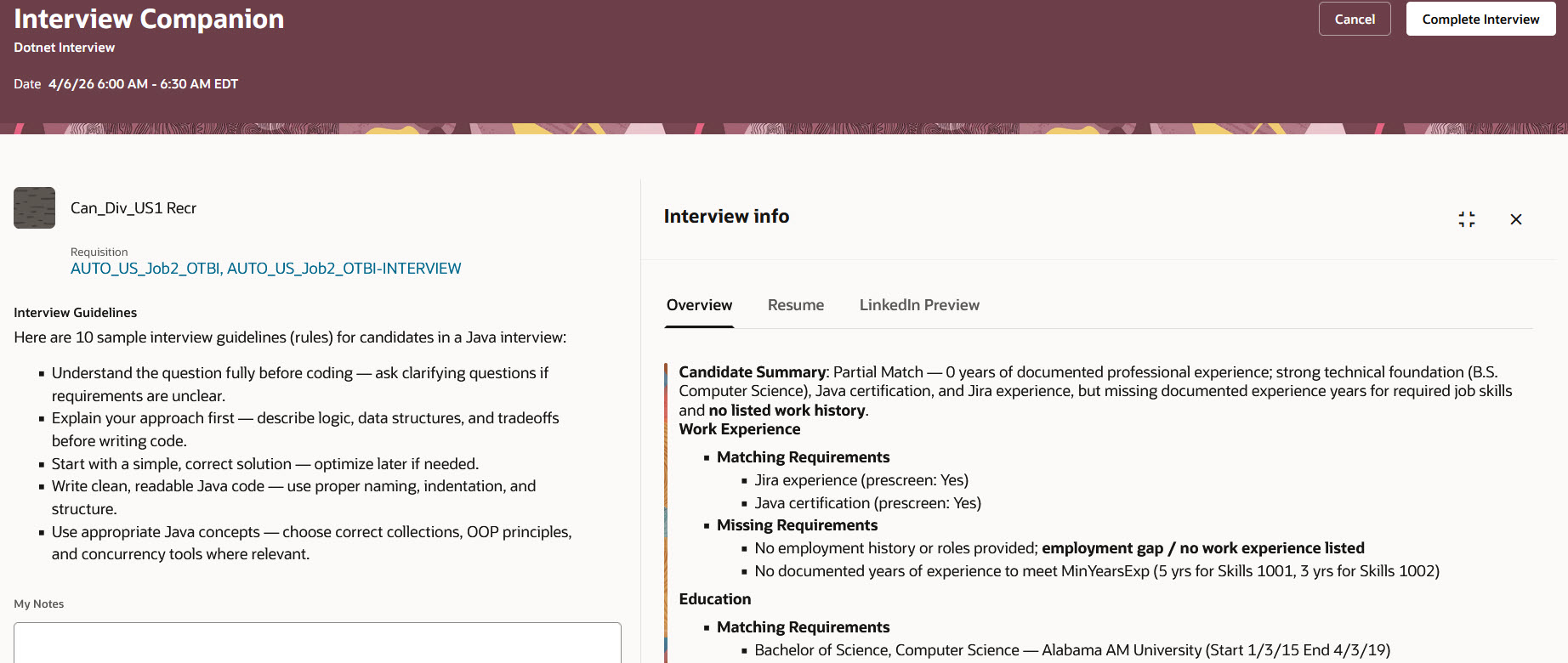
Interview Companion Page
For web conference interviews scheduled using the Zoom or Microsoft Teams integration, interviewers are reminded to start the recording in Zoom or Microsoft Teams. The interview transcript is generated only if the meeting is recorded in the provider application.
Note: The interviewer has to schedule the interview using the integration to get the transcript. If they manually enters a meeting link, the transcript won't be generated.
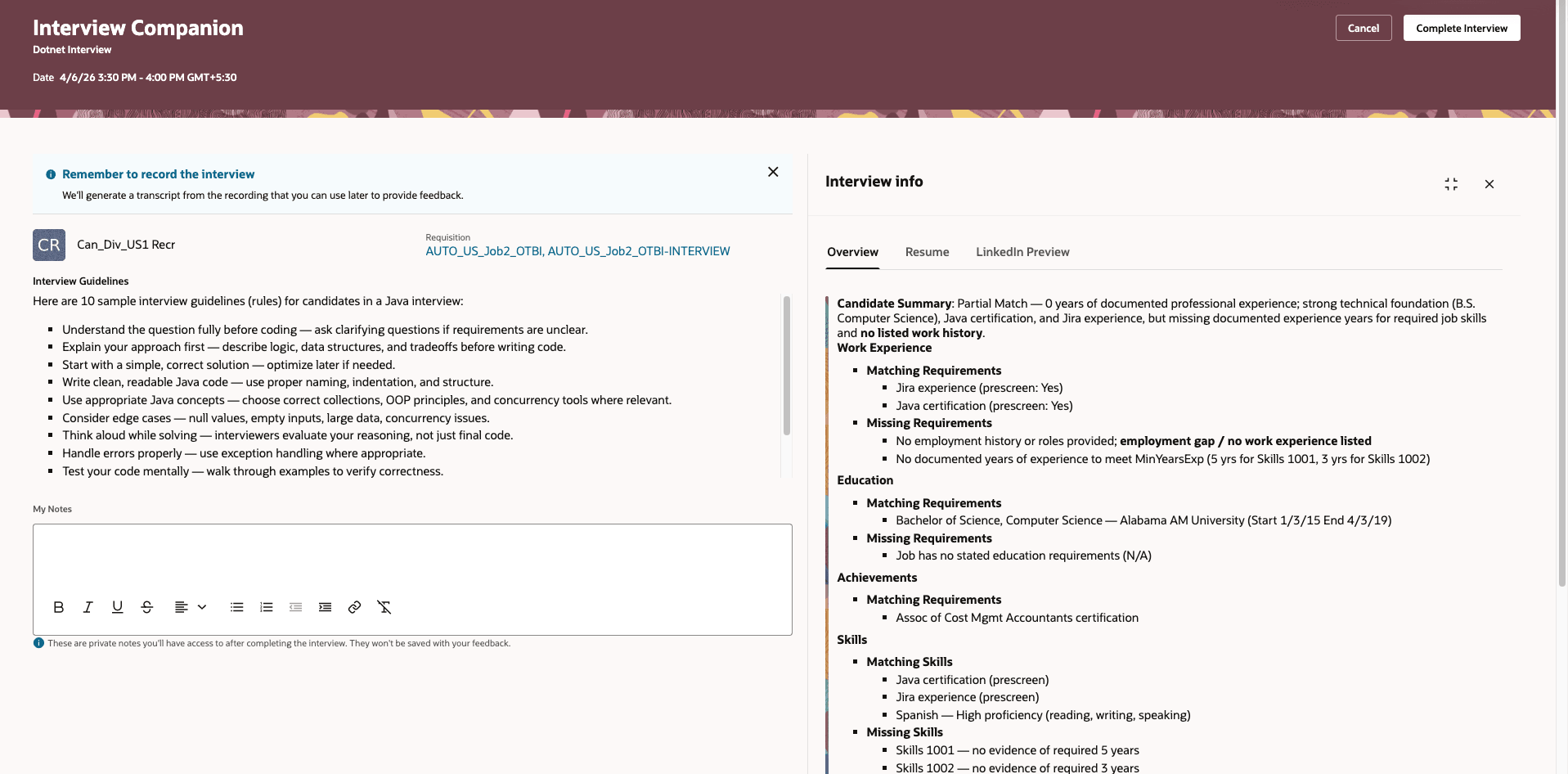
Message to Record the Interview
When the meeting is completed, interviewers can view the transcript using the View Transcript action from the interview details page. Also, each interviewer can view the notes they took during the interview using the View My Interview Notes action from the interview details page.

View Transcript Action
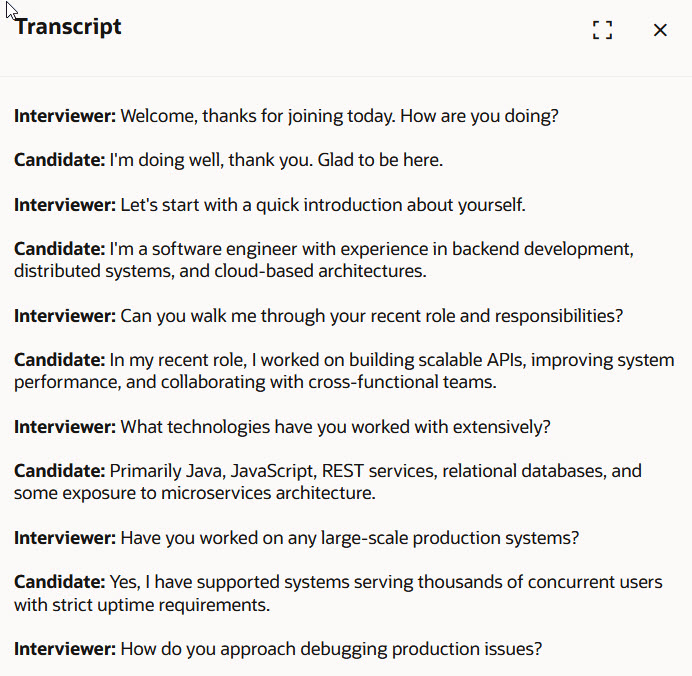
Interview Transcript
The Interview Companion page is available at all times after the interview has been scheduled. After the interview is completed, the page becomes read-only.
Business benefit: Interview Companion streamlines the interview process and ensures interviewers have everything they need to be fully prepared without bringing additional materials to the interview.
Steps to enable and configure
Step 1: Opt in to Recruiting Booster
To use Interview Companion, you need to opt in to Recruiting Booster. For details, see Opt in to Recruiting Booster.
Step 2: Enable Interview Companion
Enable Interview Companion in Setup and Maintenance.
Go to Setup and Maintenance > Recruiting and Candidate Experience > Recruiting and Candidate Experience Management > Enterprise Recruiting and Candidate Experience Information > Interview Intelligence.
When the feature is enabled, it’s available for all interview formats (web conference, phone, in person), but only for single-seat interviews.
Step 3: Enable Microsoft Teams or Zoom integration
For details, see Enable Microsoft Teams Integration in Interviews and Enable Zoom Integration in Interviews.
For Microsoft Teams, you need to configure these additional permissions on the Microsoft side, in Microsoft Entra app registrations in App registrations > API permissions.
- OnlineMeetings.Read.All
- OnlineMeetingTranscript.Read.All
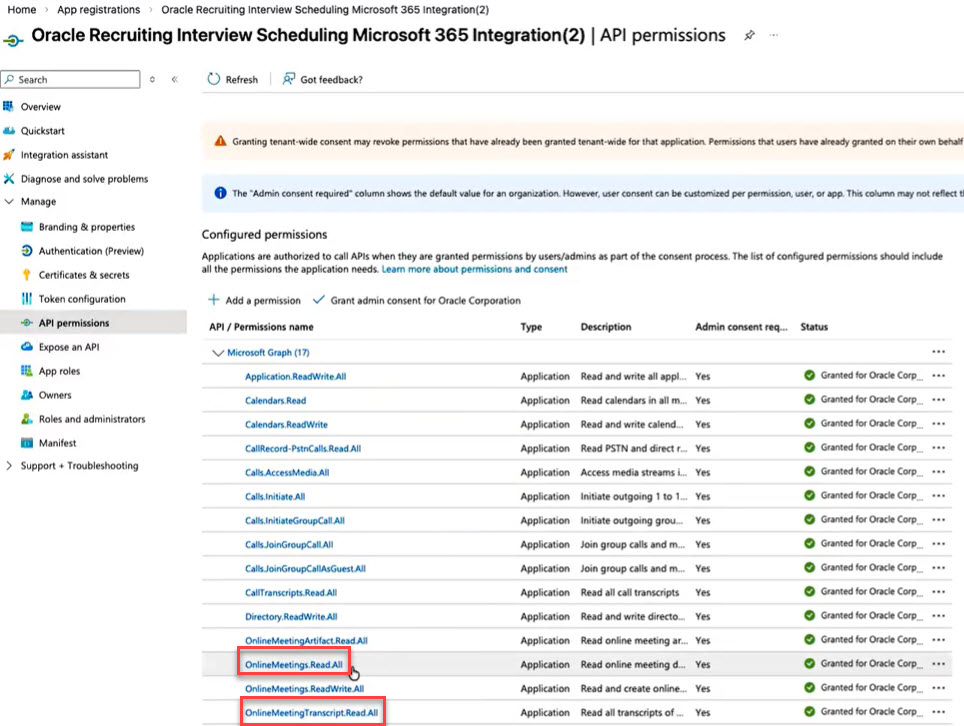
Additional Permissions for Microsoft Teams
For Microsoft Teams, you also need to configure and assign an application access policy so the app is authorized to access meeting data and transcripts.
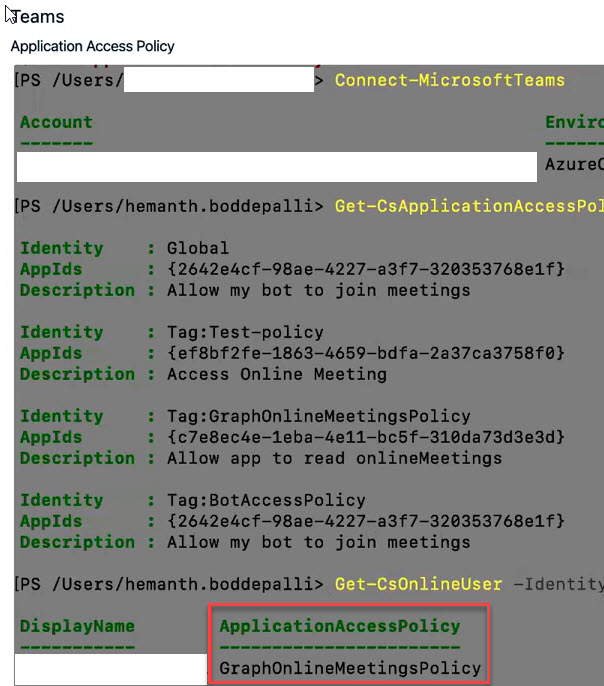
Additional Application Access Policy for Microsoft Team
For Zoom, you must configure these additional scopes on the Zoom side for the connected application:
- cloud_recording:read:list_recording_files
- cloud_recording:read:list_user_recordings
- meeting:read:list_past_instances
Step 4: Run the Retrieve Interview Transcripts scheduled process
Run the scheduled process called Retrieve Interview Transcripts. This process retrieves interview transcripts from Zoom and Microsoft Teams for completed interviews. The recommended frequency is every 15 or 30 minutes. If the transcript isn’t available due to processing delays in Zoom or Microsoft Teams, the system will retry up to 10 times, waiting 30 minutes between attempts.
Go to Navigator > Tools > Scheduled Process
Step 5: Enable Redwood experience
To use Redwood experience, you need to enable the Recruiting Redwood pages profile options. For details, see Set profile options for Redwood pages.
Step 6: Customize Interview Companion in Visual Builder Studio
In Visual Builder Studio, go to Hiring > Interview Companion and configure these page properties for Interview Companion.
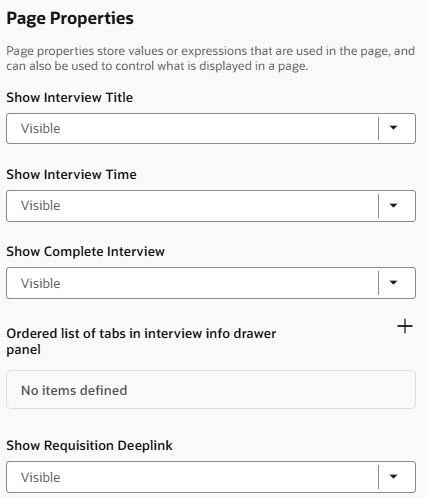
Visual Builder Page Properties for Interview Companion
You can also create business rules to display or hide fields in Interview Companion. In Visual Builder Studio, go to Hiring > Interview Companion.
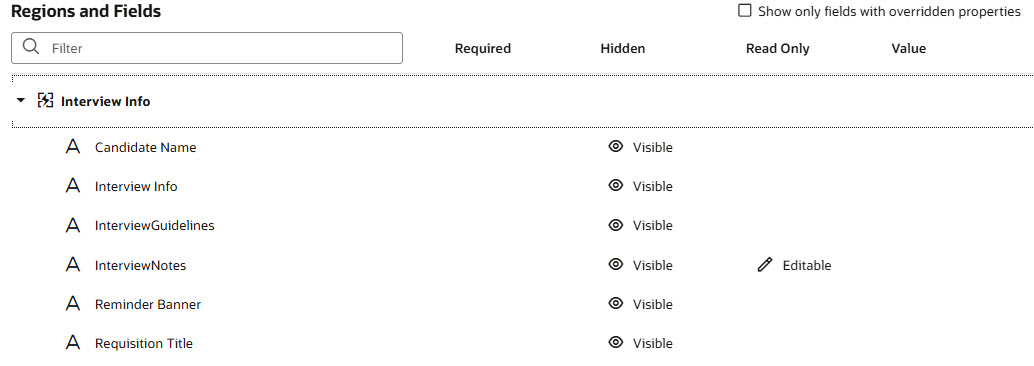
Visual Builder Regions and Fields Configuration for Interview Companion