Smart Search Enhancements
Candidates can now find jobs based on proximity to any location, including their current browser location, improving search relevance for location-sensitive job seekers.
Note: For now, classic search remains enabled by default. In 27B, classic search will be decommissioned and Smart Search will be enabled by default for all customers.
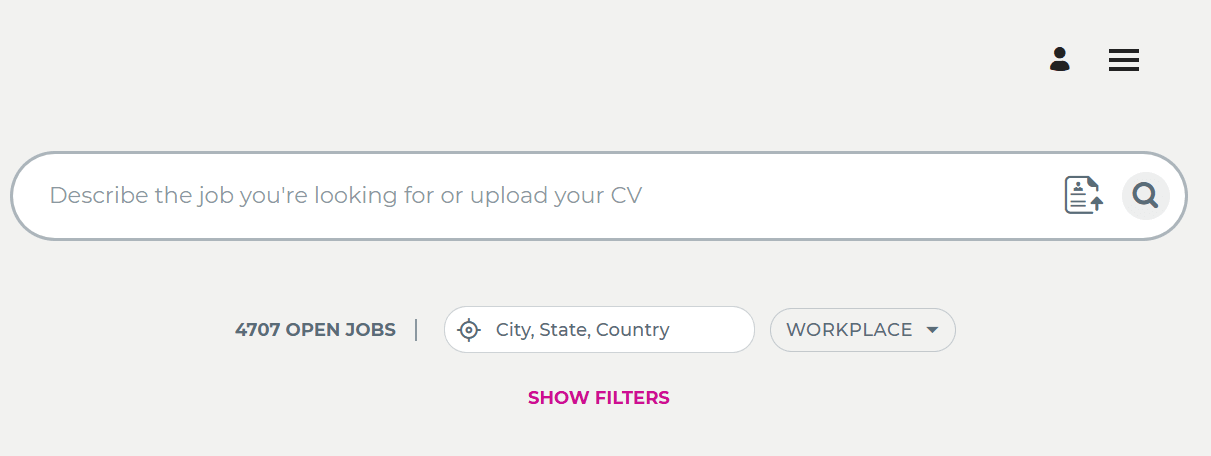
Location Search for Smart Search
The feature supports searching within a customizable radius around a selected location, enhancing the ability to discover nearby opportunities. Candidates can:
- Search for jobs across all available locations (all locations search)
- Use their current browser location as a search parameter by clicking the icon next to City, State, Country.
- Filter job results for either search method by selecting a radius of a chosen location
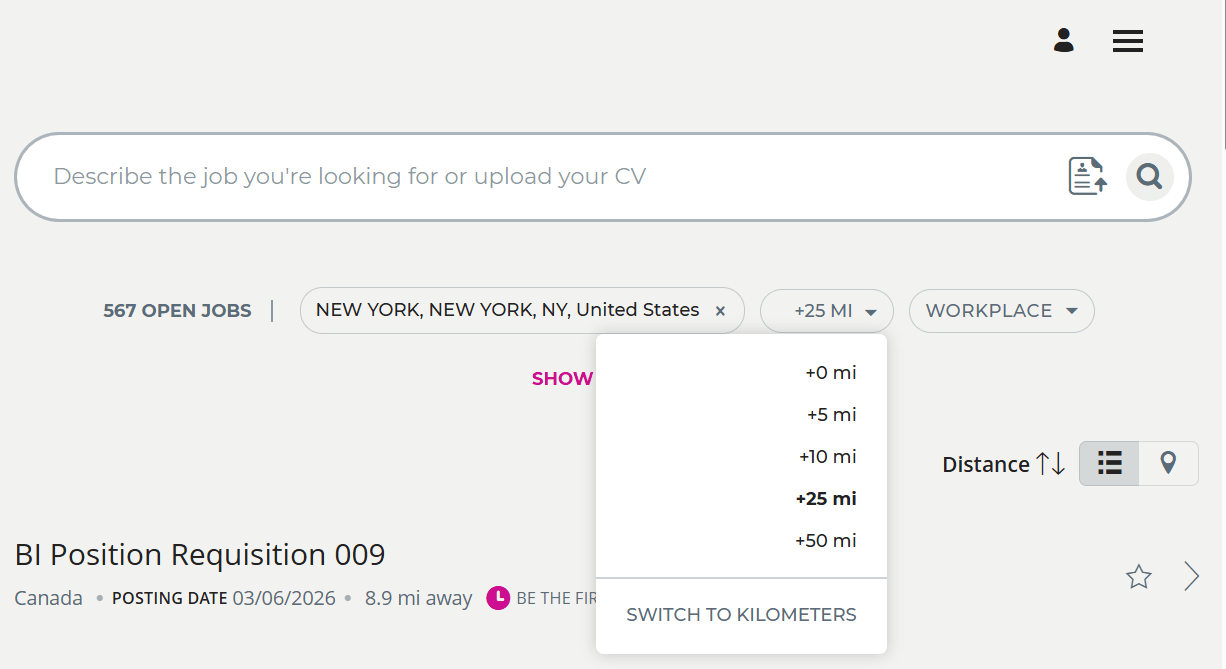
Select the Radius
In addition, the keyword search bar now supports Events.
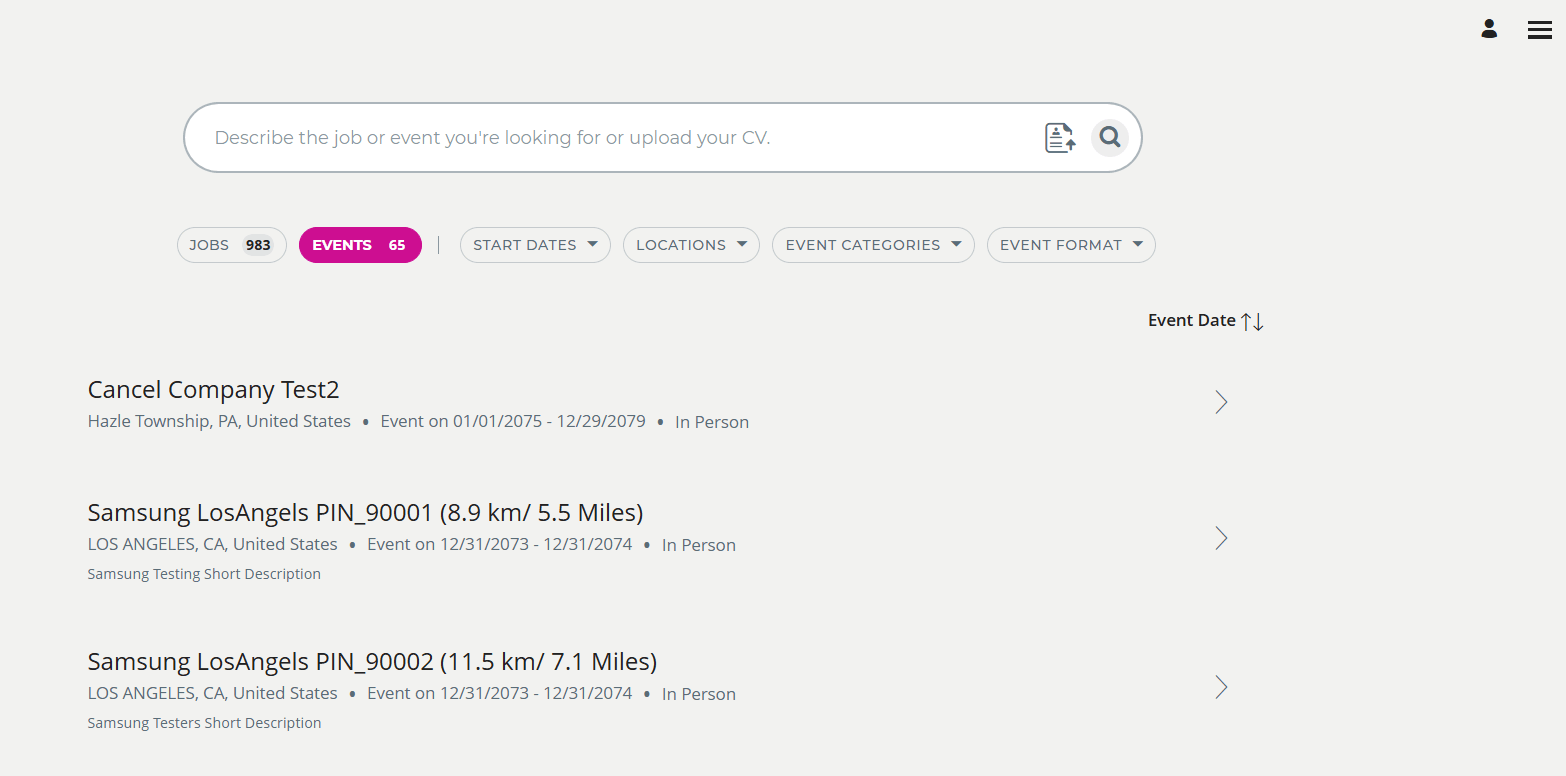
Smart Search Now Supports Events
Business benefit: Increase job search relevance by letting candidates find opportunities near any location, including their current position. Improve candidate satisfaction by supporting radius-based filtering for nearby job discovery.
Steps to enable and configure
You need to enable Smart Search. For details, see How do I enable smart search for candidate experience?
You also need to configure the location settings for the career site. For details, see Configure a Career Site.
Note: If you're using custom pages, and you switch to Smart Search in the site editor's General tab, you'll need to complete a few steps. First, you need to publish your site with the new search setting. This creates new draft versions of your custom pages, but it doesn't publish them. Your site will continue to use classic search until you publish the new drafts. Go to Pages tab to review your pages with the new search widget, adjust if needed, and republish them. Instructional messages will display throughout the process to let you now what needs to be done.
While configuring location search, you'll need to decide between selecting Fixed location search and Proximity search.
- If your organization has a few offices in a given city or country, select Fixed location search.
- If you're a large organization with many locations in each city or country, you may want to use the Proximity search, so that candidates can search for openings within a given radius of where they live. When you use this setting, the search bar remains enabled by default. You can also let candidates search for jobs on a map, and distance calculations.
Tips and considerations
- All locations search expands job visibility but may increase result volume; use radius filters to refine results.
- Candidates should verify browser location permissions to enable accurate location-based job searches.