Redwood Experience: Categorize and Save Email Attachments Using AI Agent
This feature introduces the Recruiting Inbox Document Processing Agent, which automatically processes attachments received from candidate emails, categorizes them into appropriate document types, and saves them to the candidate profile or job application depending on the email context. The Recruiting Inbox Document Processing Agent is part of the Recruiting Email Assistant Template workflow in AI Agent Studio.
If the email pertains to a candidate profile, candidate pool, or event, the agent saves the attachment to the candidate profile, on the Details tab. If the email pertains to a submission profile or job requisition, the agent saves it to the job application, on the Overview tab. It saves a copy of the attachment. So any changes made to the saved copy won’t affect the email version.
The agent uses predefined document types such as Resume, Cover Letter, Passport, Miscellaneous, and so on, and categorizes the attachment to one of these. The categorization is based on the content, attachment name, and category applicable to a job application or candidate profile. If it’s unable to identify the category, it classifies as Miscellaneous.
While the agent is processing attachments, you can still view, preview, or download them from the Message Center or Messages tab. The automatic categorization and saving will take some time to complete and during this time, you’ll see a banner indicating that the agent is processing the email. After it completes processing, when you preview the attachment from the email, you’ll see a banner indicating that the attachment was saved by the agent to a specific category.
This banner won’t display when you preview the saved attachment on the candidate profile or job application page. But you can see the document category and by whom it was saved in the list of attachments.
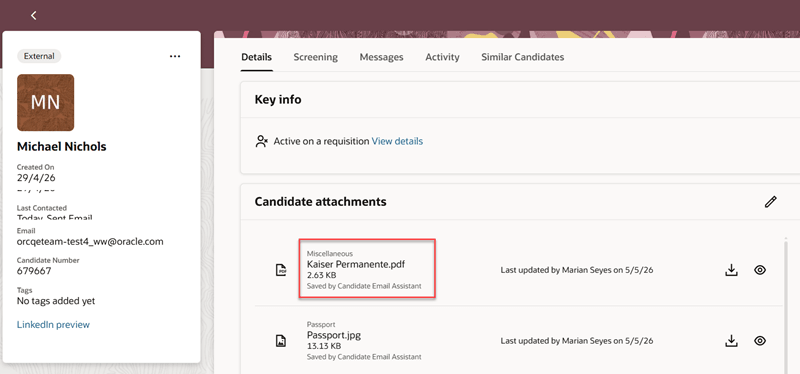
Attachment Saved to the Candidate Profile
When you delete a saved attachment and preview the email version, it won’t indicate that the attachment was previously saved.
Business Benefit: This feature enhances recruiter productivity by saving the time spent on downloading, categorizing, and uploading attachments to the correct context.
Steps to enable and configure
To use this feature, complete these prerequisites:
- Enable two-way email communications.
- Enable email attachments.
- Set up document categories and make them active using the Enterprise Recruiting and Candidate Experience Information task > Document Types section in Setup and Maintenance.
Next, complete these setup steps:
- Configure the Recruiting Email Assistant Template. If you’re using the previous version of the Recruiting Email Agent Template, delete the schedule that you’ve set up. Make a new copy of this template and schedule it. It’s recommended to run it every 5 minutes. This will execute both the Recruiting Inbox Response Agent and Recruiting Inbox Document Processing Agent in a sequential manner.
- Enable the Recruiting Inbox Response Agent. This is optional. If you’ve enabled it, it’ll run first, followed by the Inbox Document Processing Agent.
- Enable the Recruiting Inbox Document Processing Agent.
- Set attachment processing limits per day using the profile options:
- ORA_IRC_2W_EMAIL_ATTCHPROCESS_AGENT_SYSTEM_THROTTLE_LIMIT
- ORA_IRC_2W_EMAIL_ATTCHPROCESS_AGENT_CAND_THROTTLE_LIMIT
For privileges, see the Access Requirements section.
Tips and considerations
- This agent processes emails delivered to the vanity email only.
- This agent operates independently of the Inbox Response Agent and doesn’t impact email delivery, response, or visibility. Because processing is asynchronous, attachments may initially appear uncategorized. Once processing is complete, they’re categorized and saved.
- Recruiters can override the categorization, if needed, by updating the saved copy of the attachments from the candidate profile or job application pages.
- If the attachment processing limits that you’ve set at system-level or candidate-level are reached, the agent won’t process attachments. The emails will be available to recruiters for manual saving.
- If a job application is locked due to phase or state constraints, attachments won’t be saved to that job application.
Access requirements
To schedule the agent workflow, the administrator needs to have the ORA_HCM_IRC_RECRUITING_SCHEDULED_WF_AGENT_ACCESS privilege.