Redwood Experience: Candidate Outreach
Candidate Outreach helps recruiters to efficiently engage prospects and candidates through AI-generated email communication that's personalized and context-specific for the purpose of attracting them to the organization and to specific jobs. Outreaches are individualized, one-on-one nurturing of prospects and candidate pool members.
Here's how it works:
Emails
You initiate your communication by choosing one or more prospects or candidates and selecting the new Start Outreach action from More Actions.
This opens a panel with a prepopulated prompt in the What’s this email about field to get you started with your conversation. When you select Generate, the AI Agent reads this prompt along with candidate profile details and job details, in the case of prospects, and creates an email.
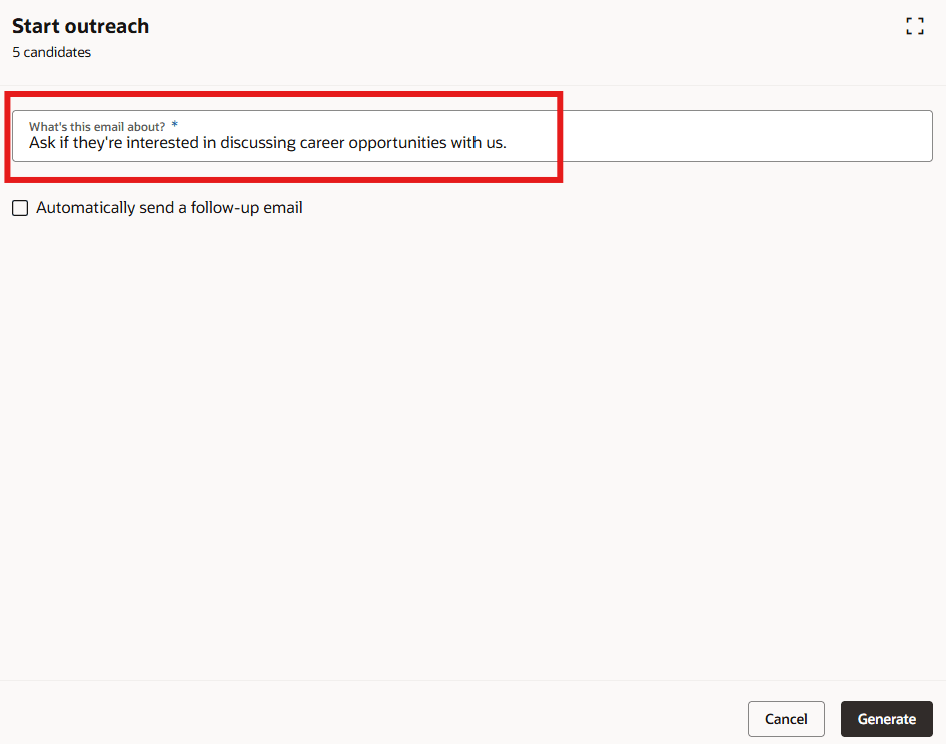
Start Outreach Panel with AI Suggested Prompt
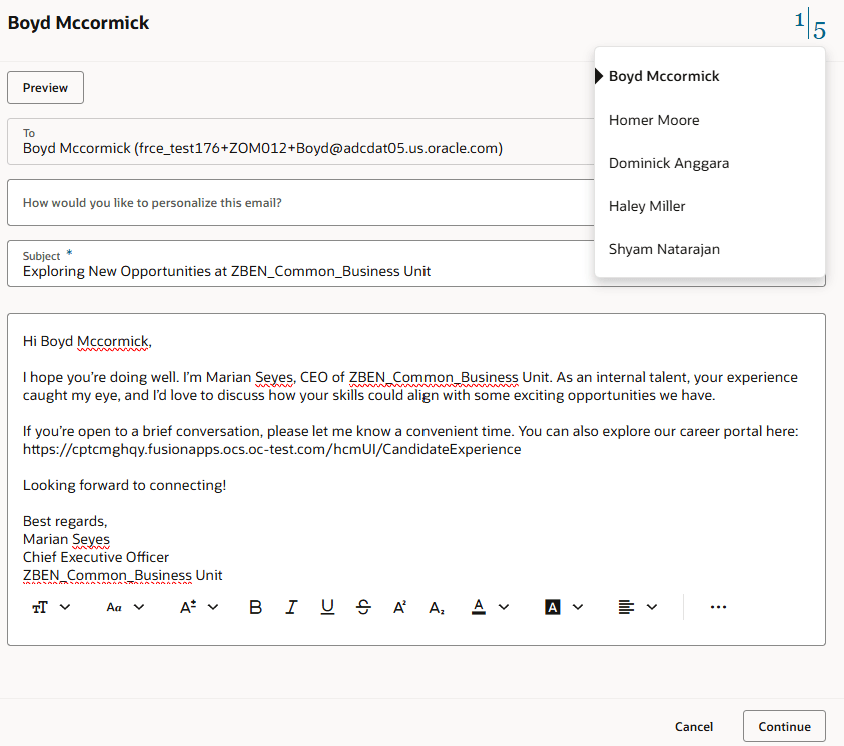
AI Generated Outreach Email Example
Once the initial email is generated you can refine it by entering more information and instructions in the How would you like to personalize this email? field. This tells the AI agent what to revise. You can also revise the tone and length by selecting the options next to Generate. You can repeat this process for each person so that each one of them has a highly personalized email or you can send them as-is. You can also manually edit the language instead of using the AI capabilities. You can toggle among the different prospects or candidates by selecting the numbers in the upper right corner of the panel or by selecting Continue. The emails won’t get sent until you select Send. Once the emails get sent, you can view them on the Messages tab on the prospect or candidate profile.
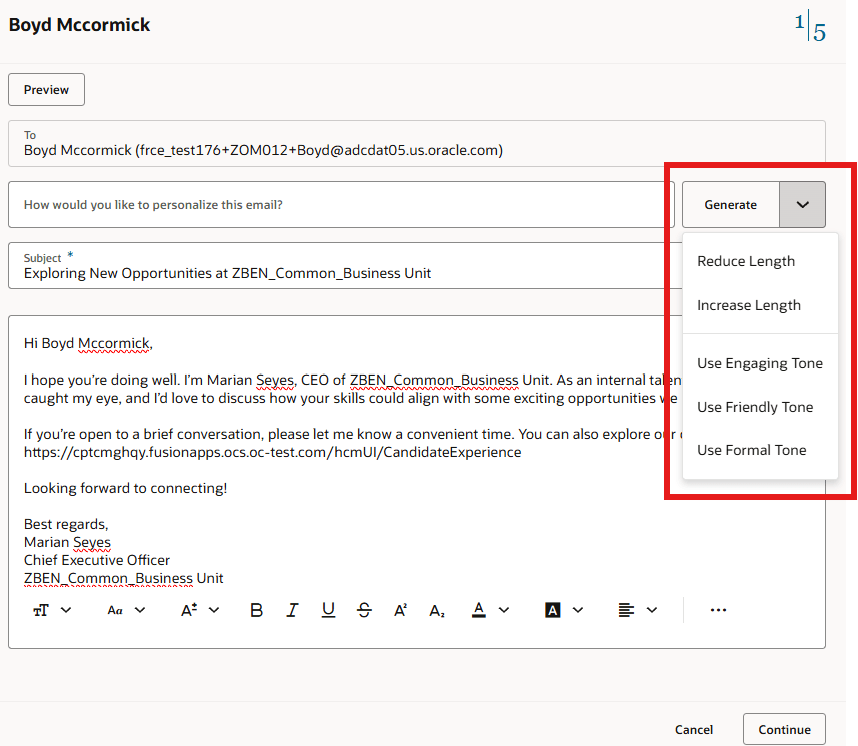
Email Example with Refinement Options
The email displayed in the image below was enhanced by the AI Agent after manually entering the text, “enjoyed meeting you” in the How would you like to personalize this email? field and selecting Use Engaging Tone from the menu.
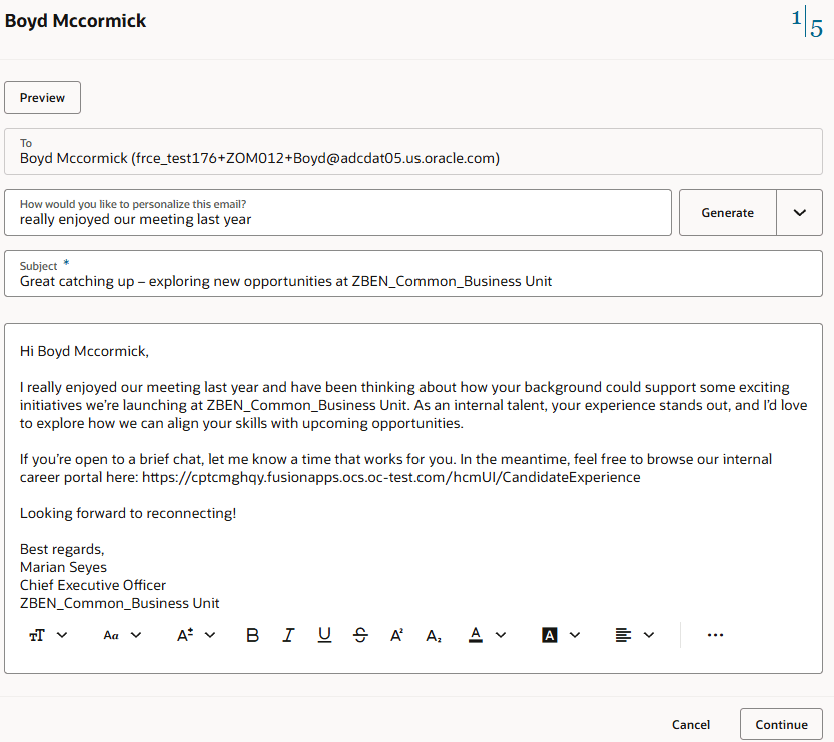
Email Example with Refinements
You can schedule a follow-up email to be automatically sent out beginning the day after you send your email and up to 1 week after. You do this by selecting Automatically send a follow-up email and choosing the date you want it sent. If a prospect or candidate replies to an email this reminder won’t get sent.
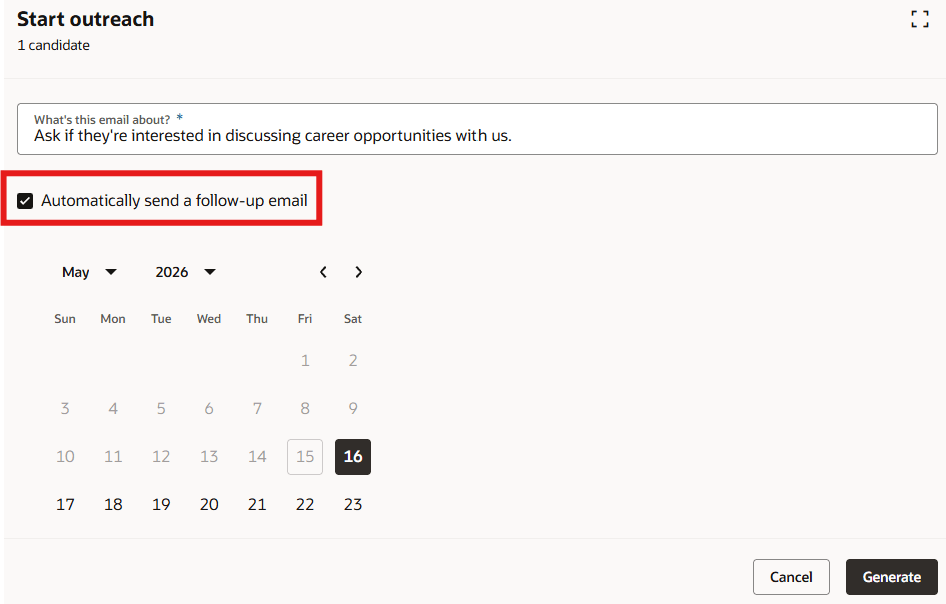
Outreach Follow-Up Email Option
Automated Responses and Follow-Up Activities
When a prospect or candidate responds to an email, the AI agent reads the email and responds if it's able. If the agent can’t respond and the recruiter needs to take action, a follow-up task activity gets created and is assigned to the initiator of the outreach with a due date of tomorrow.
An email history related to the outreach displays in the Message area and on the Messages tab of each prospect or candidate.
Interactions
Whether or not the prospects and candidates reply to an outreach email an interaction is created. You can find these in the prospect or candidate profile on the Activity tab. These interactions summarize the outreach details providing context, insight and statuses into the outreach efforts. Some examples of what an interaction may indicate are:
-
The candidate responded to the outreach email indicating they’re not interested. No follow-up action is required.
-
The candidate responded to the outreach emails with a question. The candidate email assistant responded.
- The candidate responded to the outreach email with comments that require review. A follow-up task was assigned.
Outreaches move to a Completed status after a candidate or prospect responds or after 14 days of inactivity.
Business benefit: Recruiters provide their guidance and the AI agent creates detailed and tailored messages to initiate conversations quickly and efficiently. This can lead to improved candidate engagement, higher response rates and a reduction in manual tasks for recruiters.
Steps to enable and configure
This feature relies on and invokes several AI Agents. For details on how to configure, use and schedule the agents and processes refer to the Key Resources section. The agents you’ll work with are:
- Recruiting Message Generation Agent (ORA_HCM_IRC_RECRUITING_MESSAGE_GENERATION_AGENT)
- Creates the outreach email
- Recruiting Email Assistant Template (ORA_HCM_IRC_CANDIDATE_EMAIL_ASSISTANT) and Recruiting Inbox Response Agent (ORA_HCM_IRC_EMAIL_MESSAGING_ASSISTANT)
- Work together to read prospect and candidate email replies and then responds when able. Also responsible for creating follow-up tasks when relevant
- It’s recommended to schedule the Recruiting Email Assistant Template for once every 5 minutes
For details, see Inbox Response Agent to Answer Candidate Emails
- Recruiting Candidate Outreach Agent Template (ORA_HCM_IRC_CANDIDATE_OUTREACH_AGENT_TEMPLATE) and Recruiting Candidate Outreach Reminder Agent (ORA_HCM_IRC_CANDIDATE_OUTREACH_REMINDER_AGENT)
- Work together to send automatic reminders to the prospects and candidates if scheduled
- It’s recommended the schedule the Recruiting Candidate Outreach Agent Template for once every hour
You also need to enable the following:
- Recruiting Booster
- Two-Way Email Communications with External Candidates
- Two-Way Email Communications with Internal Candidates
- Activity Centers
- Follow-up task due for pool member
- Follow-up task due for prospect
Tips and considerations
- A maximum of 10 candidates or prospects can be selected at one time
- Prospect and candidate eligibility for outreaches:
- Must have a valid email address
- Must not have opted out of marketing emails
- Must not be indicated as Not Recommended for Rehire
Key resources
- Create AI Agents Using Preconfigured Agent Team Templates
- Explore AI Agents for Oracle Fusion Cloud Applications
- How do I use AI Agent Studio?
- How can I give users access to AI agents
- Access Requirements for AI Agent Studio
Access requirements
Users need these privileges:
- Manage Pending Candidate Follow-Up Task (IRC_MANAGE_PENDING_CANDIDATE_FOLLOW_UP_TASK_PRIV)
- Manage Completed Candidate Follow-Up Task (IRC_MANAGE_COMPLETED_CANDIDATE_FOLLOW_UP_TASK_PRIV)
- Interact with Candidate (IRC_INTERACT_WITH_CANDIDATE_PRIV)
- Start Candidate Outreach (IRC_START_CANDIDATE_OUTREACH_PRIV)