Enhancements in All-in-One Evaluations
You can improve the evaluation experience of managers using All-in-One Evaluations with these enhancements:
- Managers can now see an indicator in editable manager rating cells. The indicator shows when a value can be selected in a rating cell for proficiency, performance, competency, or a section rating.
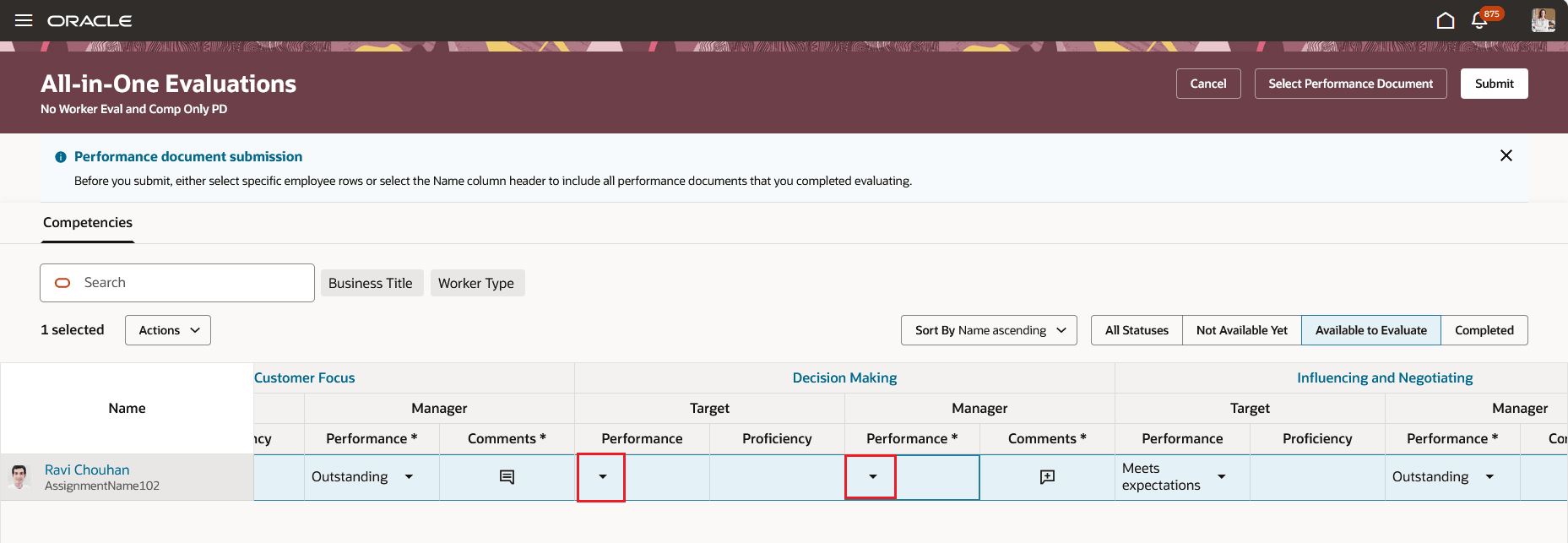
Editable rating indicator
- HR specialists can hide worker calculated ratings for specific sections using page properties.
- HR administrators can use additional parameters in business rules to hide specific goal attributes and anytime feedback shown in the drawer as contextual information.
- Section (evaluation topic) level guided journeys are available in addition to page level guided journeys. These section level guided journeys are accessed through the Actions button when an evaluation topic is selected. Page level guided journeys are displayed at the top of the page consistent with other Redwood pages.
Business benefit: These enhancements enable managers to streamline the evaluation process in All-in-One Evaluations.
Steps to enable and configure
To hide worker calculated ratings using page properties:
1. Open VB Studio Express Mode on the All-in-One Evaluations page.
2. In Page Properties, go to the Calculated Ratings category.
3. Set the page properties for the sections where you want to show or hide worker calculated ratings.
You can configure the page properties as indicated in the following table.
| Page Property | Description |
|---|---|
| Hide Worker Calculated Rating for Overall Summary Section in All-in-One Evaluations | Controls the display of the worker calculated rating for the Overall Summary section in All-in-One Evaluations. Set to true or false to show or hide the rating respectively. |
| Hide Worker Calculated Rating for Competencies Section in All-in-One Evaluations | Controls the display of the worker calculated rating for the Competencies sections in All-in-One Evaluations. Set to true or false to show or hide the rating respectively. |
| Hide Worker Calculated Rating for Performance Goals Section in All-in-One Evaluations |
Controls the display of the worker calculated rating for all Performance Goal sections in All-in-One Evaluations. Set to true or false to show or hide the rating respectively. |
| Hide Worker Calculated Rating for Development Goals Section in All-in-One Evaluations |
Controls the display of the worker calculated rating for all Development Goal sections in All-in-One Evaluations. Set to true or false to show or hide the rating respectively. |
| Hide Worker Calculated Rating for Dynamic Skills Section in All-in-One Evaluations | Controls the display of the worker calculated rating for all Dynamic Skills sections in All-in-One Evaluations. Set to true or false to show or hide the rating respectively. |
The parameters you can configure as part of the business rules to hide specific goal attributes and anytime feedback are listed in the following table:
| Business Rules | Description | Parameters |
|---|---|---|
| Performance goal attributes | Let’s you hide specific performance goal attributes shown in the drawer based on supported parameters. |
Template Name |
| Development goal attributes | Let’s you hide specific development goal attributes shown in the drawer based on supported parameters. |
Template Name |
| Questionnaire contextual regions | Let’s you hide contextual regions for Questionnaire, including Anytime and Requested Feedback, based on supported parameters. |
Template Name |
| Overall summary contextual regions | Let’s you hide contextual regions for Overall Summary, including Anytime and Requested Feedback, based on supported parameters. |
Template Name |
- Open VB Studio Express Mode from the All-in-One Evaluation page.
- Open the available Business Rules.
- Create or update rules to hide the applicable fields displayed in the drawer.
- Save your changes.
The page-level and section-level codes to configure guided journeys are listed in the following table:
| Journey code | Description |
|---|---|
| journeyCode (existing) | Controls the page-level Guided Journey in All-in-One Evaluations. |
| taskCodes (existing) | Controls the task codes for the page-level Guided Journey in All-in-One Evaluations. |
| competencyJourneyCode |
Controls the section-level Guided Journey for the competency section. |
| competencyTaskCodes |
Controls the task codes for the competency section Guided Journey. |
| devGoalJourneyCode |
Controls the section-level Guided Journey for the development goals section. |
| devGoalTaskCodes | Controls the task codes for the development goals section Guided Journey. |
| dynSkillJourneyCode |
Controls the section-level Guided Journey for the dynamic skills section. |
| dynSkillTaskCodes |
Controls the task codes for the dynamic skills section Guided Journey. |
| goalJourneyCode | Controls the section-level Guided Journey for the goals section. |
| goalTaskCodes |
Controls the task codes for the goals section Guided Journey. |
| osJourneyCode |
Controls the section-level Guided Journey for the overall summary section. |
| osTaskCodes |
Controls the task codes for the overall summary section Guided Journey. |
| qstnrJourneyCode |
Controls the section-level Guided Journey for the questionnaire section. |
| qstnrTaskCodes | Controls the task codes for the questionnaire section Guided Journey. |
Tips and considerations
- Existing customers using Guided Journeys will now see them only at the page level unless they configure the new section-level properties.
- When both page-level and section-level Guided Journeys are configured, the page-level journey appears at the page level and each configured section shows its own journey from the Actions button.
- Section-level Guided Journeys don’t overwrite the page-level Guided Journey or each other.
- If you change or remove a section-level property, only that section is affected.
- If a section configuration is incomplete, such as a journey code without task codes or task codes without a journey code, the section Guided Journey doesn’t render, and no end-user error is shown.
- Enabling or disabling page-level or section-level Guided Journeys doesn’t affect form submission, navigation, or evaluation functionality.
- Sections without configured section-level properties don’t show a Guided Journey in the Actions button.
Key resources
For more information on extending Redwood pages in HCM, see: Extending Redwood Applications for HCM and SCM Using Visual Builder Studio
Access requirements
Managers require the duty role Mass Evaluate Performance Documents by Manager (ORA_HRA_MASS_EVALUATE_PERFORMANCE_DOCUMENTS_BY_MANAGER) to access All-in-One Evaluations.