Redwood: Set Default Review Period for Employee and Manager Performance Landing Pages
As a manager or HR user viewing an employee’s Performance page, you can filter the list of performance documents or check-ins by review period if enabled through business rules.
- The Review Period filter displays on the Performance page.
- Different default review period periods can be set for the Check-Ins and Performance Documents tabs.
- A default review period can be set for the manager Evaluate Performance page.
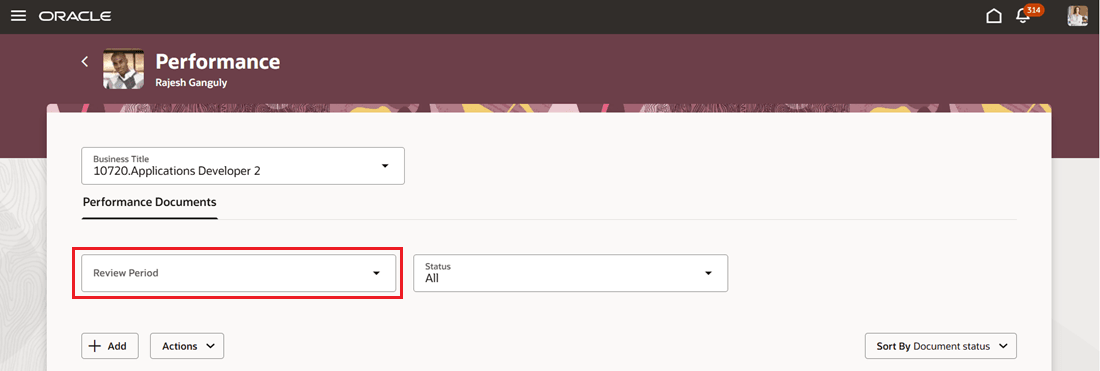
Filter performance documents by review period
HR can control the review period that best fits specific conditions, such as manager location, department, or business unit, while still allowing managers to change the filter value on the Evaluate Performance page. If a default review period is configured, results for that period displays even when the filter isn’t shown.
Business benefit: This feature enables you to quickly focus on the most relevant review period, improving clarity when reviewing an employee’s history.
Steps to enable and configure
You need to configure the profile options as indicated in the following table.
| Profile Option Code | Description | |
|---|---|---|
| ORA_HCM_VBCS_PWA_ENABLED | Enable VBCS Progressive Web Application User Interface | Y |
| ORA_HRA_PERFORMANCE_ LANDING_PART_FDBK_ REDWOOD_ENABLED |
Enable employee Performance and manager Evaluate Performance pages to display in Redwood. |
Yes |
For more information about setting profile option values, see How do I enable a profile option?
You need to configure the following page property:
| Page Property | Description | Values |
|---|---|---|
| Set Review Period Filter Default Value On The Evaluate Performance Page | Sets the default value for the Review Period filter on the Evaluate Performance page. |
All review periods |
1. Open VB Studio Express Mode from the Evaluate Performance page.
2. Open the Page Properties Editor.
3. Locate the Set Review Period Filter Default Value On The Evaluate Performance Page property.
4. Set the default review period value.
5. Configure conditions in the Page Properties Editor to determine the default review period based on manager location, department, or business unit.
6. Save your changes.
Tips and considerations
- The default review period on the employee Performance page can be set to the last year's period for the performance document and the default review period for check-ins can be set to the current year's review period.
- If you change the default value, that value is shown as the selected review period for managers using the Evaluate Performance page.
- Managers can still change the filter value after the default is applied on the Evaluate Performance page.
Key resources
- For a listing of all profile options for the recreated pages across HCM, see the following document in My Oracle Support: HCM Redwood Pages with Profile Options – MOS Document 2922407.1
- For more information on extending Redwood pages in HCM, see: Extending Redwood Applications for HCM and SCM Using Visual Builder Studio