Calendar Usability Improvements
The worker calendar includes several usability improvements that help workers understand their schedules more quickly. Multi-day absences display more consistently, shifts with notes are easier to identify, and configurable tool-tips can show the most relevant details.
Administrators can also configure which calendar providers appear by default, how providers and events are ordered, and whether self-scheduling and additional open shift banners appear to workers.
As a worker, you can:
- Open your calendar and choose the calendar view that best fits your task, such as month, week, day, or list where available.
- Review work schedules, available shifts, absences, public holidays, and availability preferences in the order and visibility configured for your organization.
- Look for the folded-corner indicator on a shift to know it has a note attached. Open the shift detail panel to read the full note.
- Hover over a shift, open shift, or absence to see the tool-tip your administrator has configured.
- Review multi-day absences directly in the calendar, including full-day absences, partial absences with fixed times, and duration-based absences.
- Use the calendar provider controls to show or hide calendar information during your current session without changing the organization default.
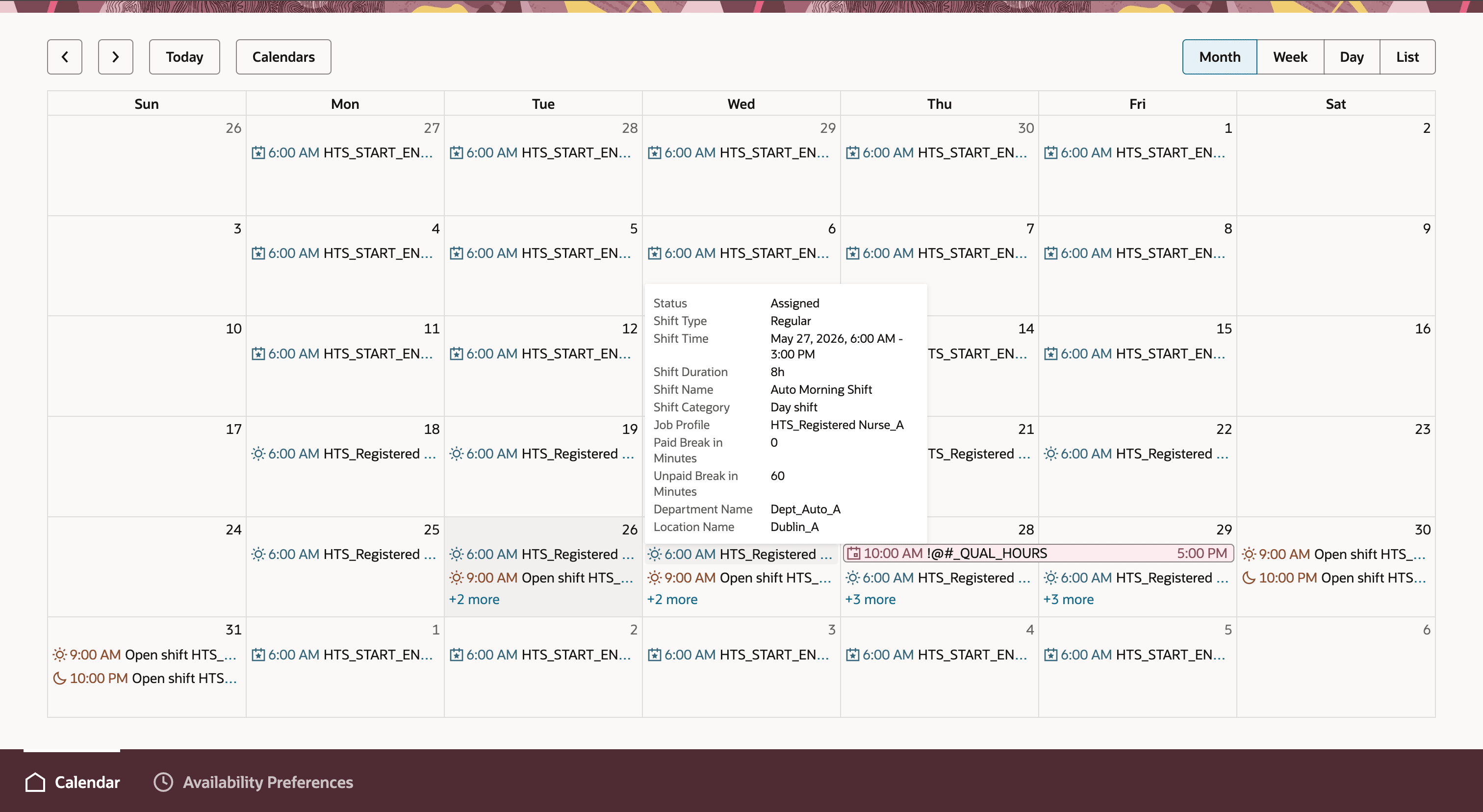
Tooltip displaying assigned shift details
Example Scenarios
- A worker scans the monthly calendar and can quickly distinguish a multi-day vacation from partial-day absence time without opening each day individually.
- A worker sees a note indicator on an upcoming shift and opens the shift details to review special instructions before arriving at work.
- An organization reduces calendar clutter by hiding self-scheduling or additional open shift banners when those messages are not needed for its worker population.
- A hospital administrator tunes shift tooltips to show Job Profile, Shift Start and End Time, Department, Premium Shift Code, and Incentive Amount — the fields nurses actually use to decide whether to pick up an open shift — and hides fields that aren't relevant.
- A manufacturing scheduler customizes provider order so Work Schedules always appear above Open Shifts in the calendar legend. Workers see their rostered shifts first, and open shifts follow in a predictable position.
Help workers interpret schedule information faster and with fewer mistakes. Administrators can reduce calendar clutter and emphasize the schedule details that matter most for their organization, reducing confusion and unnecessary support questions.
Steps to enable and configure
The calendar improvements work with the delivered defaults, so no setup is required to start using them.
To tailor the calendar to your workforce, administrators can configure the worker calendar using Visual Builder.
- Set which calendar providers are visible by default and the order in which they stack.
Calendar providers include Work Schedules, Open Shifts, Absences, Public Holidays, and Availability Preferences.
- Configure the display order for visible calendar providers.
This controls the sequence in which workers see schedule information.
- Configure up to two levels of event sorting.
You can configure primary and secondary sorting using attributes such as All Day, Start Time, and Event Title.
The default order is:
-
- Start Time, ascending
- All Day, descending, so all-day events appear above timed events at the same start time
- Event Title, ascending, as a tie-breaker
- Configure the shift tooltip to include the shift details workers need to see.
Examples include status, shift type, time, duration, job profile, department, location, premiums, incentives, and notes.
- Configure the open shift tooltip to include additional open shift details.
Examples include whether approval is required, whether partial requests are allowed, and how many shifts are filled.
- Configure the absence tooltip to include absence details.
Examples include absence type and absence status.
- Choose whether to show or hide the self-scheduling banner and the additional open shifts banner.
Tips and considerations
- Calendar Provider Display Order and Event Sorting Criteria work together. Providers stack in the order administrators configure. Within each provider, events sort by the configured criteria.
- Tooltips are supported only in month, week, and day views.
Key resources
For more information about Workforce Scheduling, see these resources:
- Oracle HCM Cloud Workforce Management: Scheduling documentation
- Oracle Cloud HCM What's New: https://docs.oracle.com/en/cloud/saas/readiness/hcm.html