Manage Workforce Schedules for Line Manager
Line managers can access Workforce Scheduling from My Team > Team Schedule with scheduling context carried forward (such as period and team scope), then manage schedules for workers in their hierarchy.
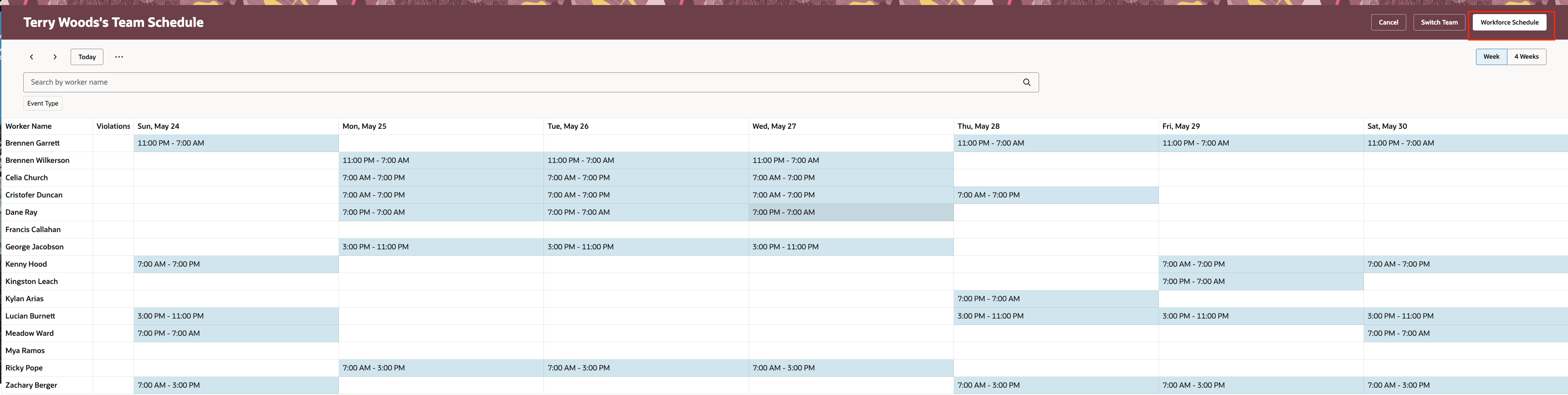
Team Schedule with Navigation to Workforce Schedule
Workforce Schedule action navigates directly to the Workforce Schedule Gantt page for a department when all the workers in the Team Schedule page are assigned to the same Department. Its shows a schedule for the period that overlaps selected date range at the Team Schedule page.
Line managers can view assigned shifts, open shifts, approved and pending absences, and violations for in-scope workers. They can perform core shift actions for their team, including creating and assigning shifts, editing shifts, unassigning shifts, and assigning open shifts.
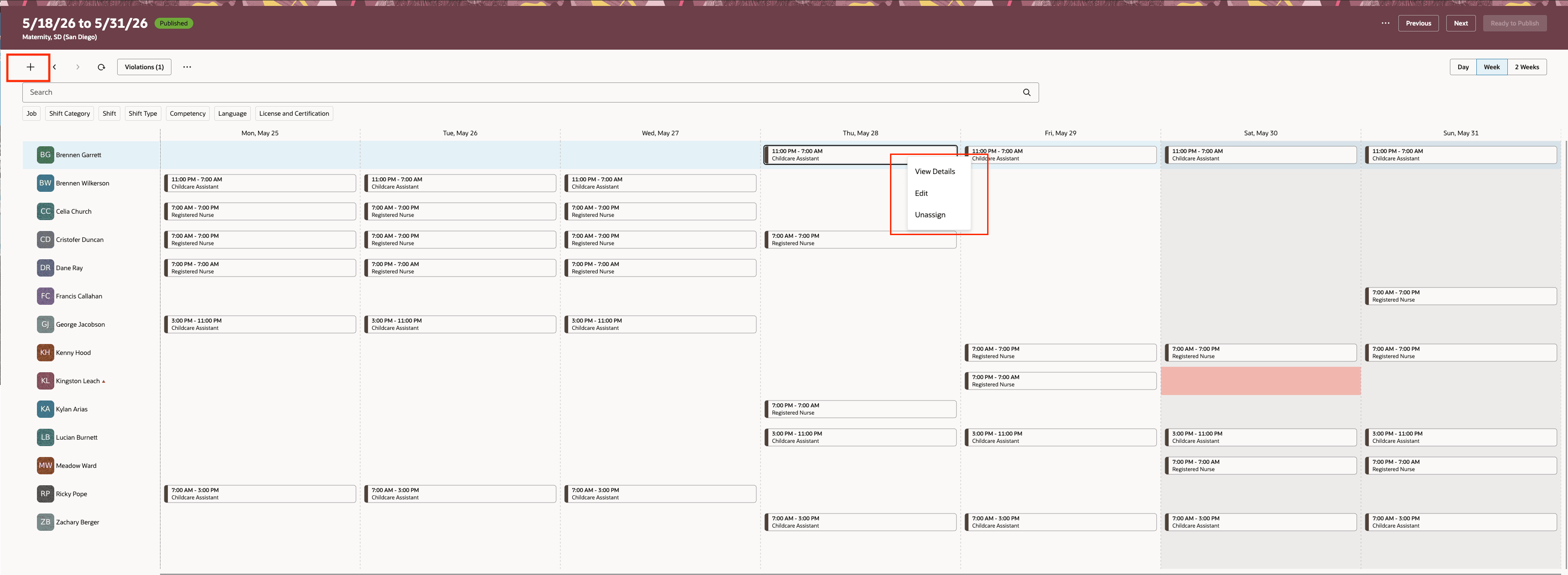
Workforce Schedule Showing Schedule of Workers from the Line Manager Hierarchy
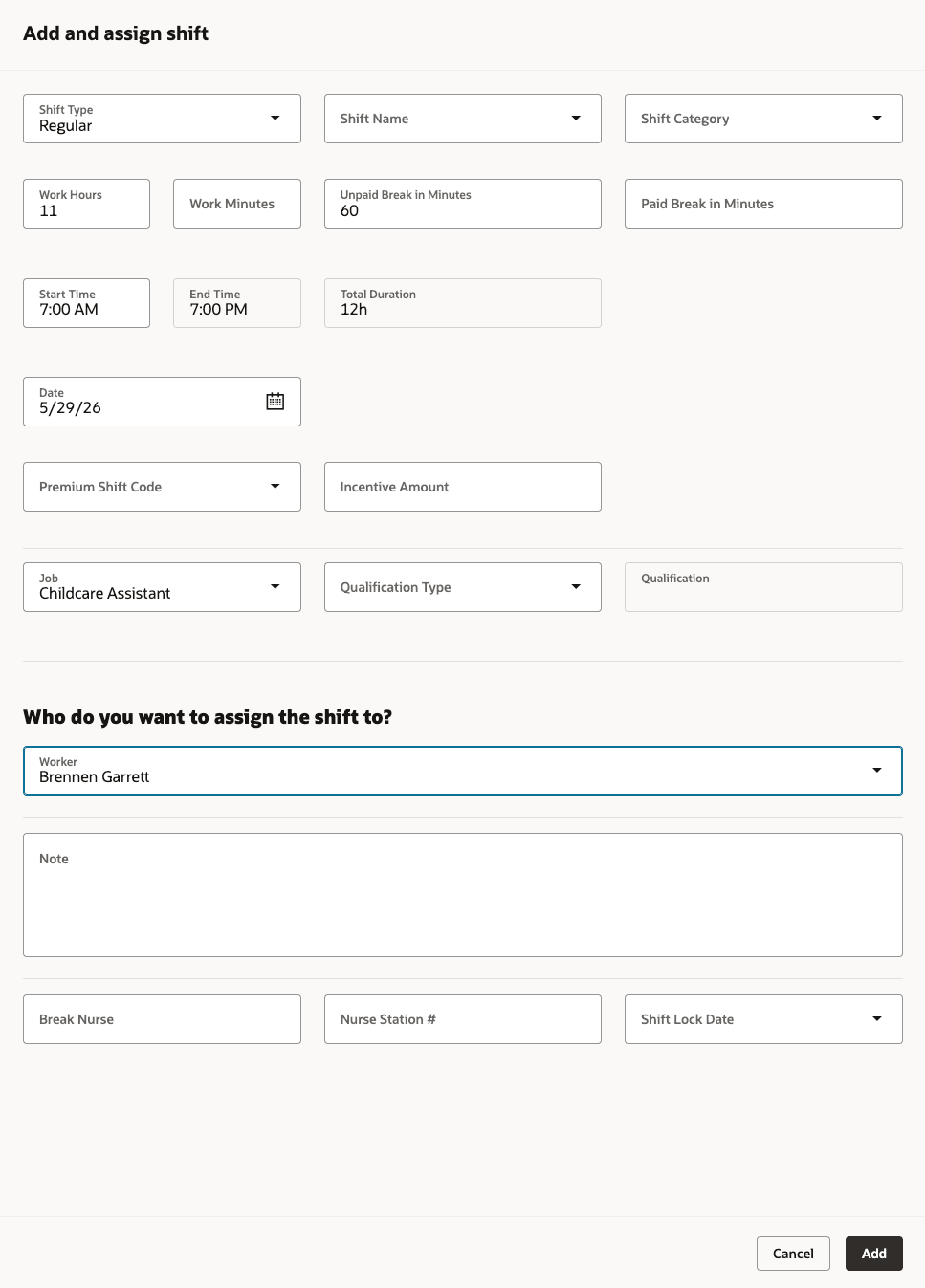
Add and assign shift drawer
When workers in the Team Schedule page are assigned to different departments, Workforce Schedule action from Team Schedule navigates to the workforce schedules page. This shows all the schedules for respective worker's departments and periods overlapping the date range provided at the Team Schedule.

Workforce Schedule Showing Department Schedules of Workers from the Line Manager Hierarchy
After making updates to the "in-progress" schedules, line managers can mark schedules as Ready to Publish to signal completion and notify scheduling managers.
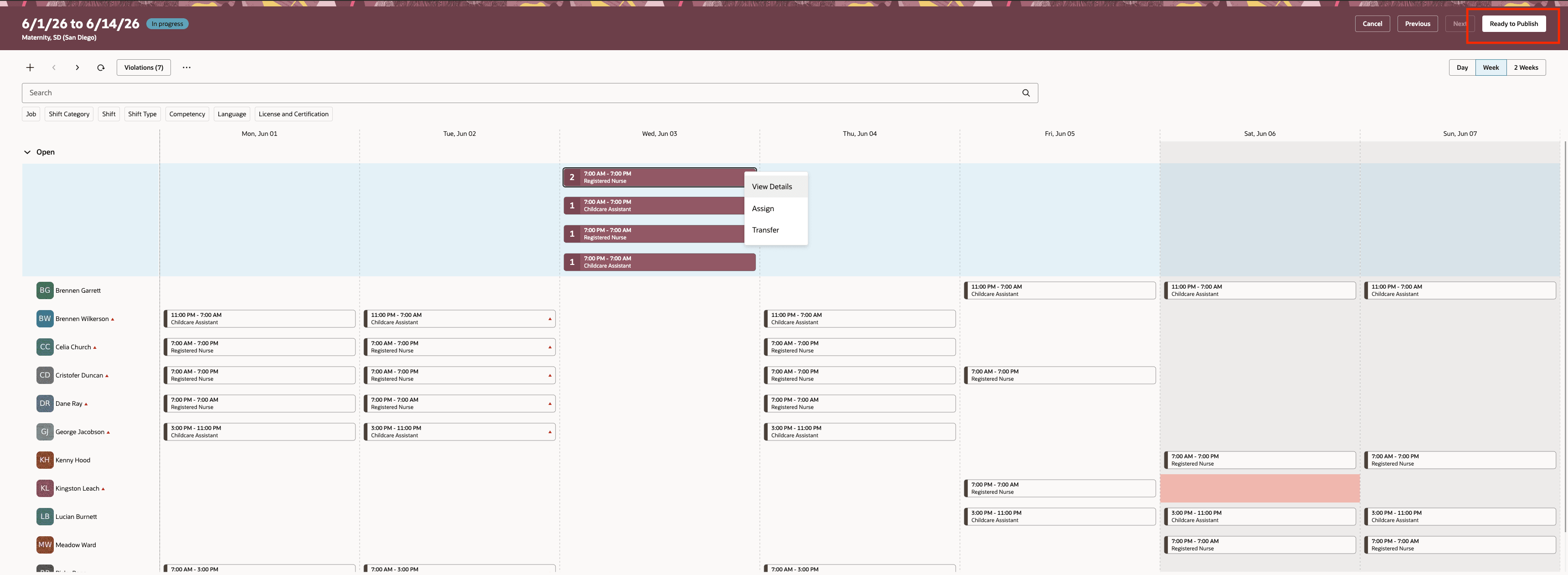
Line Manager Updating In-Progress Workforce Schedule of the Workers
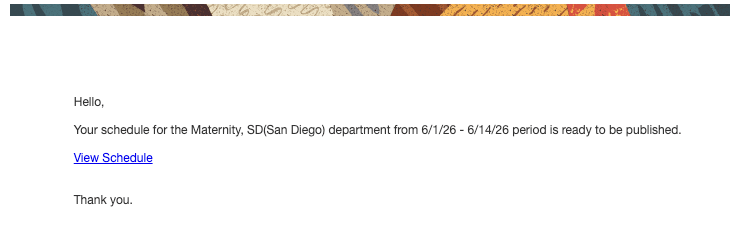
Notifying Schedule Manager through Ready for Publish
For published schedules, line manager edits trigger immediate worker notifications. Line managers can continue editing after marking ready, while publish control remains with scheduling managers and configured publish processes.
Organizations can share day-to-day schedule maintenance with line managers while preserving scheduling governance. This helps teams respond faster to staffing changes, reduce scheduling bottlenecks, and keep schedule ownership closer to the managers responsible for team coverage.
Steps to enable and configure
- Assign line managers the required workforce scheduling security role and related privileges.
- Confirm that line managers can access My Team > Team Schedule and use the Workforce Schedule navigation.
- For unpublished schedules, use Ready to Publish after edits are complete.
Tips and considerations
- Access is constrained to Line Manager hierarchy-based scope; workers outside the line manager’s authorized scope will not show in the workforce schedule.
- Some capabilities of Workforce Schedules remain restricted for this persona (for example, publish and delete schedule actions).
- If a schedule is already published, edits made by Line Manager notify affected workers immediately.
- If workers move out of a line manager hierarchy during a period, their visibility in line manager views changes accordingly.
- Floating worker shifts may appear as read-only based on scenario rules.
Key resources
Access requirements
The delivered Line Manager role includes this new privilege. You need to add the privilege to any equivalent custom roles.
| Privilege Name | Privilege Code | Description |
|---|---|---|
| Manage Workforce Schedules by Line Manage | ORA_HTS_MANAGE_WORKFORCE_SCHEDULE_BY_LINE_MANAGER | Allows line manager to manage workforce schedules. |