Total Compensation Statement: AI Agent - Additional Features
Previously the Total Compensation Statement (TCS) offered the ability to use guided journeys and a RAG (Retrieval Augmented Generation) agent. Using RAG, customers can upload documents and employees can query these to get answers. Since RAG agents have a limited scope, they can't read employee data, so they can't answer questions related to employee statement info. Now with this enhancement, the agent can read employee data and answer statement related questions.
Sample Questions
- Give me a compensation summary
- Show me the details of my cash compensation
- Display the structure of my total compensation package
- Give me a list of my bonuses
- Tell me about contribution details for my benefits
- Did I get any allowances
- Can I get a printable version of my statement
- Retrieve my salary
- Was equity or shares part of my compensation
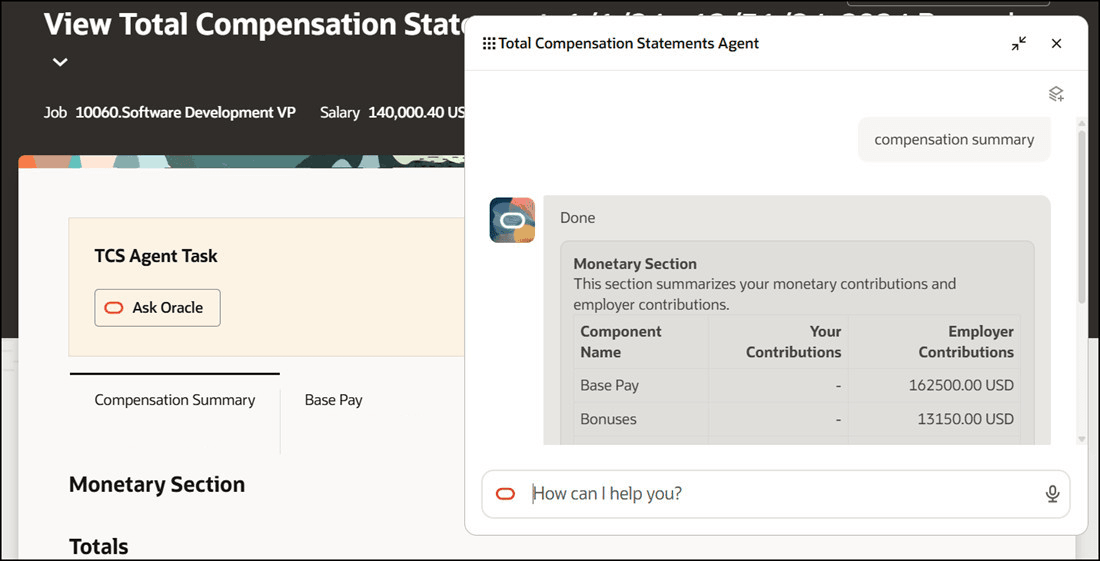
Total Compensation Statements Agent
Help employees to understand their total compensation statement in a more comprehensive way. Employees can now further interact with the AI agent to clarify questions, in the Ask Anything chat box.
Steps to enable and configure
Guided Journeys
- Open Guided Journeys
- Create a guided journey and add a new task in it with this configuration - Task Type: Agent, Agent Type: Workflow, Agent Name - Total Compensation Statements Agent.
- Save the journey and activate it. Without activating the journey, it can't be consumed in any page.
- Copy the journey code, it'll be used later to enable this guided journey.
AI Agents Explorer
- See a list of your agents using Me -> Show More -> AI Agent Studio -> AI Agents
Admin Agents Hub
- Access all AI agents for which you have view and manage permissions from Home Page -> Navigator -> Tools -> AI Agent Studio
Access Agent from Online Statements Page
- From Me -> Show More -> click View My Total Compensation Statements quick action to launch the statement page (using Chrome browser).
- Choose the option - Edit the page in Visual Builder from top-right menu.
- The Online Statement page will be opened in Edit mode, and the journey code will be visible in right side panel.
- Use the earlier copied guided journey code, and see the guided journey displayed on page.
- Preview the page, click Ask Oracle button in guided journey banner to launch the chat window and interact with the agent.
- Once tested, publish the page. After that all the employees can see the agent in their statements.
Key resources
To see the initial release:
Total Compensation Statement: HCM AI Agent
https://docs.oracle.com/en/cloud/saas/readiness/hcm/25a/comp-25a/25A-compensation-wn-f36019.htm