Create Business Rules to Identify Duplicate Family and Emergency Contacts
Use Visual Builder Studio to write business rules for the Redwood Family and Emergency Contacts page. You can create rules that identify potential duplicate contacts by comparing information entered for a contact with the person’s existing contact records, which can include contact records that are pending approval. Configure the rule criteria and validation behavior to meet your organization’s requirements.
In the following example, we've created a rule that displays a warning message if the user creates a new contact with the same name, date of birth, and relationship type as an existing contact.
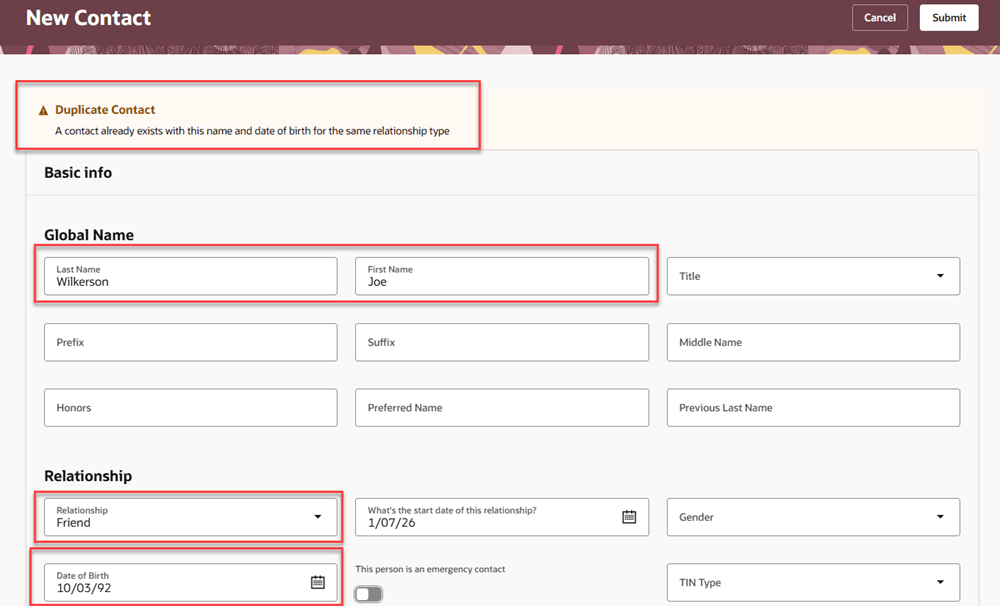
Warning message displayed when a new contact matches an existing contact based on name, relationship type, and date of birth
This capability helps you maintain accurate contact information by helping to prevent duplicate contact records.
Steps to enable and configure
No validation rules are provided by default. You need to create a rule that meets your business needs.
Here are the steps to add a rule.
- In Visual Builder Studio, open the Create New Contact page.
- Click Configure Validations
- Create a validation and give it a name.
- Edit the validation condition.
- Select Use Advanced Expression.
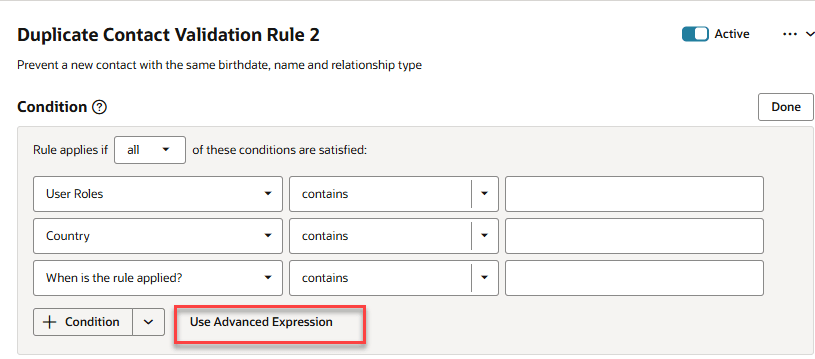
VB Studio validation rule showing link to Define Advanced Expression
- Write your validation rule. You can paste in sample rules on the Code tab to get started. See the Tips and Considerations section for a sample rule and some guidelines.
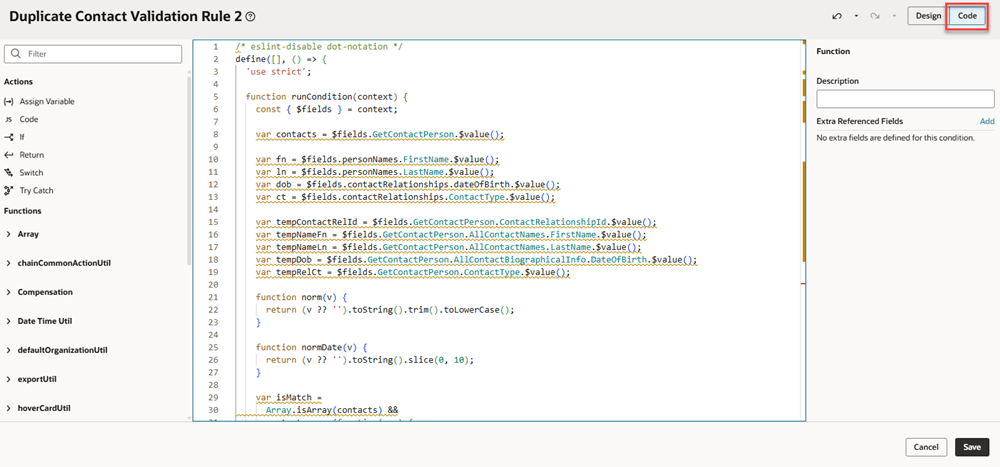
VB Studio validation rule showing the code for the rule
- In the Messages section below the condition, enter the warning or error message to be displayed when the rule criteria are met.
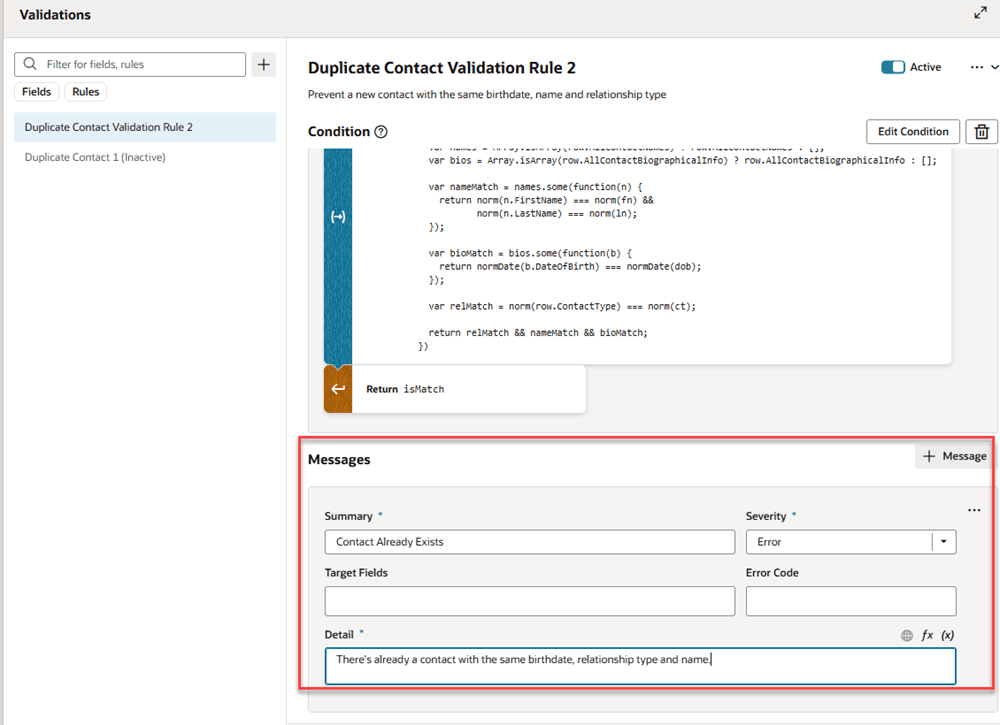
VB Studio validation rule showing error message definition
Tips and considerations
Available Attributes
- You can write rules using information from the contact relationship and these attributes of a contact: names, biographical info, addresses, phones, and national identifiers
- Flexfields (DDFs and DFFs) aren't supported for validation rules
- To see the specific attributes you can use, create a dummy business rule and inspect the field values available for creating a rule, as shown in the following image
- The relevant grouping is Get Contact Person
- Additional available attributes are shown under AllContactAddresses, AllContactBiographicalInfo, AllContactNames, AllContactNationalIdentifiers, and AllContactPhones
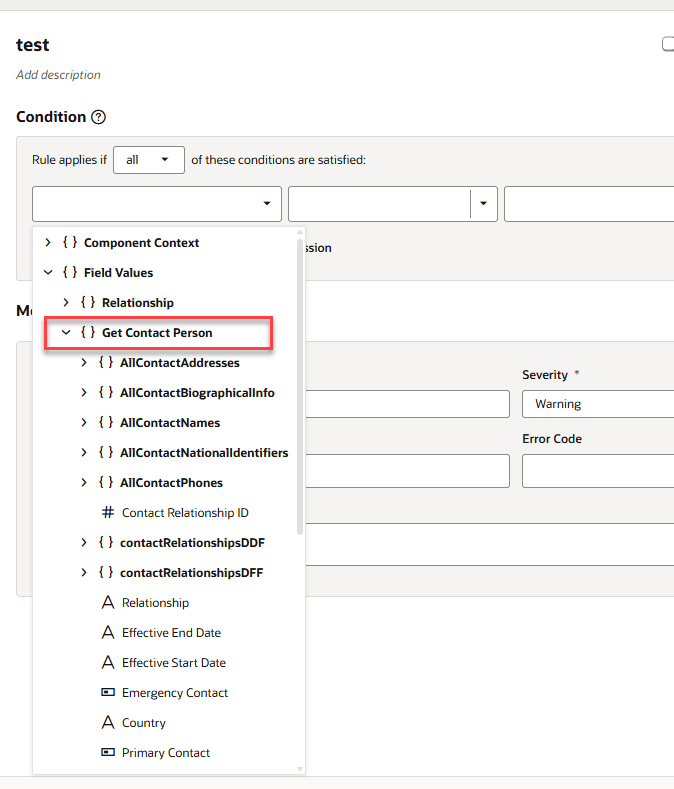
VB Studio Condition Builder showing available attributes for Get Contact Person
Writing Rules
- The rules you write are specific to the Family and Emergency Contacts page only
- As shown in the sample rule later in this section, declare all fields to be referenced at the beginning of the rule
- These declarations are used to generate metadata. Based on this metadata, the REST call fetches only the selected fields required for the rule.
- Even if the temp fields aren't directly used later, they're required so that the fields are considered as referenced or generated fields in the metadata.
- The rule should compare the current contact only with existing or pending contacts returned through GetContactPerson
- To avoid false duplicate validation, skip rows where ContactRelationshipId is temporary (negative). The sample rule has an example showing this logic using:
Number(row.ContactRelationshipId) < 0
- To avoid false duplicate validation, skip rows where ContactRelationshipId is temporary (negative). The sample rule has an example showing this logic using:
- Consider writing rules that check multiple attributes so that you avoid falsely identifying a row as a duplicate
- For some legislations, phone number is stored with formatting. For example, 555-1234 for the United States. Make sure to take this into consideration when writing your rule.
- For some legislations, national identifier is stored with formatting. For example, 999-99-9999 for U.S. social security numbers. Make sure to take this into consideration when writing your rule.
Limitations
- You can't add a duplicate contact validation rule for Edit Contact Start page
- You can't add a duplicate contact validation rule for the Create a Coworker as a Contact page
Allow time for rule metadata to update
- After you paste and save a sample rule, allow time for Visual Builder Studio to generate the rule metadata before testing it. The rule may not initially have access to all of the attributes referenced in the expression.
- To confirm that the metadata is ready, inspect the metadata-rules-x.json file. Verify that the referencedFields and generated sections include the attributes used by your rule, including any nested GetContactPerson attributes. If the attributes are missing, wait for the metadata to update, then refresh the file before testing the rule.
Sample rule
Here's a sample rule that checks for an existing contact with the same first name, last name, birthdate, and relationship type:
/* eslint-disable dot-notation */

   define([], () => {

     'use strict';
  function runCondition(context) {

       const { $fields } = context;

       var contacts = $fields.GetContactPerson.$value();

       var fn = $fields.personNames.FirstName.$value();

       var ln = $fields.personNames.LastName.$value();

       var dob = $fields.contactRelationships.dateOfBirth.$value();

       var ct = $fields.contactRelationships.ContactType.$value();
    var tempContactRelId = $fields.GetContactPerson.ContactRelationshipId.$value();

       var tempNameFn = $fields.GetContactPerson.AllContactNames.FirstName.$value();

       var tempNameLn = $fields.GetContactPerson.AllContactNames.LastName.$value();

       var tempDob = $fields.GetContactPerson.AllContactBiographicalInfo.DateOfBirth.$value();

       var tempRelCt = $fields.GetContactPerson.ContactType.$value();
    function norm(v) {

         return (v ?? '').toString().trim().toLowerCase();

       }
    function normDate(v) {

         return (v ?? '').toString().slice(0, 10);

       }
    var isMatch = Array.isArray(contacts) && contacts.some(function(row) {

         if (Number(row.ContactRelationshipId) < 0) {

           return false;

         }
      var names = Array.isArray(row.AllContactNames) ? row.AllContactNames : [];

         var bios = Array.isArray(row.AllContactBiographicalInfo) ? row.AllContactBiographicalInfo : [];
      var nameMatch = names.some(function(n) {

           return norm(n.FirstName) === norm(fn) &&

             norm(n.LastName) === norm(ln);

         });
      var bioMatch = bios.some(function(b) {

           return normDate(b.DateOfBirth) === normDate(dob);

         });
      var relMatch = norm(row.ContactType) === norm(ct);

         return relMatch && nameMatch && bioMatch;

       });
    return isMatch;

     }
  return { runCondition };

   });
Key resources
For more information, refer to these resources on the Oracle Help Center:
- Validate Field Values in the Extending Redwood Applications for HCM and SCM Using Visual Builder Studio guide