Configure Targeted Job Alerts for Candidates
Let candidates create targeted job alerts from their search activity and manage saved alerts from their candidate profile. Candidates can save alerts from classic search or smart search, use search criteria such as keywords, location, filters, and smart-search resume input, and receive notifications that better match the opportunities they’re interested in.
Candidates can use these enhancements to:
- Save search criteria as a job alert from the Search Results page when job alerts are enabled for the external career site.
- Create and manage job alerts from the Candidate Self-Service Profile page, including reviewing saved alert definitions and deleting alerts.
- Create a job alert after joining a talent community from the talent community confirmation page.
- Receive one notification email for each saved alert, with an unsubscribe link that stops notifications for that specific alert.
Existing job alert preferences are migrated automatically during upgrade. Existing job alert definitions based on Job Category, Job Function, and Job Location are preserved in the updated job alert design.
This feature is enabled as a global feature for all external career sites.
After job alerts are enabled, candidates can create and manage alerts from these entry points:
- From the Search Results page, select Save this as a job alert.
- Use classic search or smart search criteria.
- Include at least one search filter to save the alert.
- Save the alert to receive job updates based on the selected preferences.
- From the Candidate Self-Service Profile page, go to the Info and Alerts page.
- Use the Job Alerts section to create an alert for the current career site.
- Review saved alert definitions grouped by career site.
- Delete alerts that are no longer needed.
- After joining a talent community, select Create Job Alert on the confirmation page.
- Choose search preferences.
- Save the job alert.
- Manage saved alerts from the Info and Alerts page.
Candidates can save up to three job alerts per career site. If a candidate saves another alert after reaching the limit, the oldest alert is replaced. In the Info and Alerts page, the create action is disabled after three saved alerts until an existing alert is deleted.
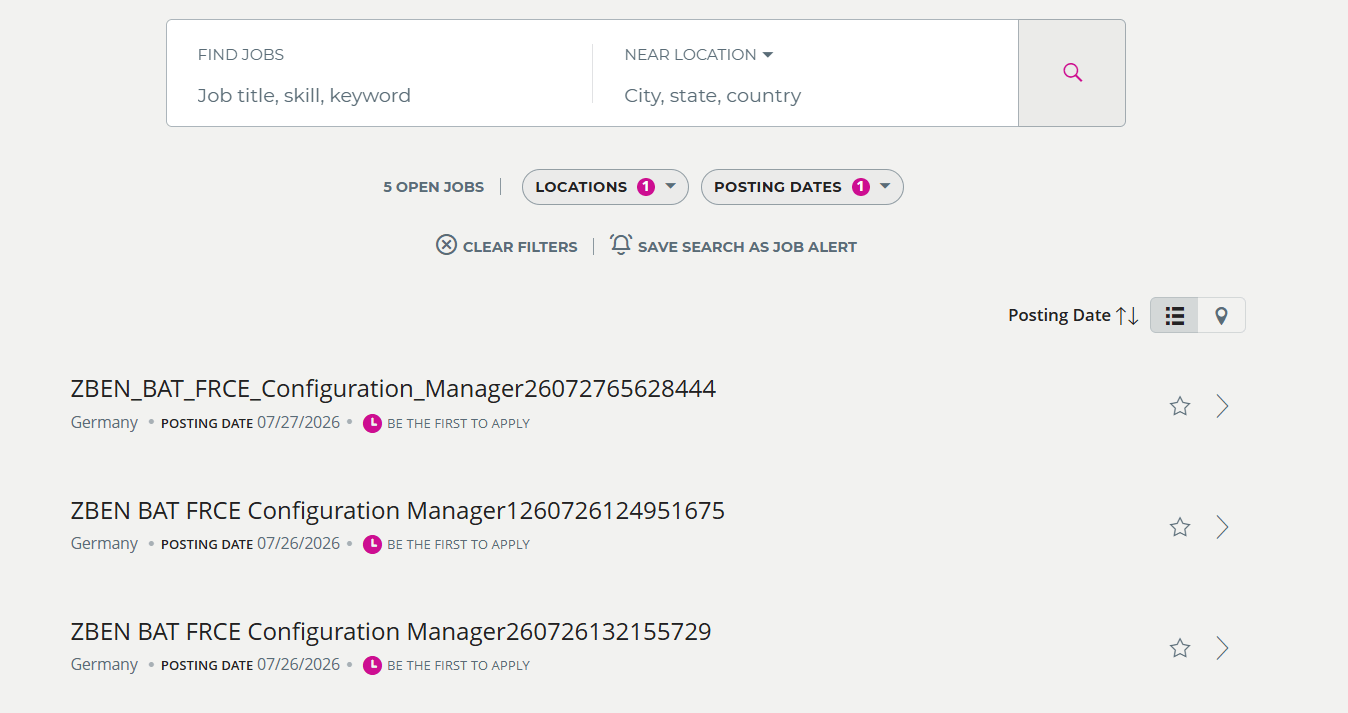
New Save Search As Job Alert
Business benefit: Targeted job alerts help candidates discover more relevant opportunities and reduce irrelevant notifications. The feature also gives recruiting teams a consistent, centrally managed way to offer job alerts across external career sites.
Steps to enable and configure
Prerequisites
- Candidates must have an email address available to save a job alert. If a candidate signs in with a phone number and no email address exists in the profile, the candidate must add an email address before saving the alert.
- When double opt-in is enabled, candidates may need to confirm the opt-in from email to receive the alert notifications.
- Users who configure job alerts need access to:
- Setup and Maintenance
- Enterprise Recruiting and Candidate Experience Information
- AI Studio
- Run scheduled processes
To enable
- Go to Setup and Maintenance > Recruiting and Candidate Experience > Enterprise Recruiting and Candidate Experience Information.
- In the redesigned Candidate Sourcing section, review the grouped settings:
- Candidate Pools
- Talent Community
- Job Alerts
- Select Enable Job Alerts.
- Indicate the job alert frequency in Send Job Alert Every X Days.
- Click Save.
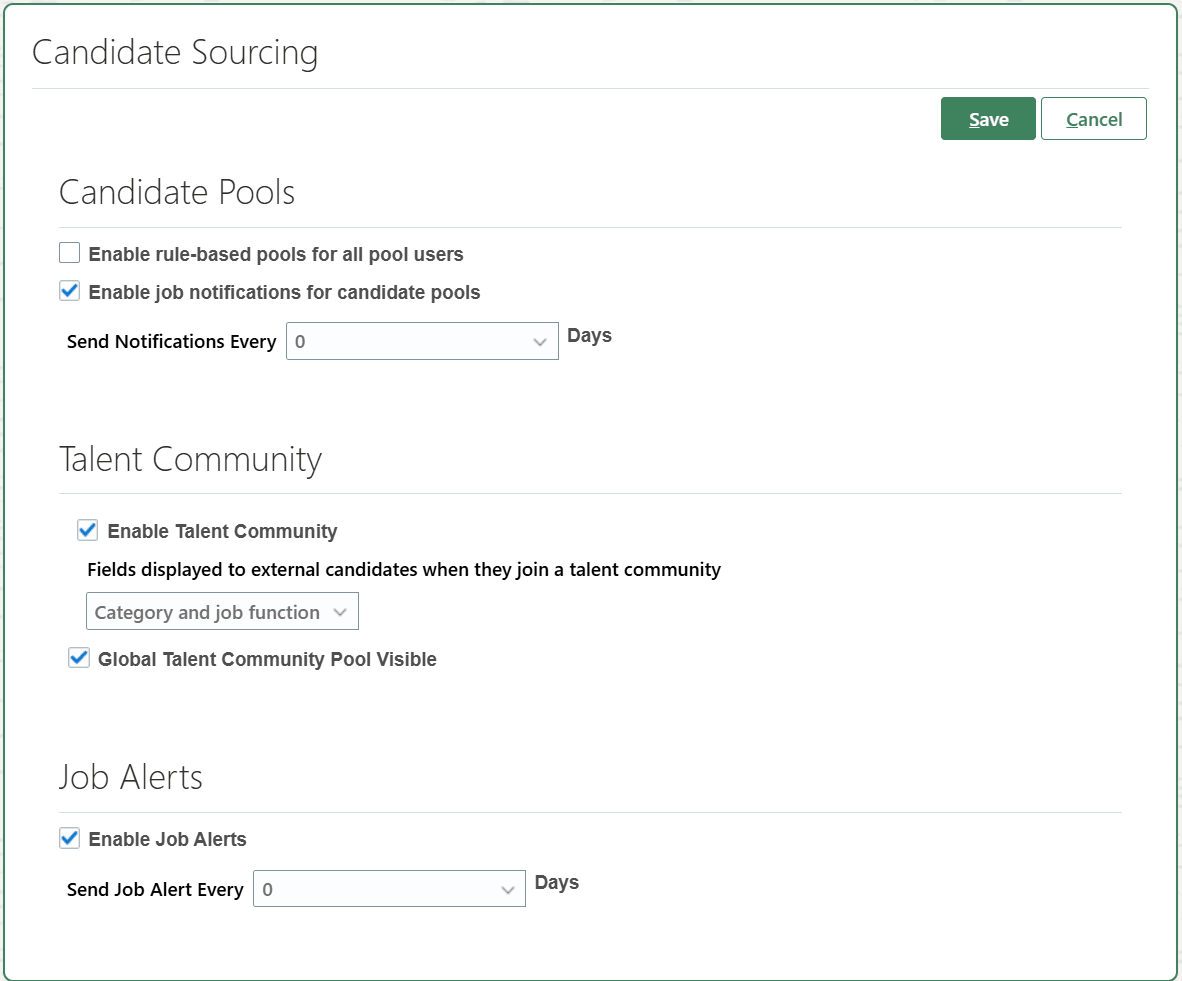
Redesigned Candidate Sourcing section in Setup and Maintenance
- Activate the job alert notification. For details see details see Enable Job Alert for External Candidates.
- Schedule the job alert agent to run at a defined interval. For details see details see Enable Job Alert for External Candidates.
- Run the Process Recruiting Job Alerts and Index Job Summary for Each Requisition scheduled processes. For details see Which scheduled processes are used in Recruiting?