Navigate recruiting lists with horizontal scrolling and sticky headers
Let recruiters and hiring managers review wide tables and long lists more easily with horizontal scrolling and sticky column headers. Use the horizontal scrollbar to view additional columns without scrolling to the end of the results. Column headers stay visible as you scroll vertically, so you can identify the information in each column.
Try it out
The enhancements apply to the following pages and list contexts.
| Area | Page or List | Scenario |
|---|---|---|
| Hiring | Job Offers | Review offers, customize visible columns, and access row actions. |
| Hiring | Manage Job Offers | Review offer-processing information across multiple columns and access row actions. |
| Hiring | Job Applications — grid view | Review configured application columns, including scenarios using the Rank column and row actions. |
| Hiring | Job Requisitions | Review requisition information across wide tables and long result lists. |
| Hiring | Job Requisition Templates | Review columns in the requisition template list. |
| Hiring | Interview Schedules | Review interview schedule search results. |
| Hiring | Interview Schedule Templates | Review interview schedule template search results. |
| Sourcing | Candidate Search — grid view | Review candidates through Candidate Search in Hiring or Candidate Sourcing. |
| Sourcing | Prospects — grid view | Review prospects associated with a requisition. |
| Sourcing | Candidate Pool Members — grid view | Review members within a candidate pool. |
| Sourcing | Event Audience — grid view | Review candidates in an event audience. |
| Sourcing | Events | Review the recruiting events list. |
| Sourcing | Candidate Pools | Review pools accessed through Hiring or Candidate Sourcing. |
| Sourcing | Recruiting Campaigns | Review campaigns in Candidate Sourcing. |
| Communicate | Campaigns | Review the campaign list in Communicate. |
| Communicate | Campaign Details | Review tabular information within campaign details. |
| Communicate | Employee Event Details | Review tabular information within employee event details. |
| Communicate | Grow Notifications | Review notification search results. |
To try the enhancements on the Job Requisitions page:
- Go to Home > My Client Groups > Hiring > Job Requisitions.
-
Customize the columns to display the information you need.
-
When the columns extend beyond the visible area, use the horizontal scrollbar to view additional columns.
-
Scroll vertically through the results. The column headers stay visible.
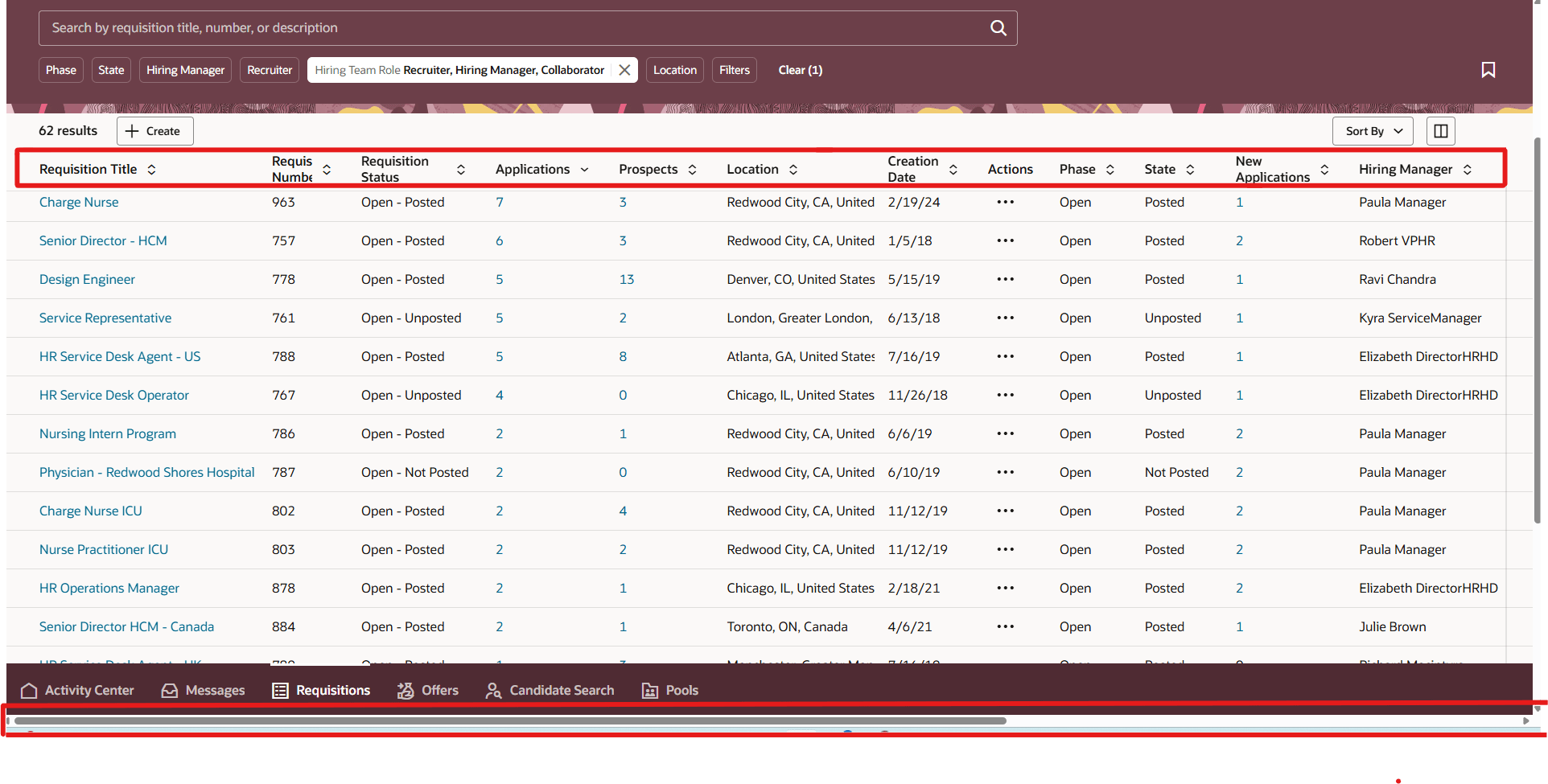
Horizontal Scrolling List
The enhancements also apply when you open these lists through supported application navigation or deep links. You can access Candidate Search and Candidate Pools through either Hiring or Candidate Sourcing.
Sticky headers stay visible during vertical scrolling. On pages that support frozen columns, those columns stay in place during horizontal scrolling. For example, job application grid views support scrolling with the Rank column frozen or unfrozen.
The horizontal scrollbar is available when the displayed columns exceed the available width, including when you customize columns, change the browser zoom, or resize the window.
Business benefit: Help recruiters and hiring managers review information while keeping their place in a list, including when they customize the displayed columns.
Steps to enable and configure
You can optionally configure your operating system to always show scrollbars:
- Windows: Go to Settings > Accessibility > Visual effects and turn on Always show scrollbars.
- macOS: Go to System Settings > Appearance and set Show scroll bars to Always.