Redwood: Badges in Profiles
The Honors and Awards section now supports badging, allowing images and a visual layout to appear on a person’s talent profile.
Use Badges in Profiles to:
- Configure an Honors and Awards section to apply a badging policy and display badges in a grid or list.
- Add one optional image attachment to a content item so a badge has a visual representation.
- Use the seeded Badges catalog and its Gold, Silver, and Bronze medal badges as a starting point.
- Display badges as avatar cards on the Talent Profile, with details available in a side panel.
Note the following:
- Badging attributes apply to newly created Honors and Awards sections. Existing sections continue to use standard text-based rendering unless configured for badging.
- A badge section supports one item value set. Organizations can create more than one badging section for different badge types.
- HDL can be used to load badge content items and supports attachments. HSDL can also be used to load badge content items, but it doesn't support attachments.
- The following commonly used image file formats are supported: PNG (.png), JPEG (.jpg, .jpeg), GIF (.gif), SVG (.svg), BMP (.bmp), and WebP (.webp).
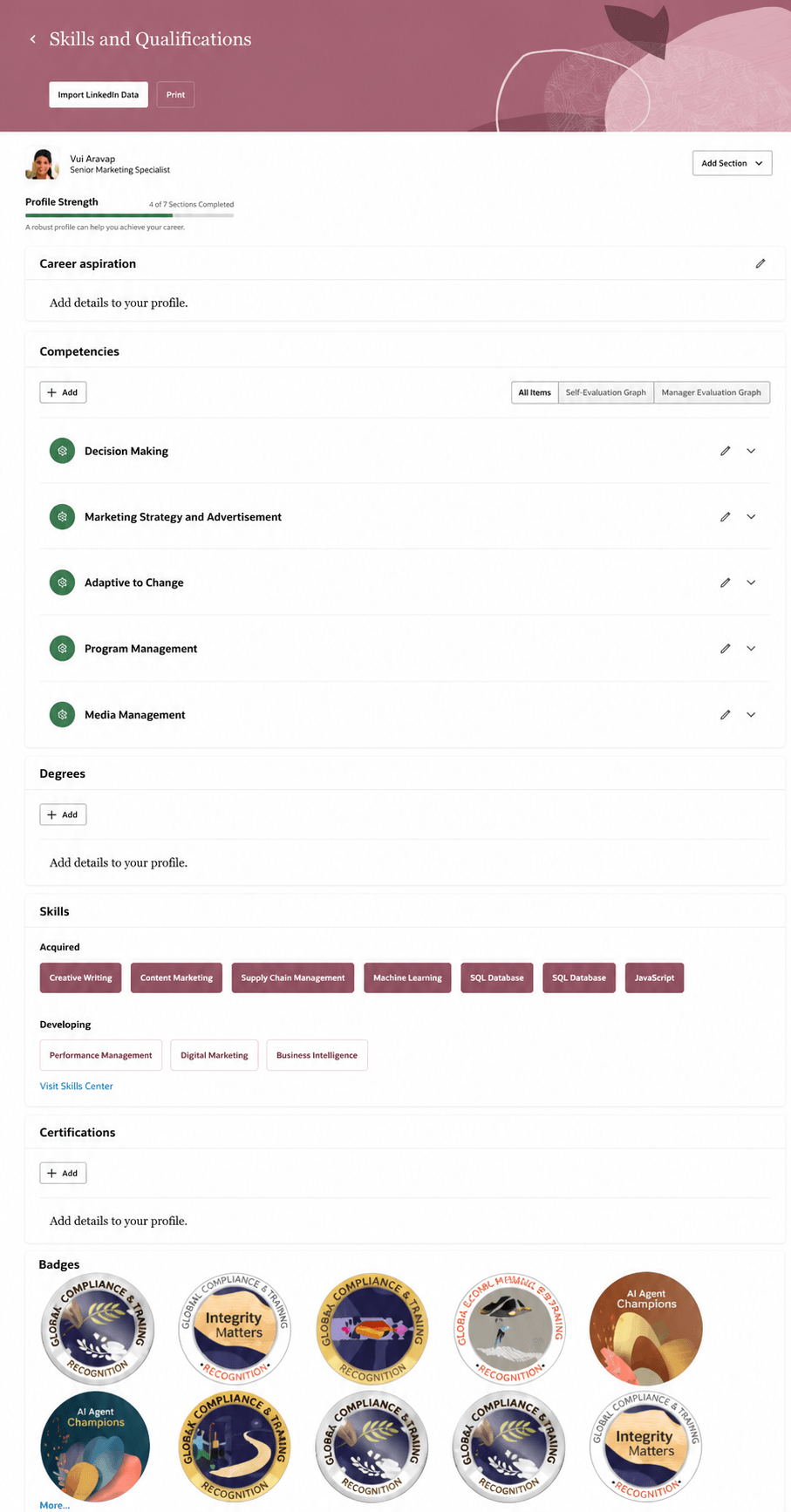
Badges displayed in a person profile
Try it out
- With access to the configured profile content section, add a badge by selecting its Badge Name from the list of values.
- Open a badge on the Talent Profile to view the fields configured for that content item.
The Honors and Awards section now supports badging, allowing images and a visual layout to appear on a person’s talent profile.
Steps to enable and configure
- Go to My Client Groups > Profiles > Item Catalogs and create or maintain the badges catalog and its Honors and Awards content items.
- Create a new Honors and Awards content section and select Display badges according to badging policy checkbox. Once the checkbox is selected the content section can only be subscribed to Talent Profile and Connections.
- Choose Grid or List for the Talent Profile display. Grid is selected by default. It displays a person’s badges as a visual grid of avatar-style cards on the Talent Profile—each tile prominently shows the badge image, rather than presenting badges in a traditional vertical list. Selecting a badge opens its details in a side drawer; users with access can edit or remove it there.
- Add an optional image attachment to each badge content item as needed. Use a 1:1 aspect ratio; only one image attachment is supported for a content item.
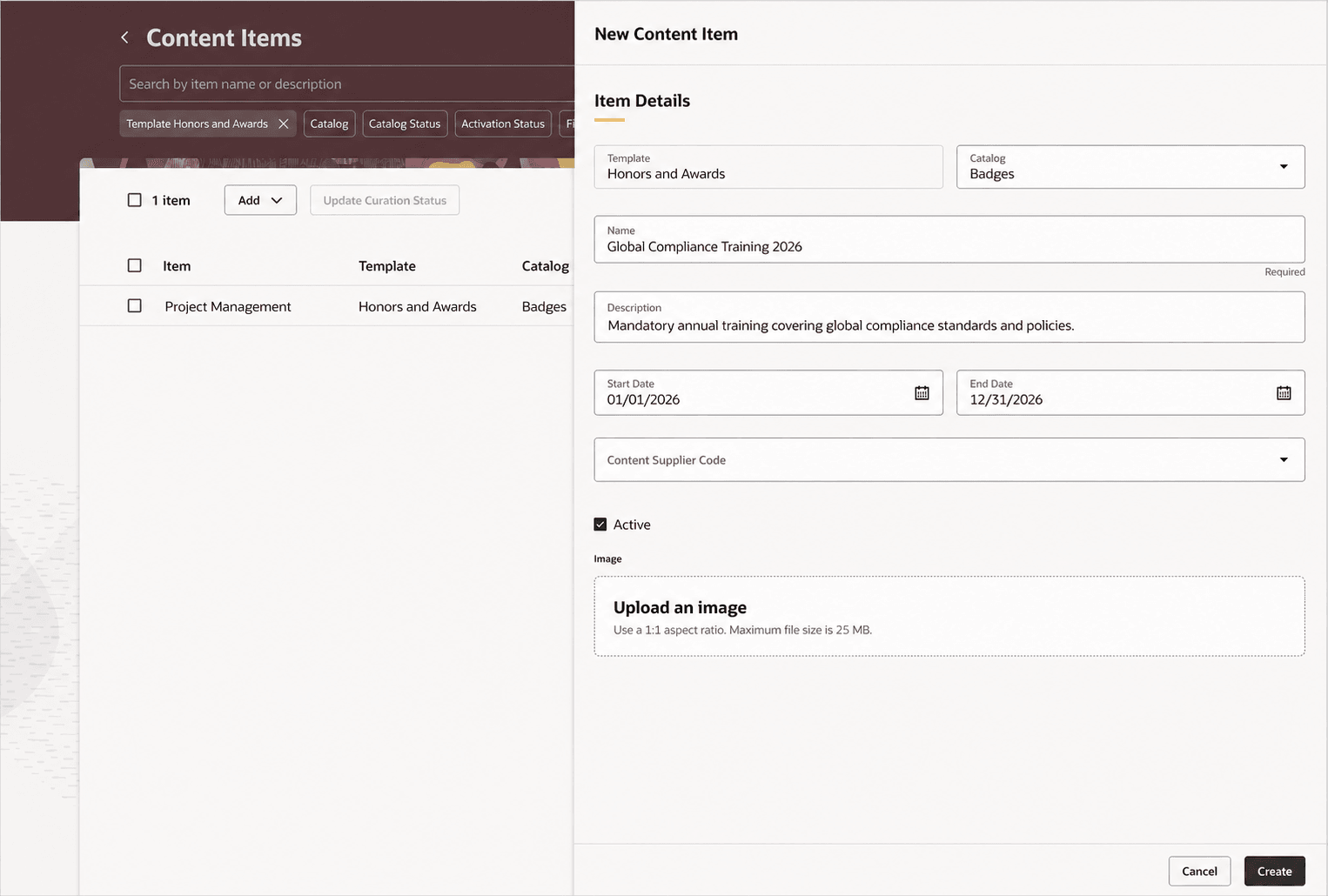
Creating a badge content item in Item Catalogs
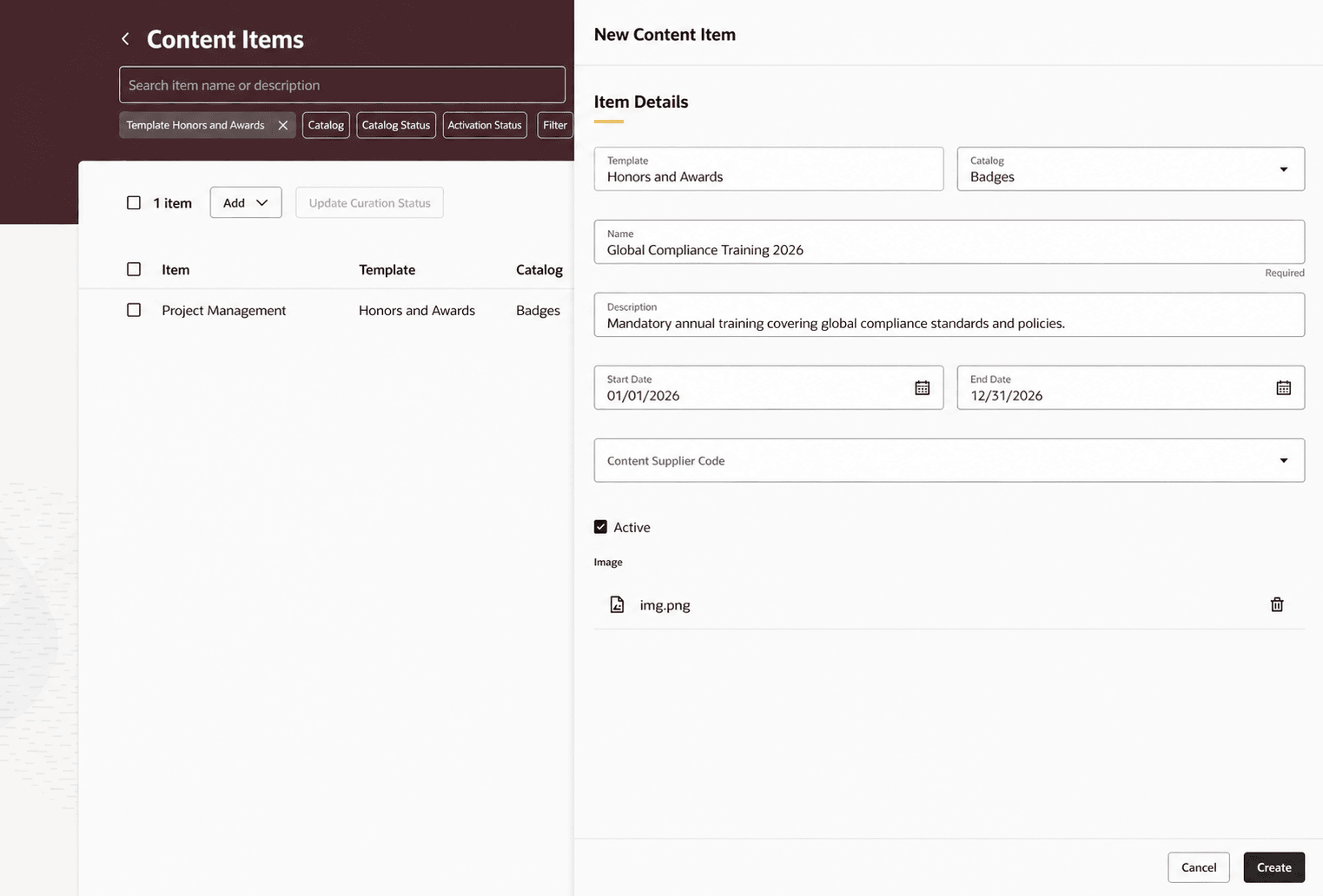
Image uploaded for the new badge content item
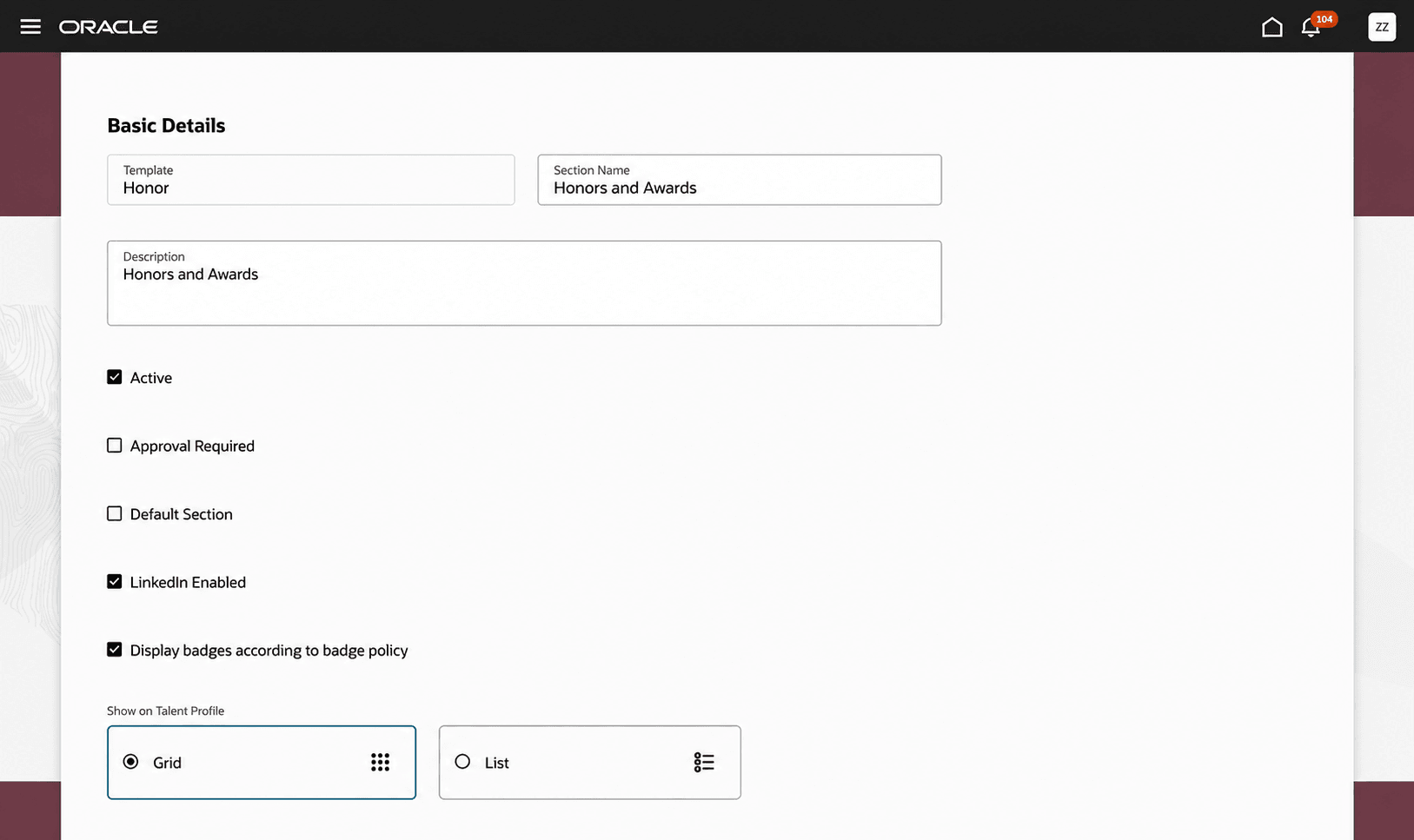
Creating a content section