 Improved Adhoc Restricted Party Screening UI Available
This feature introduces a significantly improved Restricted Party Screening (RPS) user interface. The redesigned UI streamlines and enhances the process of screening party data on an adhoc basis without having to create a party in GTM. Access the new UI via Restricted Party Screening > Restricted Party Screening.
Highlights of the new RPS UI:
- New Look and Feel: An intuitive and cleaner layout is provided for better usability
- Restricted Party Screening Profiles: Group multiple service preferences into a single profile and screen a party against multiple service preferences in one action.
- Default Preferences: Set a default Service Preference or Restricted Party Screening Profile to ensure consistent use of appropriate screening parameters.
-
Maximum Match Results: Use the GTM property gtm.rpssservice.redwood.maxresponse to control the maximum number of restricted party matches displayed (by default, 15 restricted parties are displayed, starting with the highest match factor).
Restricted Party Screening Profile
This feature allows you to configure GTM to run multiple service preferences for a party in a single action. By creating a Restricted Party Screening Profile containing a list of Service Preferences, you can streamline different restricted party screening scenarios. This existing capability has now been extended to the enhanced Adhoc Restricted Party Screening UI.
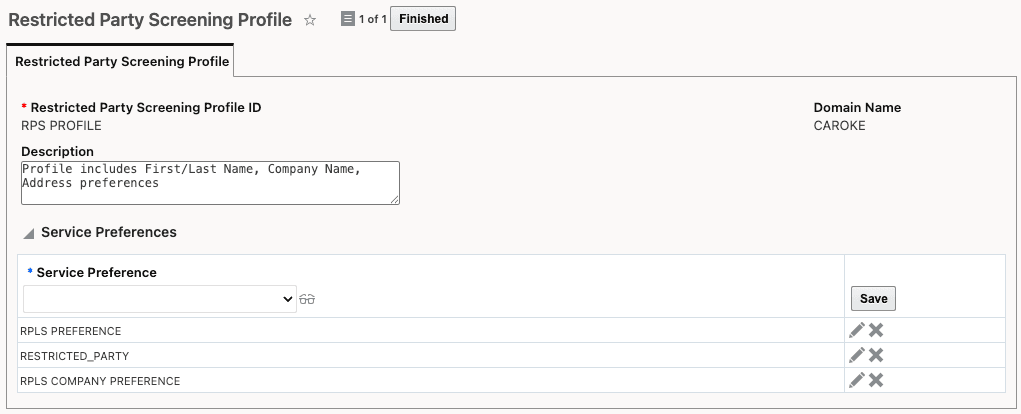
Restricted Party Screening Profile
Set Default Service Preference or Restricted Party Screening Profile via Logic Configuration
To ensure users are applying the correct Service Preference or Restricted Party Screening Profile, you can configure new parameters within a logic configuration of type GTM LOGIC CONFIGURATION. Three new parameters are available to set these defaults:
- DEFAULT RPS CONFIGURATION: Specify whether the system should default to a SERVICE PREFERENCE or a SCREENING PROFILE. (Default is SERVICE PREFERENCE.)
- DEFAULT RPS SCREENING PROFILE: If SCREENING PROFILE is selected in the DEFAULT RPS CONFIGURATION, enter the Restricted Party Screening Profile ID in the parameter value.
- DEFAULT RPS SERVICE PREFERENCE: If SERVICE PREFERENCE is selected in the DEFAULT RPS CONFIGURATION, enter the Service Preference ID in the parameter value.
These settings help standardize the screening process and ensure the appropriate criteria are always used.
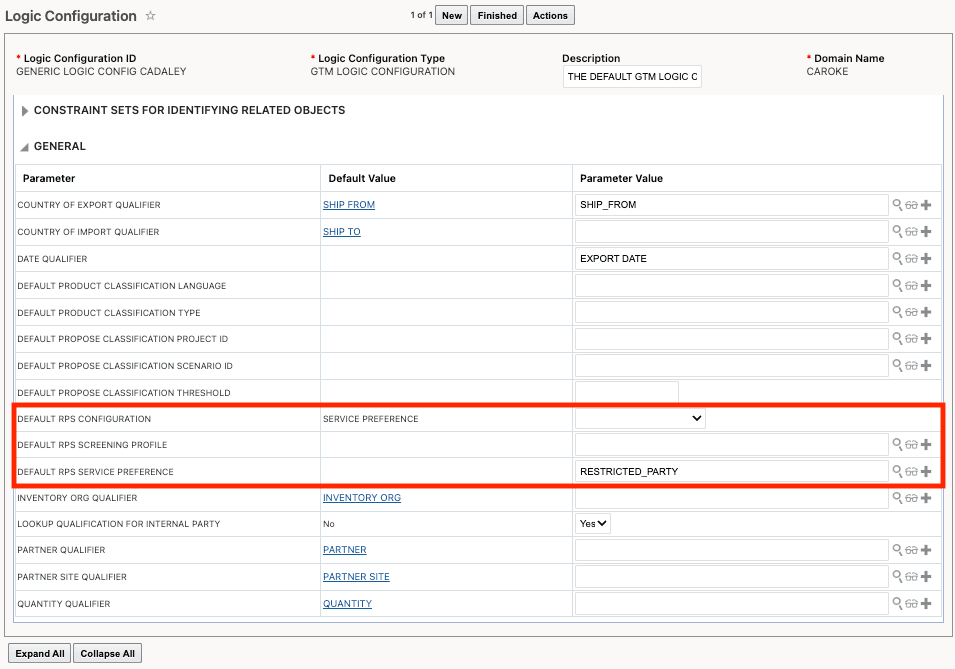
Logic Configuration with Default RPS Parameters
ou can then assign the default logic configuration to a Parameter Set. The Parameter Set may be assigned to a user or domain to establish the appropriate default values.
Improved Adhoc Restricted Party Screening UI
On the new UI, you can enter comprehensive party details, including name and address. Providing more complete information increases the accuracy of the screening, while any fields left blank are simply ignored. For the screening process, you can specify either a single Service Preference or a Restricted Party Screening Profile containing multiple service preferences. Alternatively, you may rely on default values set in the logic configuration.
When you initiate the screening, GTM compares the information entered against the restricted parties. Both the entered party details and the screening results are displayed together on a single page for easy review. By default, GTM shows up to 15 potential restricted party matches; this number can be adjusted using the gtm.rpsservice.redwood.maxresponse property
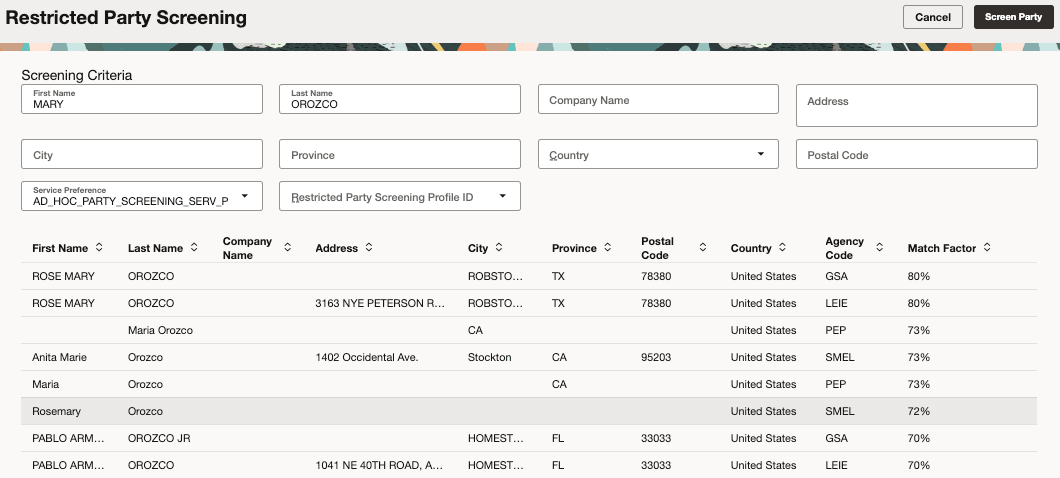
Restricted Party Screening
To view the Review Match Factor details for a party/restricted party match, click on the restricted party returned by GTM. The detailed information will appear in a drawer at the bottom of the page.
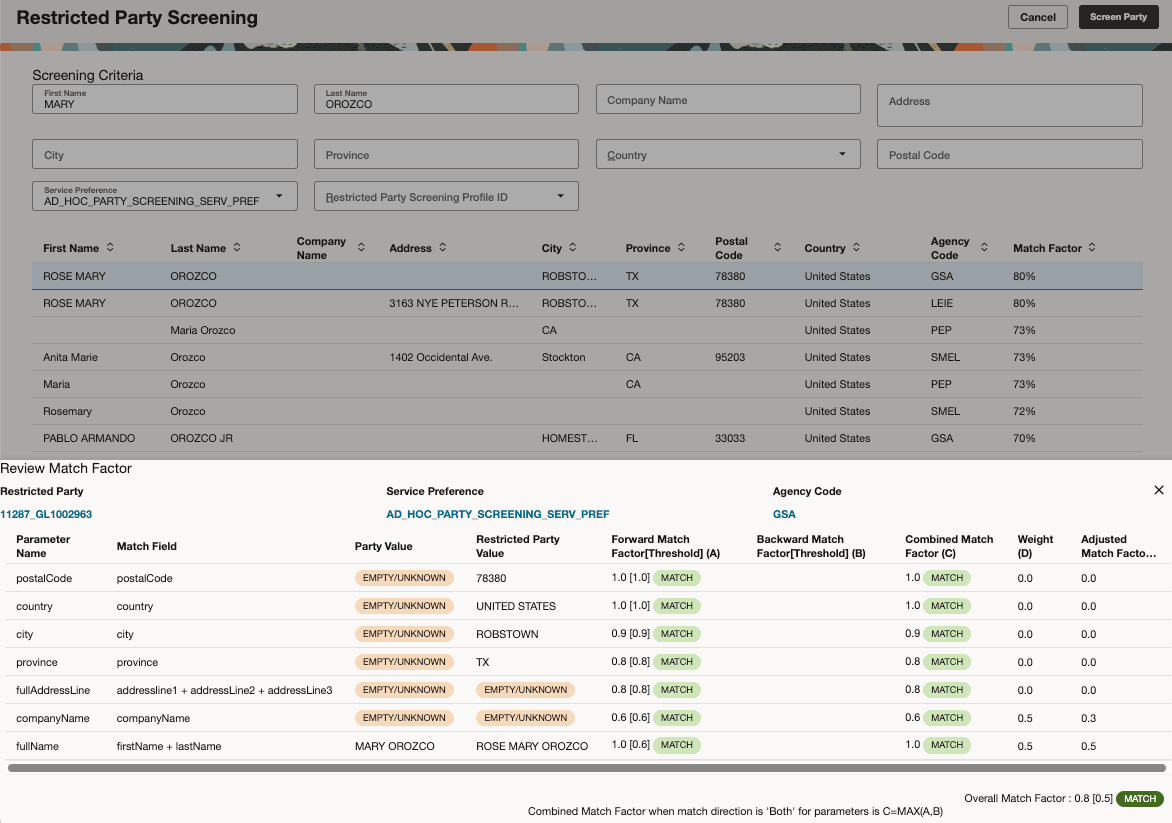
Restricted Party Screening - Review Match Factor
Business Benefit: The new Restricted Party Screening UI provides a modern, intuitive interface that streamlines party screening, allowing users to work more efficiently. Enhanced features reduce compliance risk by enabling more comprehensive and consistent screening processes, while improved data presentation supports faster and better-informed decision-making.
Steps to enable and configure
You don't need to do anything to enable this feature.
Tips and considerations
The legacy Restricted Party Screening UI is available within Restricted Party Screening > Restricted Party Screening (Legacy).
Key resources
For more information on restricted party screening, refer to the GTM How To/Configuration Topic called Restricted Party Screening.