 Inline Edit and Mass Update for Dates on GTM Objects
This feature supports Inline Edit and Mass Update for dates on Trade Transaction, Trade Transaction Line, Declaration, and Declaration Line objects. To use this feature, ensure that date fields are included in your finder results. The simplest approach is to copy a public screen set for one of the supported objects and create a new screen set. In the new screen set, add your desired date fields on the Results tab by selecting a column with Date Value (P). For example, you can add the Export Date to a Declaration screen set.
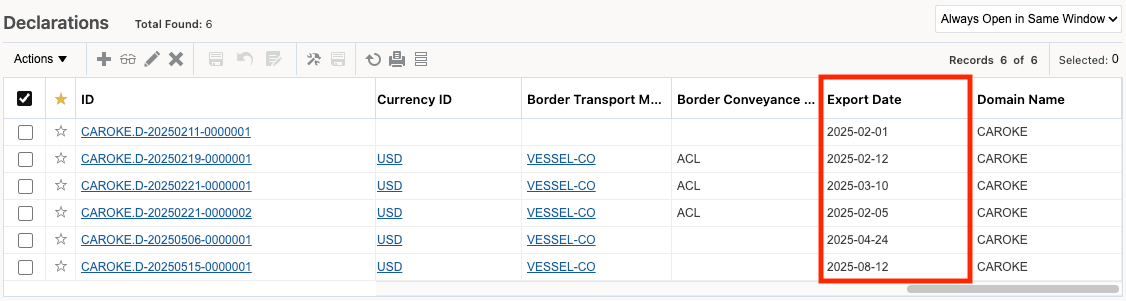
Declaration Finder Results - Export Date
Business Benefit: This feature streamlines data management by enabling users to efficiently edit and update date fields on various GTM objects. Supporting Inline Edit and Mass Update directly within finder result screens and workbenches increases productivity and improves data accuracy, supporting faster and more compliant trade operation.
Steps to enable and configure
To take advantage of mass update and inline editing for dates, you need to:
- Copy the public screen set of the object you want to enable and create a new one (ie. trade transaction, trade transaction line, declaration and declaration line).
- On the Results tab, you can add one to many rows to support various dates. For each row, select a Column of Date Value (P). Specify the Date Qualifier ID.
- Click More on the row you added and select 'Editable'.
- Complete the screen set configuration and click Finished.
Once created, you can add your new screen set to the:
- GTM menu
- Enhanced Workbench
Tips and considerations
Known Issues:
- When you add a Date field to the finder screen set as a pseudo-field, the 'Between' and 'Range to/from Today' options on the finder do not work properly.
- When you add a Date field to the edit manager layout as a pseudo-field, it is defaulting to a text box and does not enable you to select the date from a calendar.
Key resources
For more information on configuring GTM, refer to the 'Configuring the User Interface' topic under OTM How To/Configuration Topics > Configuring the User Interface.