Filter Text Box Access Options
This feature allows you to choose between using the Filter Icon to toggle on and off your access to the Filter Text Box (default behavior) or having the Filter Text Box always displayed on the table toolbar and removing the Filter Icon from the toolbar altogether. This new option is configured using the - "Show Filter Text Box" - parameter.
In the example below, the Workbench Logic Configuration parameter "Show Filter Text Box" has been set to True.
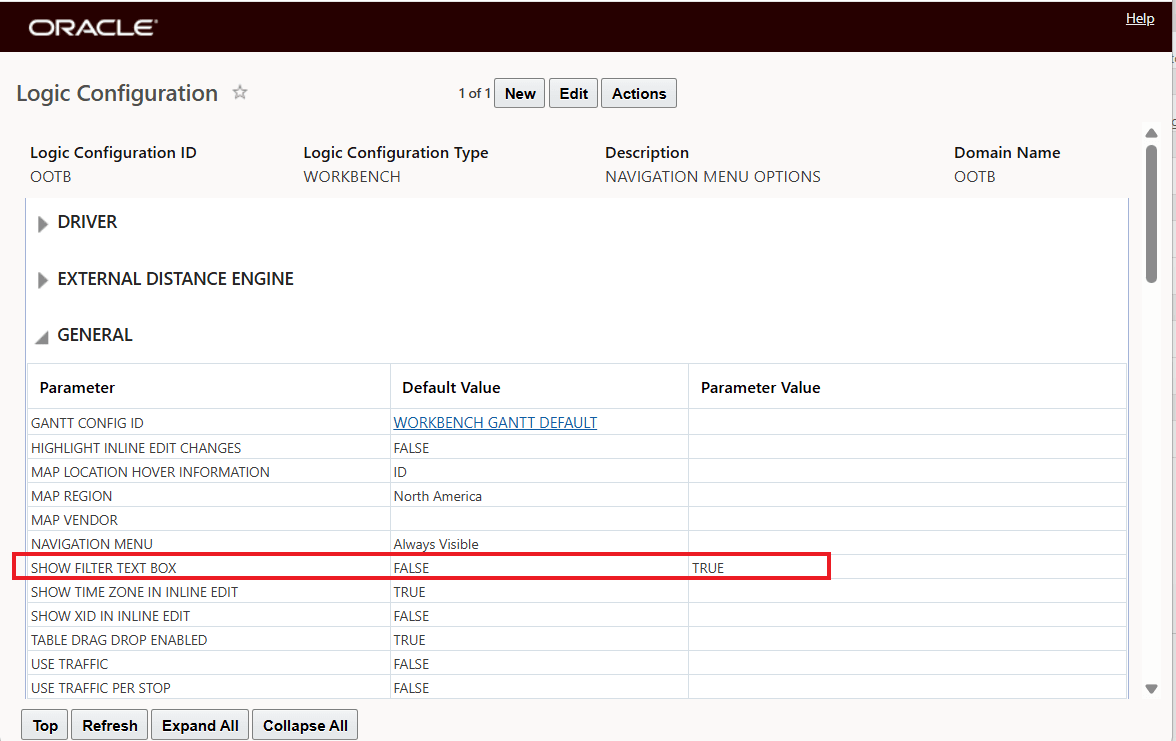
Workbench Logic Configuration Parameter Show Filter Text Box Set to True
With the Workbench Logic Configuration Parameter "Show Filter Text Box" set to True, the Filter Text Box will remain visible in the Table menu toolbar, as shown below, and the Toggle Icon will no longer be shown.
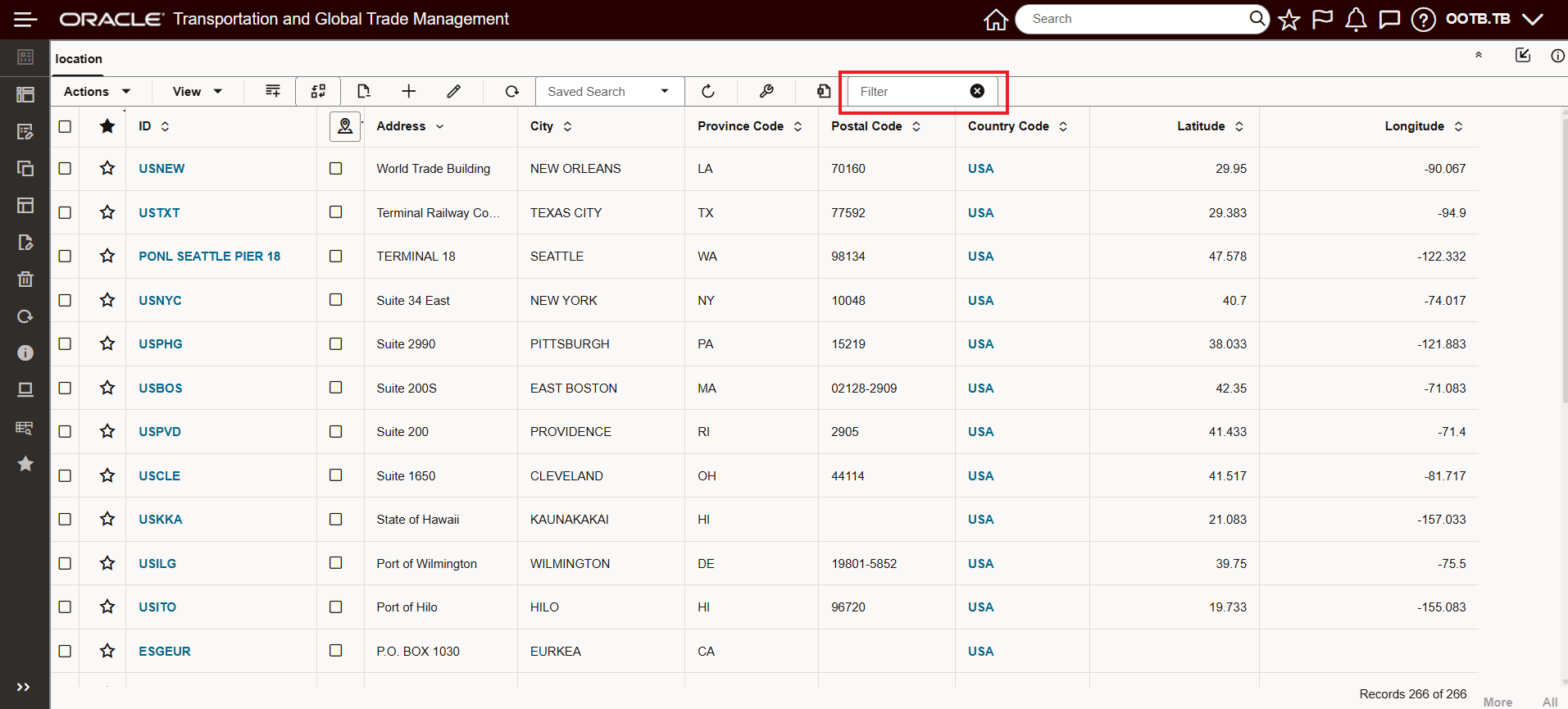
Filter Text Box Visible
This enhancement does not change the behavior of the Filter Text Box, In the example below the rows have been filtered to display only rows containing the text "TX".
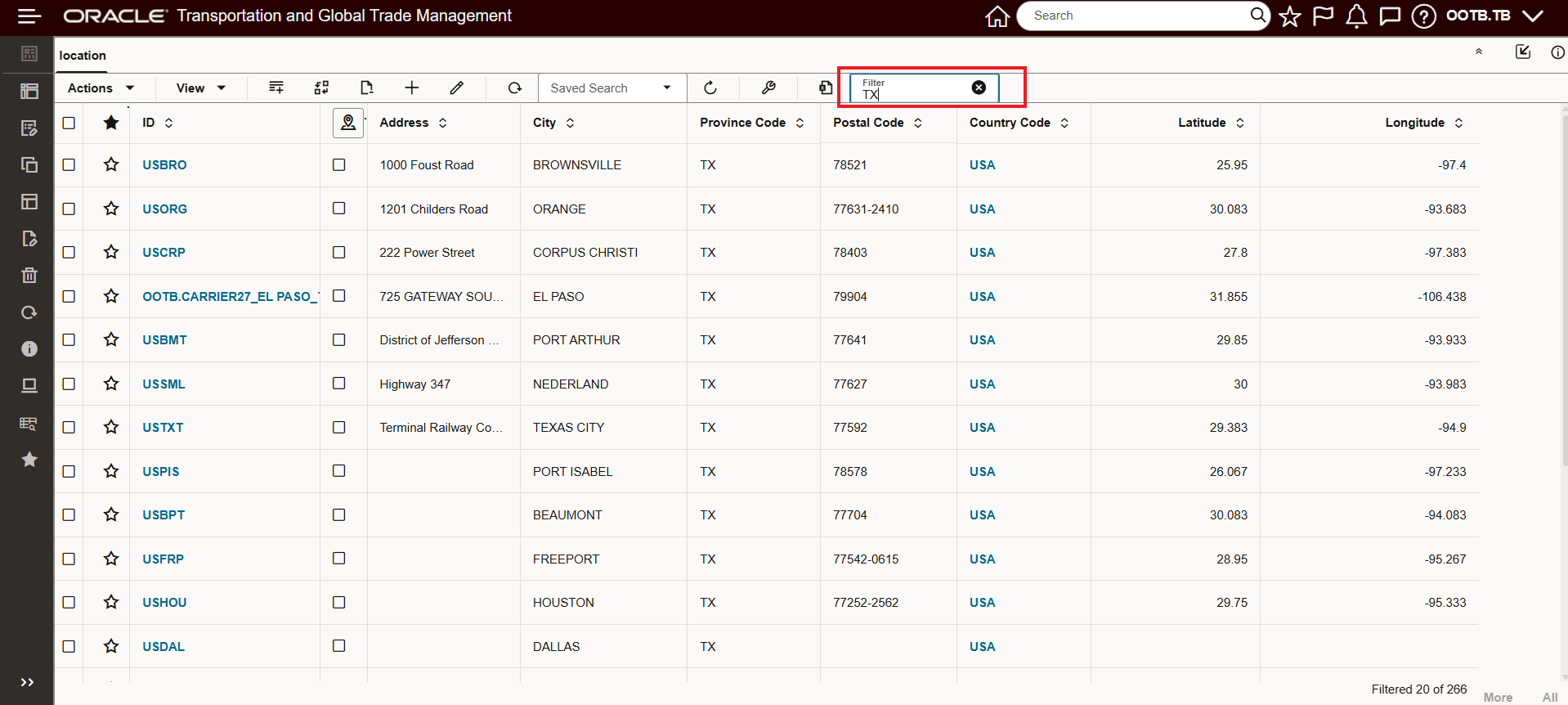
Filter Text Box Example "TX"
With the parameter "Show Filter Text Box" set to False, the default value, the original Filter Icon Toggle behavior is preserved, as shown below.
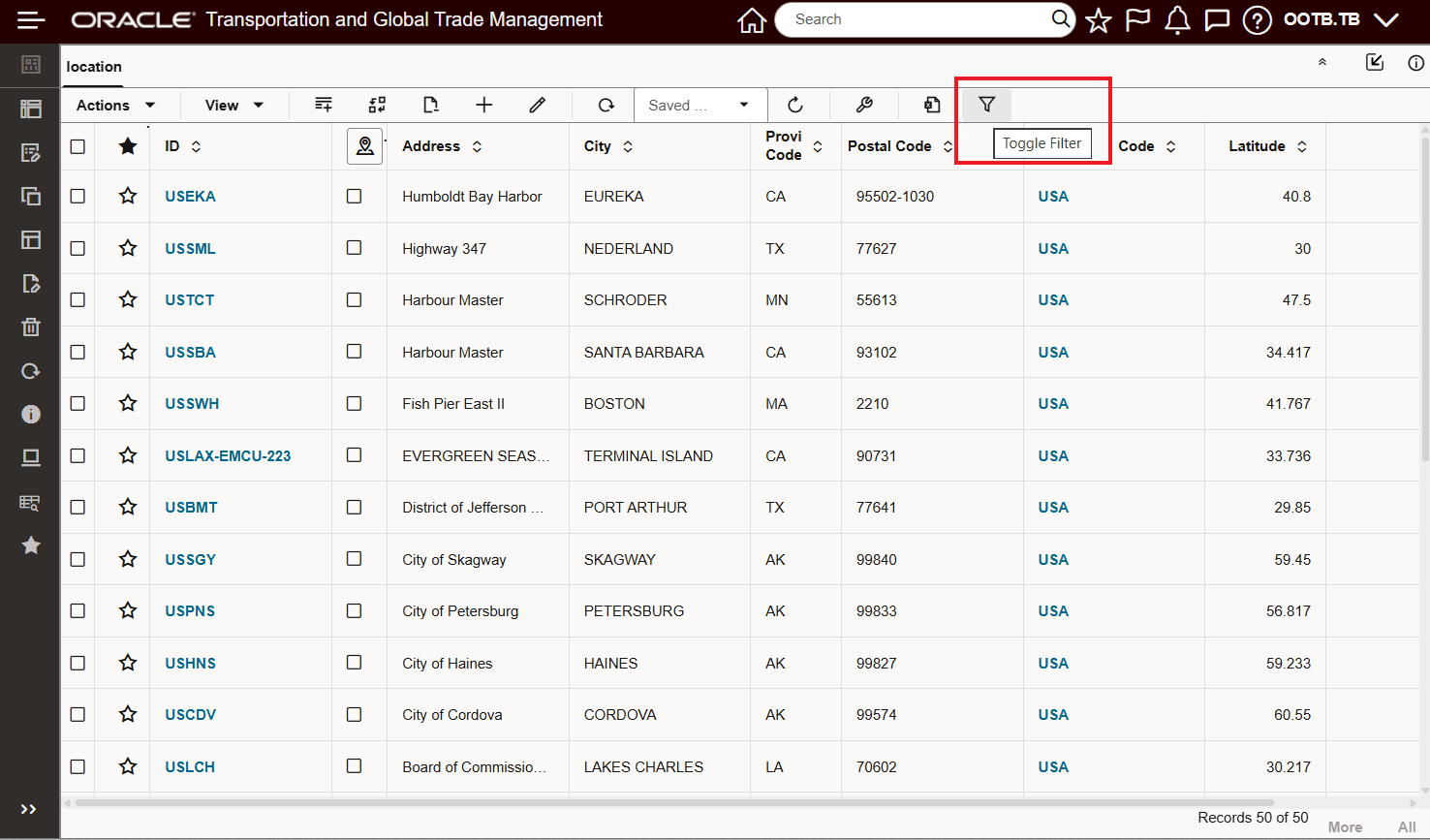
Filter Toggle - Default Behavior
Business Benefit: This option extends the configuration options available to you and provides the option to have your Enhanced Workbenches accommodate your desired usage and workflows.
Steps to enable and configure
To take advantage of the new configuration option - the Workbench Logic Configuration parameter set used with your Workbench should have the parameter "Show Filter Text Box" set to True, as shown below. The default value supports the previous toggle approach enabled using the Filter Icon.
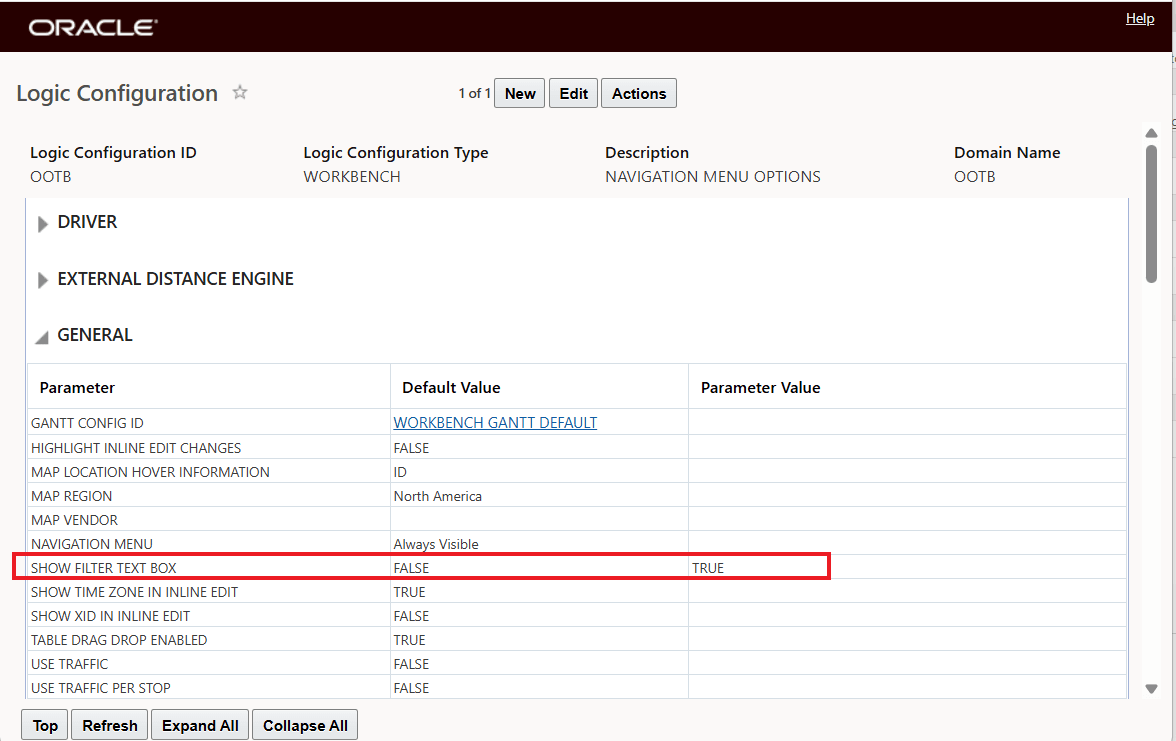
Set the Parameter "Show Filter Text Box" to TRUE
Tips and considerations
The feature is backward-compatible, ensuring consistent filter functionality while providing a simple mechanism to tailor the table toolbar's appearance to best fit your needs.