Try the New Redwood Experience
Redwood is the future user interface for Oracle Transportation and Global Trade Management. The "Try the New Redwood Experience" provides Admin users with a view into the Redwood Experience for all of the areas of the application that have already been migrated to the modern look and unified user interface provided by Redwood. The "Try the New Redwood Experience" will be expanded in upcoming updates as more and more of the application's user experience is migrated to Redwood.
For tasks where both the legacy and Redwood UIs are available, we strongly encourage you to take advantage of the new Redwood experience so you can benefit from the more intuitive, modern, and efficient UIs. Your feedback is always welcome to help us further improve your experience.
The Redwood Experience for 26A includes the following areas:
- Welcome Page
- Ask Oracle
- Suggestions
- Qualifiers
- Profiles:
- Equipment Type Manager
- Restricted Party Screening
- Public Enhanced Workbenches to demonstrate the Smart Search capabilities. See Smart Search
For the Admin user role, you can initiate the Redwood Experience by navigating to User (Settings and Actions) drop-down in the Unified Header. The "Try the New Redwood Experience" link is located in the Administration section of the Settings and Actions menu as shown below. 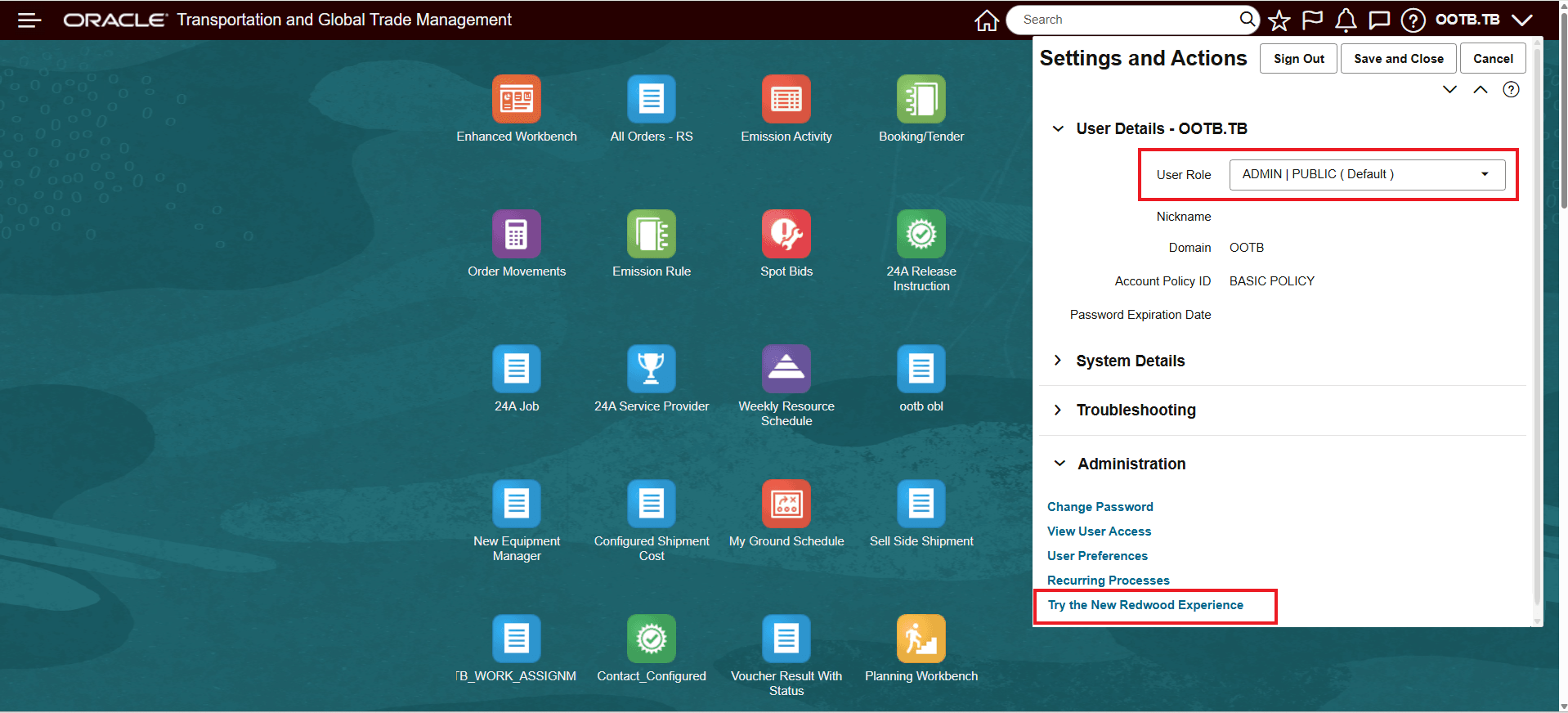
Try the New Redwood Experience
Welcome Page
After selecting the "Try the New Redwood Experience" link the Welcome Page will be displayed.
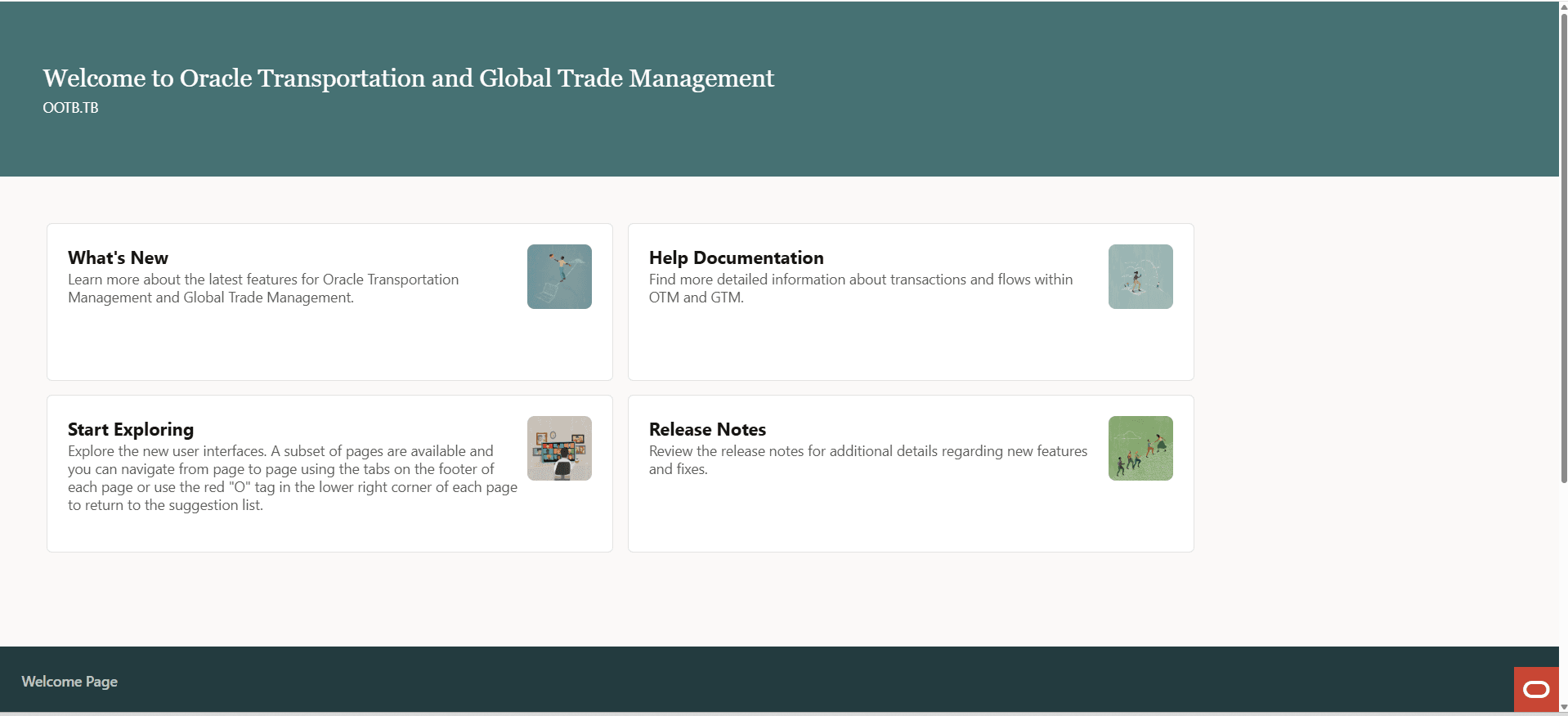
Welcome Page
The Welcome Page provides access to the following information:
- What's New: Go to the latest version of the Oracle Logistics What's New documentation on the Oracle Help Center.
- Start Exploring: View the Ask Oracle page with the Suggestions shown.
- Help Documentation: View the About the Redwood Experience help topic and learn more about Redwood in Oracle Transportation and Global Trade Management.
- Release Notes: Go to the latest version of the Oracle Logistics Release Notes on the Oracle Help Center.
You can start the Redwood Experience by selecting the "Start Exploring" box or by selecting the O-tag in the lower right corner of the screen.
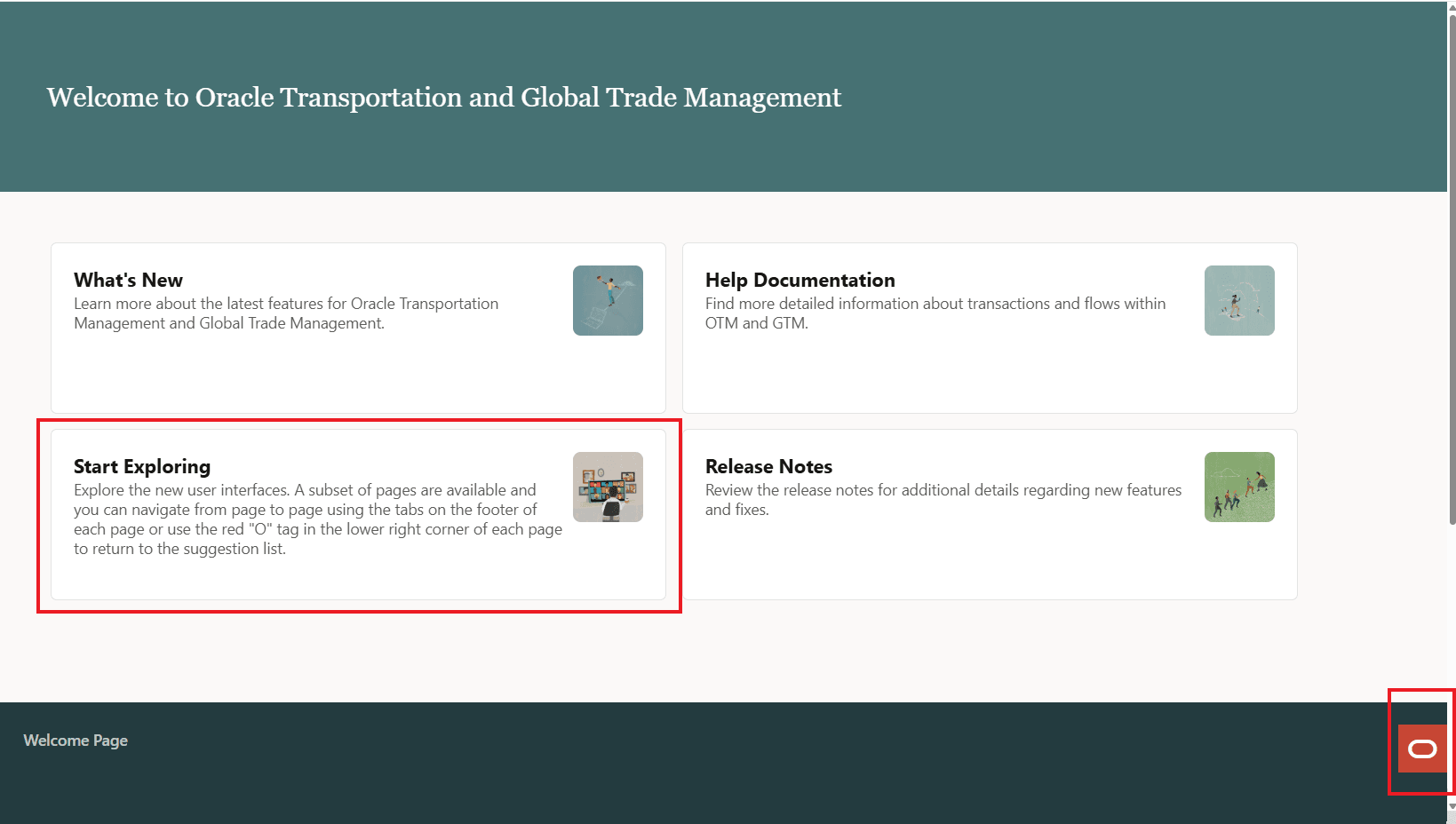
Welcome Page Start the Redwood Experience
Suggestions
The starting point for the Redwood Experience is the "Suggestions" view shown below.
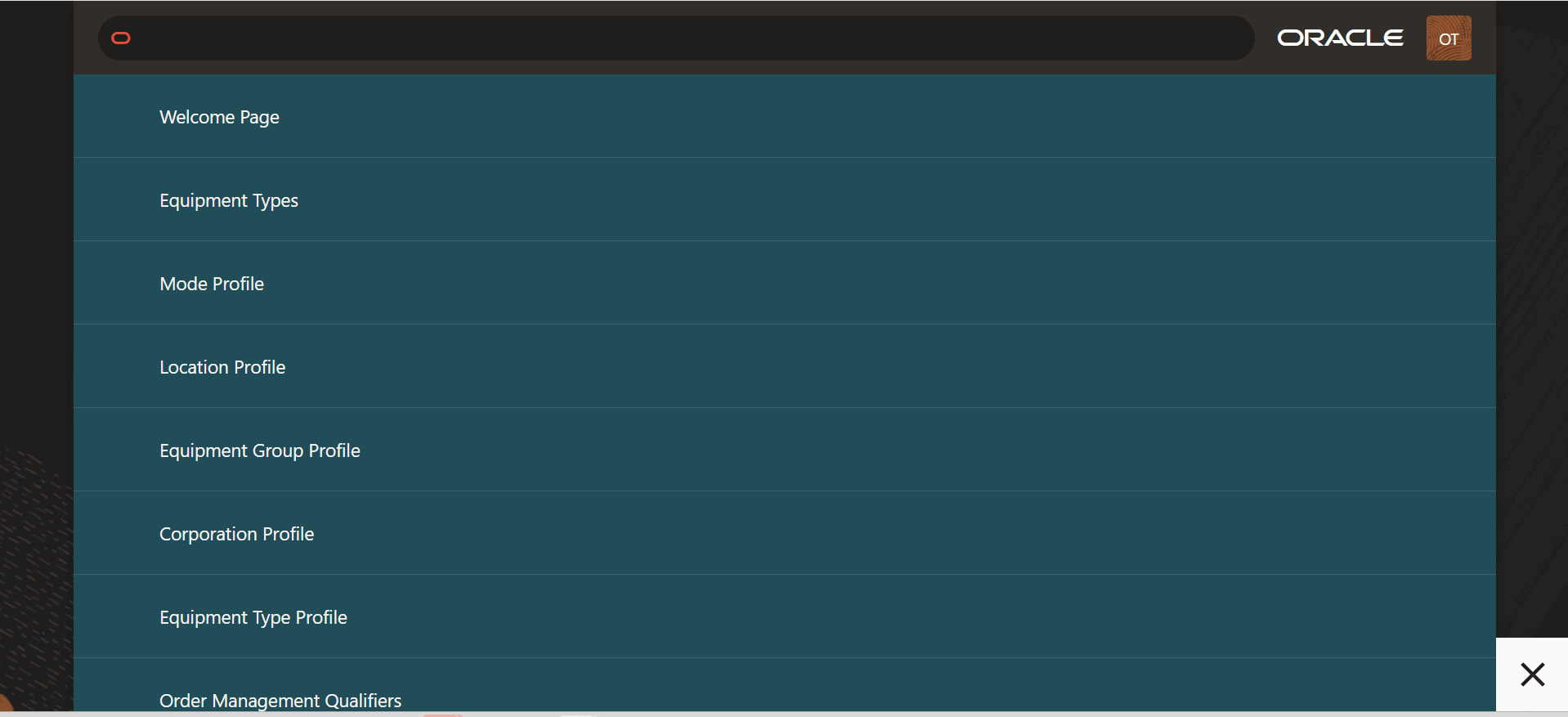
Redwood Suggestions View
The "Suggestions" view is designed to provide direct access to the areas of the application you use most often. You can click on any of the suggestions provided in the list to go to the Redwood UI for the listed areas.
Ask Oracle
The "Ask Oracle" search bar allows you to quickly filter the list displayed to the areas you are interested in. In the example below, the suggestions have been filtered to only those areas starting with "e".
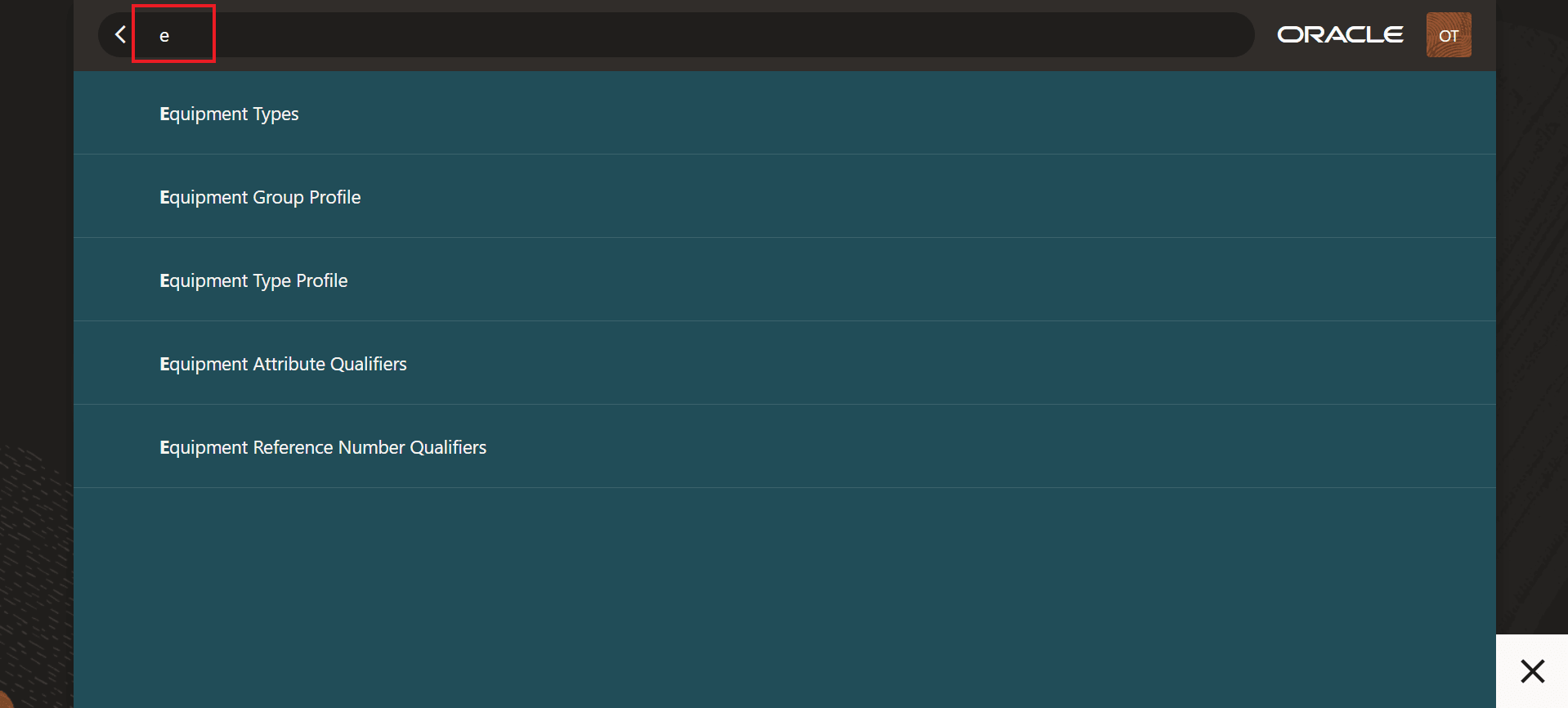
Ask Oracle Filtered Suggestion Listed
This introduction to Redwood, for this initial release, focuses mostly on Power Data UIs, the UIs that fall into the setup/static data category. The Redwood UIs provided fall into two types of setup UIs - Qualifiers and Profiles. In addition to these setup type UIs, a more complex manager screen, the Equipment Type Manager, has also been provided to provide you with a glimpse into how the more complex managers - with child data/grids etc. will look once they move to Redwood.
Qualifiers
To demonstrate the Redwood UIs for Qualifiers, the Ask Oracle search has been used to filter the suggestions down to entries starting with "or", from the filtered list, the "Order Management Qualifiers" option will be used to demonstrate the Redwood UIs for Qualifiers.
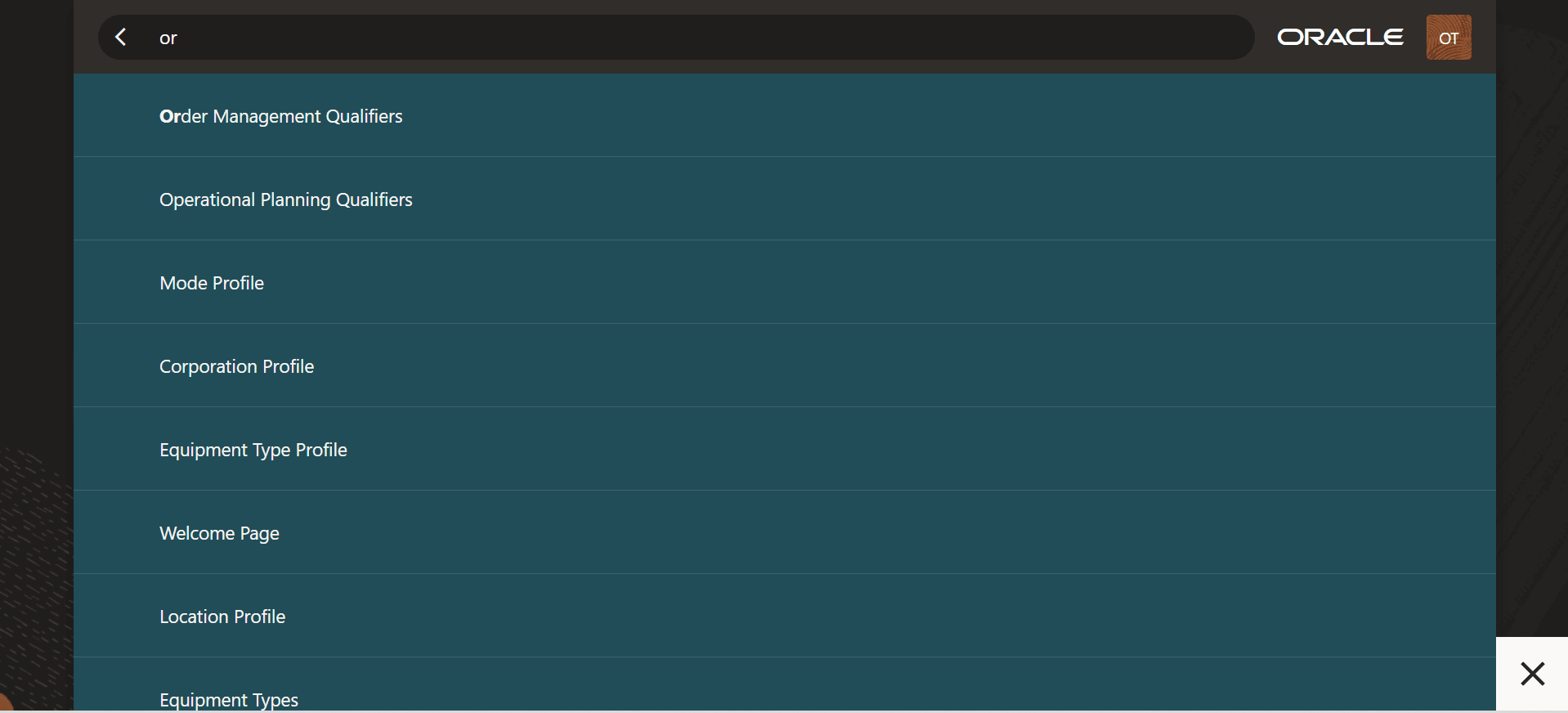
Suggestions - Select Order Management Qualifiers
Selecting the Order Management Qualifiers option from the suggestions list above brings up the UI below. The lower portion of the UI provides access to all of the other Qualifiers available for other objects. Where spaces is available a direct link is provided, the "..." on the lower right of the UI provides the list of additional Qualifier UIs that could not be displayed across the bottom of the UI.
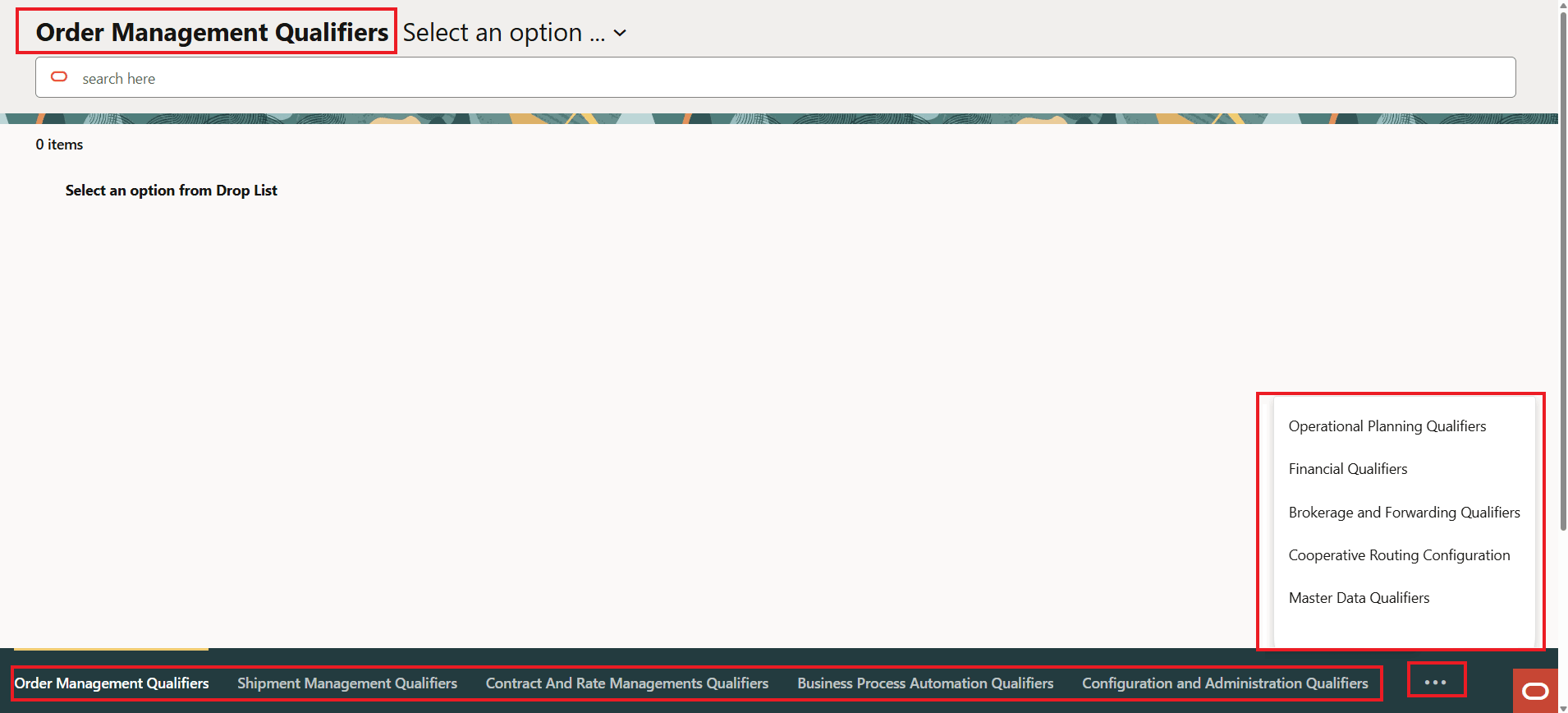
Order Management Qualifiers
To start working with a particular Order Management Qualifier - you will need to "Select an option" from the dropdown list. The dropdown list provides all of the Order Management Qualifiers that have been moved to Redwood.
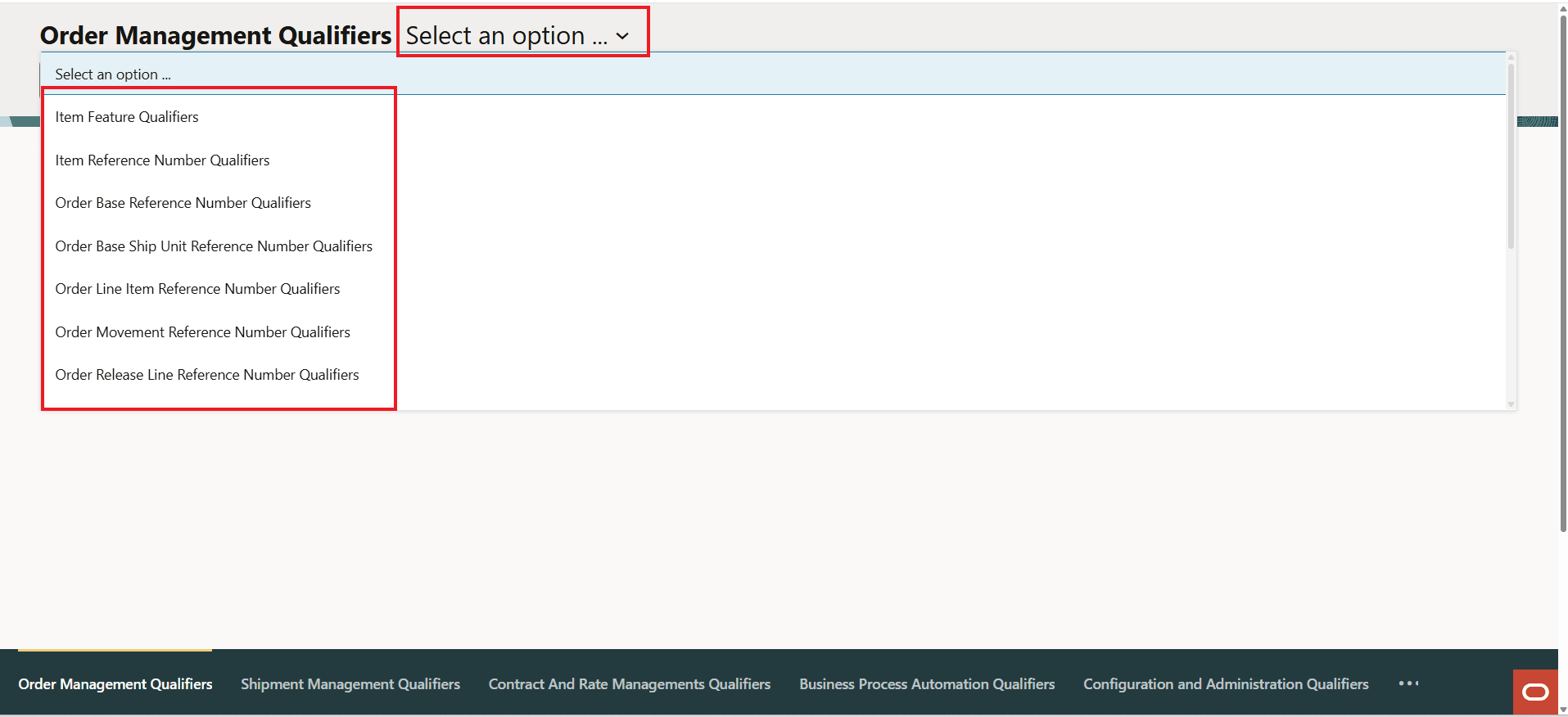
Use "Select an option" to Select the Order Management Qualifier
For this example, the Order Release Reference Number Qualifier has been selected.

Order Release Reference Number Qualifier
In the example below, the option to Add is shown. Note that the Add is done inline with the results versus taking you to a new screen to add the details. The Actions provided for the Add allow you to Save your changes or Cancel.
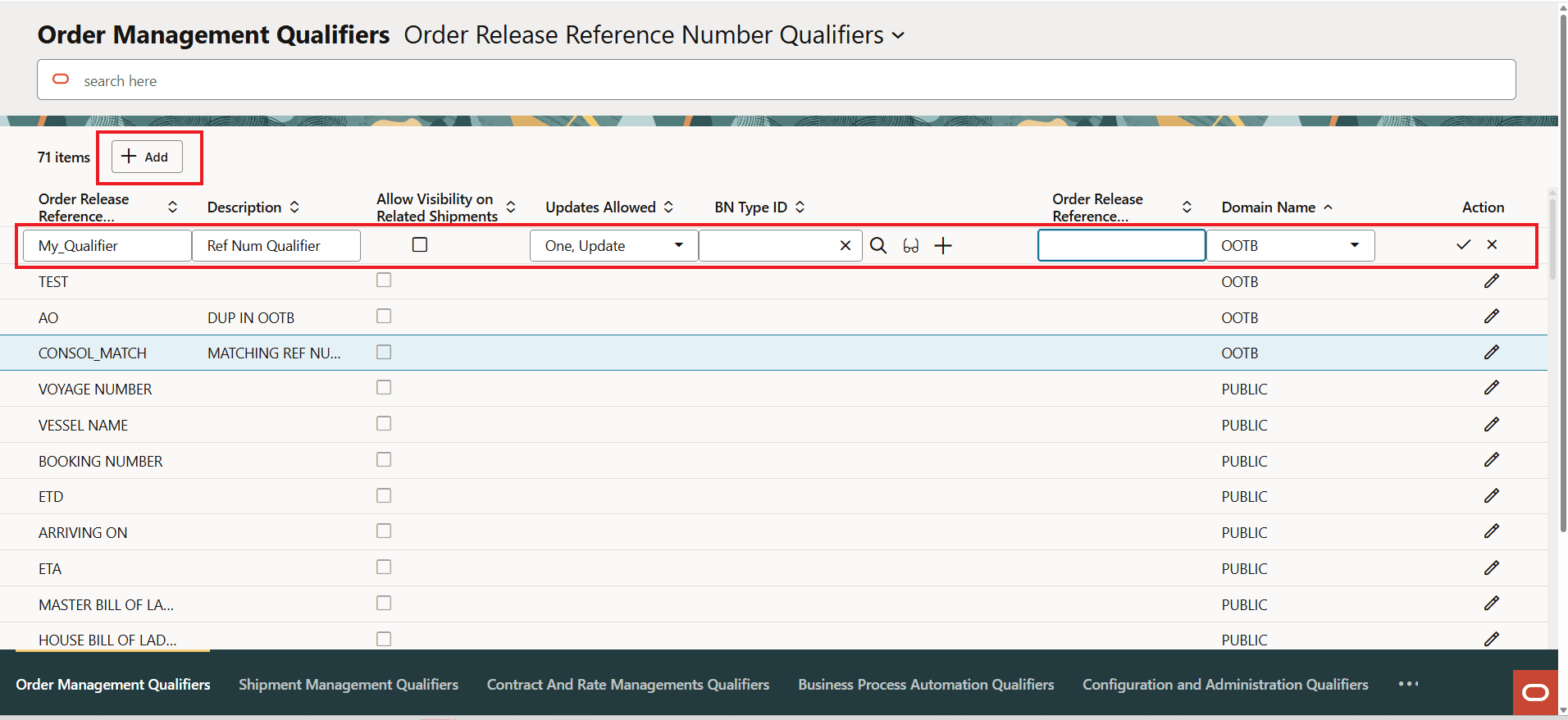
Add
When you initiate the Save Action, the following confirmation message is displayed allowing you, again, to Save or Cancel.
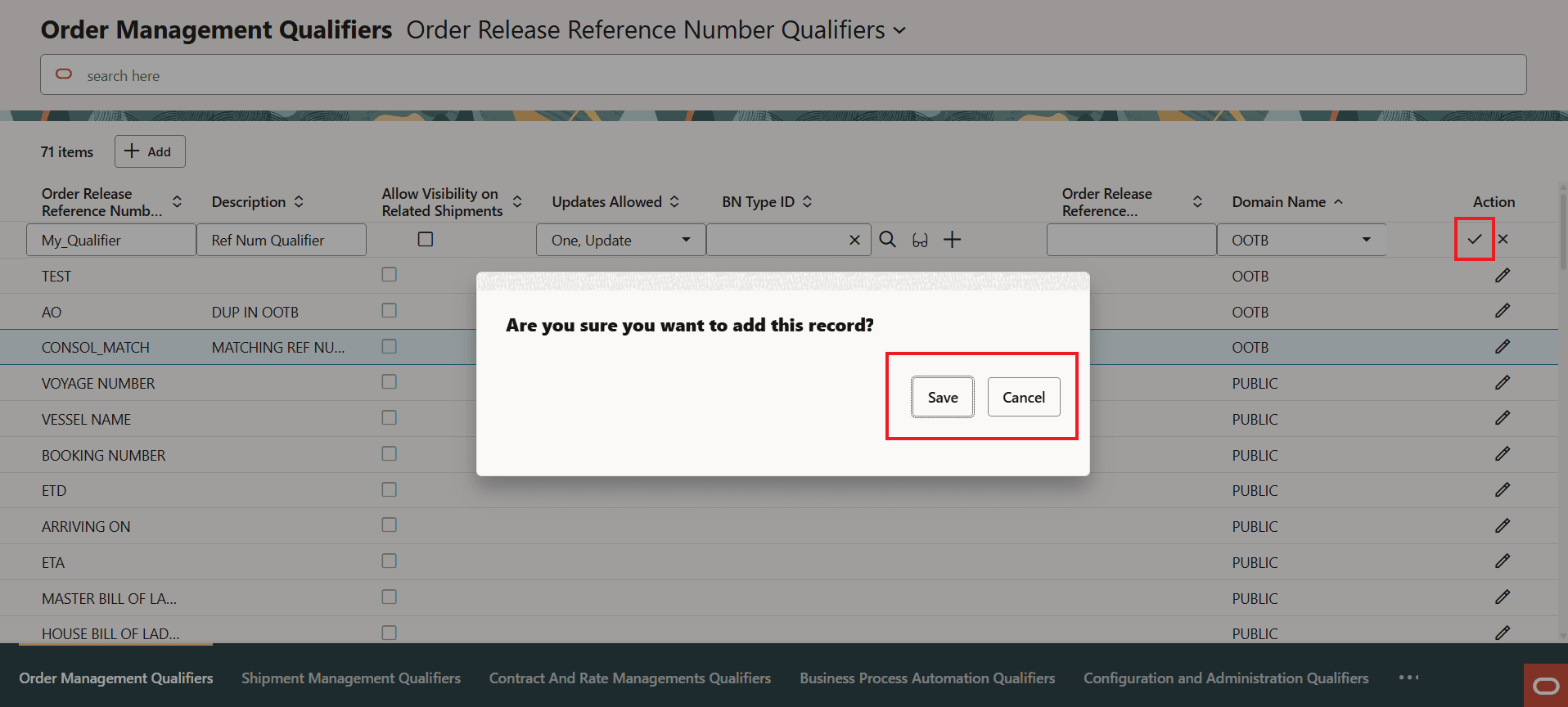
Add - Save or Cancel
You will receive notification about the Action - in this case the addition was successful, if there had been an issue you will receive a error message related to the issue. Note that these message boxes will auto-close so you do not need to click them to close.
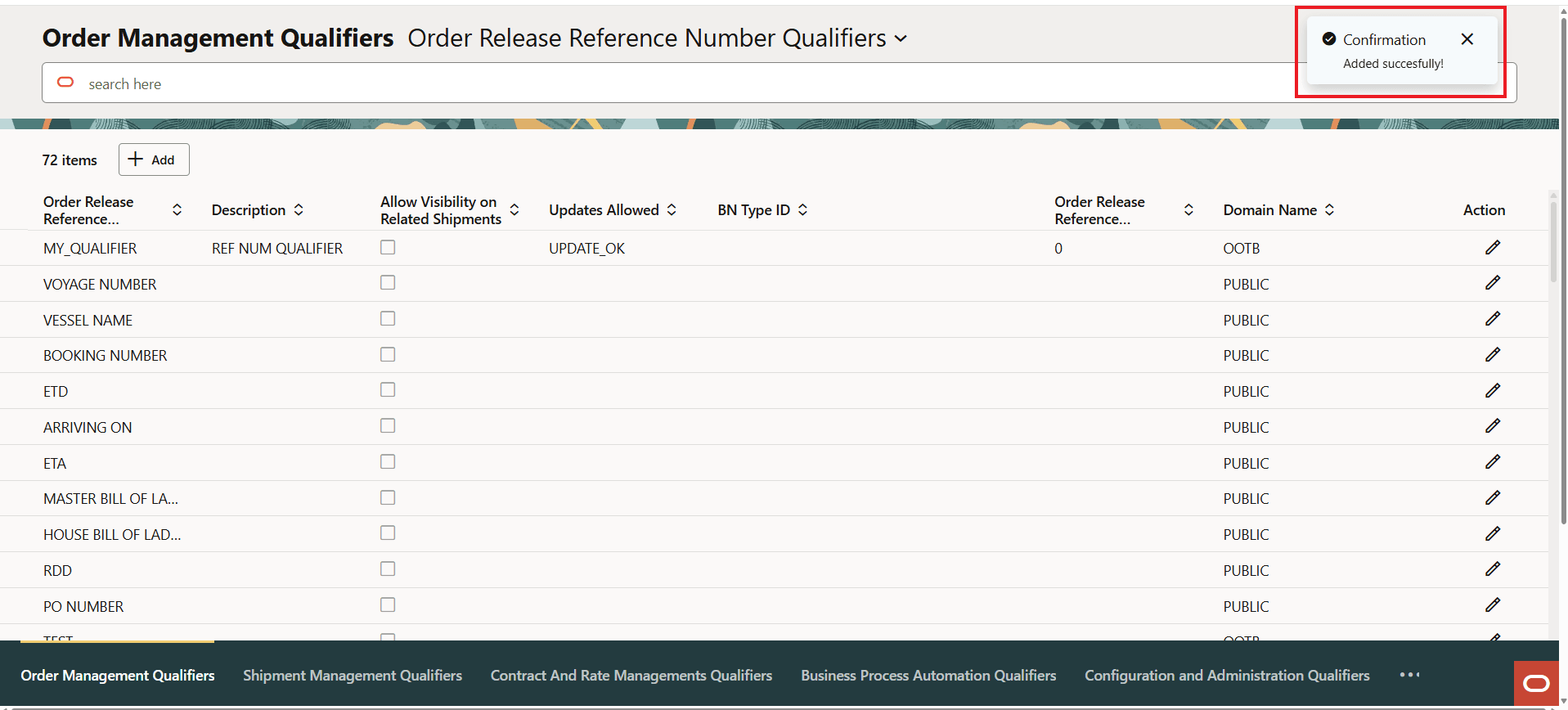
Confirmation Message
Below is the newly added Order Management Reference Number Qualifier. The expanded Action menu is shown. For the selected item, the "Check" icon will allow you to modify the entry, the "X" icon closes the Action menu and the "Trash Can" icon will delete the entry.
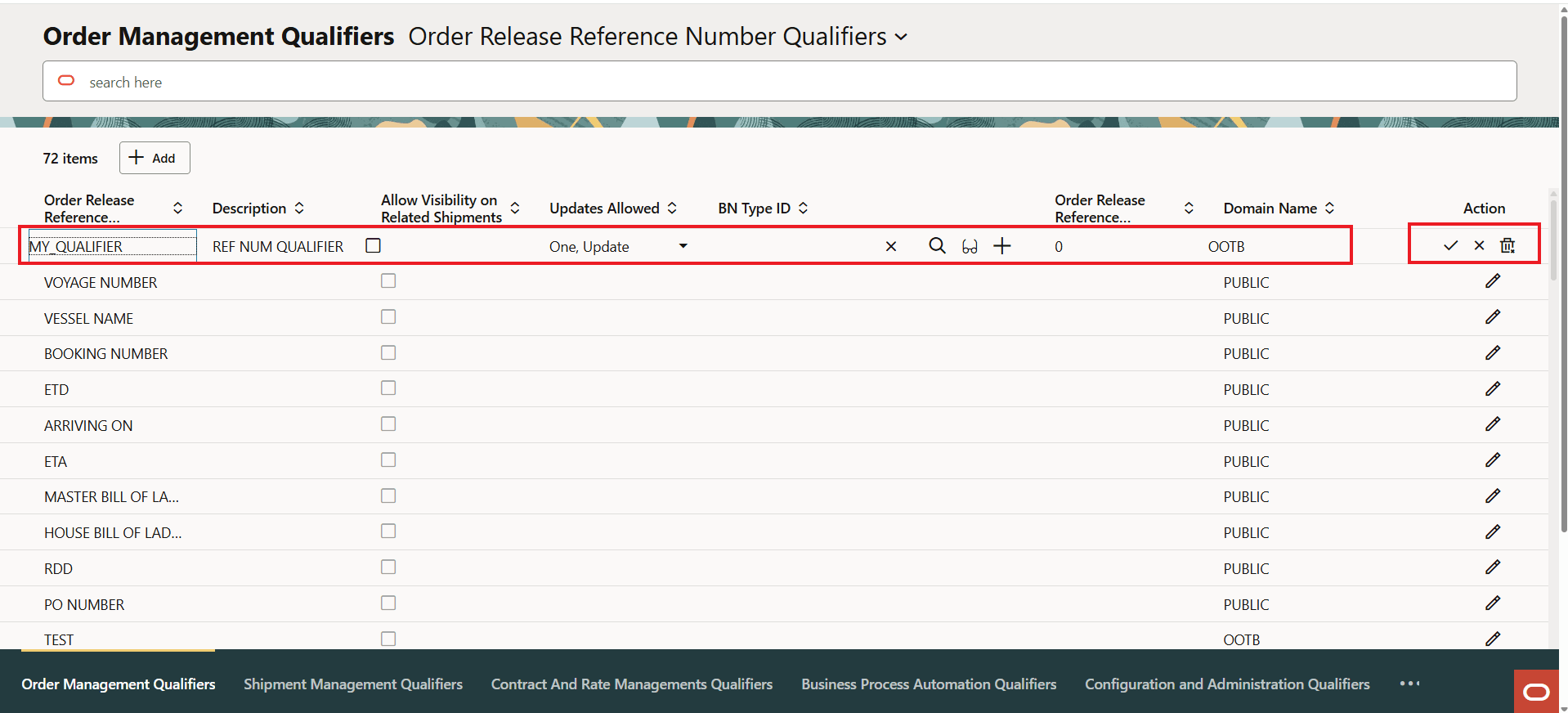
Added Qualifier and Actions
Profiles
The Profile UIs provide an expanded view into the Redwood capabilities by including some additional Redwood features including Smart Search. For this release the following Profile UIs have been provided. The Equipment Type will be used to highlight the enhancements provided with the Redwood UI.
Profiles UIs:
- Mode
- Location
- Equipment Group
- Corporation
- Equipment Type
- Service Provider
- Equipment Types (discussed below)
The Mode Profile will be used to showcase the Redwood Profile UIs. The first item to note - which is slightly different from the Qualifier UIs above, is that the Search is now a field level search versus a filtering that is available for the simpler Qualifier UIs. The Quick Search fields provided, by default, are the Search fields configured for on the First Table of the related Screen Set. In this case the four fields highlighted below.
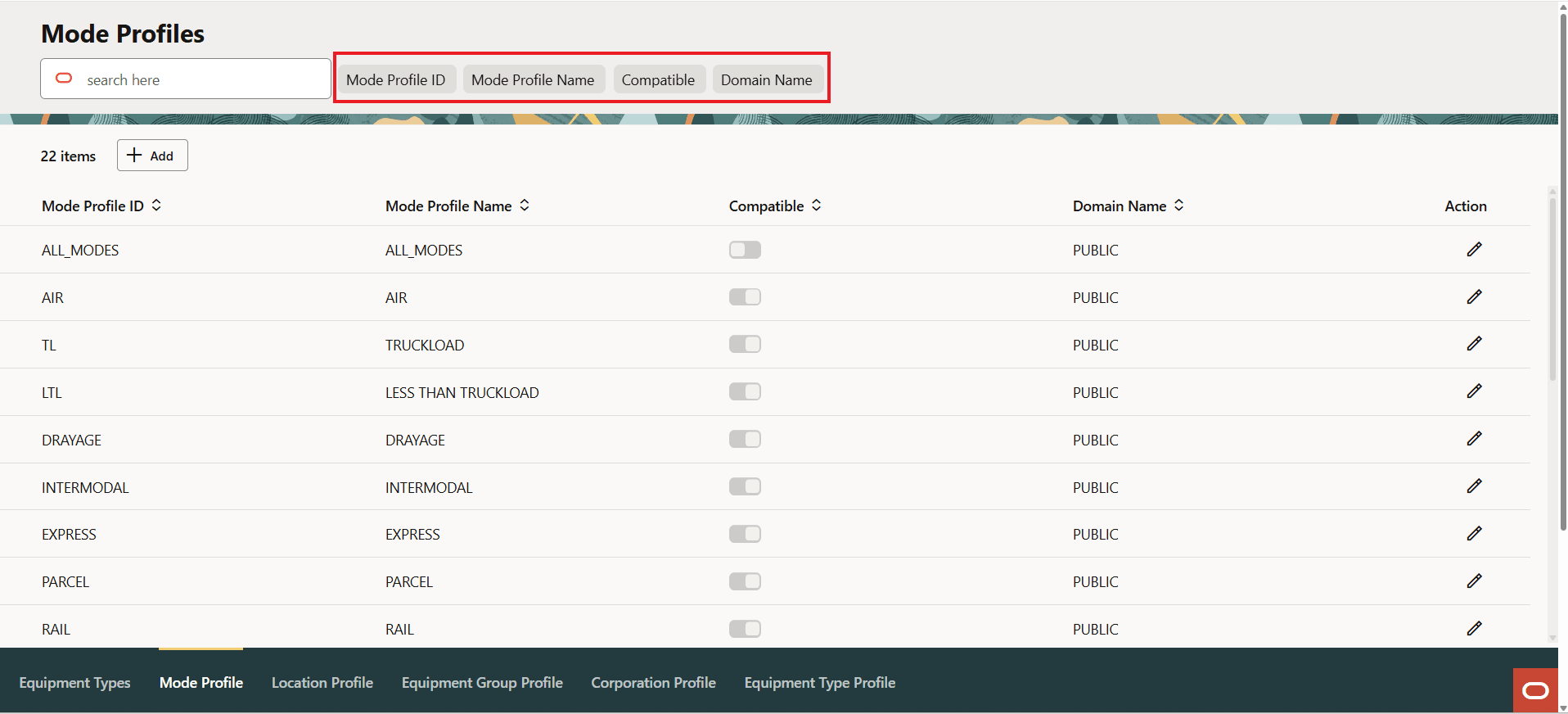
Mode Profile
The Mode Profile Screen Set Search tab is shown below, the four fields on the Screen Set Search tab are the fields provided for searching above.
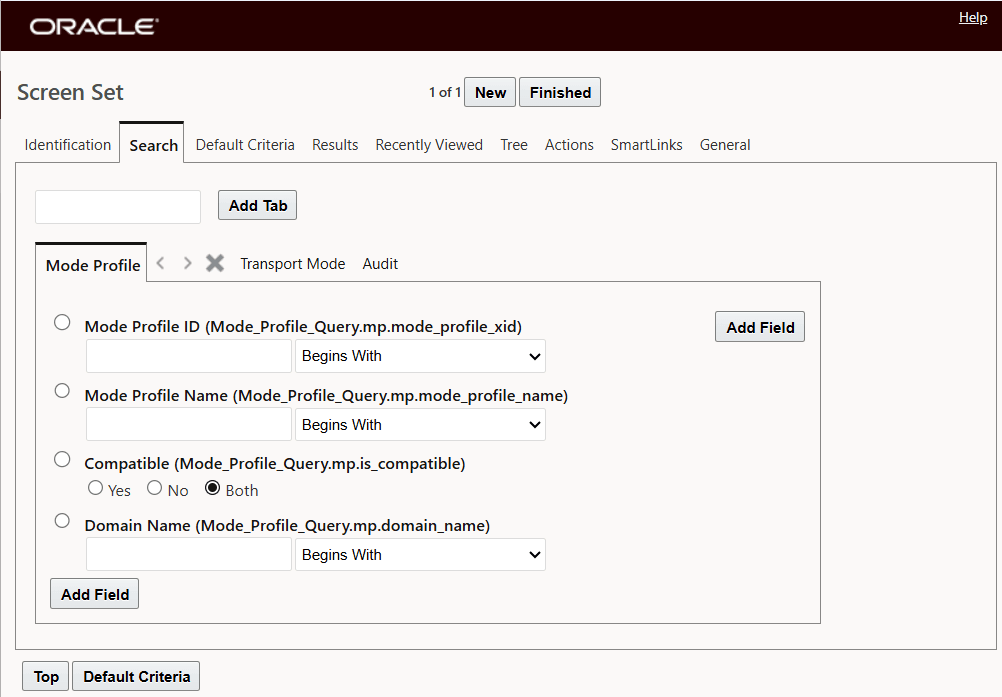
Mode Profile Screen Set Search Tab
Note, if the Mode Profile has a previously defined Saved Search, the Smart Search menu will include the Saved Searches as an additional search option, as shown below.
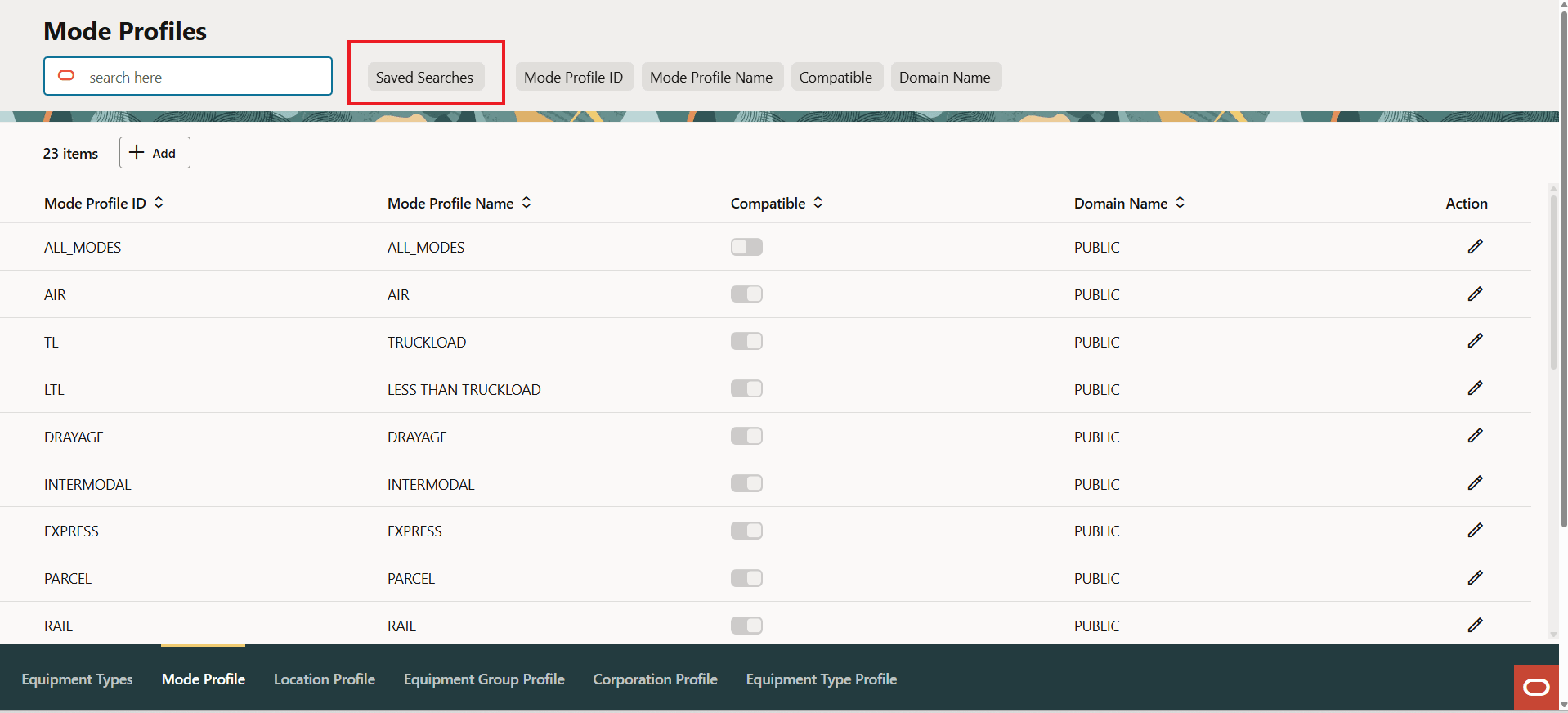
Smart Search With Saved Searches
To use the available Saved Searches, select the Saved Searches option and then select the Saved Search you want to use from the drop down - as shown below. You can either search for records using your Saved Searches or you can search based on the set of fields provided, you cannot use your Saved Searches with the field level searches.
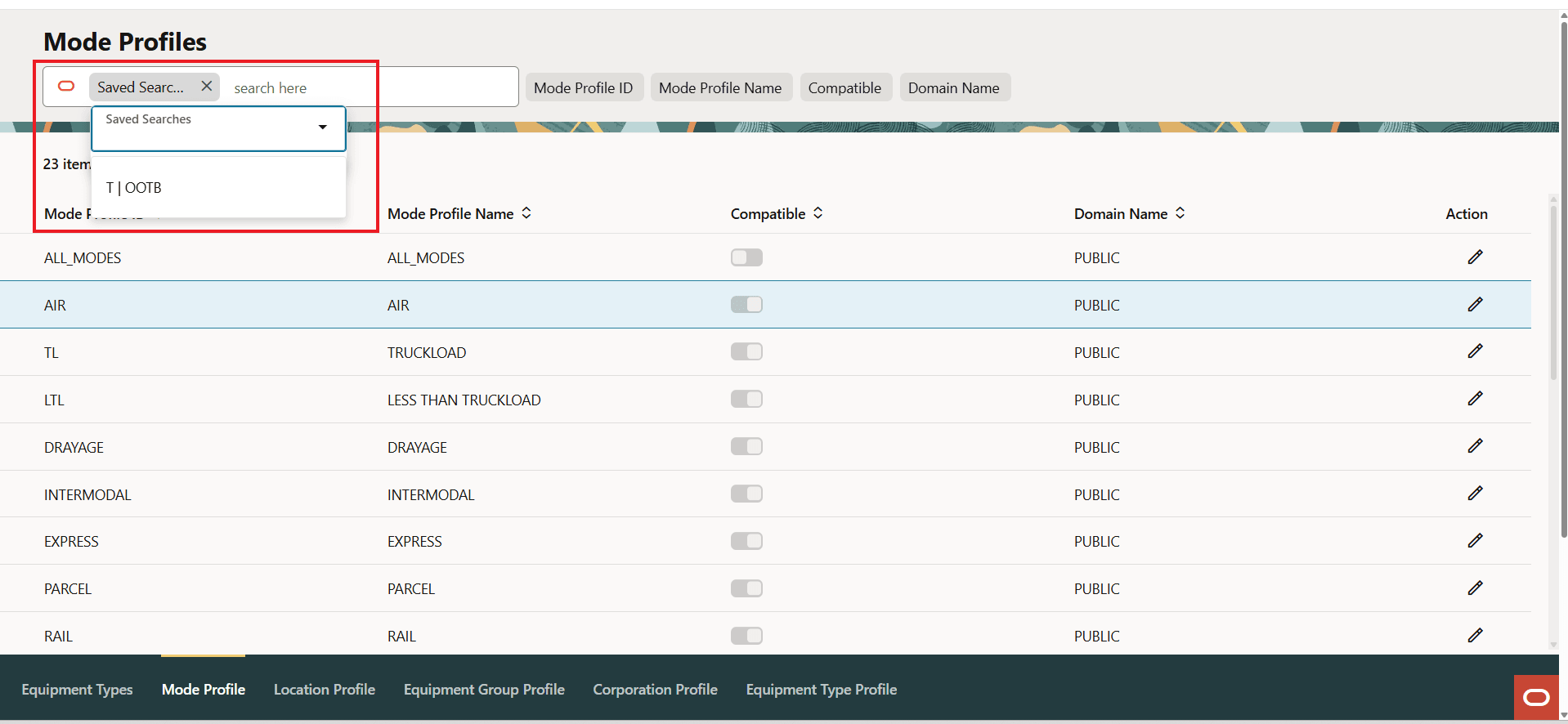
Saved Searches Dropdown
Adding a record for the Profile UIs follows the pattern below.
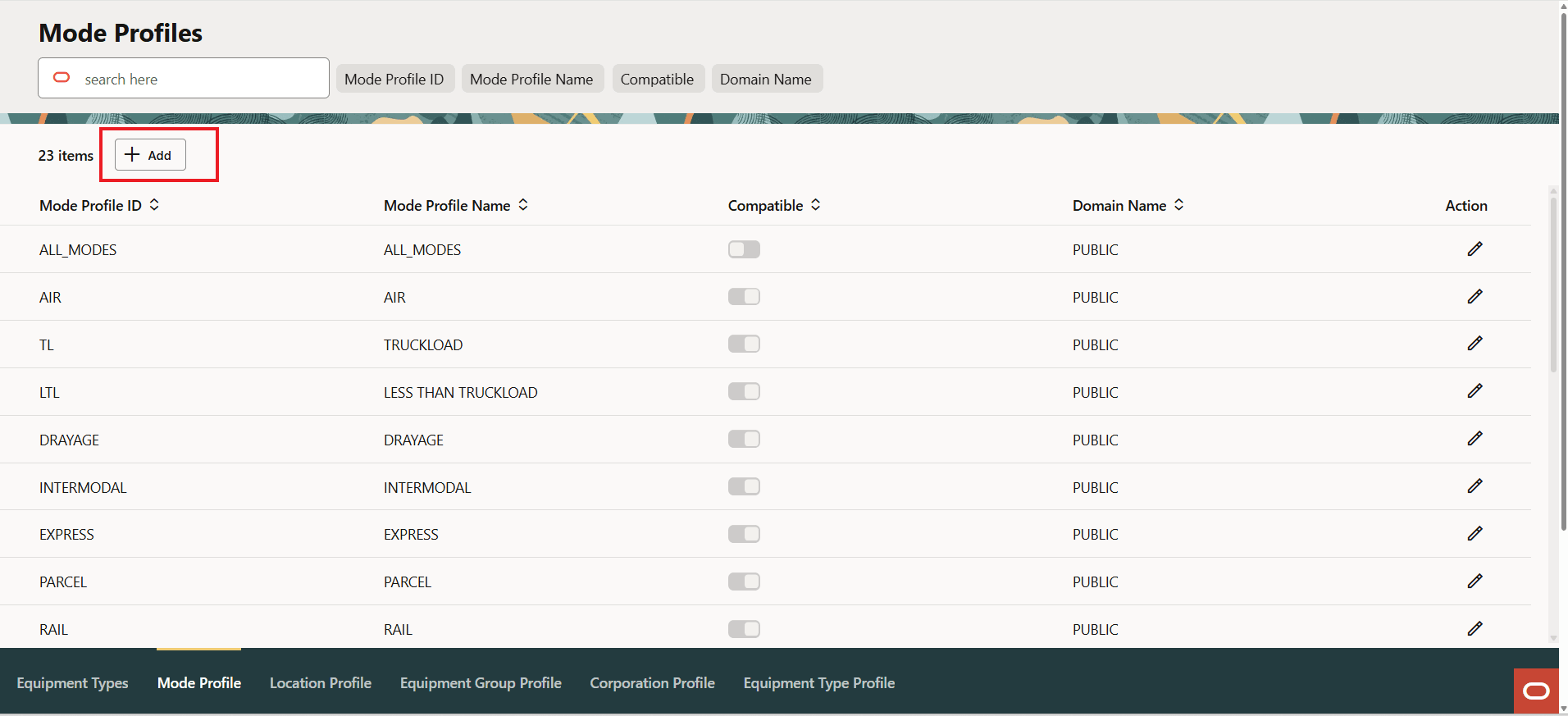
Mode Profile Add
When you select the Add option the UI appears as below.
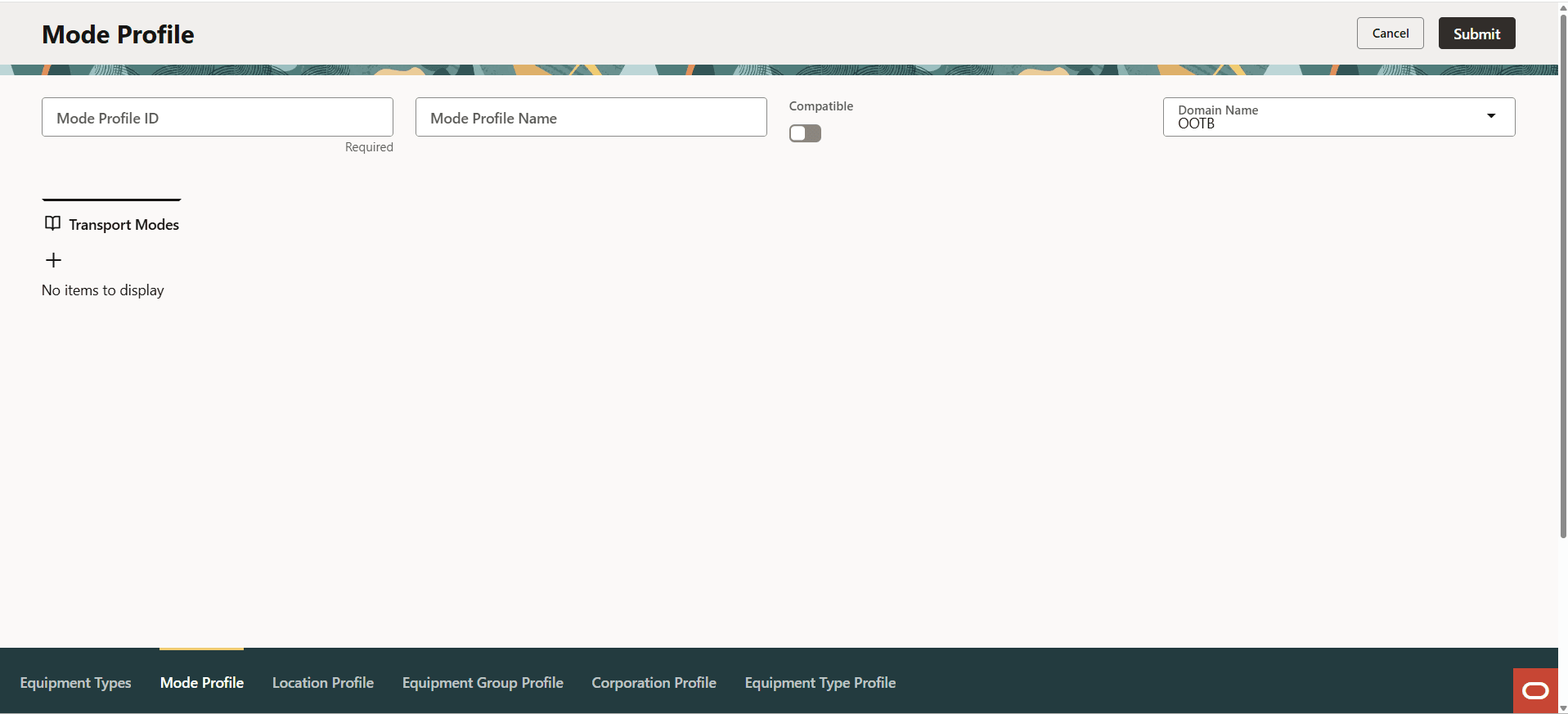
Add New Profile Record
In the example below the Mode Id and Name have been provided along with the Compatibility designation for the details to be added to the Profile. Selecting the "+" open up the file drawer on the right hand side of the screen where the elements of the profile - in this case the different modes - can be added.
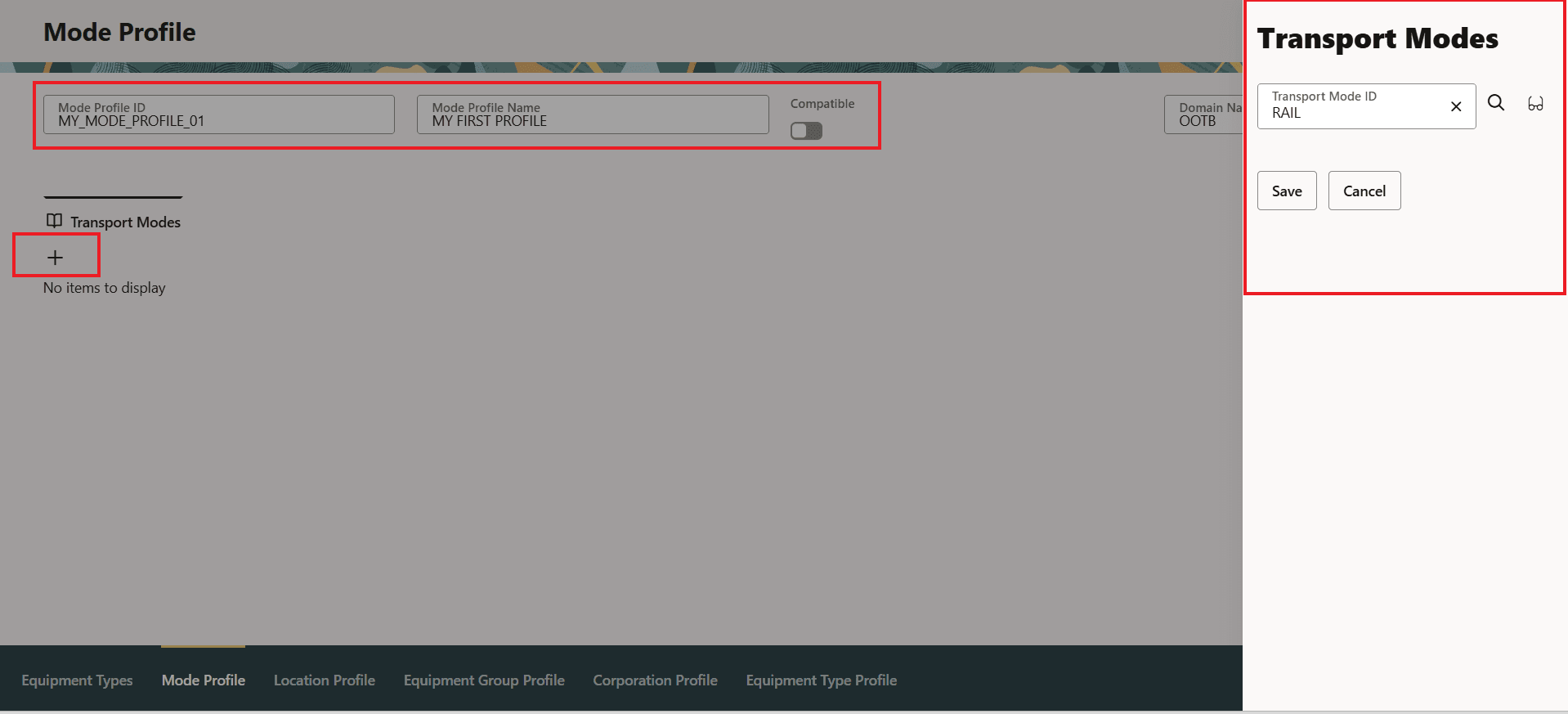
New Profile With Profile Details Defined
In edit mode, the compatible/Incompatible indicator provides an additional color indication(shown in blue) to differentiate between compatible and incompatible. When you are not in edit mode (such as in the Finder Results) right means compatible and left means incompatible.
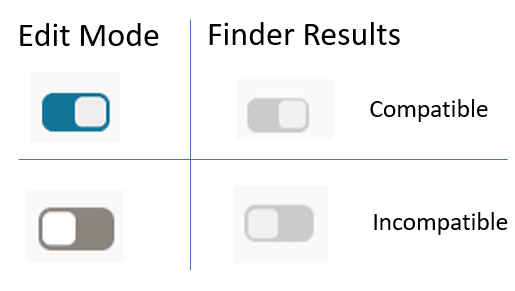
Edit Finder Results Compatible/Incompatible
In the example above, selecting Save for the Transport Modes adds the entered record to the Profile. In this case the Mode Profile now has Rail as one of the Incompatible Modes for this Profile.
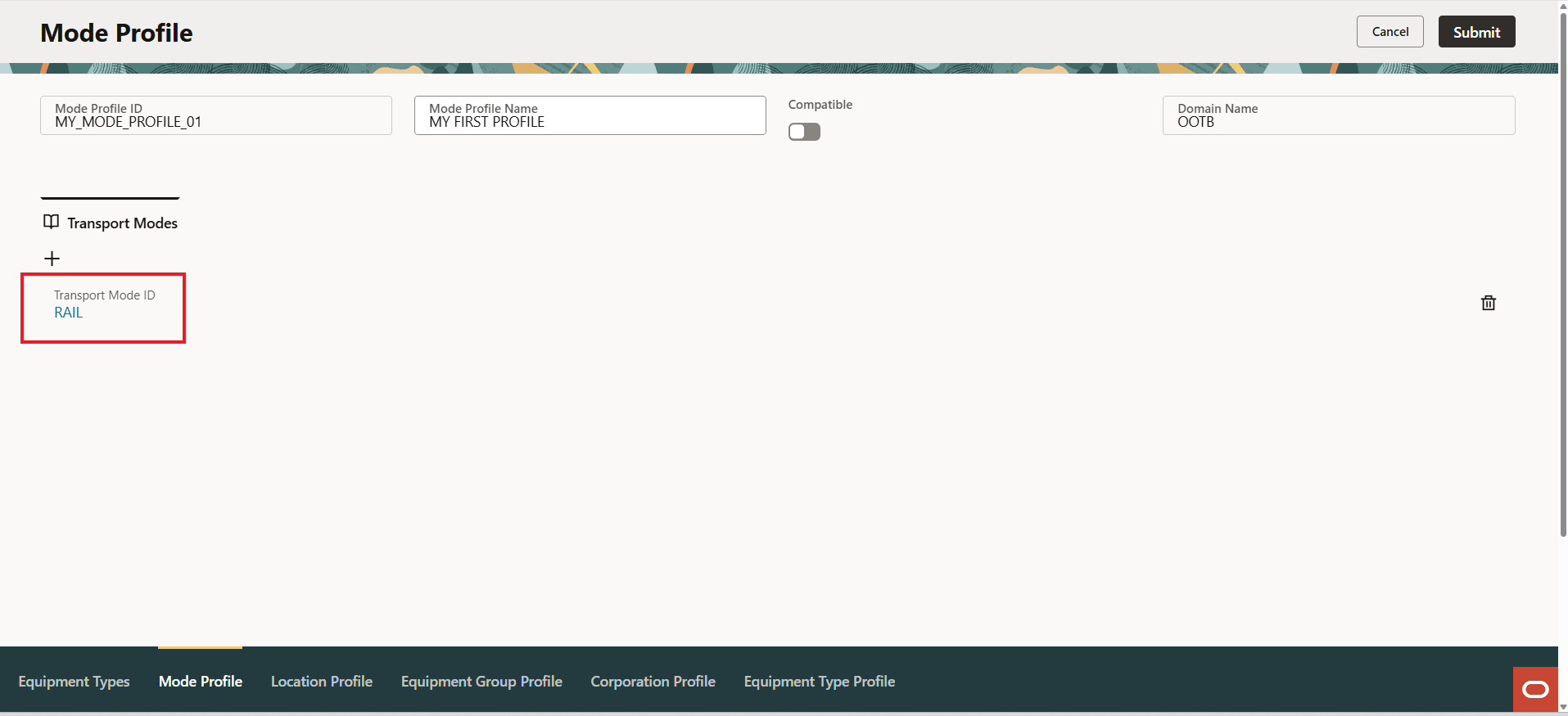
Profile With Detail Added
Repeating the steps above, the Mode Profile with three incompatible modes is below.
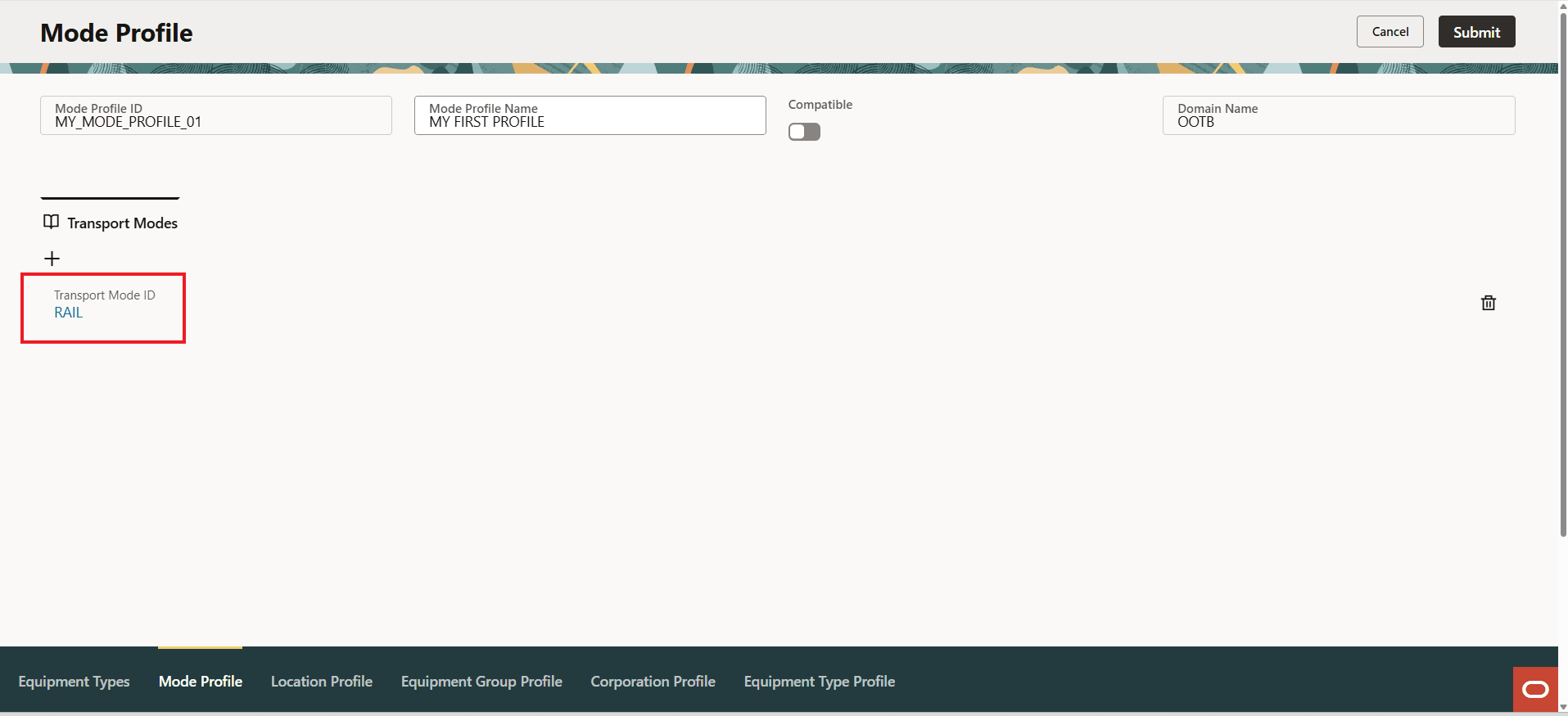
Mode Profile With Three Incompatible Modes
The available Actions for the Profile Records - View, Edit and Delete.
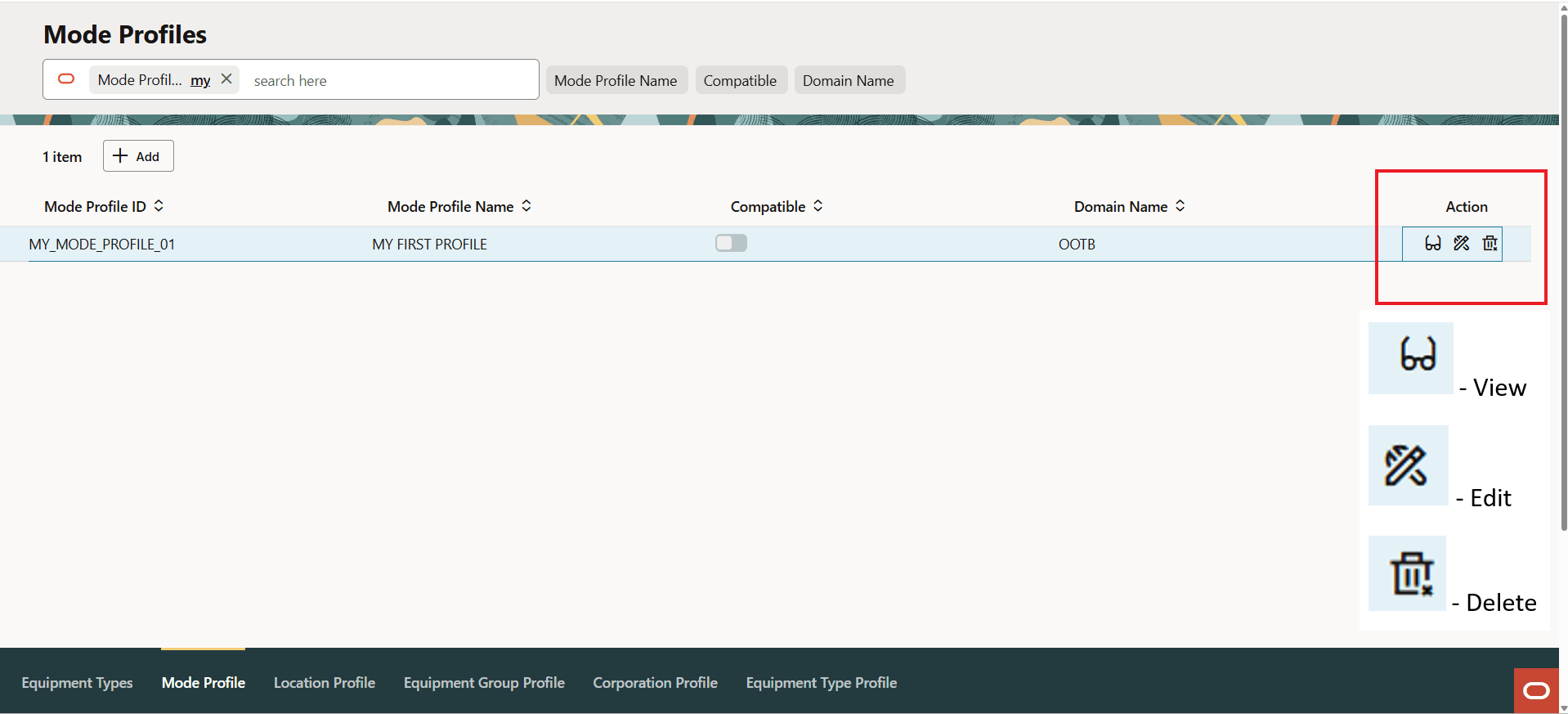
Actions
Dynamic Manager - Equipment Types
Navigating to the Equipment Types Manager provides the UI below. The Equipment Types manager is a slightly more complicated manager and demonstrates some of the additional UI patterns that will be standard in the Redwood UIs.
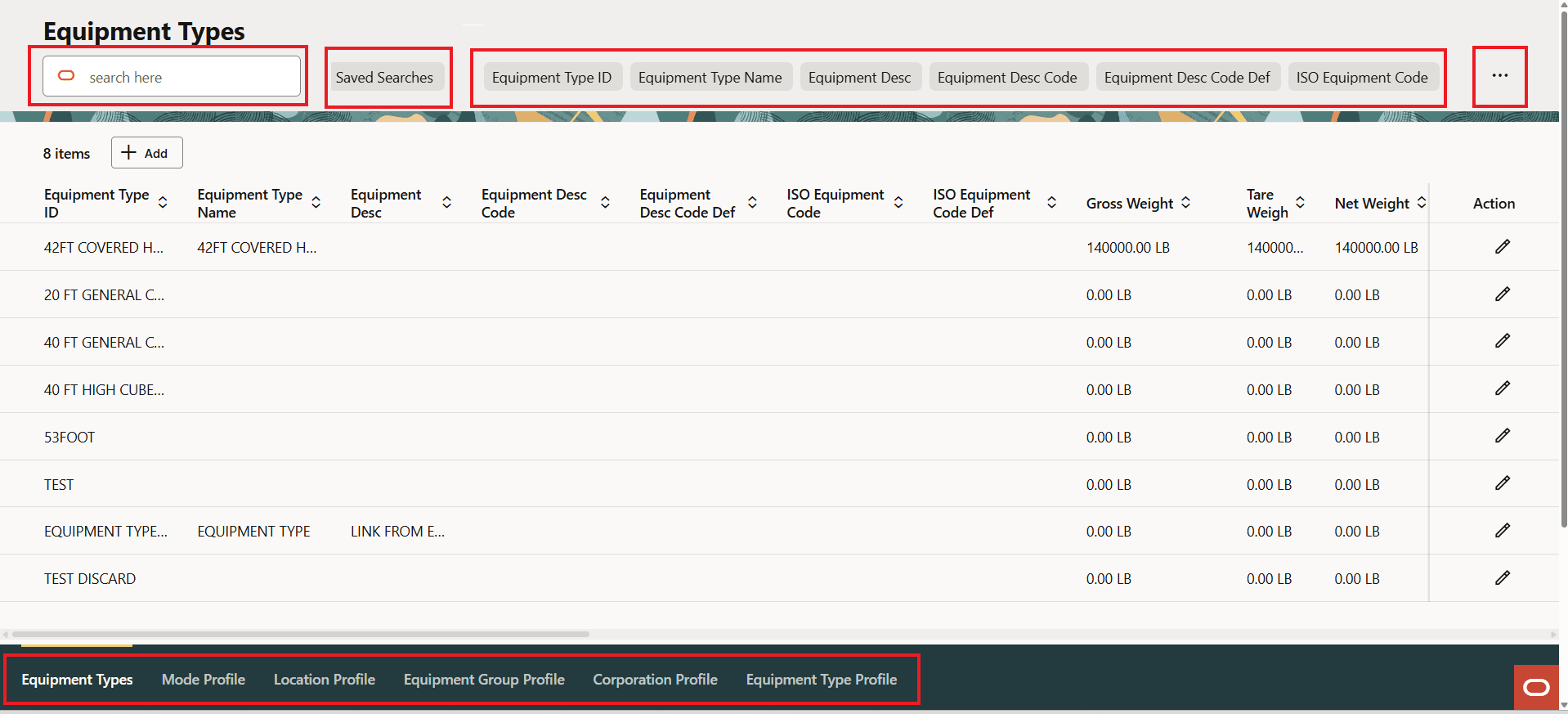
Profiles - Equipment Type Manager
In addition to the inclusion of the Saved Search, the Equipment Types Manager also demonstrates how child records can be added across multiple tabs, in this case, Special Services, Equipment Groups and Remarks.
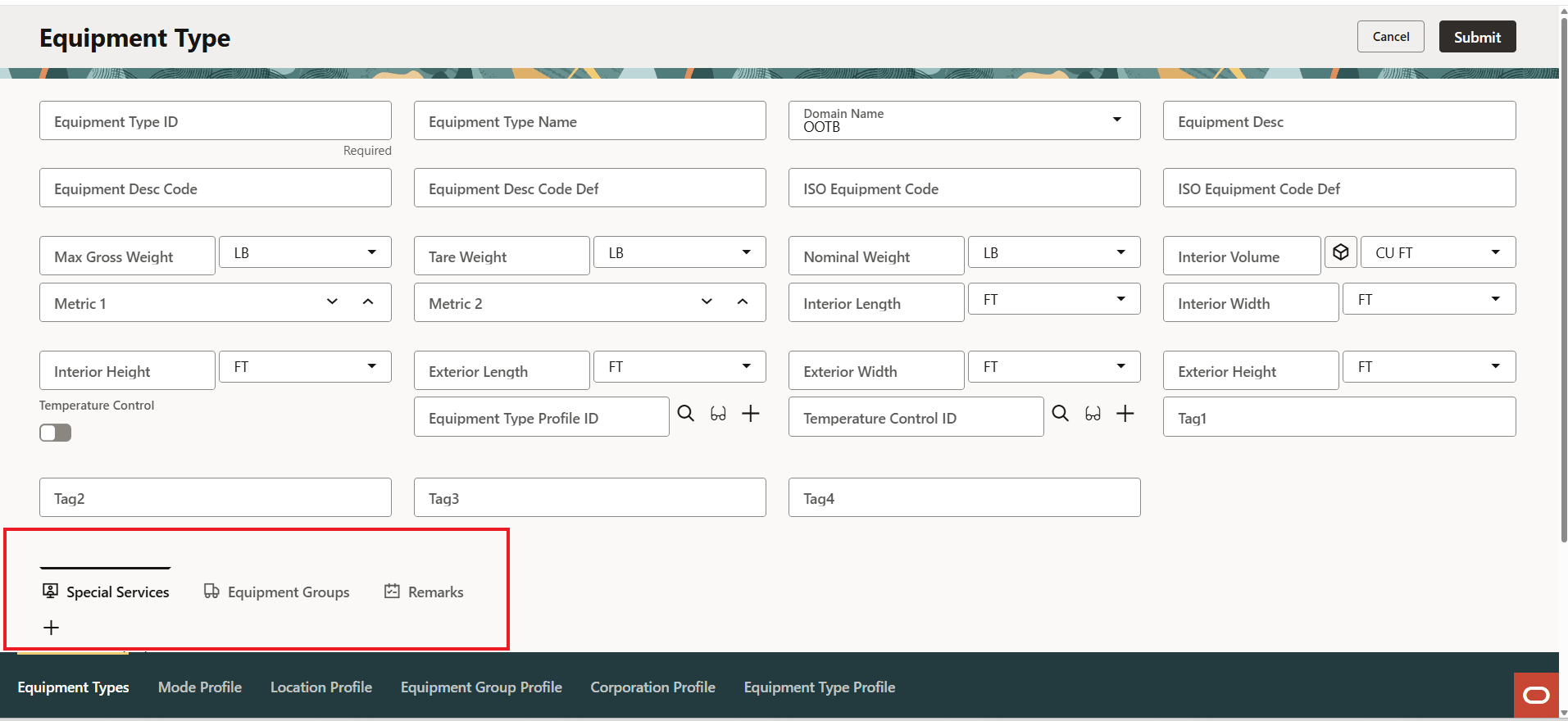
Add Child Records Across Multiple Tabs
Like the Profile UIs discussed above, the records added for Special Services, Equipment Group and Remarks are accomplished with via the file drawer, as shown below for Equipment Groups - which is the second tab in.
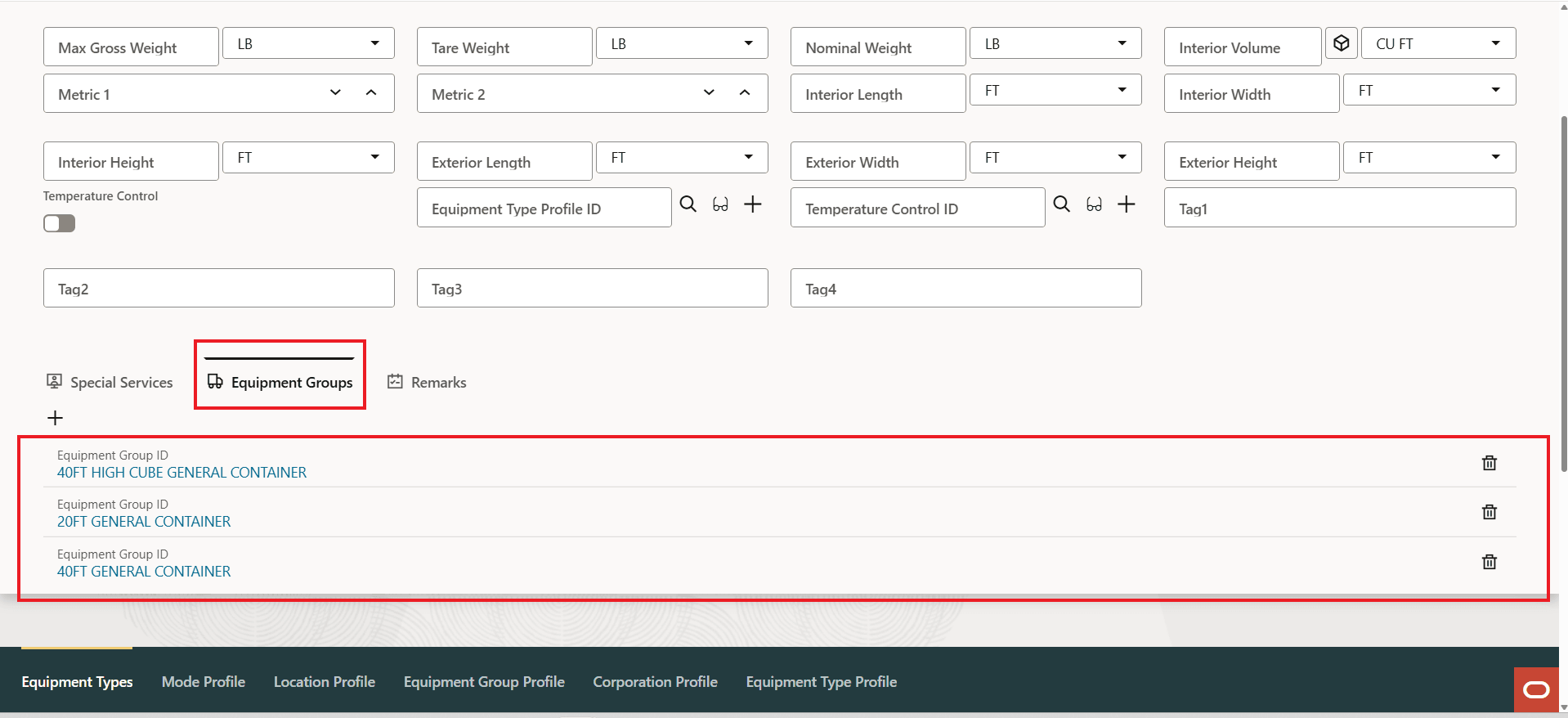
Add Child Records Across Multiple Tabs - Equipment Groups
After adding a set of Equipment Groups, when you select the tab, the records entered are shown.
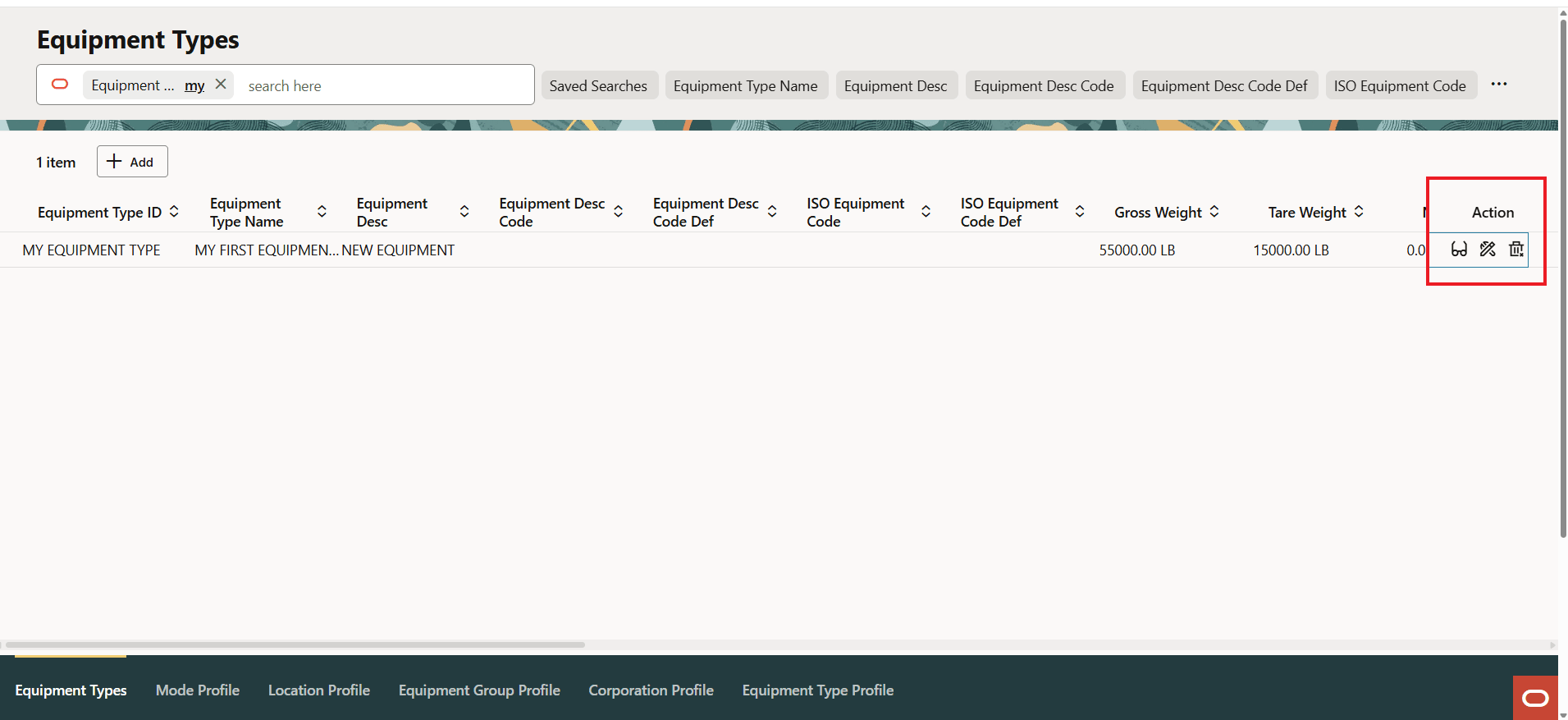
Equipment Types - Child Records Added
The same actions are available for the Equipment Types - as shown below.
Actions
Restricted Party Screening
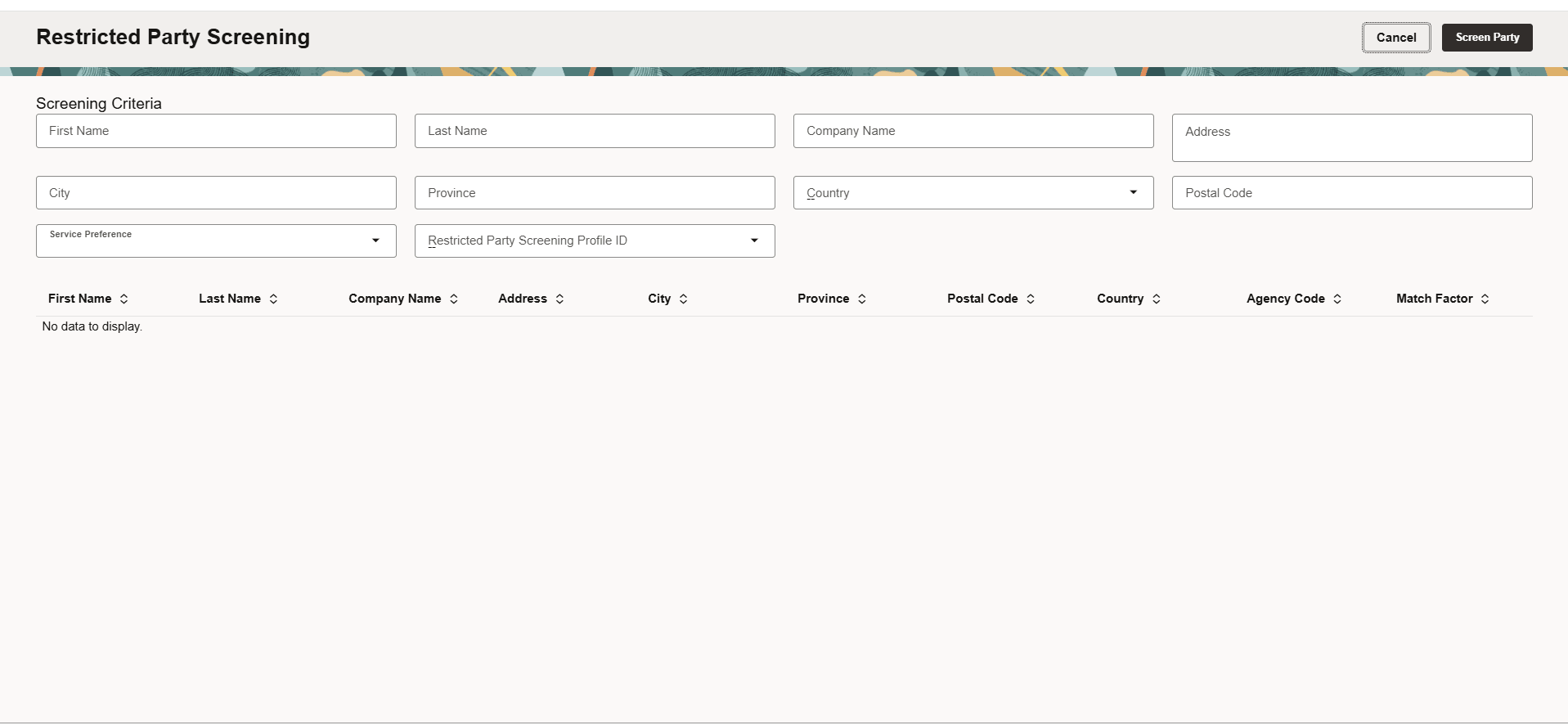
The Redwood Restricted Party Screening, for Ad Hoc Screening, has also been provided. Like the legacy ad hoc Restricted Party Screening UI, the Restricted Party Screening UI allows you to screen your party information without creating a party in GTM. The Redwood UI provides a cleaner more natural data entry UI for performing the screening.
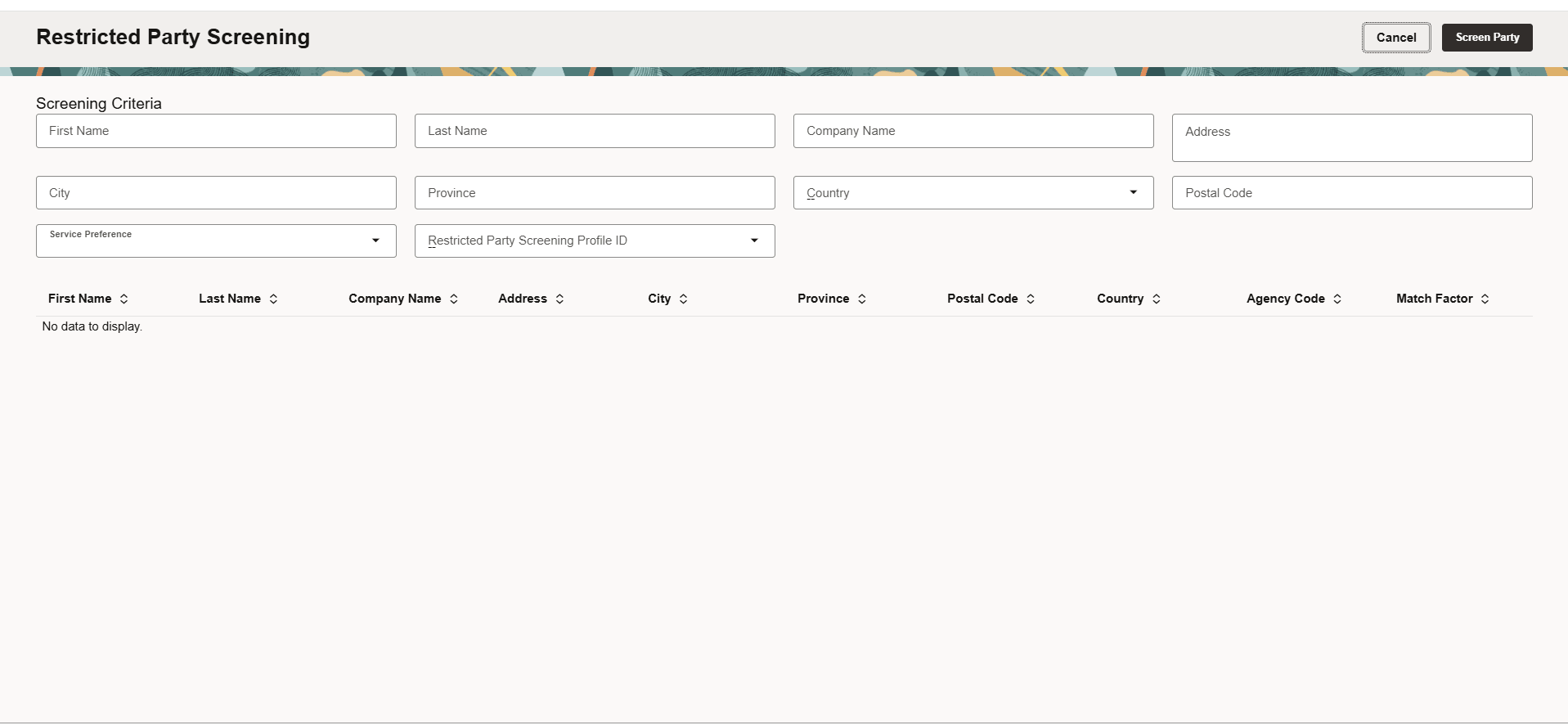
Redwood Restricted Party Screening
Business Benefit: The Redwood UI is designed to provide a modern, intuitive, and consistent user interface across Oracle applications, providing you with improved productivity, reduced training time, and fewer UI related input errors.
Steps to enable and configure
You don't need to do anything to enable this feature.
Tips and considerations
We strongly encourage you to try the Redwood UIs, and where possible, to take advantage of the new Redwood UIs to complete your tasks.
For the initial release of the New Redwood Experience, the option to configure the experience has not been provided, the UIs provided for the review are based on selected public screen sets and the Suggestions menu has been provided specifically for the Redwood preview.