MapLibre Reverse Geocoding
This feature, for the MapLibre Map Vendor option, provides you with the "Show Address Details" options which when selected will allow you to point to a location on the map and retrieve the corresponding coordinates and address information using the supported reverse geocoding services. You will find this feature useful in validating your location's address and coordinates.
In the example below, the Reverse Geocoding feature will be used to verify that the coordinates for the location are accurate.
The location for this example is the Irving Auditorium in Philadelphia PA, the related location details are below. In this example the location was geocoded to the street address level.
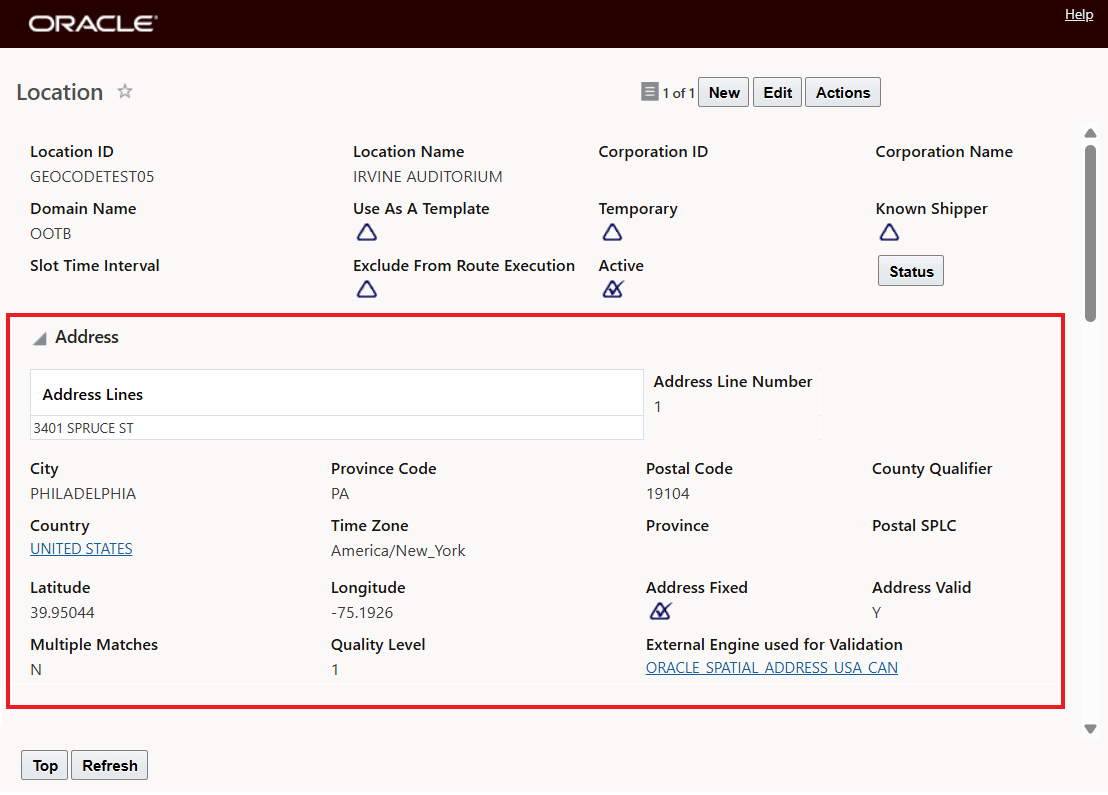
Irvine Auditorium Location Record
In the Enhanced Workbench, with the Map Vendor Selection of MapLibre, you can use the "Show Address Details" option to click on the map to display - depending on your zoom level, both the coordinates and address level information associated with the point you have selected. In the example the below, the location above with the street address of 3401 Spruce St. Philadelphia PA 19104 along with the geocoded coordinates are shown to be accurate.
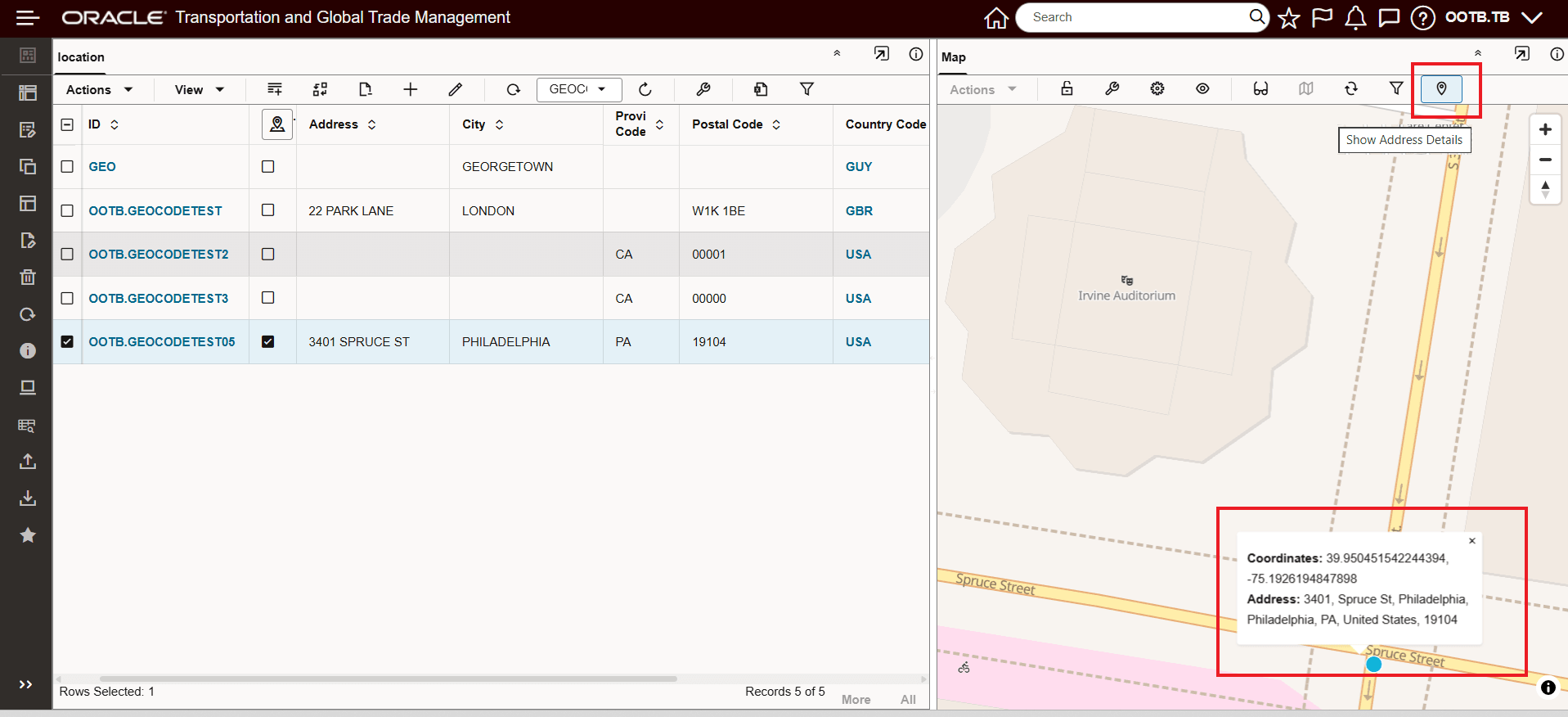
Reverse Geocoding - Show Address Details - Validates Address and Coordinates
In the example below, the same location has been geocoded to the Postal Code Centroid highlighted in Blue - which places the location, based on the Postal Code Centroid coordinates, in a very different location than the correct address level geocoded related coordinates highlighted in Red. In this example, the information provided by the "Show Address Details" option, provides you with the information required to update the coordinates assigned to the location so they are more accurate.
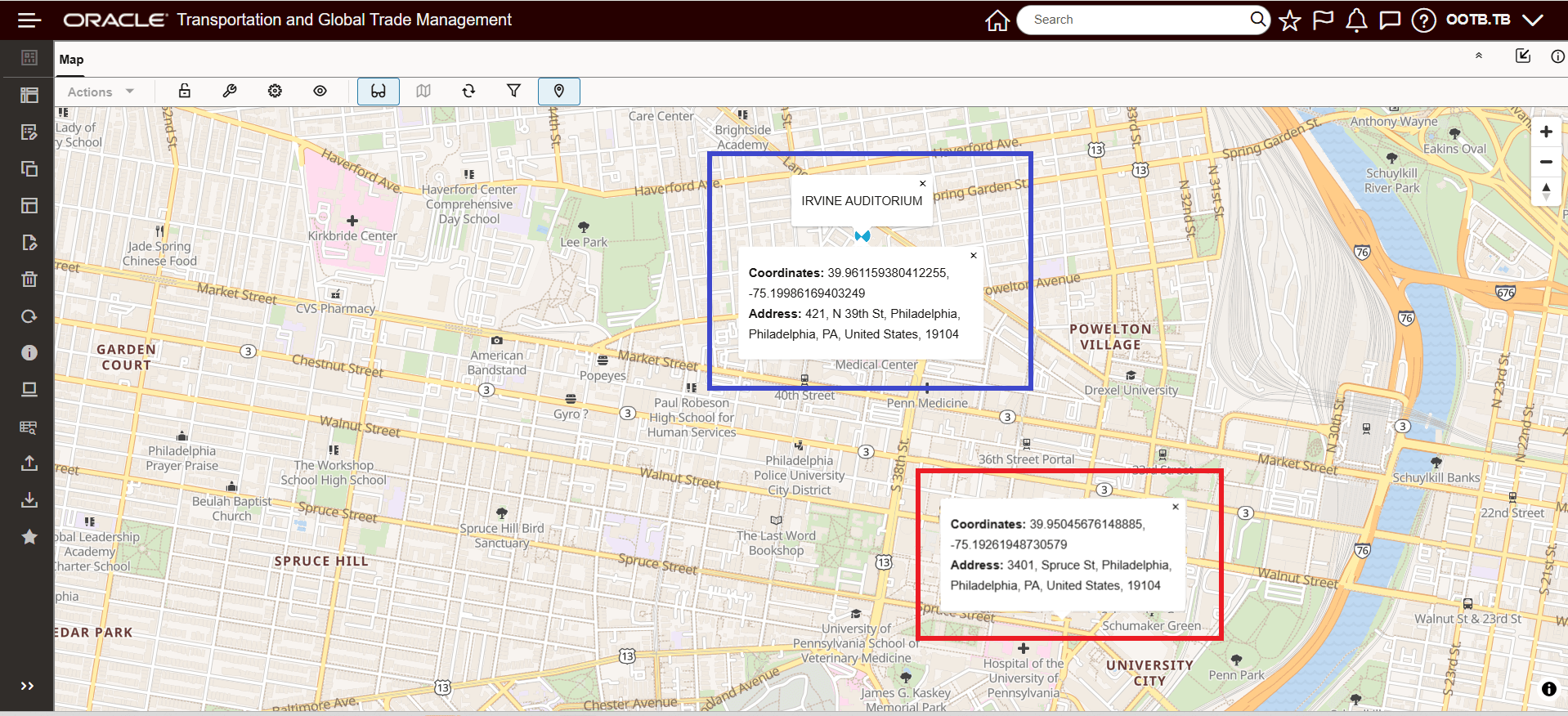
Reverse Geocoding - Show Address Details - Validates Address and Coordinates
Business Benefit: This feature allows you to easily validate, on the map, the coordinates and address details related to any geographic object that may be plotted on the map, like locations and tracking event.
Steps to enable and configure
To use this feature you will need to select Maplibre as your Map Vendor, as shown below.
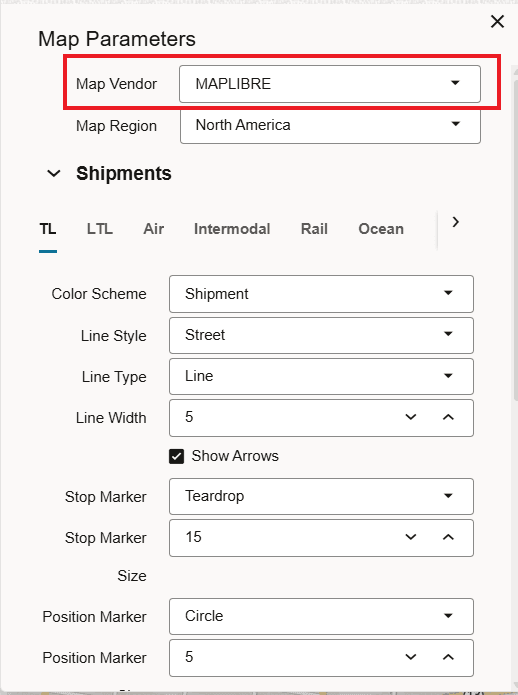
Map Vendor Set to Maplibre