Add First Row to Gantt
This feature provides you with the option "Add first row to Gantt", which when selected will add the first row of data automatically to the table object's related Gantt. The "Add first row to Gantt" option is available for all Gantts - Dock Scheduling Gantt, Driver Gantt, Shipment Gantt and Work Assignment Gantt.
In the example below, the previous behavior is shown - when the Enhanced Workbench is open, no records are automatically selected for inclusion on the Gantt, in this case no Shipment Stop records are selected automatically for display on the Dock Scheduling Gantt.
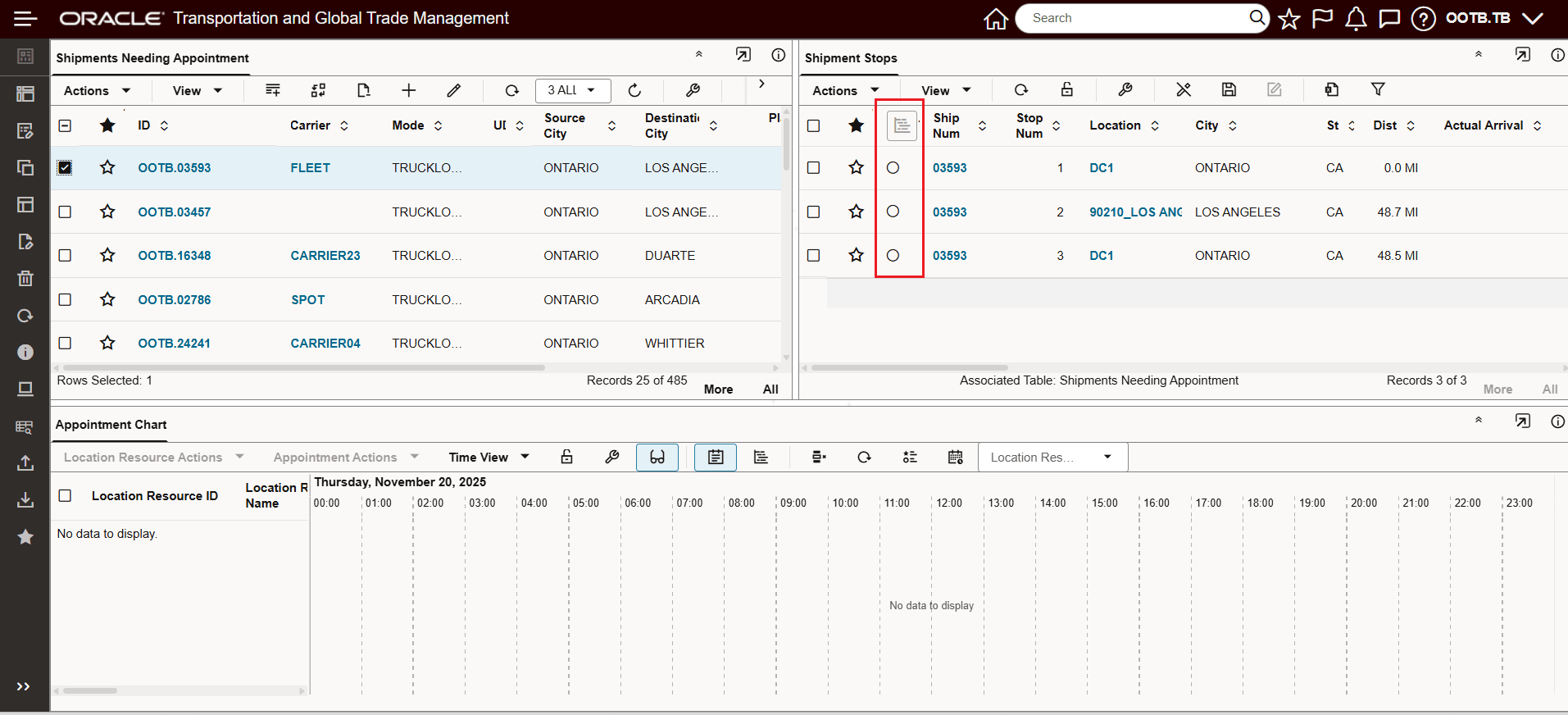
Previous/Default Behavior - Add first row to Gantt is not selected
With the Shipment Stop Table configured to "Add first row to Gantt" the first row in the Shipment Stop table will be selected to be shown on the Dock Scheduling Gantt - as shown below.
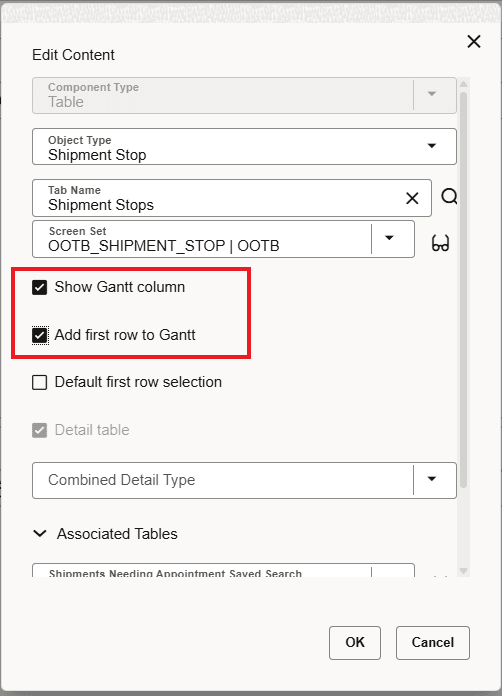
Table Setup
With the configuration above, the first row in the Shipment Stops table is selected to be shown on the Dock Scheduling Gantt.
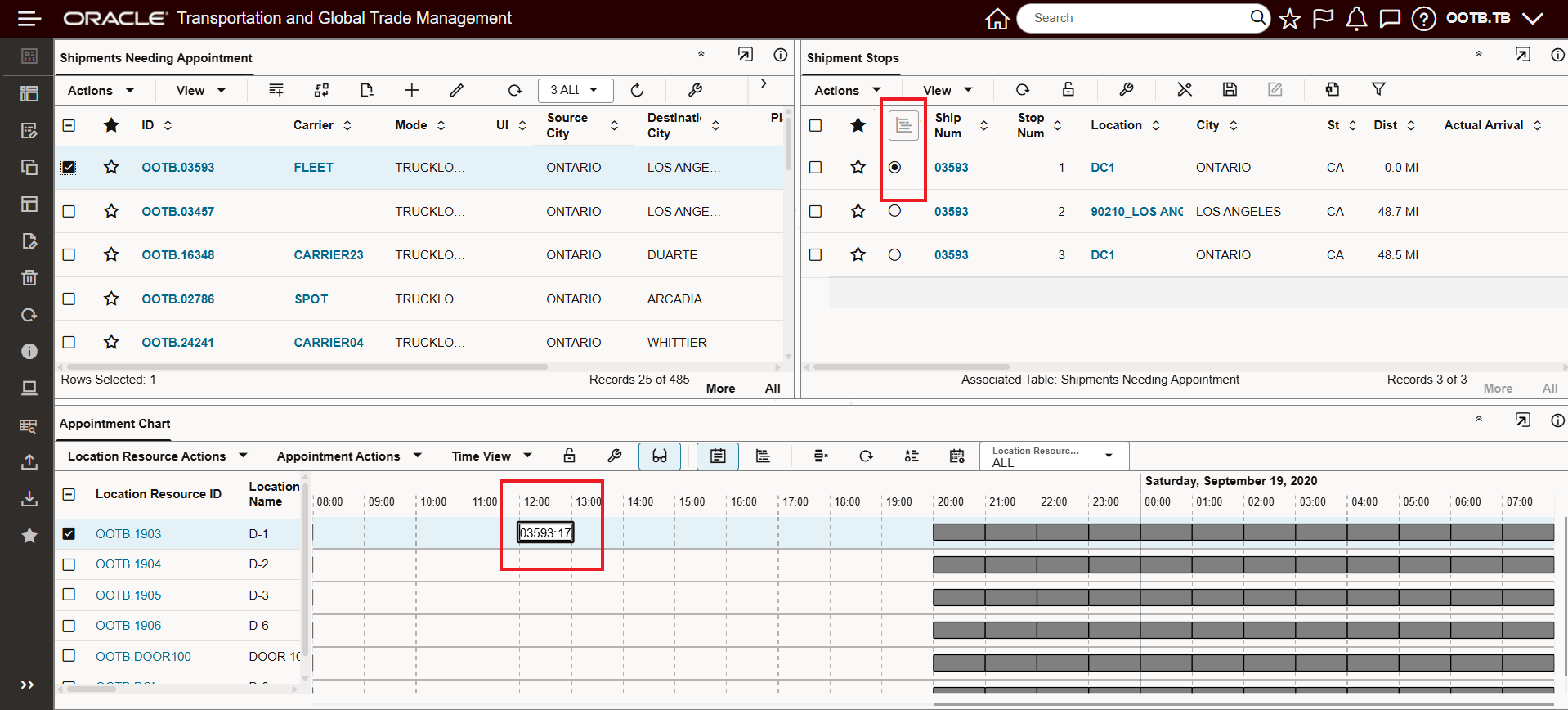
Add first row to Gantt Selected
Business Benefit: This feature streamlines Gantt chart usage by automatically adding the first entry to the Gantt, allowing you to start managing timelines and assignments more quickly and efficiently.
Steps to enable and configure
To enable this feature, you will need to modify an existing table configuration or create a new table component and select both the "Show Gantt column,” and then select the "Add first row to Gantt” option.
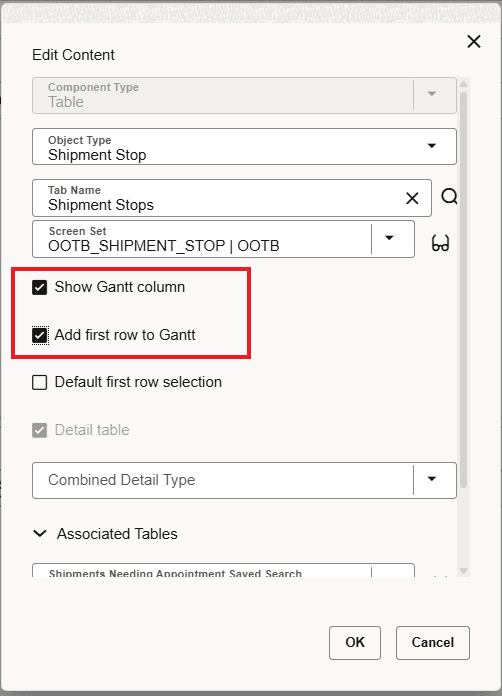
Configure New Option - Add first row to Gantt
Tips and considerations
- This option is only visible when “Show Gantt column” is enabled for your table.
- Works across all Gantt views—Shipment, Driver, Dock Scheduling, and Work Assignment.
- If you group data in your table or use multiple tabs with the same Gantt, the auto-selection works as expected.
- If the “Show Gantt column” setting is turned off, the preset option is hidden.