 View Allocated SKU Details during Mobile Pick Cart
We have introduced a new hotkey “Ctrl-V: View Details” to the Mobile Pick Cart (rf.outbound.cwrfpickcart) transaction. With this hotkey, you can view the system allocated SKU details (Lot / Batch Number, Expiry Date, and Inventory Attributes) for picking. This enhancement improves visibility of detailed allocated inventory during picking and reduces the picking discrepancies and errors. Also, before you proceed for picking, you can view the allocated inventory when SKUs are consolidated with multiple attribute combinations.
On the LPN/SKU/Quantity scan screen of the Pick Cart, you can now use “Ctrl-V: View Details” hotkey to view the following allocated inventory details for the scanned SKU:
- Item Barcode
- Item Description
- Quantity to Pick (Allocation UOM)
- Lot / Batch Number (if available)
- Expiry Date (if available)
- Inventory Attributes (a to o, if available)
NOTE: The “Qty to Pick” field displays the remaining allocated quantity to be picked.
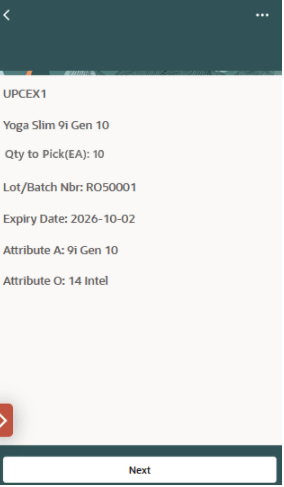
Single SKU with Only One Inventory
If a SKU has multiple allocations for the same LPN with different attributes, expiry, or lot / batch, the system displays separate allocations with a line (as shown in the following image). In this case, the system omits repeating common fields to display.
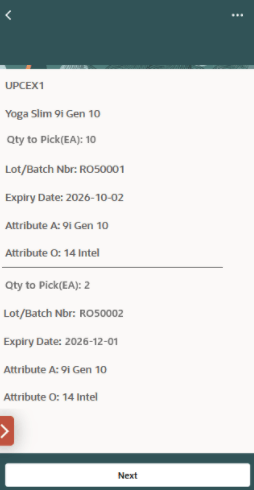
Single SKU with Multiple Inventories
Steps to enable and configure
You don't need to do anything to enable this feature.