 Text Template Added to Claim
This feature enhances the Claim functionality to include Text Templates functionality. Text Templates provide you with the option of defining various Text Templates that you can use to capture standard clauses, remarks or phrases. Once defined, you can select and assign the various Text Templates to your Claims.
In the example below, a Text Template "DAMAGE CLAIM - RECEIPT" is assigned to a Claim.
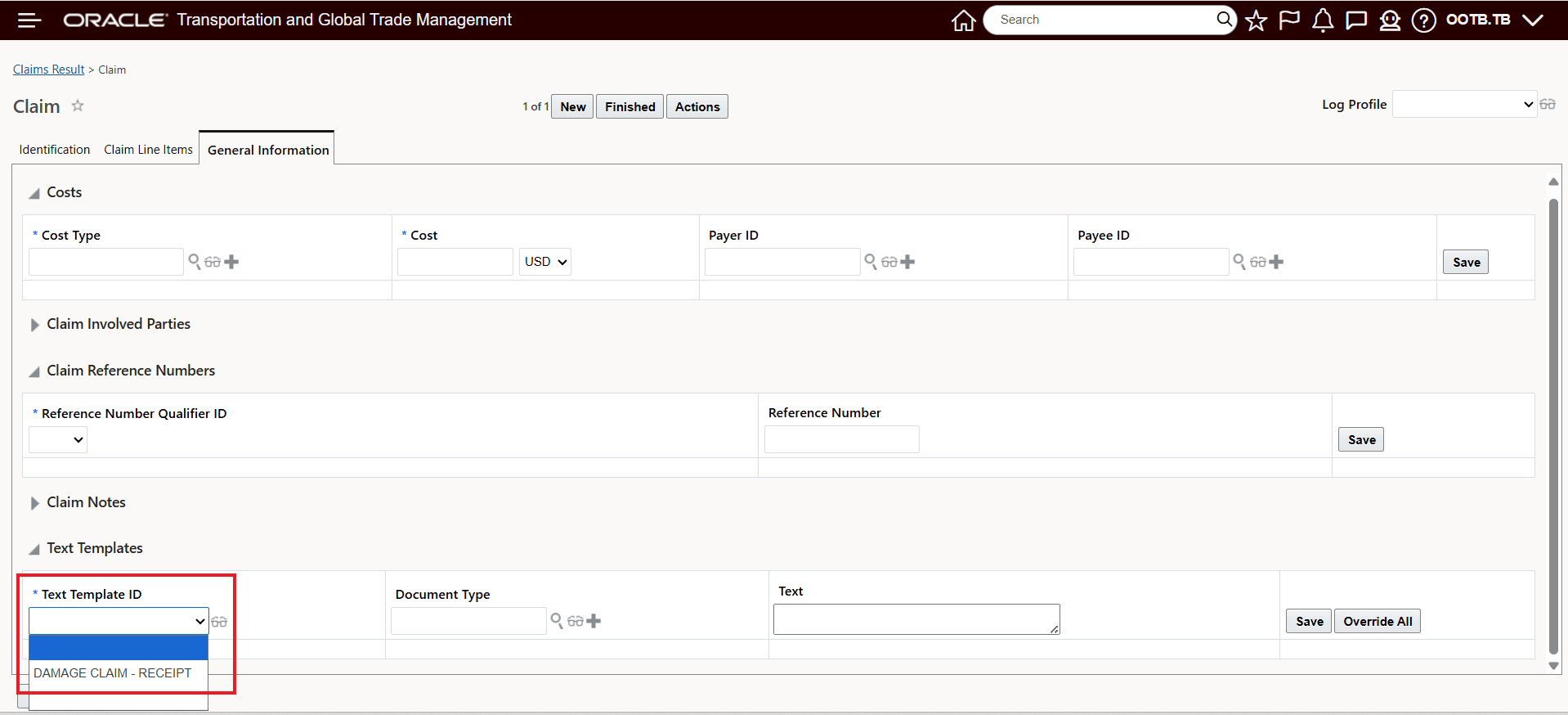
Select Text Template To Assign
The assigned Text Template provides the standard clause shown below.
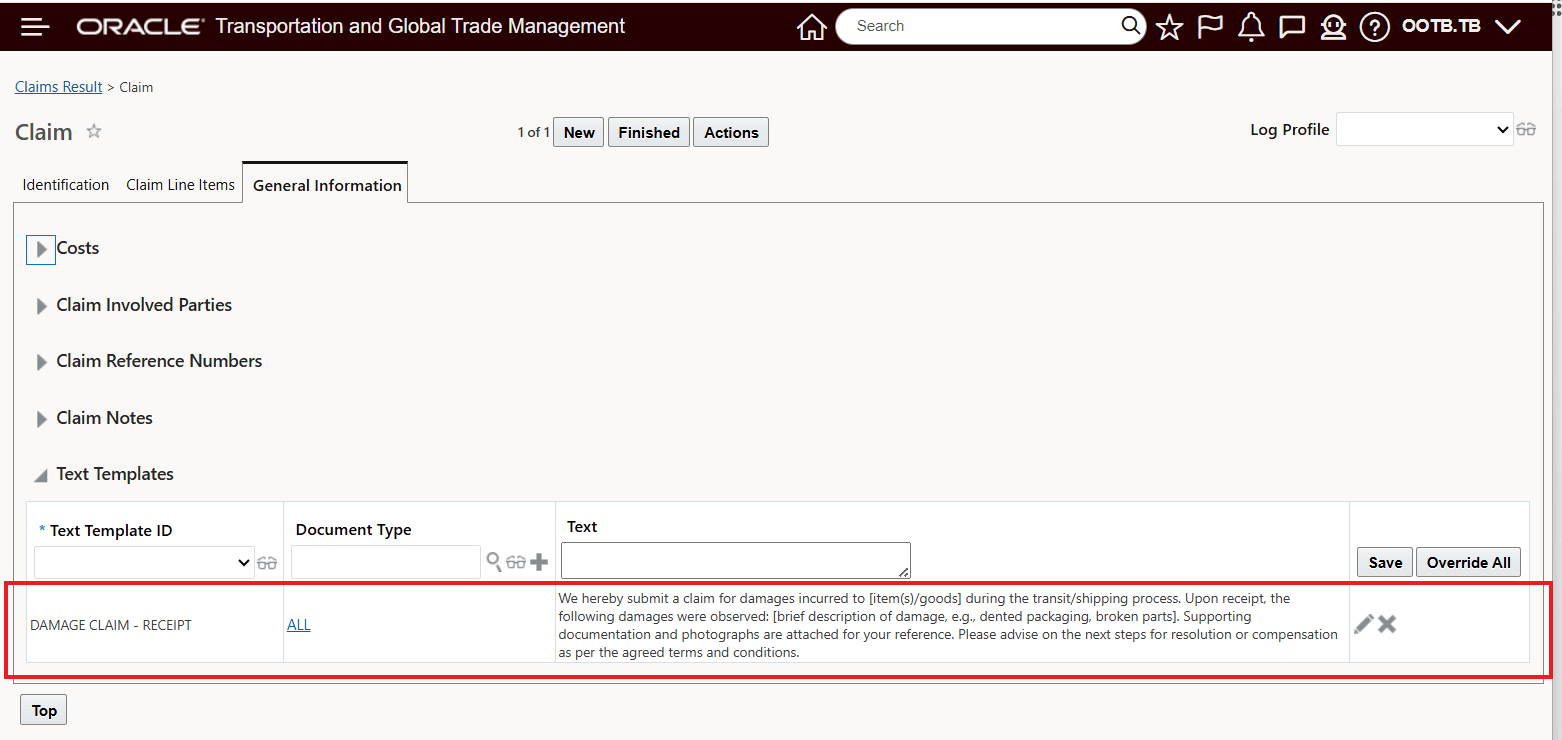
Assigned Claim Text Template
Business Benefit: The Text Template feature streamlines your Claims process by allowing you to easily select and insert standardized clauses, remarks, or phrases to your Claims. This improves consistency, reduces manual entry errors, and saves time, leading to greater operational efficiency and improved compliance with your organizational standards.
Steps to enable and configure
You will need to add a Text Template for your Claims Data Query Type to take advantage of this new functionality.
- Navigate to the Text Template Manager page via Business Process Automation > Power Data > Document Generation > Text Template.
- Enter a Text Template ID that will uniquely identify the text message.
- Select the Data Query Type for which the text template should apply to - in this case Claim.
- Enter the Text to be displayed in either the document or remark text areas of the business object.
The Text Template used assigned to the Claim in the above example is provided below. The key entries are the Text Template ID, the Data Query Type and the Text.
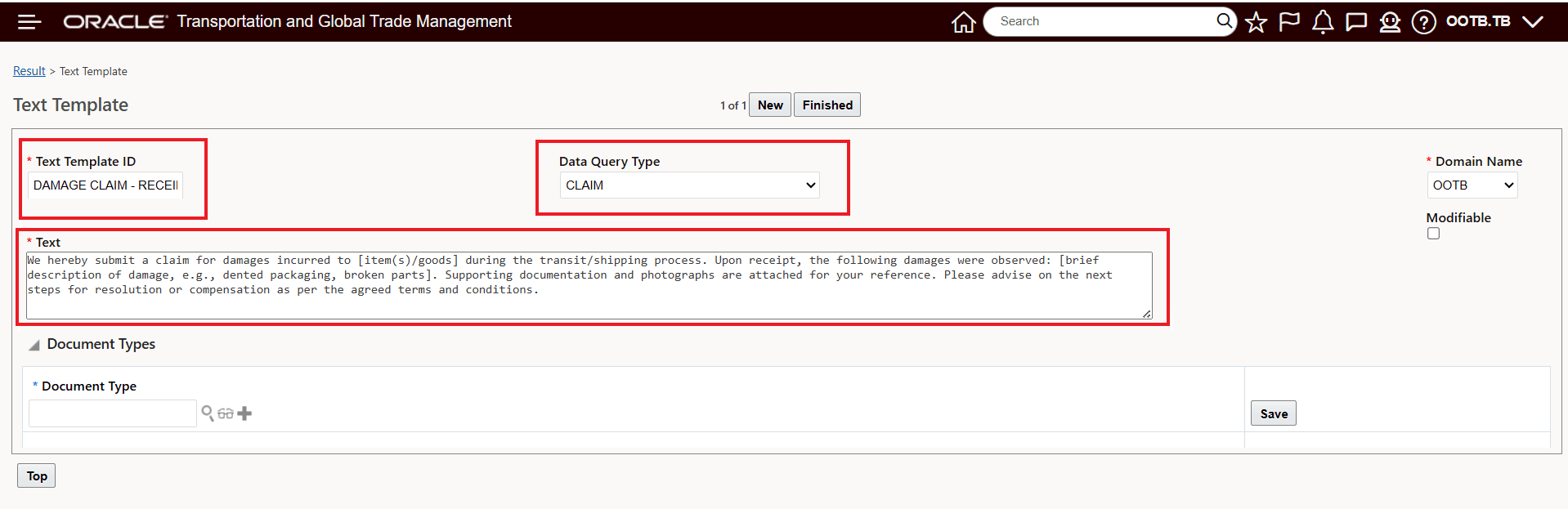
Text Template Example