 Enhancements to Direct Allocation Mobile Transaction
We’ve enhanced the Mobile Direct Allocation screen-flow to display order completion status and remaining quantities for each order. Introducing these indicators further empowers warehouse pickers by giving them clear visibility of order requirements and progress directly on their mobile devices, eliminating the need to access the UI and helping them efficiently manage their picking/packing process.
REAL-TIME ORDER PROGRESS INDICATORS ON THE MOBILE SCREEN
On the Direct Allocation - Order and LPN scan screen, the system now displays four real-time statistics fields to help users track order requirements and progress directly during scanning:
- Order Status (default shown as Created; updates after an order is scanned)
- Number of SKUs (total unique SKUs on the order)
- Allocated Quantity (UOM) displayed as X/Y (allocated/picked vs. total order quantity)
- Packed OBLPNs/Pallets (count of successfully packed outbound LPNs or pallets)
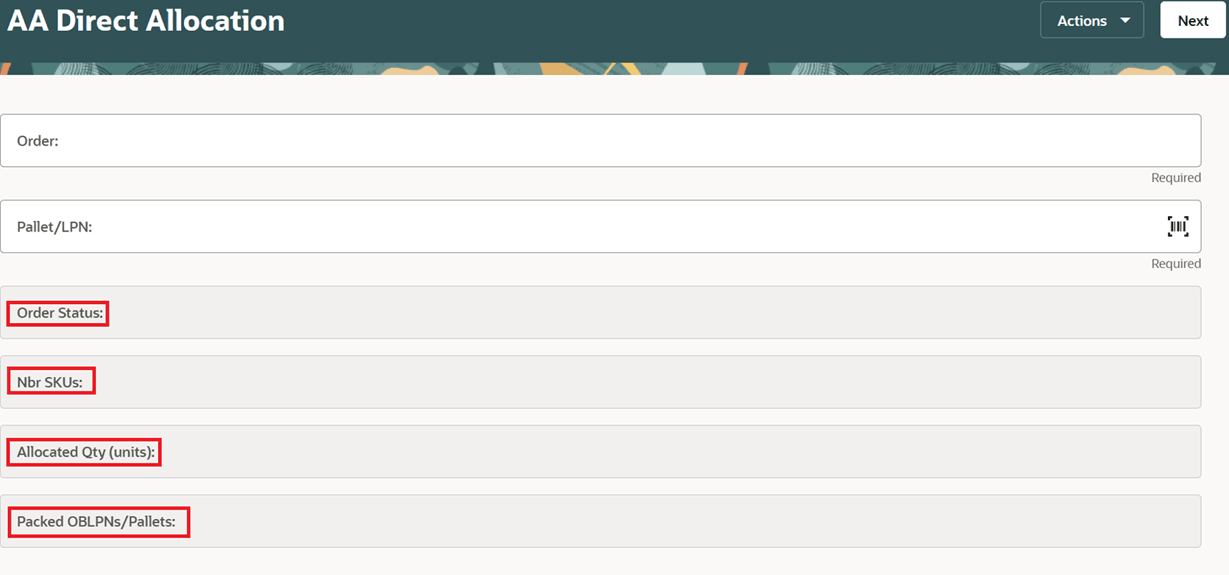
Order and LPN Scan Screen
After each successful LPN/pallet scan and pack, the next scan page automatically refreshes and the statistics update immediately.
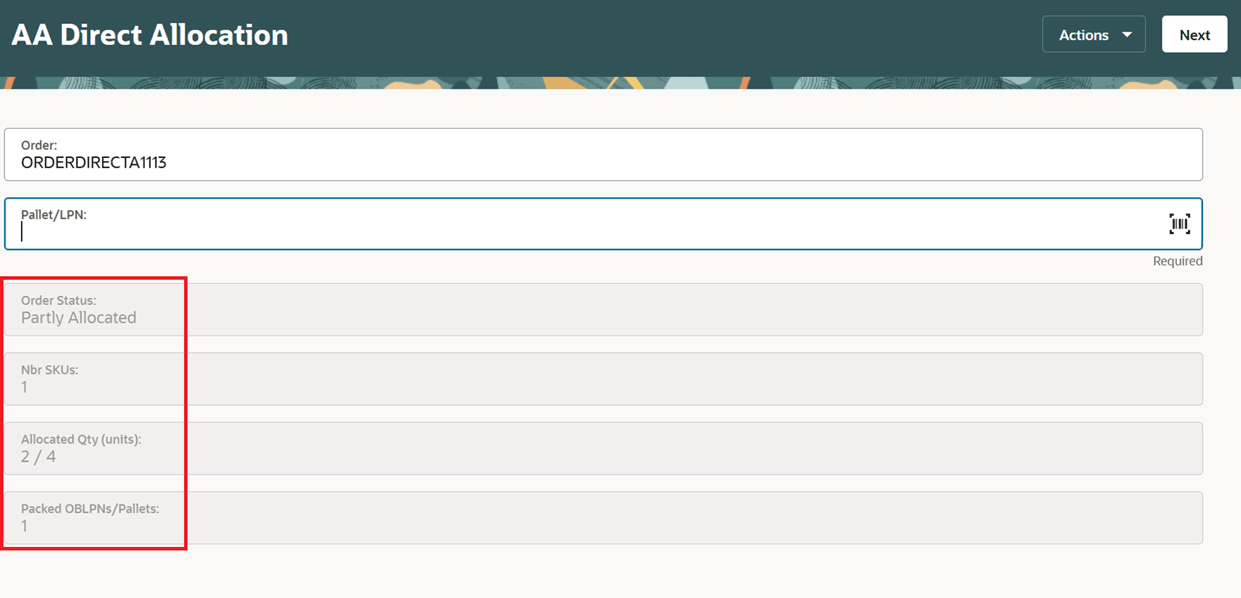
Next Scan Page
When the user closes an order (or the system completes the order), the fields reset to default/blank when returning to the next order scan.
IMPROVED ORDER COMPLETION GUIDANCE
When an order becomes fully allocated/packed, the mobile flow now clearly informs the user instead of continuing to prompt for additional LPN/pallet scans.
The system displays an informational message such as “Order Allocation is Completed.” The message triggers only after all relevant completion steps finish (as configured), including:
- label printing confirmation (print-label configuration)
- drop location scan (prompt-drop configuration)
- post-packing processing (post-pack-task-type-desc configuration)
NOTE: This option is enabled by default, with the option to disable via the Message UI.
After acknowledgement, the system returns to the order prompt screen, clears the previous order number, and places the cursor on the order scan field
CORRECTED ORDER SCAN VALIDATION MESSAGES
We’ve also added more detailed scan validation messages. For example:
- If the order exists but is not in an allowable status (e.g., not Created or Partly Allocated), the user sees “Order in invalid status.” (Message 117)
- “Order not found” / “Order does not exist” is shown only when the order truly does not exist for the logged-in facility and company (e.g., Message 115)
ENHANCED LPN/PALLET VALIDATION AND CORRECTED ERROR MESSAGES
The LPN/pallet scan validation logic has been improved to validate in the correct sequence and to display accurate guidance:
- Scanning an OBLPN when an IBLPN is expected now shows “Invalid LPN type” (Message 47) instead of “Container not found”
- Scanning a Pallet Type O when Pallet Type I is expected now shows “Invalid pallet type” (Message 1929)
- Scanning an existing IBLPN/pallet in an invalid status now returns clear status-specific errors:
- “LPN is in invalid status” (Message 4762)
- “Pallet is in invalid status” (Message 4761)
Steps to enable and configure
You don't need to do anything to enable this feature.