 Block and Unblock Shipping for Multiple Orders on Order Header UI
Organizations, especially those handling thousands of orders daily across multiple channels, often face scenarios where certain sales orders must be held from shipping—whether due to scheduled restraints, term restrictions, or logistics disruptions. To keep your operations running smoothly, you need an efficient way to manage shipping holds directly within your order management process.
We've added an option for you to select multiple sales orders in the Order Header UI and then Set or Unset the Shipping Blocked flag in one simple step. This lets you select and update the shipping status easily for multiple sales orders in a single action, instead of updating each order individually, thereby, save time and reduce manual effort by managing shipping holds across many orders at once.
We are introducing two new action buttons in the Order Header UI:
- Block Shipping : Blocks the order from being shipped
- Unblock Shipping : Unblock the order from being shipped
This feature allows you to:
- You can select one or multiple sales orders to apply shipping blocks in one step.
NOTE: User group with permission order hdr /Bulk Change Block Unblock Shipping flag will be able to access this action button.
- You can hold packed items from being shipped until the block is removed.
Block and Unblock Shipping
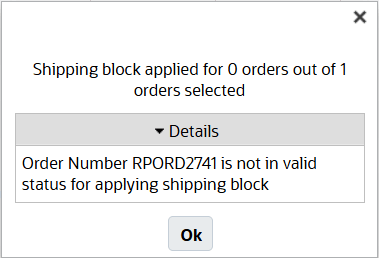
- This action is applicable only when the order has less than Shipped status. If multiple orders are selected, a pop-up message “Shipping block applied/removed for 0 orders out of X orders selected” is displayed with the count of orders that applies the Block/Unblock and the selected count of orders.
- On selecting all the order:
- If all the selected orders have status Shipped or Cancelled, then system will display a message "All Selected Orders not in valid status for applying shipping block".
NOTE: If the selected order is already Shipped or Cancelled, then the system displays a message "Order Number %Order_Nbr% is not in valid status for applying shipping block". The pop-up window displays, including details, if any orders is not updated due to their status (such as already shipped or cancelled).
-
- If all the selected orders are in valid status with shipping block set to yes, then the Details displays “Order Number ORDER Number% has shipping block set to yes.”
- If all the selected orders are in valid status with shipping block set to no, Detail section shows Order Number ORDER Number% does not have shipping block set to yes.”
Steps to enable and configure
- Go to Order Header UI.
- Select one or multiple order (status less than shipped).
NOTE: Ensure user group has the hdr /Bulk Change Block Unblock Shipping permission enabled to access these buttons.
- Click Block Shipping or Unblock Shipping.