 Expand Audit OBLPN to Handle Mixed UOMs
In warehouse outbound operations, OBLPNs can be created using combine or repack OBLPNs to improve space utilization and reduce freight cost. As a result, a single OBLPN can include allocations in different units of measure (UOM), such as cases, packs, and units.
Previously, the system did not allow you to perform Outbound Audit of an OBLPN with inventories of multi allocation UOMs. This could bypass final packed inventory validation and increase the risk of shipment errors and inventory discrepancies. To streamline this, we have enhanced the Mobile Outbound Audit (rf.outbound.cwrfauditlpnplt) transaction to support auditing OBLPNs with multi allocation UOMs in SKU-Qty mode.
During Outbound Audit, if an OBLPN has multi UOM allocation, you can now scan a SKU and select the allocation UOM to audit the scanned SKU.
NOTE:
- The Outbound Audit flow supports auditing both multi-SKU and single-SKU with mixed allocation UOMs only in SKU-Qty mode (qty-entry-mode = SKU-Qty).
- If the screen parameter qty-entry-mode is set to Blank or “SKU-Scan”, Outbound Audit with multiple allocation UOMs is not supported. This is because prompting for allocation UOM selection on every SKU scan is not practical in this mode. To audit OBLPNs with multiple allocation UOMs, we recommend using SKU-Qty mode.
SCREEN FLOW
During the Outbound Audit transaction in SKU-Qty mode, if the scanned SKU has multiple allocation UOMs, the system displays an Allocation UOM selection list (for example, LPNS, UNITS, CASES, PACKS).
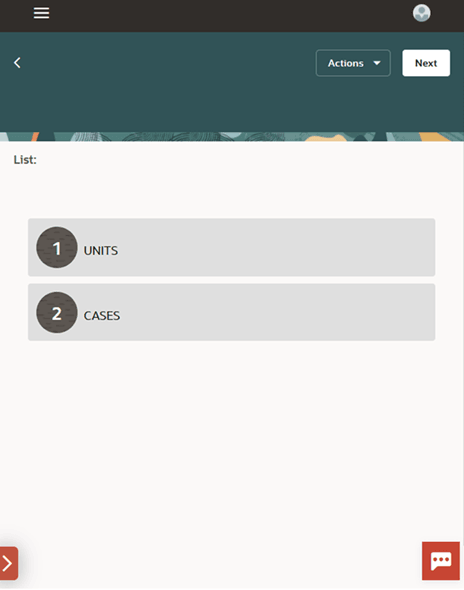
UOM Selection List
Select a UOM from the list, then scan the quantity for the selected SKU in that UOM. The system processes the count in the selected UOM and performs required conversions within the transaction.
You can select and scan same SKU for different allocation UOMs multiple times in an Outbound Audit transaction.
When you scan a SKU with multiple allocation UOM quantities, the system updates the LPN Qty (UOM) field.
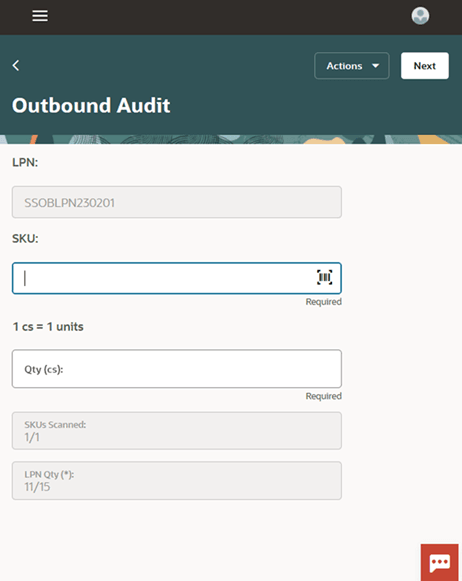
LPN Qty (UOM) Field
Here, LPN Qty (UOM): X/Y indicates the following:
- UOM: Displays * when the OBLPN has multiple allocation UOMs. Displays the Primary UOM/Pack UOM/Case UOM of specific allocation UOM when the OBLPN has a single allocation UOM.
- X: Incremental counted quantity in the allocation UOM post every count.
- Y: Total expected quantity in the allocation UOM.
For more details, refer Online Help.
Example for single SKU with different allocation UOMs: An auditor audits OBLPN “SSOBLPN45” that contains SKUA allocation in 2 CASES and 3 UNITS. The auditor selects the appropriate UOM for each line and enters the counted quantity in the Outbound Audit transaction.
AUDIT HISTORY (AUDIT HISTORY VIEW) UI UPDATES
To record audited SKUs with allocation UOMs, the following fields are updated or added to the Audit History UI:
- Audit header Allocation UOM: Displays Allocation UOM at the OBLPN Audit Header Level. For new audits, this field is blank. Older records (prior to 26B) retain UOM values in this field.
- Allocation UOM: Displays Allocation UOM code at the OBLPN Audit Detail level. For new audits, this field contains the SKU’s allocation UOM code. Older records contain this field as blank.
- Audit header Alloc Type: Displays Allocation Type at the OBLPN Audit Header Level. For new audits, this field is blank. Older records retain allocation type values.
- Alloc Type: Displays Allocation type at the OBLPN Audit Detail level. For new audits, this field contains the SKU’s allocation type. Older records contain this field as blank.
NOTE:
- For new audit history records, “Audit header Allocation UOM” and “Audit header Alloc Type” will be blank. “Allocation UOM” and “Alloc Type” displays the audited inventory line values. The header fields “Audit header Allocation UOM” and “Audit header Alloc Type” are planned for future deprecation.
- Update any custom Audit History reports that reference “Audit header Allocation UOM” and “Audit header Alloc Type” to use “Allocation UOM” and “Alloc Type”.
- You can now utilize UOM Literal Translated UOM Codes to display in the Outbound Audit History UI. If UOM literals are configured for the system language, the UI displays the literal translated UOM code; otherwise, it displays the UOM code. Changes to literals updates the displayed “Allocation UOM” automatically.
Steps to enable and configure
You don't need to do anything to enable this feature.