 Simplified Capturing of Non WMS Activities
Today, WFM records VAS activities in two steps: employees clock time in WFM and supervisors then manually enter quantities in Daily VAS Track, which adds extra effort and can cause productivity reporting issues (including time zone impacts).
In 26B, WFM simplifies this flow by prompting employees or supervisors to enter quantities during VAS clock-out, eliminating the separate Daily VAS Track entry. In RF CICO User, the prompt is controlled with a new flag in the WFM Work Area Activity view. Apart from that, we have also updated Work Area Activity terminology and enhanced related WFM features.
WORK AREA ACTIVITY TYPES
We replaced the Work Area Activity terminology to better reflect the activities users perform.
- System Activity: Renamed to WMS Activity. This activity represents productive work performed using WMS handheld transactions OR captured through WMS operational REST APIs.
- VAS Activity: Renamed to Non-WMS Activity. This activity represents productive work performed on the warehouse floor without the use of WMS.
- Manual Activity: Renamed to Ad hoc Activity. This activity represents non-productive (indirect labor) performed on the warehouse floor, including miscellaneous activities such as meetings, maintenance, cleaning and so on.
- WMS VAS Activity
- This new activity type is introduced to distinguish WFM VAS Activities (Non-WMS) from WMS VAS Activities. This represents VAS activities performed using WMS handled option “RF VAS Processing”.
- These activities are configured in the WMS VAS Activities view.
- WFM VAS Activities (Non-WMS) now shows up ONLY in WFM Work Area Activity view, and WMS VAS Activities shows up only in WMS VAS Activities view.
WORK AREA CLOCK IN/CLOCK OUT
We’ve retained the Clock process as is, , however we have removed Work Area Clock In/Out from WFM. Employees are no longer required to clock into Work Areas, instead they can now start their activities directly after clocking into the facility. Work Area Clock In/Out option has been removed from the following:
- Clock UI
- RF CICO User
- Clock Input Interface
- Clock REST API
- Auto CICO
- Scheduled Job “Clock Users Out of Facility”
The following chart demonstrates a sample operational flow involving WFM:
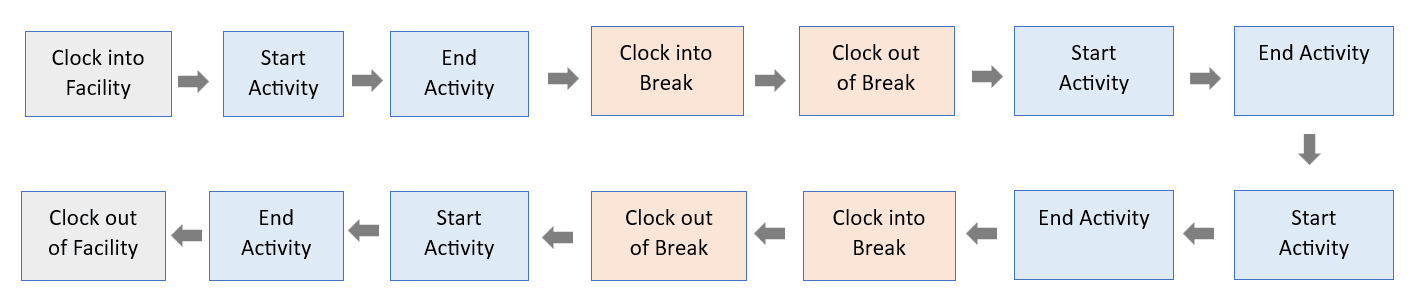
Legend
Start Activity: Clock into Non- WMS/Ad hoc Activity OR Start WMS Handheld Transaction
End Activity: Clock out of Non- WMS/Ad hoc Activity OR End WMS Handheld Transaction
WFM ITEM CATEGORY
A new view “WFM Item Category” has been introduced to define item categories.
- Item categories will replace SKU Line Groups ONLY for Non-WMS activities.
- SKU Line Group will continue to be used for WMS activities.
NOTE: In future release Item Categories will replace SKU Line Groups even for WMS activities. Until then, the following new elements on Items UI can be ignored.
- The “WFM Item Category field”
- The "Update WFM Item Category" action button
- The “wfm_item_category” field in items input interface
- Even if WFM Item Category is populated on items, it will not have any functional relevance.
Updates to REST API
For external systems to communicate and send WFM Item Category data into WFM, a new API “wfm_item_category” has been introduced.
API URL - POST
POST ..lgfapi/v10/entity/wfm_item_category
GET: We have extended GET support to the following entities:
- STAGE_WFM_ITEM_CATEGORY
- WFM_ITEM_CATEGORY
For more information, refer to the WFM REST API Guide.
ENHANCEMENT IN NON-WMS ACTIVITIES
Before 26B, time for a Non-WMS Activity was captured in Track Records (through clocks), and the related handling attributes (qty, uom, and sku line group) were captured in Daily VAS Track (through the UI, Input Interface, or REST API).
In 26B, we deprecated Daily VAS Track and enhanced Track Record to capture handling attributes for Non-WMS Activities:
- The following Handling Attributes have been introduced for Non-WMS Activities:
- Handling Entity – This is a mandatory field. The handling entity is an Item, LPN, or Pallet.
- Handling UOM – If the entity is an item, UOM must be specified.
- WFM Item Category - If the handling entity is an item, item category can also be specified (optional).
- LPN Type - If handling entity is LPN or Pallet, LPN Type can be specified (optional).
- Handling Quantity – This is a mandatory field and represents the quantity handled during the activity.
- We enhanced Clock UI, RF User CICO, Clock Input Interface, and REST API to accept Handling Attributes as part of Non-WMS clock-out. For more information, refer to the Clock Process section.
- We added a new flag “ Capture Quantity During Clock Out” in the WFM Work Area Activity view for Non-WMS activities.
- If the flag is set to Yes, WFM prompts employees to enter Handling Attributes in RF User CICO during Non-WMS clock-out.
- If the flag is set to No, employees will not be prompted for Handling Attributes during Non-WMS clock-out through RF User CICO. Supervisors can update the values later through Track Record, Input Interface, or REST API.
- Team clock in/out has been removed. Option to clock as a team has been removed from the following:
- Clock UI
- Track Record
- Clock Input Interface
- Clock REST API
ENHANCEMENT IN TRACK RECORD
We’ve redesigned track records to make it intuitive and introduced additional fields for NONWMS (VAS) to capture quantities and related fields along with clock information.
The Track Record (TrackRecordsView) UI is now renamed to Clock Record (ClockRecordsView).
- The redesigned view has header detail structure instead of a flat structure.
- Employee facility clock in/out records will be at the header level; Break and activities at detail level.
- Instead of two separate records for clock in and clock out, a single record will represent both clock in and out.
- A status field on each record will indicate if the record is open or close. Records with only clock in timestamp will be marked as open and record with both clock in and clock out timestamp will be marked as closed.
- Apart from the edit and delete icons, a permission controlled create icon has been introduced that will allow supervisors to retroactively clock users into past dates and times.
- Additional fields have been introduced to hold Handling Attributes for Non-WMS Activities
CLOCK INPUT INTERFACE /CLOCK REST API
Clock Input Interface
To be consistent, we have enhanced the Stage tab on Input interface with other input interface entities. In 26B, the tab will no longer have “run process” and “run purge” action buttons.
- Instead, we have added "Reprocess Selected Records", "Reprocess All Failed Records", and "Clear Stage Records" action button.
- Enhancements to Clock input interface file:
- Mandatory field company_code included.
- Optional fields handling_entity, wfm_item_category, lpn_type, handling_qty and handling_uom included (These fields will be used only for Non-WMS activities)
- Field cico_ts has been replaced by ci_ts and co_ts.
- Field originating_system has been renamed to action_code and the field accepts CREATE and UPDATE.
- Field cico_type has been renamed to cico_entity. The field accepts values FACILITY, BREAK, NONWMS and ADHOC instead of F1 through F10.
- Fields work_area and team have been removed.
- Field employee_external_ref has been replaced by cw_user
Clock REST API
The URL for REST API has been enhanced to be consistent with other REST APIs in the product.
POST..lgfapi/v10/stage/clock_record/
Enhancements to payload fields:
- Mandatory field company_code has been introduced.
- Optional fields handling_entity, wfm_item_category, lpn_type, handling_qty and handling_uom have been introduced (These fields will be used only for Non-WMS activities)
- Field cico_ts has been replaced by fields ci_ts and co_ts
- Field originating_system has been renamed to action_code and the field accepts CREATE and UPDATE
- Field cico_type has been renamed to cico_entity. The field accepts values FACILITY, BREAK, NONWMS and ADHOC instead of F1 through F10.
- Fields work_area and team have been removed.
- Field univ_id_1 has been replaced by field cw_user
Please refer to the WFM REST API Guide for latest updates.
CLOCKING PROCESS FOR NON-WMS ACTIVITIES
The clock-in process for non-WMS activities remains same. However, the clock-out process has been enhanced and varies depending on how the clock out is performed, as described below:
Clock UI
Clock UI has been enhanced to specify Handling Attributes in the Non-WMS Clock out mode. Supervisor can choose to enter the Handling Attributes during clock out from Clock UI OR later through Clock Record, Input Interface, or REST API.
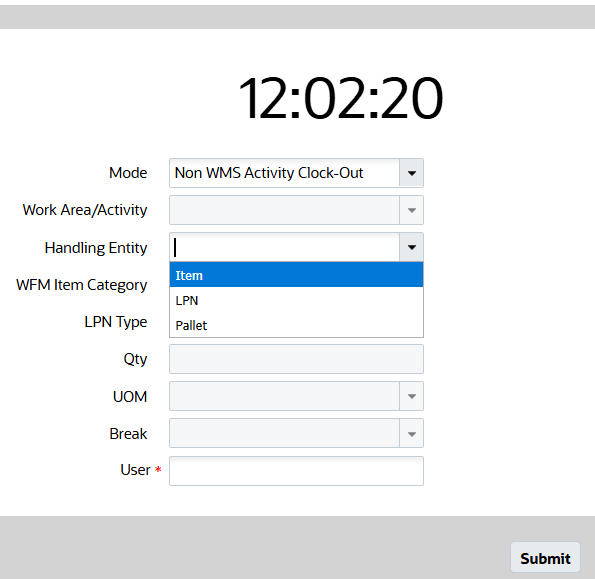
Non-WMS Clock Out
RF CICO User
The screen flow of Non-WMS Clock out on RF CICO User is determined by the “Capture Quantity During Clock Out” flag of the activity in the work area activity view.
- If an employee clocks out of a Non-WMS activity where the flag is set to Yes, WFM prompts the employee to enter Handling Attributes. The employee must enter the handling entity, quantity, and UOM to complete clock-out. Item category and LPN type are optional and can be entered using Ctrl keys.
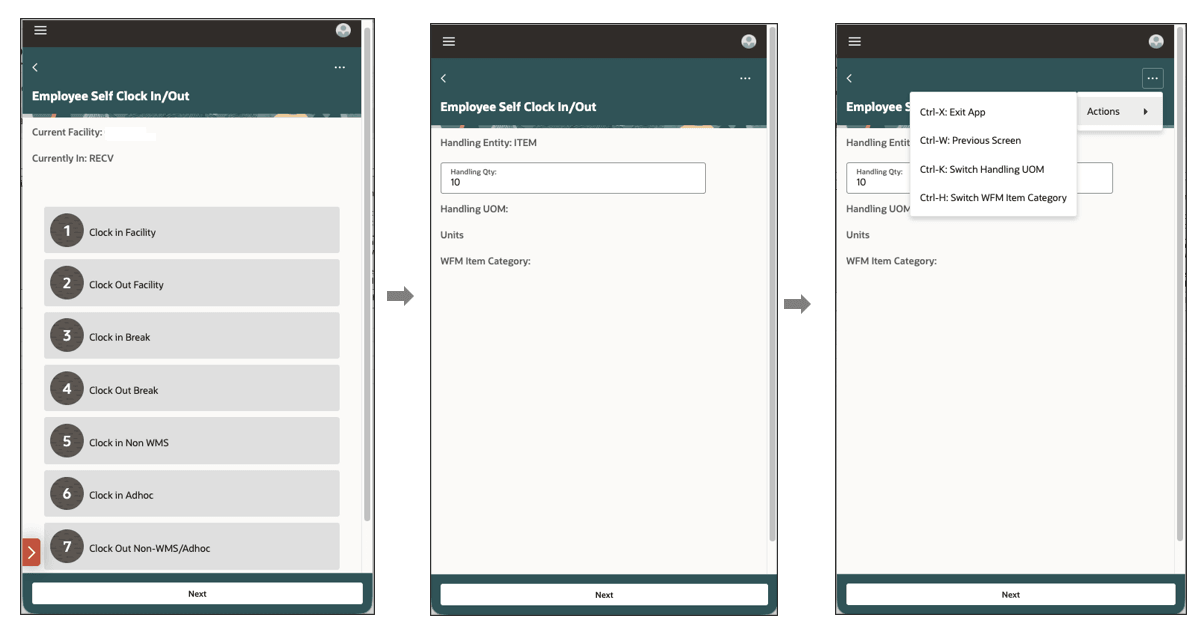
Non-WMS Clock Out
- If the flag is set to No, WFM clocks the employee out without additional prompts, and a supervisor can update the Handling Attributes later through Clock Record, Input Interface, or REST API.
Clock Record UI
Supervisors can create a Non-WMS activity record with Handling Attributes or edit an existing record to add or update the Handling Attributes. Non-WMS activities that include Handling Attributes must have a clock-out timestamp.
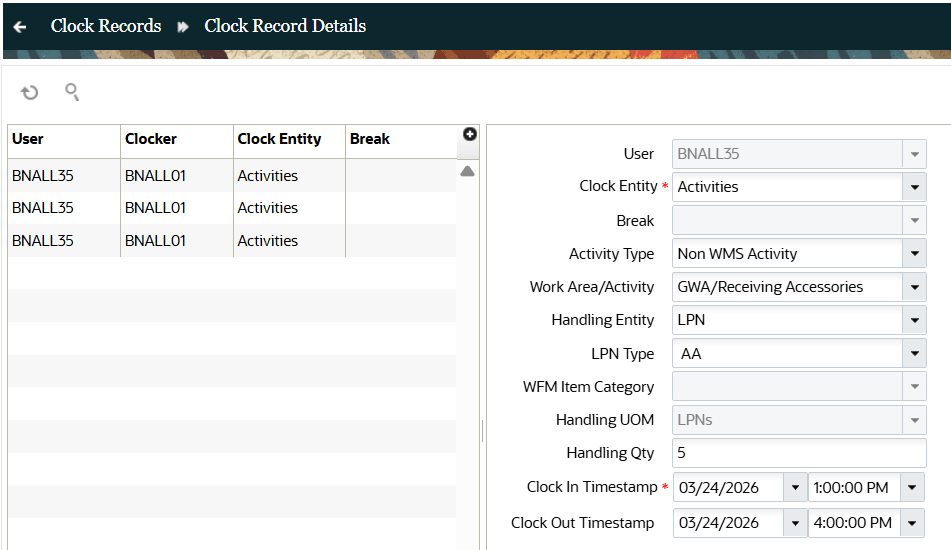
Clock Record UI
CLOCK INPUT INTERFACE/CLOCK REST API
You can send non-WMS clock-out records through the interface file/payload with or without Handling Attributes. If you need to update Handling Attributes for a Non-WMS activity that is already closed, send the activity name and the exact clock-in (ci_ts) and clock-out (co_ts) timestamps with action code UPDATE so WFM can find the matching record.
Steps to enable and configure
These features are available to all customers who have licensed and enabled WFM.