 New Action Definition for Item Classification
This feature adds a new action definition, RUN_AGENT_GTM_ITEM_CLASSIFICATION. With this new action definition, you can configure the following:
- An action definition as an Agent Event on an Automation Agent
- An action definition as an Agent Action on an Automation Agent
- An action definition in the Action Manager, enabling you to add it to the Item Classification screen set and trigger an Automation Agent as a manual action
Within an Automation Agent, you can add the RUN_AGENT_GTM_ITEM_CLASSIFICATION action definition as an Agent Event to trigger the automation agent.
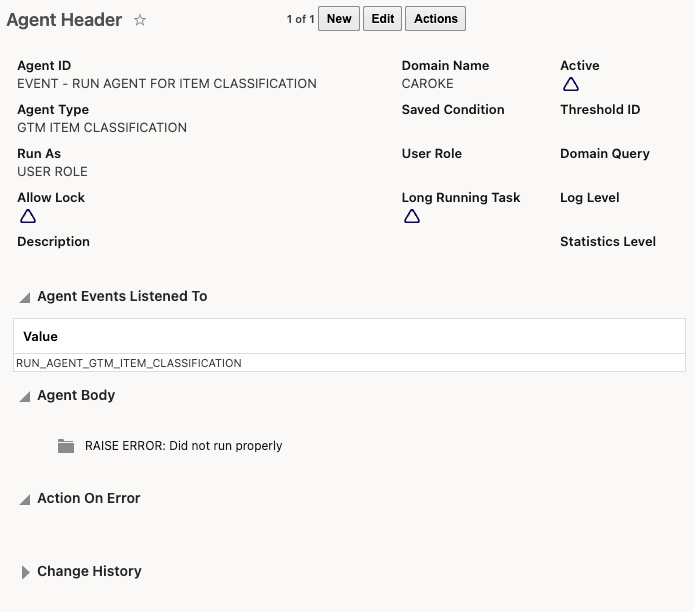
Automation Agent with Action Definition as Event
Within an Automation Agent, you can configure the RUN_AGENT_GTM_ITEM_CLASSIFICATION as an Agent Action on the Actions tab.
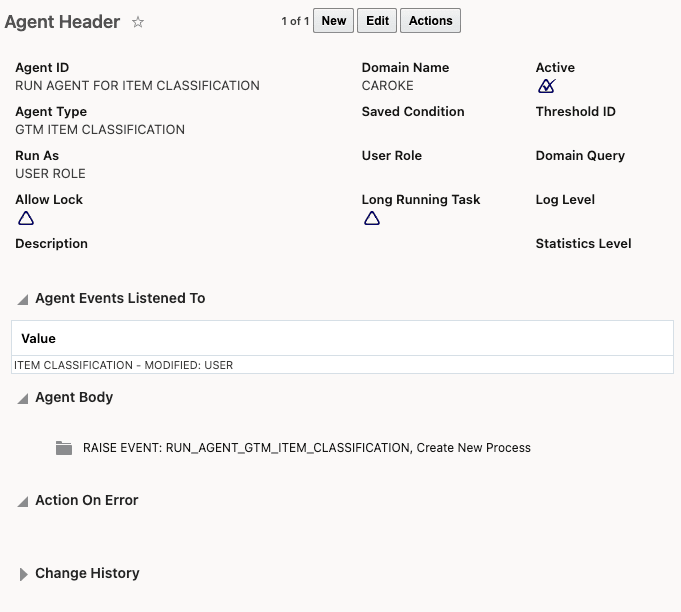
Automation Agent with Action Definition as Agent Event
Within the Actions Manager, you can select the Action Definition ID and associate it with an Automation Agent. Once created, you can add the action to a screen set and assign the screen set to the menu.
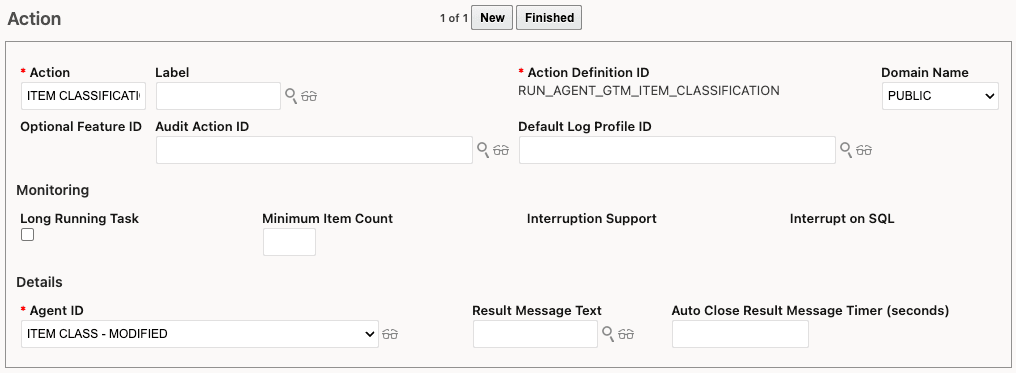
Action Manager
Business Benefit: This feature enhances Item Classification workflows by enabling automation agents to be triggered automatically or manually using the new RUN_AGENT_GTM_ITEM_CLASSIFICATION action definition. It improves operational efficiency, reduces manual effort, and provides greater flexibility.
Steps to enable and configure
-
To trigger the action definition from an Automation Agent, navigate to Business Process Automation > Agents and Milestones > Automation Agents and create an Automation Agent with the RUN_AGENT_GTM_ITEM_CLASSIFICATION action definition configured as either an Agent Event or an Agent Action.
To add the action definition as a manual action:
- Navigate to Configuration and Administration > User Configuration > Actions Manager and create an action with the Action Definition ID RUN_AGENT_GTM_ITEM_CLASSIFICATION.
. - Navigate to Configuration and Administration > User Configuration > Screen Set Manager. On the screen set you are creating or modifying, add the new action on the Actions tab.
- Navigate to Configuration and Administration > User Configuration > Menu Manager to add the screen set to your menu.