 Configurable Mapping Option for Early Pickup Date and Late Delivery Date
For users of the Logistics Network Modeling and Supply Chain Planning Capacity Forecast integration, this feature gives you the option to map the early pickup date and late delivery date from the various date fields supported in the Supply Chain Planning API. This option allows you to, for these two critical values, configure the mapping to your specific requirements instead of relying on the mapping provided with the packaged integration.
In many organizations, the definition of “early pickup” and “late delivery” dates can vary depending on business processes, supplier agreements, or operational constraints. Previously, these dates were populated using a fixed mapping, which limited your ability to adapt to different partner or customer requirements.
In the example below the available properties are used to set the order release early pickup and late delivery dates.
- The property glog.business.forecastorders.earlyPickupColumn is configured to set the order release early pickup date to the NeedByDate
- The property glog.business.forecastorders.lateDeliveryColumn is configured to set the order release late delivery date to the LastUpdatedBy date.
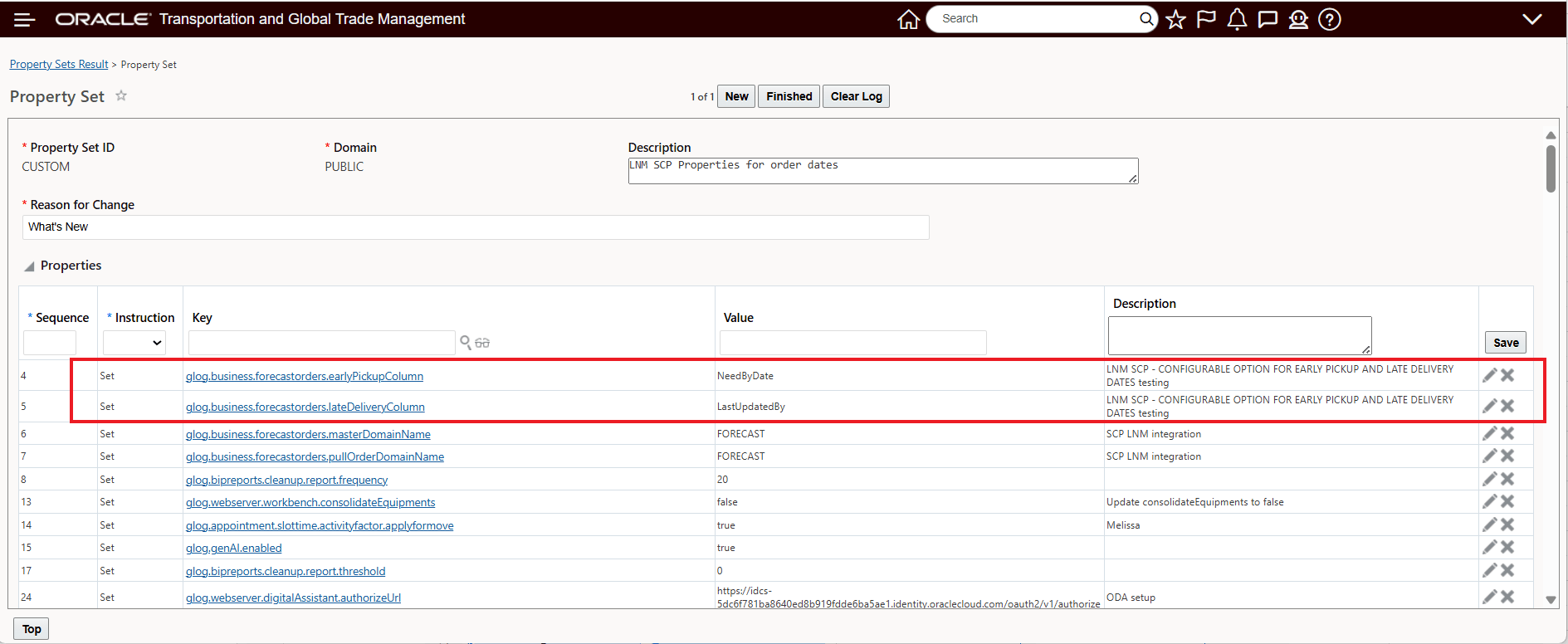
Properties For Mapping Early Pickup Date and Late Delivery Date
Business Benefit: This feature allows you to align your capacity forecast Logistic Network Modeling setup to your specific Supply Chain Planning date usage and setup reducing and simplifying the time required to configure and run your capacity forecasting scenarios.
Steps to enable and configure
- Identify the date fields from Supply Chain Planning you would like to map to for:
- Early Pickup Date
- Late Delivery Date
- Navigate to Configuration and Administration > Property Management > Property Sets.
- Note: You must have the DBA.ADMIN user role to use this functionality.
- Set the following properties based on your desired mapping:
- glog.business.forecastorders.earlyPickupColumn
- glog.business.forecastorders.lateDeliveryColumn
- Enter the name of the source field (from the incoming Supply Chain Planning data) that should populate each date.
- For example:
- glog.business.forecastorders.earlyPickupColumn=suggestedDockDate
- Save the configuration changes.
- Validate the setup by creating or importing a new order and confirming that the pickup and delivery dates are populated as expected.
If the properties are not configured, the system will continue to use the default mapping automatically.
Tips and considerations
- If you do not configure the properties, the system continues to use the existing default mapping with no change in behavior.
- Ensure that the field names you configure match exactly with the fields available in your incoming data; incorrect values may result in missing or incorrect dates.
- For example:
- SuggestedDueDate
- NeedByDate
- SuggestedDockDate
- SuggestedShipDate
- SuggestedOrderDate
- For example:
- This configuration applies globally, so confirm that the selected fields work for all relevant business scenarios.
- Coordinate with upstream system owners to understand the meaning and reliability of each available date field before configuring.
- Test thoroughly in a non-production environment to confirm that planning and execution timelines behave as expected.
Key resources
See the Help Topic "About the Supply Chain Planning Integration" for more information.