Slash Command for Prompt Selection
With this feature, you can quickly insert reusable AI prompt templates directly from the chat window by typing a forward slash (/) in the AI chat input box. This feature helps you standardize common requests, reduces repetitive typing, and supports consistent prompt usage across business workflows.
When you type slash (/) in the chat input box, a searchable list of available prompt templates appears. As you continue typing, the list filters to help you quickly locate the desired prompt. After selecting a prompt, the application automatically identifies any required placeholders and prompts you to provide the necessary values. Depending on the configuration, these values can be selected from business data pickers or entered manually.
After you confirm the prompt details, the completed text is inserted into the chat input area where you can further edit or combine it with additional prompts before sending. This approach gives you both speed and flexibility while encouraging consistent AI usage patterns across teams and business processes.
In the example below, the AI prompt templates for the Diagnostics Agent are displayed next to the Prompt Power data finder results for the list of Diagnostic related prompts.
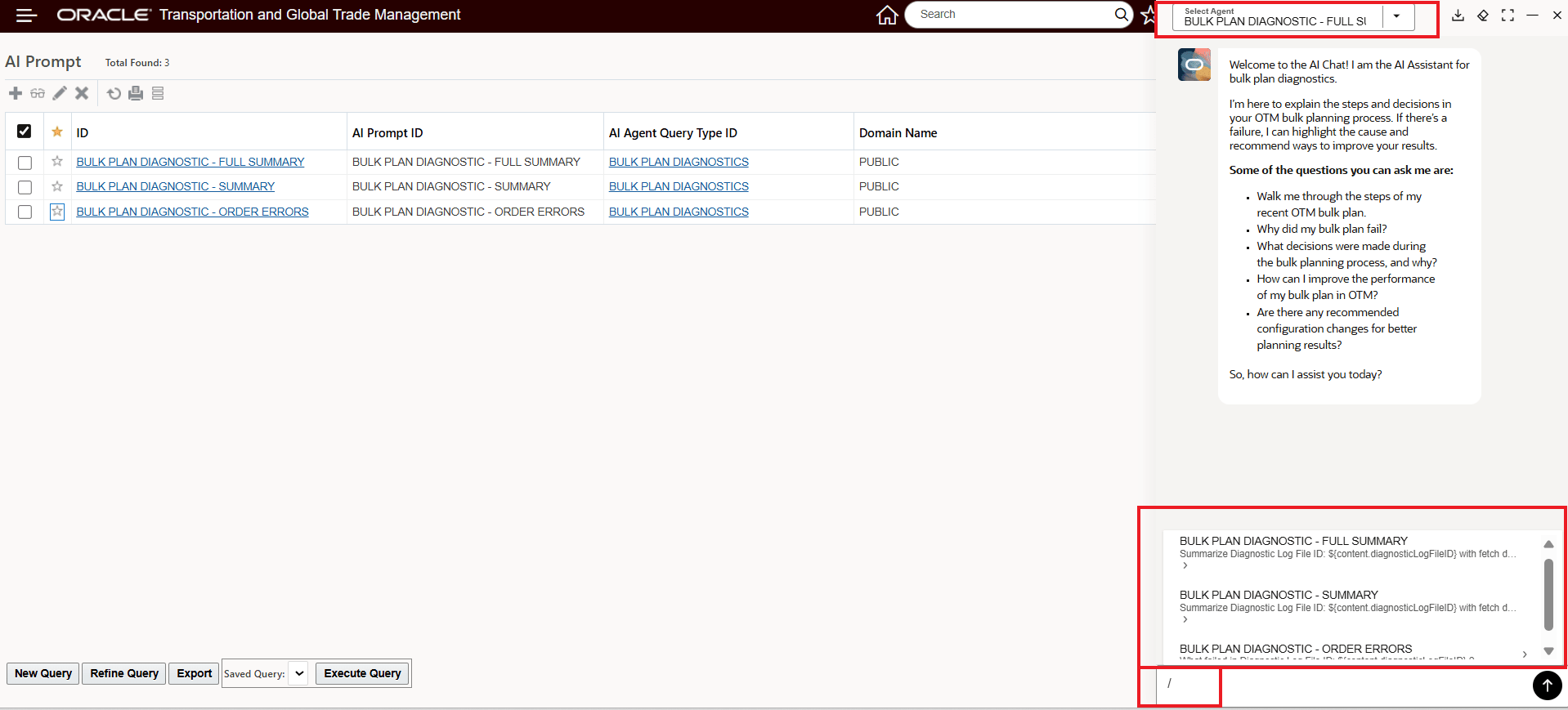
Slash / Prompt Template Example Bulk Plan Diagnostics
Business Benefit: This feature helps you reduce repetitive manual entry and improve consistency in how users interact with AI-powered workflows.
Key benefits include:
- Faster prompt input for recurring business scenarios
- Improved consistency across users and teams
- Reduced input errors through guided placeholder validation
- Better adoption of approved AI prompt standards
- Increased productivity by reusing commonly needed instructions and formats
Steps to enable and configure
To take full advantage of this feature you will want to create and configure your own prompts, as delivered, you have access to the many PUBLIC prompts provided with the delivered AI Agents. For complete instructions on developing your own AI prompts see the AI Prompts section of Online Help.
Adding an AI Prompt
- Navigate to Configuration and Administration > Power Data > AI > AI Prompts.
- Enter an AI Prompt.
- Enter an AI Agent Query Type ID. Note that the AI agent query type on the AI prompt must match the agent query type on any AI agent query to which you attach this prompt.
- Select a domain from the Domain Name drop-down list.
- Enter a Prompt.
- Click Finished.
Tips and considerations
If the selected agent does not have an available prompt, when you enter the / command you will receive a "No prompts found." message.