Child Table Support For Scenario Data Rules
This enhancement extends the Scenario Data Changes to include Child Object Data Changes. With this feature you can now select a child object associated with the parent object, identify a specific record using its primary key, and update supported fields directly from the Scenario Data Changes UI. You can add multiple child-level data changes for the same scenario. You will find this feature useful when you want to simulate planning impacts caused by child level record changes, for example, you can easily setup and model the impact of different calendar's assigned to your location role's.
The new Child Object Data Chances can be found by navigating to Logistics Network Modeling > Modeling Scenario. On a modeling scenario, click Scenario Data Changes. Then, click New Object. The Child Object Data Changes is highlighted below.
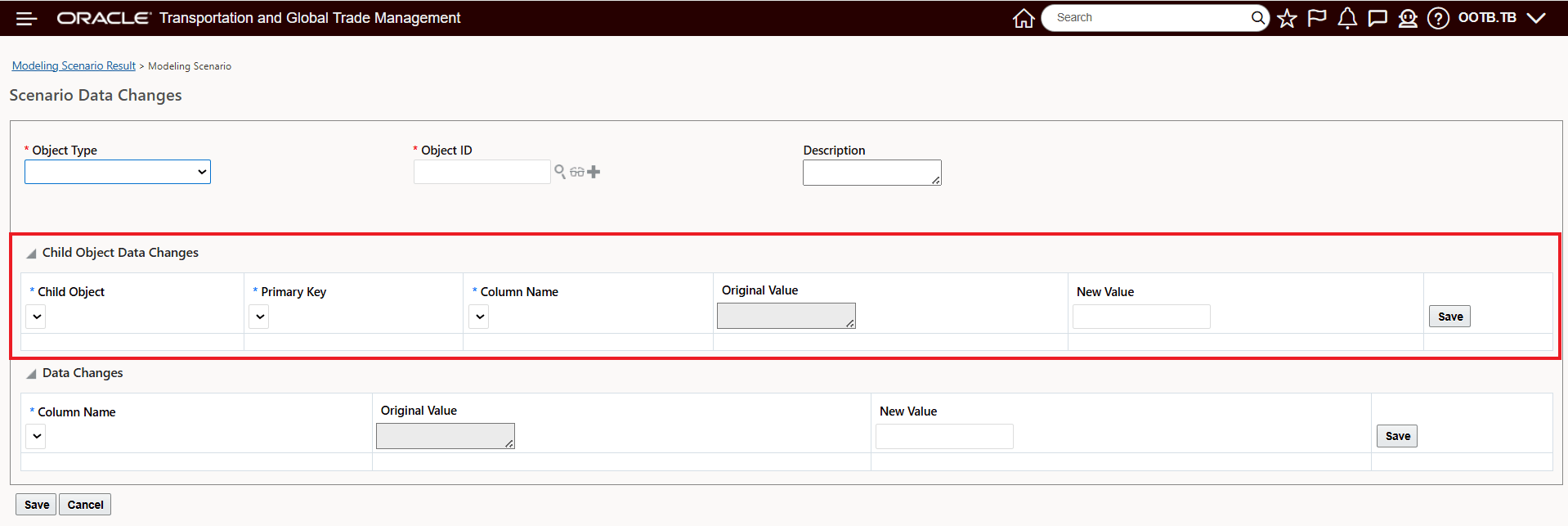
Scenario Data Changes - Child Object Data Changes
With this enhancement, you can select a child or grandchild object associated with the parent object, identify a specific record using its primary key, and update supported fields directly from the scenario interface. The system automatically displays the current value so you can compare it with the proposed update before saving the change. Multiple child-level updates can be added independently within the same scenario.
In the example below, the Location DC1;s location calendar, for the SHIPFROM/SHIPTO location role is being changed from the original value of "OOTB.247" To the new value of "OOTB.9_TO_5".
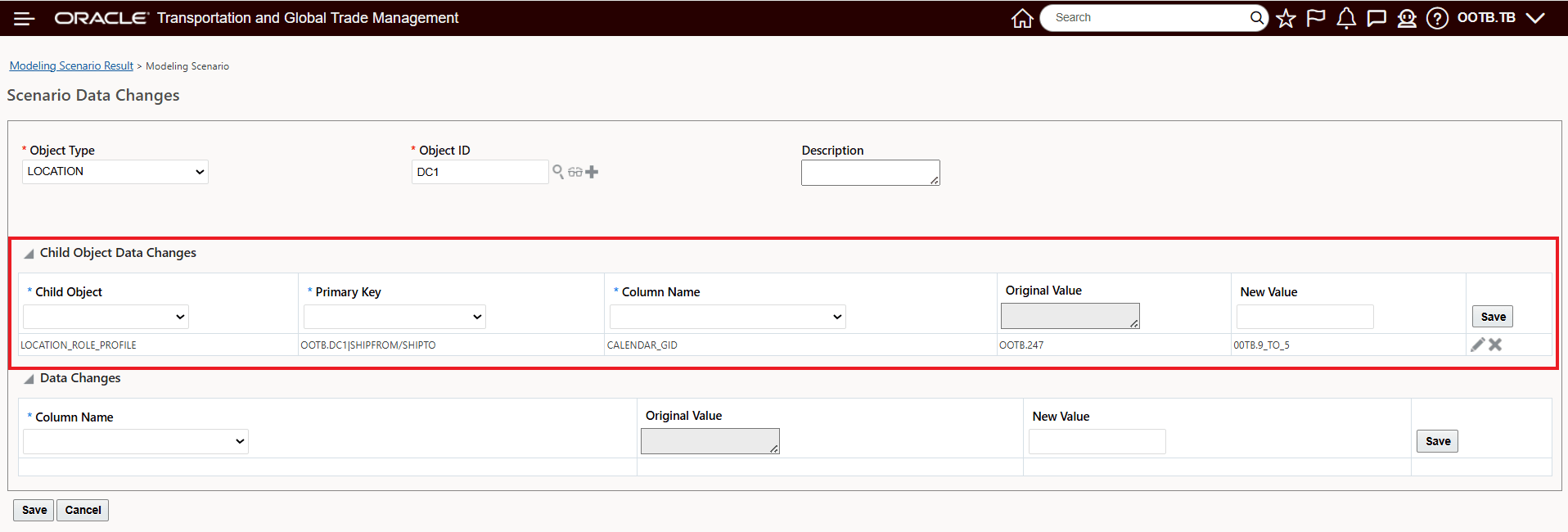
Child Object Data Changes Example Location Role Calendar
Business Benefit: This feature simplifies the task of modeling scenario data changes at the child data level providing you with faster scenario modeling setups and avoiding complex data rule changes.
Steps to enable and configure
The feature is available within the current Modeling Scenario functionality for supported object types.
To use the feature:
- Navigate to Logistics Network Modeling > Modeling Scenario. On a modeling scenario, click Scenario Data Changes. Then, click New Object. The Child Object Data Changes is highlighted below.
Modeling Scenario workflow. - Create or open a Modeling Scenario.
- Add Scenario Data for a supported object type.
- In the Child Object Data Changes section.
- Select the following values:
- Child Object
- Primary Key
- Column Name
- Review the automatically populated Original Value.
- Enter the desired New Value. Note that the New Value field is just a text field - you must enter a valid/existing GID for the New Value - in the example below the New Value calendar GID is "OOTB.9_TO_5"
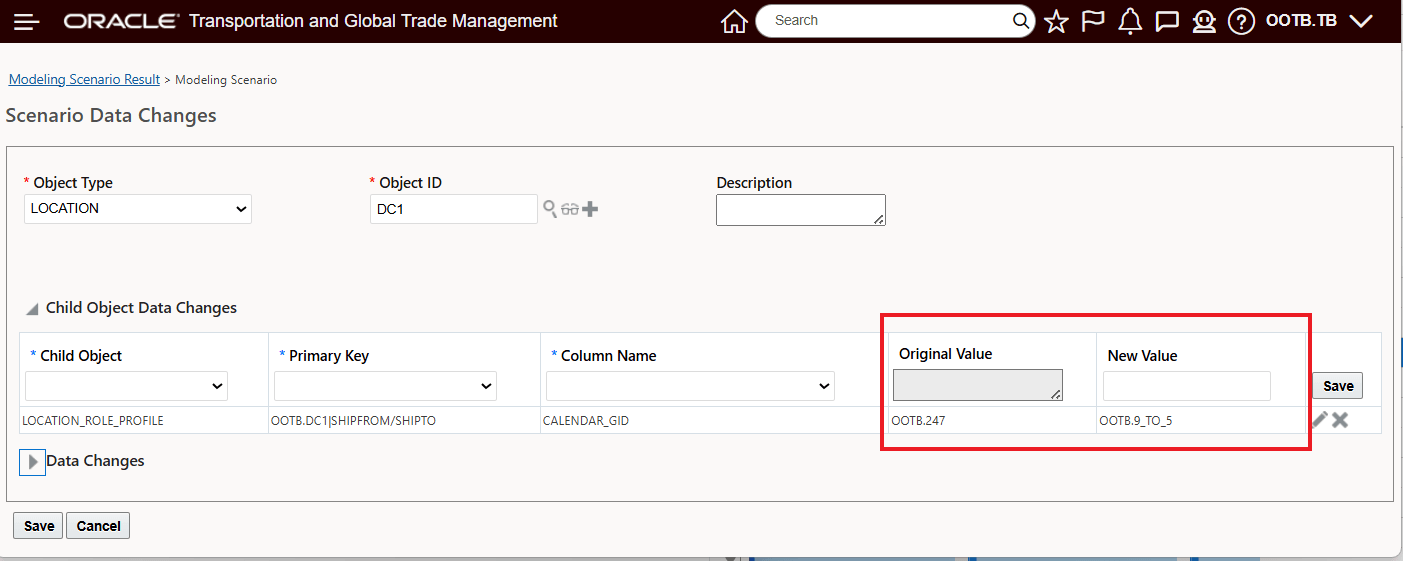
New Value - Text Entry - Must Be Valid GID
- Click Save to add the change.
- Repeat the process if you want to add additional child object data changes.
- Run the Scenario Bulk Plan to evaluate the impact of the updates.
Important:
-
At least one entry must exist in either:
- Child Object Data Changes, or
- Data Changes
before you can complete creation of a new object.
Tips and considerations
- Child and grandchild objects displayed in the Child Object dropdown list depend on the selected parent object and existing Data Rules configuration.
- Only supported child tables and applicable columns are available for selection.
- The Original Value field is read-only and is provided as a reference to help validate the proposed update.
- Multiple child-level updates can be included in the same modeling scenario.
- Planning results are expected to align with equivalent updates created through Data Rules when the same data change is applied.
- When comparing results against Data Rules that use Saved Queries, ensure the Saved Query returns only one record for accurate validation and comparison.
- Not all object types support child-level updates. Some object types support only header-level data changes.
- Object types that do not support child-level changes continue to support standard header-level data changes where applicable.