3D warehouse inventory visualizer
The new Warehouse Visual Layout feature provides an interactive visual representation of your warehouse based on configured location data, helping warehouse teams understand the physical layout, investigate inventory and operational conditions, and make faster decisions about location capacity and utilization. With flexible 2D and 3D views, area-level navigation, operational alerts, and direct access to inventory details, users can quickly identify locations that require attention without manually reviewing location records individually.
Explore your warehouse by area
The new Warehouse Visual Layout landing page provides an at-a-glance summary of the configured warehouse layout, including the number of warehouse areas and total counts by location type, such as reserve locations. Select an area to focus the visualization on that portion of the warehouse. Within the selected area, locations are visually differentiated by type, including Active, Reserve, and Drop locations, using the displayed color legend. Select an individual location to review available information, such as the location identifier and location type. Select View More Details to display additional information about the selected location.
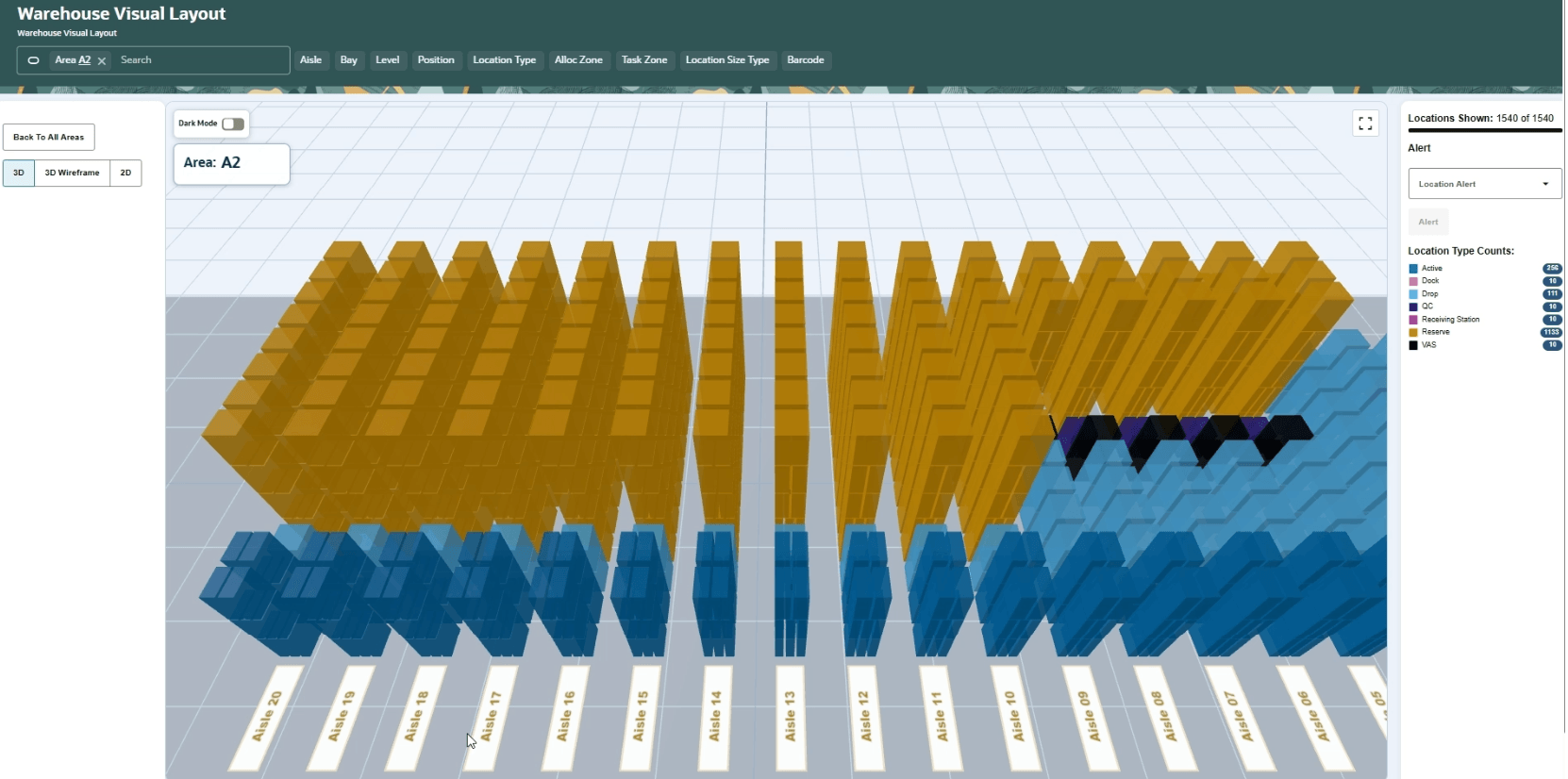
Choose between 3D, wireframe, and 2D views
Warehouse Visual Layout provides multiple visualization options so users can view the warehouse from the perspective that best supports their task:
- 3D – View locations in three dimensions and rotate the warehouse layout to inspect it from different angles.
- 3D Wireframe – Display a simplified three-dimensional representation of the location layout.
- 2D – View the warehouse from a top-down perspective for easier identification of locations across an area.
Users can also filter the visualization by area, aisle, or a specific set of locations, making it easier to focus on the portion of the warehouse they need to investigate.
Identify locations requiring attention
The Warehouse Visual Layout includes alerts that visually highlight locations requiring review. Users can identify locations based on:
- Cycle count pending – Highlights locations where the Cycle Count Pending location flag is set to Yes.
- Expired inventory – Highlights locations containing expired inventory.
- Location capacity utilization – Visually identifies locations based on capacity utilization, helping users find locations that are approaching capacity as well as locations with available space.
Select an alert to highlight the affected locations directly in the warehouse visualization. In the 2D view, affected locations are identified with a border. Users can select any highlighted location to investigate its details. The information icon within the layout provides additional information about the capacity-utilization indicators currently displayed.
Access inventory info directly from location details
Location details now include a View inventory information hyperlink, providing a convenient path from the visual warehouse layout to the inventory stored at that location. Selecting View inventory information opens the appropriate inventory screen with the selected location automatically applied as a filter. Depending on the inventory associated with the location, users are directed to the IB LPN screen or Active Inventory screen. This allows users to move directly from identifying a location in the visualizer to reviewing its associated inventory, reducing navigation and making operational investigation more efficient.
Steps to enable and configure
- To ensure that Warehouse Visual Layout accurately represents the physical warehouse, review your existing location configuration and confirm that it is complete and reflects the actual warehouse layout. The visualizer uses this configured location information to construct the 2D and 3D warehouse views.
- To take advantage of operational indicators, ensure the applicable location and inventory information is maintained, including the Cycle Count Pending flag, inventory expiration information, and location capacity data.