Lock code authorization and contextual filtering by facility and group
Organizations operating multiple Facilities/Groups often use different Lock Codes for processes such as damaged inventory, quality holds, returns, expired inventory, inventory discrepancies, and other operational controls.
Previously, Lock Codes configured for a company could be available across its mapped facilities. This could result in users seeing Lock Codes that weren't relevant to their facility or business process.
For example, a company might use HOLD for a quality process at Facility 1 and require a different configuration at Facility 2. With this enhancement, you can configure the Lock Code for the appropriate facility and, when needed, restrict its use to designated user groups.
Now, Oracle Warehouse Management provides greater control over where Lock Codes can be used and who can use them. You can associate Lock Codes with a specific facility and assign them to user groups, helping ensure that users see and apply Lock Codes that are relevant to their warehouse and operational responsibilities.
These controls are applied across supported Oracle Warehouse Management user interfaces, Mobile transactions, REST APIs, and input interfaces.
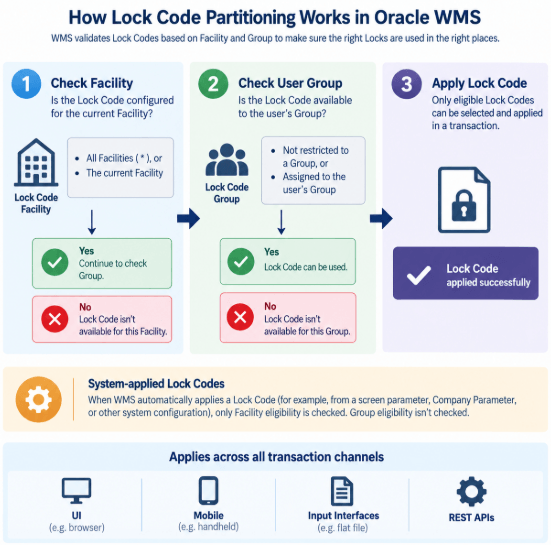
With facility and group-based Lock Code controls, you can:
- Reduce the number of irrelevant Lock Codes presented to warehouse users.
- Reduce incorrect Lock Code selections during warehouse transactions.
- Configure facility-specific Lock Codes for different warehouse processes.
- Restrict user-initiated lock and unlock operations to authorized groups.
- Improve operational segregation and control across facilities.
- Improve consistency of Lock Code validation across UI, Mobile, API, and interface transactions.
- Maintain common Lock Codes across facilities when facility-specific control isn't required.
Lock codes configuration
Configuration updates on facility
A new Facility attribute is available for Lock Code configuration. A Lock Code can be configured for:
- Facility = * — Lock Code is eligible for all facilities.
- Facility = specific facility — Lock Code is eligible only for that facility.
- Existing Lock Codes continue to use Facility = * to preserve existing behavior.
The same Lock Code can be configured separately for different specific facilities. However, the same Lock Code can't exist for both * and a specific facility within the same company.
For example, you can configure HOLD separately for Facility 1 and Facility 2. You can't also configure HOLD with Facility = * for that company.
Inventory Lock Code View updates:
This configuration is applicable under following scenarios:
- In a 3pl Instance : While logged in to a Parent Company & Facility1 : system should display only the Locks with Facility * & the Logged in Facility1
- While logged in to a Child Company : user will not be able to view the InventoryLockCodeView records as current behaviour
- In a Non 3pl Instance :While logged in to the Master Company & Facility1 : system should display only the Locks with Facility * & the Logged in Facility1
Configuration updates for Assign lock codes to user groups
You can now associate a Lock Code with one or more operational user groups. In the Inventory Lock Code View UI, a new Assign to Groups action (available only in Redwood) is introduced to associate one or more user groups with a Lock Code. When a user explicitly selects or applies a Lock Code. This Lock Code is available when it:
- Is not assigned to a group, or
- Is assigned to the user's applicable group.
This provides an additional authorization layer for user-initiated Lock Code operations.
NOTE: Lock Code Change History field now provides additional information for Lock Code and group-assignment changes in the InventoryLockCodeView UI. The field include Entity (LOCKCODE, LOCKCODEGROUP), Last Value, and Current Value. Changes made to Lock Code configuration or Assign to Groups records are registered in the change history.
Changes made to Lock Code configuration or Assign To Groups records are registered in the change history.
Core logic on honouring the lock code
The core logic of Lock Code Facility and Assign to Groups check is applicable for UI, Mobile, Interface, and API transaction.
Lock Code Facility check:
- The system should allow the use of lock codes which has:
Facility = * / <Logged-in Facility>
Assign To Groups Check:
The system should fallow the use of only lock codes which are:
- Not assigned to any group, OR
- Assigned to the logged-in user's group
The Lock Code Facility Check and Assign to Groups Check will be applicable when the user explicitly applies a lock.
NOTE: The Assign to Groups Check will be applicable when the user explicitly removes a lock during any transaction.
Locks configured through UI/Mobile screen parameters, Company Parameters, Location Locks, or Shipment Detail Locks are automatically inherited during UI, Mobile, or API transactions. Because these locks are inherited automatically and are not manually selected by the user, the Assign to Groups Check does not apply to them. However, the system will still perform the Lock Code Facility Check for these locks.
Recommendation: We recommend users to configure lock codes with the appropriate facility. Specially for inventory lock codes configured through UI or Mobile screen parameter or Company Parameter, it is recommended to use a universal lock, i.e., a lock with Facility = * , as these set-ups can be used for multi-Facility transactions.
UI and interface update
When users create, copy, or edit supported records, Lock Code fields now display only Lock Codes eligible for the applicable Facility and User Group. This is applicable for following Redwood UI:
- PurchaseOrderHdrView > Lock
- IBShipmentView > Lock
- IBShipmentView > Detail > LPN Lock Code
- OrderHdrView > Detail > Lock Code
Validate Lock Codes Through Input Interfaces
Oracle Warehouse Management now provides additional Lock Code validation for supported input interfaces. The system validates that Lock Codes are eligible for the applicable facility and provides stronger validation for invalid Lock Code configurations.
NOTE: Lock Code replacement behaviour differs between UI and Input Interface transactions. In the UI, a user can't replace an existing Group-restricted Lock Code when the user's Group isn't authorized for that Lock Code. Input Interface transactions don't apply Group-based authorization; therefore, an eligible Lock Code supplied through the Input Interface can replace an existing Lock Code regardless of its Group assignment.
Lock Code Validation for Shipment, Location, and Order Interfaces
For the following input interface records, the Lock Code must be configured for all facilities (*) or for the applicable facility:
| Interface Record | Field |
|---|---|
| Inbound Shipment Header | IB_SHIPMENT_HDR > lock_code |
| Inbound Shipment Detail | IB_SHIPMENT_DTL > lpn_lock_code |
| Location | LOCATION > location_lock_code |
| Order Detail | ORDER_DTL > lock_code |
If the supplied Lock Code isn't eligible for the facility, the affected interface record fails validation. Validation is also improved for Lock Codes that don't exist. Previously, a non-existing Lock Code could be ignored or accepted in some of these interface flows. The affected interface record now fails validation when the supplied Lock Code doesn't exist.
NOTE: Group-based authorization isn't applied to these input interface transactions.
Facility validation for locate LPN lock interface
The LOCATE_LPN_LOCK (LLL) input interface now validates the Lock Code against the facility associated with the interface transaction. The Lock Code is eligible when:
Lock Code Facility = * or Logged-in Facility
If the Lock Code isn't eligible for the facility, the specific LOCATE_LPN_LOCK (LLL) interface record fails with a facility eligibility validation error.
NOTE: Assign To Groups authorization isn't applied to the LOCATE_LPN_LOCK interface.
Apply lock code controls to location and batch management
WMS extends Facility and Group-based Lock Code controls to Location and Batch management. Users are presented with eligible Lock Codes based on their current operational context, and authorization is enforced when an existing restricted Lock Code is changed or removed.
- Filter Lock Codes for Location Locking
In LocationView UI, the Lock Code field and Mass Update Location > Lock Code field now display only Lock Codes that meet at the following conditions:
- The Lock Code is configured for * or the logged-in Facility.
- The Lock Code isn't assigned to a group, or it's assigned to the user's applicable group.
If a Location is already locked with a Lock Code that isn't eligible for the user's group, the existing Lock Code remains visible on the Location. However, it isn't available as a selectable value when editing the Location. The system also prevents the user from removing or replacing an existing Location Lock when the user's group isn't authorized for that Lock Code.
- Lock Locations from a Child Company in 3PL Environments
In a 3PL environment, users logged in to a Child Company can now lock Locations from LocationViewFW. Eligible Lock Codes are available in:
- Create, Copy, and Edit > Lock Code
- Mass Update Location > Lock Code
The available Lock Codes follow the Facility and Group-based eligibility rules for Location locking.
- Filter Lock Codes for Batch Locking
In BatchNumberView, Lock Code selection for Batch Lock, Swap, and Unlock is now informed of the logged-in user's Facility and Group. When a user selects a Lock Code, WMS displays only Lock Codes that:
- Are configured for * or the logged-in Facility.
- Aren't assigned to a group or are assigned to the user's applicable Group.
If a Batch already has a Lock Code that the user's Group isn't authorized to use, the existing Lock Code remains visible on the Batch. However, it isn't offered as a selectable value when the Batch is edited. The system also prevents a user from replacing or removing an existing Batch Lock when the user isn't authorized for that Lock Code. This helps preserve Lock Code ownership and prevents an unauthorized user from indirectly changing an existing Batch Lock.
Example: A Batch in Facility 1 is locked with HOLD, which is assigned to Group 1. A user in Group 2 can still see that the Batch is locked with HOLD, but HOLD isn't available for selection, and the user can't replace or remove that lock.
Lock code authorization for UI transactions
Facility and Group-based Lock Code controls are now applied across supported UI transactions for container and inventory locking, receiving, QC Reject, and Create ASN processing.
Lock and Unlock Containers
When adding a Lock Code from IbContainerView > Nbr Locks, ObContainerView > Nbr Locks, or ContainerLockView, the Lock Code list now displays only codes that are:
- Configured for * or the logged-in Facility.
- Not assigned to a Group or assigned to the user's logged-in Group/View.
When removing an existing Container Lock from IbContainerView or ObContainerView, the system checks the Group assignment of the Lock Code. If the user's Group isn't authorized for that Lock Code, the user can't remove it. For a mass removal where some Lock Codes are authorized and others aren't, the system removes the eligible Lock Codes and retains the ineligible ones.
Mass Add and Remove Inventory Lock Codes
In LpnItemInventoryView, the Mass Add Lock Code and Mass Remove Lock Code actions now display only Lock Codes eligible for the logged-in Facility and Group/View. For example, a user working in Facility 1 and Group 1 sees Lock Codes Configured for Facility 1 or * that are either assigned to Group 1 or aren't restricted to a Group. This reduces the possibility of selecting a Lock Code intended for another facility or operational group.
Filter Lock Codes During QC Reject
When performing Reject from IbContainerView for a Quality Check IBLPN or from IBShipmentView, users now see only eligible QC Reject Lock Codes. The Lock Code must:
- Be Unallocatable, as required by the existing QC Reject process.
- Be configured for * or the logged-in Facility.
- Not be assigned to a Group or be assigned to the user's logged-in Group/View.
The existing QC Reject requirement for Unallocatable Lock Codes remains unchanged; Facility and Group eligibility are additional filters.
Filter Returns Lock Codes During Create ASN
In OrderHdrView > Create ASN and ObContainerView > Create ASN, the Returns Lock Code field is now dependent on the selected Returns Facility. The Returns Lock Code field remains disabled until a Returns Facility is selected. After selecting the Returns Facility, the system displays only Lock Codes that:
- Are configured for * or the selected Returns Facility.
- Aren't assigned to a Group or are assigned to the user's logged-in Group/View.
This helps ensure that the Lock Code assigned to the return ASN is appropriate for the facility receiving the returned inventory.
Validate Applied Lock Codes During Receiving
During IBShipmentView receiving, WMS now validates the Facility eligibility of automatically applied Lock Codes. This applies to the following receiving actions:
- IBShipmentView UI > Receive Entire Shipment
- IBShipmentView UI > Perform Detailed Receiving
- IBShipmentView >> Detail UI > Receive LPN
Facility validation applies to Lock Codes automatically applied from the default-lockcode screen parameter and Shipment Detail Lock. The configured Lock Code must be defined for * or the logged-in Facility. If the configured Lock Code isn't eligible for the Facility, the LPN is received without that Lock Code being applied. Because these Lock Codes are automatically applied by the system rather than selected by the user, Assign To Groups authorization isn't applied.
NOTE: Existing behavior for automatically inherited Location Locks and Batch Locks during these receiving actions remains unchanged.
Apply lock code controls to mobile transactions
WMS now applies Facility and Group-based Lock Code controls across supported Mobile receiving, inventory, quality, audit, and outbound transactions. For Mobile transactions where a user explicitly selects or enters a Lock Code, the Lock Code must meet both of these eligibility requirements:
- Facility eligibility: The Lock Code must be configured for * or the Mobile logged-in Facility.
- Group eligibility: The Lock Code must either have no Group assignment or be assigned to the logged-in user's default Group.
If a user-entered Lock Code isn't eligible for the Facility or Group, the transaction prevents the Lock Code from being applied and prompts the user to provide an eligible Lock Code. For Lock Codes automatically applied by WMS, such as Lock Codes derived from Mobile screen parameters, Company Parameters, or Shipment Detail configuration, Assign To Groups authorization isn't applied because the Lock Code isn't selected by the user. These Lock Codes are validated for Facility eligibility where applicable. This distinction enables WMS to restrict user-initiated Lock Code actions while allowing configured system processes to continue applying operational Locks without requiring the user to belong to the assigned Group.
Configuration Recommendation: If an automatically applied Lock Code is intended to be used across multiple facilities, configure the Lock Code with Facility = *. If the Lock Code is intended for a specific facility, ensure the Lock Code and the applicable Mobile or Company Parameter configuration are aligned with that facility.
The following Mobile transactions are affected.
| Mobile transactions | Behaviour |
|---|---|
| Mobile Lock Unlock Container (rf.inbound.cwrflockunlockcontainer) |
Applies Facility- and Group-based authorization when users apply or remove Lock Codes from an LPN.
Facility eligibility isn't reevaluated when removing an existing Lock. This allows the system to preserve visibility of existing Locks while preventing unauthorized removal. |
| Mobile Receive LPN Shipment and Receive LPN Load (rf.inbound.cwrfrecvlpnshpmt) |
Mobile Receive LPN Shipment and Receive LPN Load now apply Lock Code eligibility validation to user-selected and automatically applied Lock Codes during receiving. Lock Code validation depends on how the Lock is applied during receiving. For Ctrl+L: Apply Lock, the user-entered Lock Code must be eligible for both the logged-in Facility and the user's default Group. If either check fails, the Lock isn't applied and the user is prompted to enter another Lock Code. For automatically applied Locks:
NOTE: Because these Locks are automatically applied, Group authorization isn't performed. Automatically inherited Location Locks and Batch Locks don't receive additional Facility or Group validation as part of these receiving transactions. |
| Mobile Receive Single SKU (rf.inbound.cwrfrecvsinglesku) |
Mobile Receive Single SKU now validates automatically applied receiving Lock Codes against the logged-in Facility before applying them to the received LPN
NOTE: These are system-applied Locks, so Assign To Groups authorization isn't performed. |
| Mobile Sort and Receive (rf.inbound.cwrfsortandrecv) |
Mobile Sort and Receive now applies Facility- and Group-based eligibility to user-selected Lock Codes and Facility validation to applicable system-applied Locks.
NOTE: Automatically inherited Sort Location Locks and Batch Locks retain their existing behavior and aren't subject to additional Facility or Group validation in this transaction. |
| Mobile Create LPN (rf.inbound.cwrfcreatelpn) |
Mobile Create LPN now validates automatically applied default and expired-inventory Lock Codes against the logged-in Facility, including earlier validation of the expired-inventory Lock Code. Mobile Create LPN applies Facility validation to Lock Codes configured through:
|
| Mobile QC Complete (rf.inbound.cwrfqccomplete) |
Mobile QC Complete now applies Facility- and Group-based Lock Code eligibility when selecting a QC Reject Lock, while retaining Facility validation for automatically configured Reject Locks. Lock Code controls are applied when:
The behavior depends on whether WMS prompts the user for a QC Reject Lock or automatically applies the configured rejected-lock-code. When the user must select a QC Reject Lock, WMS displays only Lock Codes that:
|
| Mobile Outbound Audit (rf.outbound.cwrfauditlpnplt) |
Mobile Outbound Audit now applies Facility- and Group-based eligibility to user-selected inventory discrepancy Locks and Facility validation to automatically configured discrepancy Locks. The affected Mobile configurations are:
|
| Mobile Modify/Cancel OBLPN (rf.outbound.cwrfmodcancelobcntr) |
Mobile Modify/Cancel OBLPN now validates automatically configured Lock Codes against the logged-in Facility earlier in the transaction, immediately after the OBLPN is scanned. The affected configurations are:
|
Lock code via API transaction
WMS now applies Facility and Group-based Lock Code controls across supported receiving, container, IBLPN, OBLPN, QC Reject, and Batch Number REST APIs. When a Lock Code is provided in an API request, WMS validates that the Lock Code is eligible for the inventory Facility and the API user's default Group. If the Lock Code isn't eligible, the API request fails with a VALIDATION_ERROR. When removing an existing Lock, WMS validates the API user's Group eligibility for that Lock Code. Facility eligibility isn't checked during Lock removal.
For Lock Codes that WMS applies automatically, such as a Shipment Detail Lock, only Facility eligibility is validated. Group eligibility isn't checked for system-applied Locks.
| Transaction / API Area | Enhancement | API / Key Input |
|---|---|---|
| Receiving — IBLPN Receive, Receive Entire Shipment, and Sort and Receive | Lock Codes supplied during receiving must be eligible for the inventory Facility and the API user's default Group. If validation fails, the API returns a VALIDATION_ERROR. For automatically applied Shipment Detail Locks, only Facility eligibility is validated; Group eligibility isn't checked. |
Inputs: default_lockcode, lock_code_listSample POST URLs: /wms/lgfapi/v10/entity/iblpn/receive/ |
| Container Lock and Unlock | Container Lock APIs allow only Lock Codes eligible for the inventory Facility and API user's default Group. For Unlock, WMS validates the API user's Group authorization before allowing a Group-restricted Lock to be removed. For bulk requests, the request fails if one or more supplied Lock Codes fail the applicable validation. |
/entity/container/{id}/lock/ |
| IBLPN Lock and Unlock | IBLPN Lock APIs validate Lock Codes against the inventory Facility and API user's default Group before applying them. For Unlock, Group authorization prevents an API user from removing a Group-restricted Lock that the user's default Group isn't authorized to manage. |
/entity/iblpn/{id}/lock/ |
| OBLPN Lock and Unlock | OBLPN Lock APIs validate Facility and Group eligibility before applying a Lock Code. For Unlock, WMS validates Group authorization before allowing an existing Group-restricted Lock to be removed. |
/entity/oblpn/{id}/lock/ |
| QC Reject | QC Reject APIs validate the supplied lock_code against the inventory Facility and API user's default Group before applying the QC Reject Lock. If either eligibility check fails, the API request returns a VALIDATION_ERROR. |
Input: lock_code |
| Batch Number Create and Update | Batch Number POST and PATCH APIs validate the Lock Code supplied through lock_id against the inventory Facility and API user's default Group. When replacing an existing Batch Lock, WMS also verifies that the API user's default Group is authorized to remove the existing Lock. If not, the existing Lock can't be removed or replaced. |
Input: lock_idPOST /wms/lgfapi/v10/entity/batch_number/PATCH /wms/lgfapi/v10/entity/batch_number/{id} |
| Create Facility-Specific Lock Codes | The Inventory Lock API now supports the optional facility_id field for creating Facility-specific Lock Codes. If facility_id isn't provided, the Lock Code is created with Facility = * (All Facilities). If provided, WMS validates that the Facility exists, is mapped to the specified Company, and is eligible for the API user. Lock Code uniqueness now considers Lock Code + Company + Facility. The same Lock Code can be configured in different specific Facilities, but can't exist for both * and a specific Facility within the same Company. |
New optional input: facility_idAPI: POST /wms/lgfapi/v10/entity/inventory_lock/ |
For more information related to payloads, refer WMS REST API guide.
Company parameter locks
Oracle Warehouse Management now validates Company Parameter Lock Codes against the logged-in Facility before applying them. Because these Lock Codes are automatically applied by WMS, Group-based Lock Code authorization doesn't apply.
A configured Lock Code is valid when its Facility = * or matches the logged-in Facility. If it isn't valid for the Facility, WMS prevents the Lock from being applied and displays the applicable validation message.
| Company Parameters | Impacted Area | What Changes |
|---|---|---|
| MOD_CANCEL_OBLPN_LOCK_CODE | Cancel Cartons in ObContainerView; OBLPN Cancel APIs |
WMS validates the configured Lock Code against the logged-in Facility before locking the IBLPN. If the Lock Code is invalid or not Facility-eligible, the transaction stops with an appropriate error. Validation now occurs earlier, immediately after the OBLPN is scanned. |
| LOST_LOCK_CODE, SHORT_LOCK_CODE | Short processing during Reserve Pick and Active Pick |
WMS validates the configured Lock Code against the logged-in Facility before applying the Short Lock. Invalid or Facility-ineligible Lock Codes prevent the Short from completing. Error handling is also improved when the configured Lock Code doesn't exist. |
| LOST_LOCK_CODE, CYCLE_COUNT_LOCK_CODE | Cycle Count for Reserve and Active Locations |
WMS validates the configured Lock Code against the logged-in Facility during Cycle Count. Existing warning and processing behavior is retained when the configured Lock Code is missing, invalid, or Facility-ineligible. |
Recommendation: For Company Parameter Lock Codes that may be used across multiple facilities, configure the Lock Code with Facility = * (All Facilities). For facility-specific processing, configure the Lock Code for the required Facility and make sure the corresponding Company Parameter uses that Lock Code.
Example: A LOST_LOCK_CODE configured for Facility 1 can be used during Short or Cycle Count processing in Facility 1, but it isn't applied when the transaction is performed in Facility 2. A LOST_LOCK_CODE configured with Facility = * can be used across eligible facilities.
Steps to enable and configure
Lock code facility setup
- Log in to the appropriate Company and Facility from which Lock Codes are administered.
- Open Redwood > Inventory Lock Code.
- For each Lock Code, set Facility to: * = usable across facilities, or a specific Facility = restricted to that Facility. (Existing Lock Codes remain * by default.)
- Same Lock Code can exist in different specific Facilities.
NOTE: Do not configure the same Lock Code at both * and a specific Facility within the same Company.
- Before changing an existing * Lock Code to a specific Facility, ensure it is not currently used in another Facility.
- Suggest to use the Facility search filter on Inventory Lock Code to confirm that the required Lock Codes are available for each facility.
Assign lock codes to groups
- In Inventory Lock Code, select the Lock Code > Assign To Groups.
- Add the user groups authorized to explicitly apply/remove that Lock Code.
NOTE: Do not create the same Lock Code + Group combination twice; duplicate combinations are rejected. If no groups are assigned to a Lock Code, the Lock Code remains available without a group restriction, subject to the Facility check.
- Group check applies only when the Lock Code is explicitly selected/applied/removed by the user.
Facility eligibility >> Lock Facility = * OR Lock Facility = transaction/logged-in Facility
AND
Group eligibility >> No groups assigned to Lock Code OR user's group is assigned to Lock Code
UI setup
- UI Lock Code selection automatically validates:
- Facility > * or logged-in Facility.
- Group > no assignment or user's Group is assigned.
- Applies to Container, LPN/Inventory, Receiving, QC Reject, ASN, Location, Batch and related Lock transactions.
Mobile setup
- Ensure Mobile users are mapped to the correct Facility and default Group.
- Review any Mobile screen parameters that contain Lock Codes.
- Explicitly selected Lock Codes > Facility + Group validation.
- Automatically applied Lock Codes > Facility only; Group assignment is ignored.
- Review these where used:
- prompt-lockcode-for-invn-discrepancy
- default-lockcode-for-invn-discrepancy
- rejected-inventory-handling / rejected-lock-code
- modcanoblpn-lock-code
- For shared/multi-facility automatic locks, Facility = * is generally recommended.
Company parameters
Review the Lock Code configured for:
- LOST_LOCK_CODE
- SHORT_LOCK_CODE
- CYCLE_COUNT_LOCK_CODE
- MOD_CANCEL_OBLPN_LOCK_CODE
For each, verify the Lock Code:
- Exists.
- Has Facility = * or the required Facility.
- Does not need Assign To Groups because these are automatically applied.
API / integrations
- Ensure the API user is eligible for the relevant Facility.
- For explicit Lock/Unlock API operations, the API user's default Group is used for the Group authorization check.
- For creating facility-specific Lock Codes through /entity/inventory_lock, pass facility_id .
- If facility_id is omitted, the Lock Code is created with Facility = * .
- Validate integrations involving Receiving, Container, IBLPN, OBLPN, Batch and QC Reject.
- The same key rule applies to APIs: explicit lock application/removal > Facility + Group check; automatically inherited/configured lock > Facility check only.
General checklist
- Assign Facility to Lock Codes.
- Assign Groups only where authorization is required.
- Review all existing parameters/configurations that reference Lock Codes.
- Ensure Mobile/API users have the correct Facility and default Group.
- Regression-test UI + Mobile + API flows used by the customer.