Enhanced inventory identification and item visibility in Pick and Allocate
Pick and Allocate now helps warehouse users identify and pick the correct physical inventory more accurately and efficiently, particularly when the same item exists with different batch, expiry, or inventory attribute values. New configurable prompts can guide users to the appropriate inventory during picking, while item images provide an additional visual reference to help users identify the item being picked. Together, these enhancements can reduce picking errors and improve execution accuracy without changing existing Pick and Allocate behavior unless the new prompting capability is configured.
In 26D, Pick and Allocate introduces a new prompt-batch-expiry-attr screen parameter for User Directed Pick and Allocate. The parameter controls whether users are prompted for tracked Batch, Expiry Date, and Inventory Attribute values after scanning an item.
You can configure the parameter with one of three values:
| Setting | Pick and Allocate Behavior |
|---|---|
| Blank | Preserves existing behavior. No additional Batch, Expiry, or Inventory Attribute prompts are displayed. |
| Always Prompt |
Prompts for applicable tracked values each time an item is scanned, even when only one eligible inventory line exists. When Always Prompt is configured:
|
| Prompt for Conflicting Values |
Prompts only when multiple eligible inventory lines contain conflicting Batch, Expiry, or applicable Inventory Attribute values. Only the information needed to identify the correct inventory is requested. With Prompt for Conflicting Values, WMS minimizes additional scans. For example, it can request Batch first and, if that uniquely identifies the inventory, continue without asking for attributes. If multiple eligible inventory records remain, WMS progressively prompts for only the conflicting attributes needed to identify the appropriate inventory. |
NOTE: The prompting capability applies to both Active and Reserve location picking in User Directed mode. Order-level required Batch and Attribute values continue to be validated against the selected inventory.
Example: Assume SKU-A has the following eligible inventory:
| SKU | Batch | Attribute A | Attribute C | Quality |
|---|---|---|---|---|
| SKU-A | B3001 | US | RED | 4 |
| SKU-A | B3002 | US | BLUE | 3 |
| SKU-A | B3002 | INDIA | WHITE | 3 |
Key Highlights:
- WMS can detect conflicting tracked values and guide the user to the appropriate inventory.
- With Prompt for Conflicting Values, WMS first asks for Batch when Batch values conflict.
- If the user enters B3001, the inventory is uniquely identified and WMS displays quantity 4—no additional prompt is required.
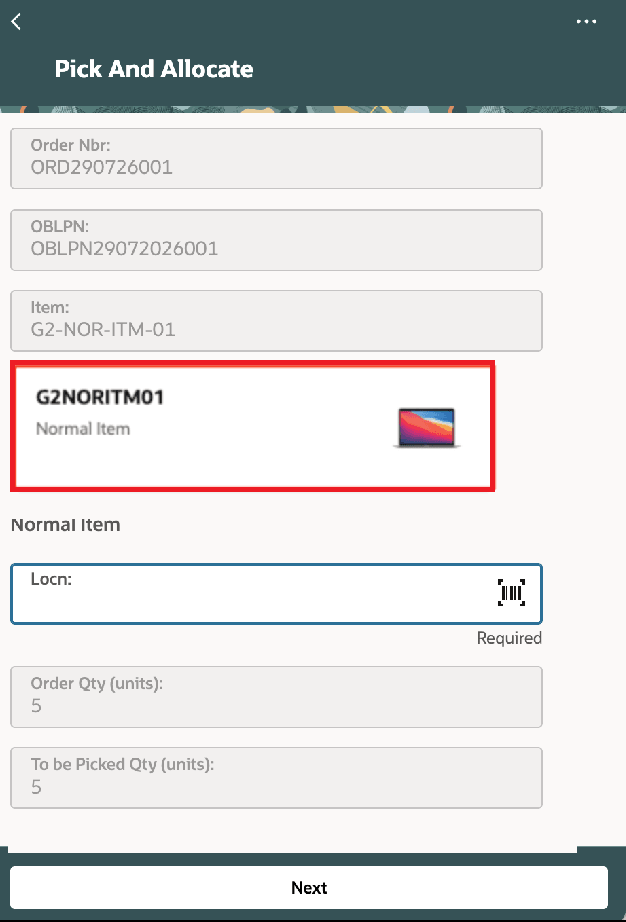
- The item image is displayed after the item is scanned, providing an additional visual reference during picking.
If the user scans Batch B3002, two eligible inventory records remain. WMS can then prompt for the next conflicting Inventory Attribute—for example, Attribute A. Entering INDIA identifies the inventory record with quantity 3. If another conflict remains, WMS requests only the next value needed to uniquely identify the inventory.
NOTE: Pick and Allocate also validates prompted values against the selected inventory. If the scanned Batch, Expiry Date, or Inventory Attribute isn't present in the inventory being picked, WMS displays an appropriate inventory-not-present error. When an order specifies a required Batch or Attribute value, WMS validates the selected inventory against that requirement and returns an Inventory Mismatch error when the values don't match.
Improve picking accuracy with visual item identification in Pick & Allocate
Pick and Allocate also now provides an item image as a visual reference during picking. After the item is scanned, the item image section is displayed below the Item Code field when an image is available.
Steps to enable and configure
- Navigate to Screens and open the screen configured for Pick and Allocate.
- Ensure pick-and-allocate-mode is set to User Directed.
- Configure the new prompt-batch-expiry-attr parameter:
- Blank – Retains existing behavior.
- Always Prompt – Always prompts for applicable Batch, Expiry, and Inventory Attributes.
- Prompt for Conflicting Values – Prompts only when conflicting inventory values need to be resolved.
- Save the screen configuration.
NOTE: Existing configurations default to Blank. No additional configuration is required for displaying item images in Pick & Allocate.
To view the item image during Pick and Allocate:
- From the WMS Mobile application, navigate to the Pick and Allocate transaction.
- Scan or enter the Order Number/Outbound LPN to begin the picking flow.
- Proceed to the item-picking screen.
- Scan the Item Code/Item Barcode for the inventory being picked.
- After the item is identified, WMS displays the item image section below the Item Code field.
- Use the displayed image as an additional visual reference to verify the item before continuing with the normal Pick & Allocate process.